
Monitoring is the part of cold email operations that gets treated as optional until something breaks badly enough to demand attention. A 6-person lead gen agency running 40 active client campaigns tracked delivery rate as their primary health metric — not bounce rate, not spam rate, not domain reputation. Delivery rate sat at 98% while two client campaigns quietly died in Junk folders for three weeks. Delivery means the email left your server. It tells you almost nothing about where it landed. The agencies and operators that scale reliably are the ones who monitor the right metrics, with the right tools, on a consistent daily and weekly schedule. By the end of this, you'll have both.
💡 TL;DR
Cold email inbox monitoring comes down to four daily metrics — bounce rate (flag over 2%), spam rate (flag over 0.08%), domain reputation in Google Postmaster Tools, and per-inbox reply rate trend. Your sending tool handles some of this, but not all. Pair it with Google Postmaster Tools, GlockApps for placement testing, and MXToolbox for authentication checks. Pre-warmed inboxes like Litemail's with 94–96% inbox placement from day one give you a healthier baseline to monitor against — which makes it faster to spot when something is going wrong.
The Four Metrics That Actually Tell You What's Happening
Most cold email dashboards show you 12 metrics. Most of them are noise. The four that tell you the real story of your inbox health are bounce rate, spam rate, domain reputation, and reply rate trend. Everything else is downstream of these four.
Metric | Healthy Range | Warning Threshold | Critical — Act Now | Where to Check |
|---|---|---|---|---|
Hard bounce rate | Under 2% | 2–3% | Over 3% | Sending tool |
Spam rate | Under 0.05% | 0.05–0.08% | Over 0.08% | Postmaster Tools |
Domain reputation | High | Medium | Low | Postmaster Tools |
Reply rate (weekly) | Stable or rising | 10–20% drop WoW | 30%+ drop WoW | Sending tool |
Open rate | 40–60% (warm lists) | 20–40% | Under 20% | Sending tool |
The spam rate threshold of 0.08% is Google's published limit before they start applying harsher filters. But don't wait until 0.08% to act. If you hit 0.05%, investigate immediately. The recovery curve gets steeper the longer you let it run above the safe zone.
And stop tracking delivery rate as a primary metric. It measures SMTP success, not inbox placement. An email can show 100% delivery and 0% inbox placement simultaneously if it's all going to Spam.
The Tool Stack for Cold Email Inbox Monitoring in 2026
No single tool covers everything. The monitoring stack you need combines your sending tool's native analytics with a few specialised platforms for the signals it can't surface. Here's what each tool is actually good for.
📊
Google Postmaster Tools — domain reputation and spam rate
Free, authoritative, and directly connected to Gmail's filtering decisions. Shows your domain reputation (high/medium/low/bad), spam rate over time, and delivery errors. Non-negotiable if your lists contain Gmail addresses. Set it up for every sending domain — not just your primary one. Check it every Monday morning at minimum.
🔍
Microsoft SNDS — Outlook and Hotmail sender reputation
The Outlook equivalent of Postmaster Tools, available at postmaster.live.com. Shows your sending IP's status as green, yellow, or red. B2B lists are often 40–60% Microsoft 365 / Outlook — if you're only monitoring Gmail reputation, you're flying blind on almost half your list. Register your IPs and check weekly.
📬
GlockApps — inbox placement testing by provider
Sends a test email to a panel of seed addresses across Gmail, Outlook, Yahoo, and others, then reports back where it landed — inbox, spam, or promotions. Run a GlockApps test before every new campaign launch and once per week on long-running campaigns. Plans start around $9/month for the volume a typical agency or operator needs.
🛠️
MXToolbox — authentication and DNS health
Free tool for checking SPF, DKIM, DMARC, and blacklist status on any domain. Use it when you set up a new sending domain and whenever you suspect an authentication issue. The blacklist check alone is worth bookmarking — it covers over 100 blocklists and returns results in under a minute.
🔔
Your sending tool's native alerts — Instantly, Smartlead, etc.
Configure automated alerts within your sending tool for bounce rate (over 2%) and spam complaints (over 0.08%). Most tools support Slack or email notifications — use Slack if you're checking it all day anyway. These real-time alerts are what bridge the gap between your weekly review sessions and problems that emerge mid-week.
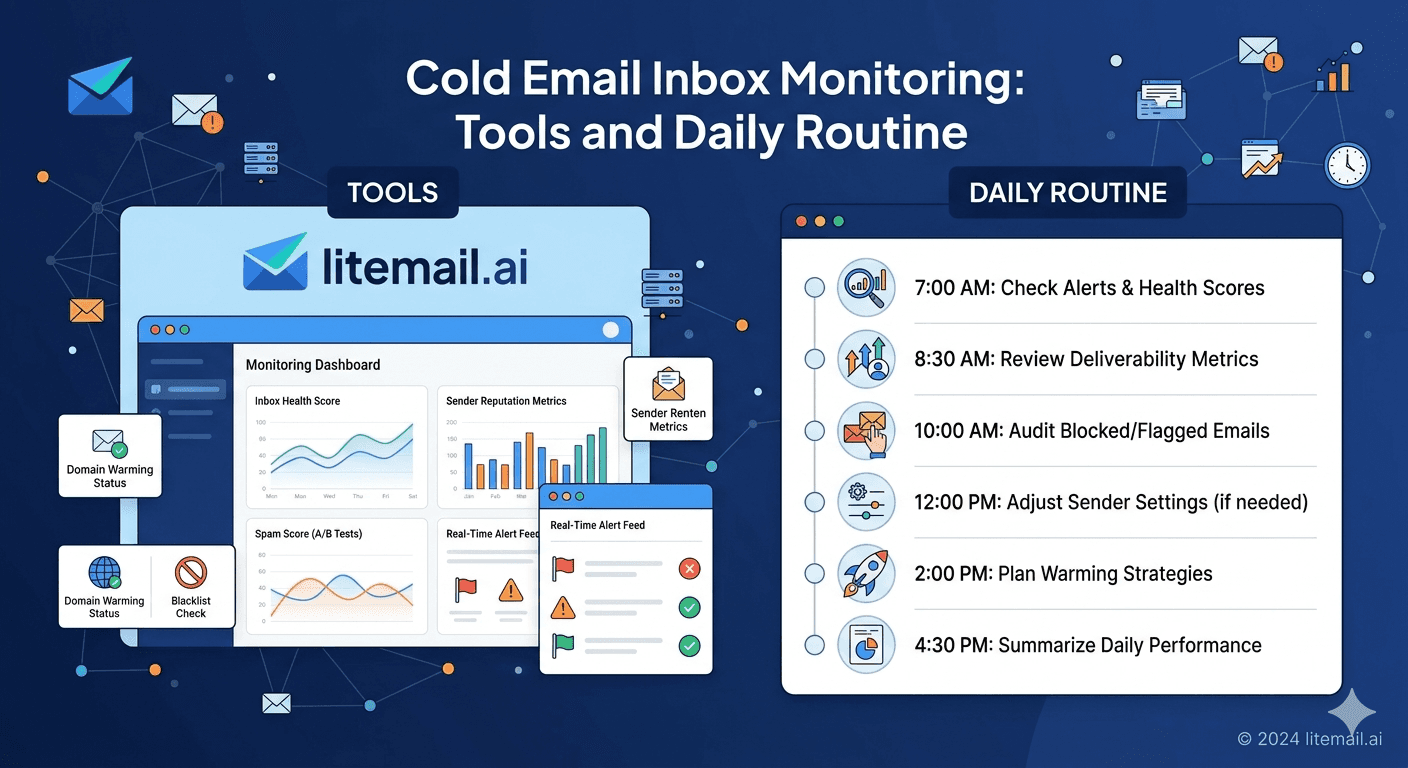
The Daily Monitoring Routine: What Takes 15 Minutes
Fifteen minutes per day is enough to keep cold email inbox health stable across 10 to 20 active campaigns — if you run the right routine. Not 15 minutes of random inbox checking. Fifteen minutes on the specific checks that surface actionable issues.
☀️
Morning check (5 minutes) — alerts and bounce scan
Check any automated alerts that fired overnight. Open your sending tool and scan the previous day's bounce rates per inbox — flag anything over 2%. If you're using Slack alerts, this is a 60-second review. If not, it's a 5-minute dashboard scan. Address any flagged inbox before sending more emails from it that day.
🔎
Midday check (5 minutes) — reply quality scan
Check your reply inbox for any out-of-office bounces, spam complaint replies, or "please remove me" responses. Handle unsubscribes immediately — not in a batch at end of week. A contact who asked to be removed and receives another email from you two days later is a guaranteed spam complaint.
🌅
End-of-day check (5 minutes) — send volume confirmation
Confirm that no inbox exceeded its daily send cap during the day. Sending tools sometimes have scheduling errors that stack sends. A quick end-of-day volume check catches a 200-email day that should have been 50 before the reputation damage accumulates overnight.
The Weekly Review: 30 Minutes That Prevent 3-Week Recoveries
Daily checks catch fires. Weekly reviews prevent them. The weekly review looks at trend data that doesn't show up in single-day snapshots — and trend data is where the real early warning signals live.
Review Item | Tool | Time | Action if Flagged |
|---|---|---|---|
Domain reputation (all domains) | Google Postmaster | 5 min | Reduce volume, investigate list |
IP status (all sending IPs) | Microsoft SNDS | 5 min | Submit delisting if red |
Inbox placement test | GlockApps | 10 min | Pause affected domains |
Bounce rate trend (4-week) | Sending tool | 5 min | Re-verify list |
Reply rate trend (4-week) | Sending tool | 5 min | Investigate placement + copy |
The placement test is the one most people skip in the weekly review. Opening GlockApps and running a test email takes 10 minutes and tells you exactly where your emails are landing across providers. Without it, you're guessing at placement based on open rates — which is unreliable because many recipients have tracking pixels disabled.
Setting Up Alerts That Actually Wake You Up
Manual monitoring is a safety net for when alerts fail. Alerts are the primary system. Here's how to configure them properly in the three most common sending tools.
💡 Alert configuration by tool
In Instantly: go to Settings → Notifications → set bounce rate alert at 2%, spam rate alert at 0.08%, and daily send cap violation alert. In Smartlead: Campaign Settings → Alerts → configure the same thresholds. Route all alerts to Slack if your team uses it. If not, use a dedicated monitoring email address that someone checks daily — not your main inbox where it'll get buried.
The alert that most setups miss: a reply rate drop alert. Most tools don't offer this natively, but you can approximate it with a weekly report comparison. If this week's reply rate is more than 25% lower than the 4-week average, something changed. Could be copy, could be placement, could be list quality. The alert just tells you to investigate — it doesn't tell you which.
And here's the thing — don't set alerts so sensitive they fire constantly. If you set bounce rate alert at 0.5%, you'll get daily noise that trains you to ignore the notifications. Set thresholds that mean something is actually wrong, not thresholds that make you feel thorough.
What Monitoring Won't Fix — and What Will
Monitoring tells you a problem exists. It doesn't fix it. Here's where operators get stuck: they catch the warning signal, acknowledge it, and then continue sending without addressing the root cause because the fix feels overwhelming.
Three root causes are behind 80% of inbox health problems. Each one has a specific fix that isn't complicated — but it requires actually stopping sends until the fix is implemented.
🔧
Root cause 1 — Stale or unverified list
Fix: pause the campaign, run the list through ZeroBounce or NeverBounce, remove invalid addresses, resume with the cleaned list. Don't add more contacts to a list that's producing 3%+ bounces before cleaning the existing one.
🔧
Root cause 2 — Over-sending from under-provisioned inboxes
Fix: reduce daily sends per inbox to 50 maximum, provision additional inboxes if you need higher total volume. Pre-warmed inboxes with US and EU dedicated IPs can be added and ready to send within 48 hours — you don't need to wait weeks to fix an over-sending problem.
🔧
Root cause 3 — Misaligned authentication
Fix: run MXToolbox on the affected domain, identify the specific record failure, update the DNS record, allow 24–48 hours for propagation, and re-test. This fix takes under an hour once you know what you're looking for. The delay is almost always DNS propagation time, not the fix itself.
The Bottom Line
Track four primary metrics: bounce rate (flag over 2%), spam rate (flag over 0.08%), domain reputation in Postmaster Tools, and 4-week reply rate trend.
Stop treating delivery rate as a health metric — it measures SMTP success, not inbox placement. An email can be "delivered" and still go straight to Spam.
Use Google Postmaster Tools for Gmail reputation, Microsoft SNDS for Outlook reputation, GlockApps for cross-provider placement testing, and MXToolbox for authentication checks.
A 15-minute daily routine (morning bounce scan, midday reply check, end-of-day volume confirmation) keeps active campaigns stable without full-time monitoring.
Run a full 30-minute weekly review every Monday covering domain reputation, IP status, placement test, and trend data for bounce and reply rates.
Set alerts at meaningful thresholds — bounce rate at 2%, spam rate at 0.08%. Alerts set too sensitive train you to ignore them.
Pre-warmed inboxes with 94–96% inbox placement give you a healthier baseline, which makes anomalies easier to spot and faster to investigate.
Frequently Asked Questions
What's the most important cold email inbox monitoring metric?
Domain reputation in Google Postmaster Tools is the single most important metric because it directly reflects Gmail's filtering intent for your domain. A domain reputation of "medium" or "low" means a significant portion of your emails are being filtered to Spam — regardless of how clean your list or how good your copy is. Check it weekly at minimum.
How often should I monitor cold email inbox health?
Daily for active campaigns — a 15-minute routine covering bounce alerts, reply check, and volume confirmation. Weekly for trend analysis — a 30-minute review covering Postmaster Tools, SNDS, placement testing, and 4-week metric trends. The daily routine catches fires. The weekly review prevents them.
What tool checks cold email inbox placement across providers?
GlockApps is the most reliable option for multi-provider inbox placement testing. It sends to a panel of seed inboxes at Gmail, Outlook, Yahoo, and others, then reports back exact placement — inbox, spam, or promotions tab. Run it before every new campaign launch and once per week on campaigns that have been running longer than 30 days.
What should I do when Google Postmaster shows domain reputation has dropped?
Reduce daily send volume from the affected domain immediately — drop to 20–30 emails per day. Shift active sequences to backup domains. Check for list quality issues and re-verify your contacts. Run a GlockApps test to confirm you're in Spam. Then gradually ramp volume back up over 2 weeks once reputation returns to "high".
Is delivery rate a useful cold email monitoring metric?
No — and this is one of the most common monitoring mistakes. Delivery rate measures whether the email left your server and was accepted by the receiving server. It says nothing about inbox placement. An email can show 99% delivery rate while 50% of it is landing in Spam. Use inbox placement tests from GlockApps instead of relying on delivery rate for health assessment.
How do I set up cold email alerts in Instantly or Smartlead?
In Instantly: go to Settings, then Notifications, and set bounce rate at 2%, spam rate at 0.08%, and enable daily cap violation alerts. In Smartlead: use Campaign Settings, then Alerts, for the same configuration. Route notifications to Slack rather than email if your team uses Slack actively — Slack alerts get seen faster and are easier to action on the same day.
What's the difference between monitoring spam rate and domain reputation?
Spam rate is the percentage of your emails that recipients mark as spam — you track this in Postmaster Tools. Domain reputation is Google's overall assessment of your sending domain based on spam rate, engagement, and historical patterns. Spam rate is a leading indicator; domain reputation is a lagging one. Watch spam rate daily to catch problems early before domain reputation degrades.






