
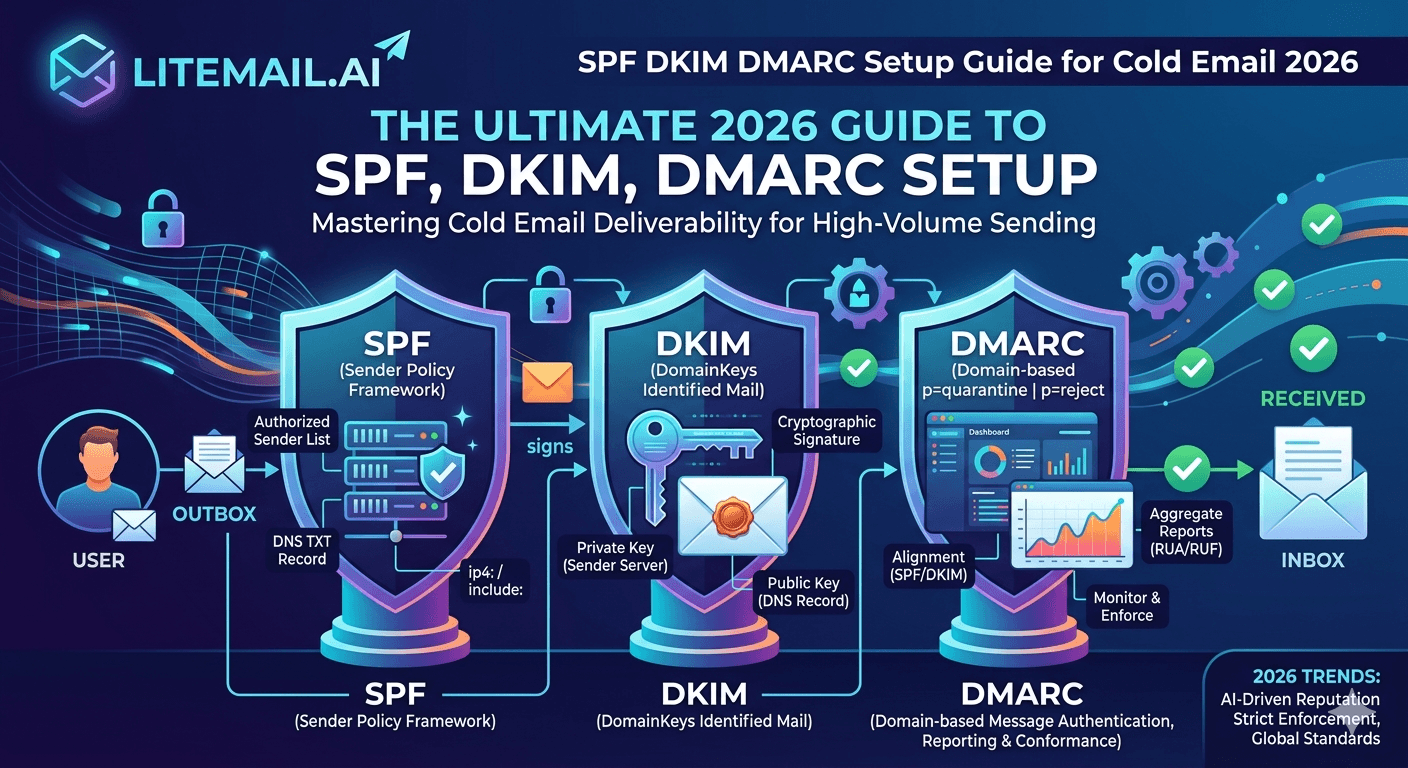
One broken DNS record kills cold email deliverability regardless of inbox reputation, list quality, or copy. SPF, DKIM, and DMARC — the three authentication records every cold email domain needs — are configured once and then largely forgotten. Getting them right the first time is the single most important infrastructure task in cold email setup.
What SPF, DKIM, and DMARC Actually Do
These three records work together as a layered authentication system. Understanding what each does makes troubleshooting faster and prevents the misconfiguration mistakes that silently tank deliverability.
Record | What It Does | What Happens Without It |
|---|---|---|
SPF | Specifies which mail servers are authorised to send email from your domain | Receiving servers can't verify your domain is the legitimate sender — spam folder risk increases |
DKIM | Adds a cryptographic signature to outgoing emails that receiving servers verify against a public key in your DNS | Emails arrive unsigned — major red flag for spam filters. Gmail specifically treats unsigned email with increased suspicion |
DMARC | Tells receiving servers what to do when SPF or DKIM fails, and where to send authentication failure reports | No enforcement of authentication failures — domain spoofing protection is incomplete. Also required by Google for senders sending 5,000+ emails per day to Gmail |
💡 All Three Must Pass — Not Just One
A common mistake is configuring SPF correctly and assuming deliverability is covered. DKIM and DMARC must also pass. In 2026, receiving mail servers check all three before assigning a trust score to incoming email. Two passing and one failing is almost as bad as all three failing for cold email deliverability purposes.
SPF Record Setup for Cold Email (Exact Format)
SPF is a TXT record published in your domain's DNS. The format differs slightly between Google Workspace and Microsoft 365.
For Google Workspace (GWS):
v=spf1 include:_spf.google.com -all
For Microsoft 365:
v=spf1 include:spf.protection.outlook.com -all
If Sending From Both GWS and MS365 on the Same Domain:
v=spf1 include:_spf.google.com include:spf.protection.outlook.com -all
Critical details:
Use
-all(hard fail) not~all(soft fail). Hard fail tells receiving servers to reject email that doesn't match your SPF record. Soft fail suggests treating it with suspicion but doesn't enforce rejection. Cold email deliverability is better with hard fail.Only one SPF TXT record per domain. If you already have an SPF record and need to add a new include, edit the existing record — don't add a second one. Multiple SPF records cause SPF failures.
The 10 DNS lookup limit: each include counts as at least one lookup. Stick to the minimum necessary includes for your actual sending setup.
✅ Verify SPF in 60 Seconds
Go to mxtoolbox.com/spf. Enter your sending domain. The result should show "SPF Record Found" and "SPF PASS" for your sending server. If it shows NEUTRAL or FAIL, your SPF record is misconfigured or your sending server isn't included in the record.
DKIM Setup: Google Workspace vs Microsoft 365
DKIM setup differs between the two platforms. This is where most setup errors occur — particularly on Microsoft 365, which requires two separate steps that must both complete.
DKIM Setup for Google Workspace
Go to Google Admin console → Apps → Google Workspace → Gmail → Authenticate Email.
Click "Generate New Record" for your sending domain. Choose 2048-bit key length.
Google shows you a CNAME or TXT record (TXT format:
google._domainkey.[yourdomain] IN TXT "v=DKIM1; k=rsa; p=[public key]"). Copy this exactly.Add the record to your domain's DNS as a TXT record. The host field is typically
google._domainkey.Wait 24–48 hours for DNS propagation.
Return to Google Admin → Authenticate Email and click "Start Authentication". Status changes to "Authenticating".
DKIM Setup for Microsoft 365
Go to Microsoft 365 Defender → Email and Collaboration → Policies and Rules → Threat Policies → Email Authentication Settings → DKIM.
Select your domain and click "Create DKIM keys".
Microsoft shows two CNAME records (selector1._domainkey and selector2._domainkey). Add both to your DNS as CNAME records.
Wait 24–48 hours for DNS propagation.
Return to Microsoft 365 Defender → DKIM, select your domain, and toggle "Enable" to On. If it fails, DNS hasn't propagated yet — wait 30 minutes and try again.
🚩 The MS365 DKIM Mistake That Kills Deliverability
Adding the CNAME records to DNS without activating DKIM in Microsoft 365 Defender is the most common setup error. The records exist in DNS but DKIM signing is not active. Emails go out unsigned. The error produces no warning — you just see DKIM failing in deliverability tests without an obvious reason. Always complete both steps: DNS records AND Defender activation.
DMARC Record Setup for Cold Email (Exact Format)
DMARC is a TXT record published at _dmarc.[yourdomain]. The policy (p=) value determines what receiving servers do when authentication fails.
Starting DMARC Record (New Domain):
v=DMARC1; p=none; rua=mailto:dmarc@[yourdomain]
Production DMARC Record (After 2 Weeks of Clean Reporting):
v=DMARC1; p=quarantine; sp=quarantine; rua=mailto:dmarc@[yourdomain]; ruf=mailto:dmarc@[yourdomain]
Full Enforcement (After 4 Weeks of Clean Reporting):
v=DMARC1; p=reject; sp=reject; rua=mailto:dmarc@[yourdomain]; ruf=mailto:dmarc@[yourdomain]
Parameter explanations:
p=: Policy for the root domain. none = monitor only. quarantine = send to spam. reject = block entirely.sp=: Policy for subdomains. Set to match your root domain policy.rua=: Email address for aggregate reports (daily summaries of authentication results).ruf=: Email address for forensic reports (individual failure reports).
Start at p=none for the first 2 weeks. This lets you monitor authentication results without risking legitimate email being rejected due to misconfiguration. Move to p=quarantine after reviewing 2 weeks of clean reports.
How to Verify All Three Records Are Working
Run these three checks in order. A few minutes now prevents weeks of deliverability problems later.
🔍Check 1: MXToolbox Full Deliverability Test
Go to mxtoolbox.com → MX Lookup / Deliverability Test. Enter your domain. All five items should show green: MX, SPF, DKIM, DMARC, and blacklist check. Any red item = fix before sending campaigns.
🔍Check 2: Mail-Tester.com Score
Send a plain-text test email from your new inbox to the address at mail-tester.com. Check your score. 9/10 or 10/10 confirms all authentication records are correctly configured. The report shows which specific record is causing any score below 9 — fix that item first.
🔍Check 3: Send to a Gmail Address and Check Headers
Send a test email from your inbox to a Gmail address you control. In Gmail, open the email, click the three-dot menu → Show Original. You should see: SPF: PASS, DKIM: PASS, DMARC: PASS. Any FAIL or SOFTFAIL means that authentication record isn't working — troubleshoot before running campaigns.
Get SPF, DKIM, DMARC Pre-Configured — Pre-Warmed Inboxes from Litemail
Every Litemail inbox ships with SPF, DKIM, and DMARC pre-configured and verified. No manual DNS setup. No misconfiguration risk. $4.99/inbox. Campaign-ready in 24 hours.
Get Pre-Warmed Inboxes from $4.99 →
All three DNS records pre-configured · Dedicated US and EU IPs · Full admin access · No minimum order
About Litemail — Litemail provides pre-warmed Google Workspace and Microsoft 365 inboxes for cold email outreach. From $4.99/inbox with automated DNS, dedicated US and EU IPs, and full admin access. View pre-warmed inbox plans →
Related reading:
SPF, DKIM, DMARC Auto-Setup for Pre-Warmed Inboxes 2026 · DMARC Not Working: Fix Guide 2026 · SPF Record Errors Troubleshooting · DKIM Key 1024 vs 2048 for Cold Email · SPF Record Exact Format 2026
Key Takeaways
All three records must pass — SPF, DKIM, and DMARC. Two passing and one failing produces nearly the same deliverability damage as all three failing.
SPF: one TXT record, use -all (hard fail) not ~all (soft fail), include only the servers you actually send from (Google: include:_spf.google.com, Microsoft: include:spf.protection.outlook.com).
DKIM for MS365 requires two steps: adding CNAME records to DNS and activating DKIM in Microsoft 365 Defender. Adding records without Defender activation leaves emails unsigned — no error message, just failing DKIM.
DMARC: start at p=none for 2 weeks to monitor authentication results, then move to p=quarantine. Add sp= to cover subdomains with the same policy.
Verify with three checks after setup: MXToolbox deliverability test (all green), mail-tester.com (9/10 or 10/10), and Gmail header check (SPF PASS, DKIM PASS, DMARC PASS).
Litemail pre-warmed inboxes ship with all three records pre-configured and verified — eliminating manual DNS setup for every inbox in your portfolio at $4.99/inbox.
Frequently Asked Questions
What is the correct SPF record format for Google Workspace cold email?
v=spf1 include:_spf.google.com -all. This single TXT record authorises Google's mail servers to send email from your domain. Use -all (hard fail) not ~all (soft fail). Only one SPF TXT record per domain is allowed — if you need to add Microsoft 365 too, combine them: v=spf1 include:_spf.google.com include:spf.protection.outlook.com -all.
Why isn't my DKIM working on Microsoft 365?
The most common cause: you added the CNAME records to DNS but didn't activate DKIM in Microsoft 365 Defender. Both steps are required. Go to security.microsoft.com → Email and Collaboration → Policies and Rules → Threat Policies → Email Authentication Settings → DKIM. Find your domain and toggle Enable to On. If it shows an error, DNS hasn't propagated yet — wait 30–60 minutes and try again.
What should my DMARC policy be set to for cold email?
Start at p=none for the first 2 weeks on a new domain — this lets you collect authentication data without risking legitimate email rejection. After 2 weeks of clean DMARC reports, move to p=quarantine. After 2 more weeks of clean reports, you can move to p=reject. For cold email domains, p=quarantine is typically the right long-term setting — it enforces authentication without completely blocking edge cases.
Can I have two SPF records on the same domain?
No. Having two SPF TXT records on the same domain causes SPF failures — receiving servers interpret multiple SPF records as an error. If you need to send from multiple providers, combine them into a single SPF record: v=spf1 include:[provider1] include:[provider2] -all. Edit the existing record — don't add a second one.
How do I check if my SPF, DKIM, and DMARC are correctly configured?
Three checks: Run mxtoolbox.com/deliverability on your domain (all items should show green). Send a test email to mail-tester.com and check for 9/10 or 10/10 score. Send a test to a Gmail address and check the message headers (three-dot menu → Show Original) — you should see SPF: PASS, DKIM: PASS, DMARC: PASS in the authentication results section.
Do Litemail pre-warmed inboxes come with SPF, DKIM, and DMARC already set up?
Yes. Every Litemail inbox — both Google Workspace and Microsoft 365 — ships with SPF, DKIM, and DMARC pre-configured and verified before delivery. DKIM is activated (not just published in DNS), DMARC is set to an appropriate enforcement policy, and SPF includes the correct provider entries. Verify on mxtoolbox.com after delivery — you should see all green without needing to configure anything manually.
SPF, DKIM, DMARC for Cold Email | Litemail Pre-Configured Inboxes
All three DNS records set up before delivery. No manual configuration. From $4.99/inbox. Verified on mxtoolbox.com before you receive the inbox.
View Plans & Pricing →
Related reading:
SPF, DKIM, DMARC Auto-Setup 2026 · DMARC Not Working Fix Guide · SPF Record Errors · DKIM 1024 vs 2048 · SPF Exact Format 2026






