
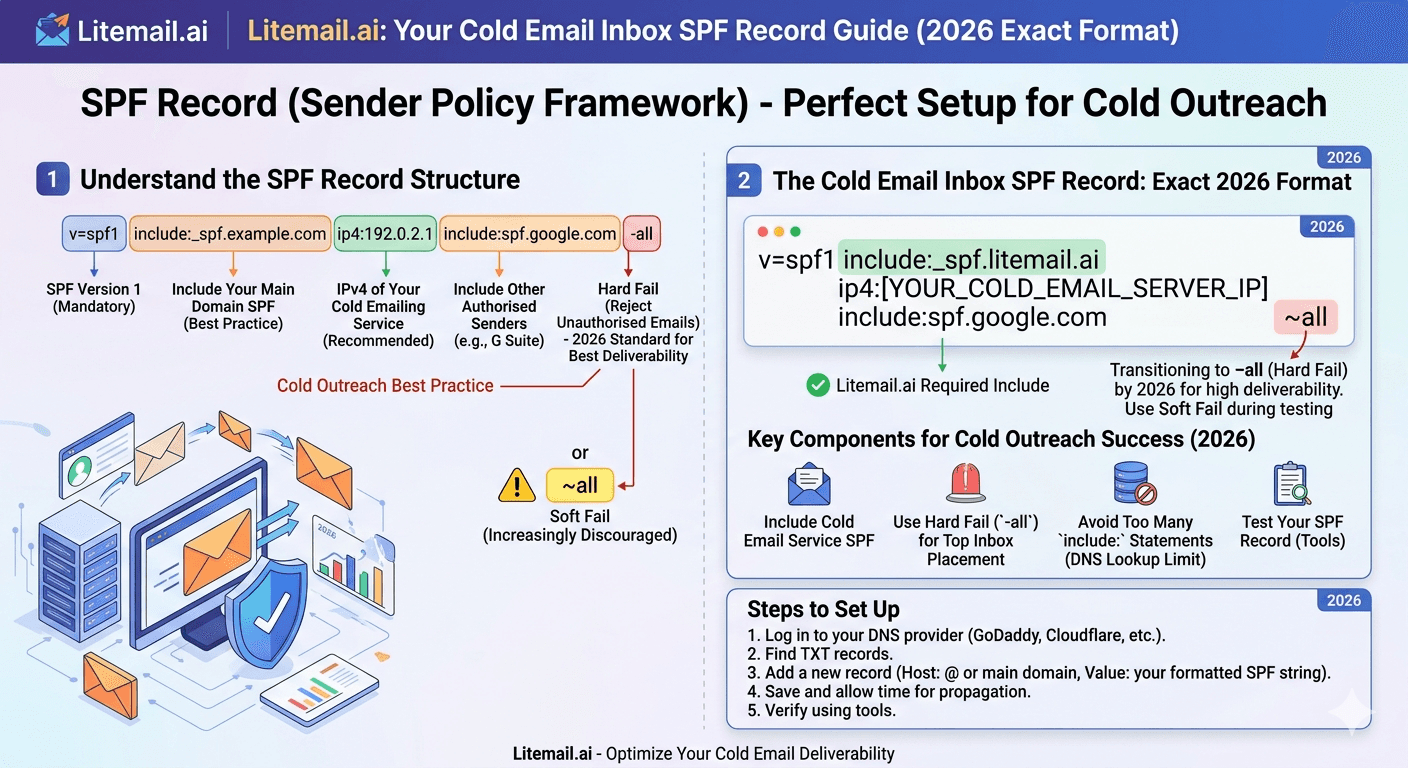
Copying an SPF record format from an outdated blog post is one of the most common causes of cold email deliverability failures that take teams weeks to diagnose. The record looks right. The tool says it is set up. But authentication is failing silently — and emails are landing in spam while the team rewrites copy looking for the problem. This is the exact SPF record format for cold email in 2026, by platform, with the errors that most often cause failures.
💡 TL;DR
Google Workspace SPF: v=spf1 include:_spf.google.com ~all. Microsoft 365 SPF: v=spf1 include:spf.protection.outlook.com ~all. Only one SPF record per domain — multiple records cancel each other. Add at the root domain (@) as a TXT record. Use ~all (soft fail) initially, switch to -all (hard fail) after 30 days of clean sending. Verify at MXToolbox before launching any campaign — a 10-minute check that prevents weeks of diagnosing phantom deliverability problems. Litemail pre-configures SPF on every inbox at $4.99/inbox/month, eliminating per-domain manual setup and DNS propagation delays entirely.
Exact SPF Record Formats by Platform — Copy These
These are the current correct SPF records for each major email platform used in cold email outreach. Use these exactly as written. Do not modify the include: domains — they are maintained by the platform providers and point to their current outbound IP ranges.
Platform | Exact SPF Record | DNS Record Type | Add At |
|---|---|---|---|
Google Workspace | v=spf1 include:_spf.google.com ~all | TXT | @ (root domain) |
Microsoft 365 | v=spf1 include:spf.protection.outlook.com ~all | TXT | @ (root domain) |
Both GWS + M365 | v=spf1 include:_spf.google.com include:spf.protection.outlook.com ~all | TXT | @ (root domain) |
GWS + Instantly (SMTP) | v=spf1 include:_spf.google.com include:sendgrid.net ~all | TXT | @ (root domain) |
The combined GWS + M365 record is for teams that use both platforms across different client inboxes on the same sending domain. This is less common — usually you would have separate sending domains per platform. But if you are running both on one domain, this is the correct single-record format.
~all vs -all: When to Use Which in Cold Email SPF Records
The all mechanism at the end of an SPF record defines what receiving servers should do when the sending IP is not listed in the record. This decision matters more than most cold email guides acknowledge.
📋
~all (tilde-all) — Soft Fail
Use during initial setup and the first 30 days of any new sending domain. Soft fail marks emails from unauthorised IPs as suspicious — they are typically delivered but may be sorted to spam. This gives you visibility into any legitimate sending sources you may have missed without risk of hard-rejecting valid email. Check DMARC aggregate reports during this period to confirm all sending sources are captured in the record.
📋
-all (minus-all) — Hard Fail
Switch to hard fail after 30 days of clean authentication data and confirmed that all legitimate sending sources are included. Hard fail instructs receiving servers to reject emails from unauthorised IPs outright — providing the strongest protection against domain spoofing. For cold email sending domains (not your primary business domain), moving to -all is the right policy once the configuration is stable.
📋
?all (question mark-all) — Neutral
Do not use for cold email sending domains. Neutral means no policy — receiving servers make their own determination. It provides no spoofing protection and no filtering guidance. If you see a ?all in an existing SPF record, it was set by someone who did not understand what they were doing. Replace it with ~all immediately, move to -all after 30 days.
5 SPF Record Errors That Break Cold Email Deliverability
These are the specific errors that show up most in cold email deliverability audits — each one with a concrete symptom and a concrete fix.
Error | Symptom | Fix |
|---|---|---|
Two SPF TXT records on same domain | Unpredictable authentication — spf=fail on some sends, spf=pass on others | Delete one; merge both include: entries into the remaining record |
Over 10 DNS lookups in the record | SPF returns PermerError; treated as authentication failure | Use SPF flattening tool; consolidate include: entries |
Missing v=spf1 prefix | Record not recognised as SPF; authentication fails | Ensure record starts exactly with v=spf1 followed by a space |
Record at subdomain instead of root (@) | SPF passes for subdomain sends; fails for root domain sends | Add or move record to @ — root domain |
Outdated include: domain for a legacy tool | Authentication fails for sends from that tool | Check current SPF include: domain in the tool's documentation; update record |
The double SPF record error is the most common and the hardest to spot manually — because both records look correct individually. MXToolbox's SPF Lookup tool catches it automatically. Run this check before and after any DNS change to a sending domain.
How to Verify Your SPF Record Is Correct — The 3-Step Process
Setting up the record is not enough. Verifying it is passing is a separate step — and one that most teams skip until something goes wrong. Here is the verification process that takes 10 minutes and confirms every aspect of SPF setup is correct.
MXToolbox SPF Lookup (mxtoolbox.com/spf.aspx): Enter your sending domain. The tool confirms whether one valid SPF record exists, whether it resolves without errors, and how many DNS lookups it uses. A green result with lookup count under 10 means the record structure is correct. Any red result needs fixing before sending.
Send a test email to a Gmail address: From the inbox that will be used for cold email, send a test email to any Gmail account you control. Open the email in Gmail. Click the three dots in the top right of the message. Select "Show original." In the Authentication-Results header, find spf=pass. If it says spf=fail or spf=softfail, the record is not passing for that specific sending inbox.
Check DMARC alignment: In the same Gmail original message headers, find dmarc=pass. For DMARC to pass, SPF or DKIM (or both) must be aligned with the From domain. If DMARC is failing while SPF is passing, the alignment domain does not match the From address domain — adjust the SPF record's include: domain or check that your sending tool is using the correct From address format.
[INTERNAL LINK: DKIM setup guide → /blog/dkim-setup-cold-email]
SPF When Using Multiple Sending Services on One Domain
Teams often add a cold email sending tool (Instantly, Smartlead) alongside their Google Workspace or M365 sending on the same domain. Each additional service requires its own include: entry — but all entries must be in a single SPF record, and the total DNS lookup count must stay under 10.
Here is how to build the combined record correctly:
🔧
Step 1: Identify all services sending from the domain
List every service that sends email using the sending domain as the From address or Return-Path. Common entries: Google Workspace, Microsoft 365, Instantly (SendGrid), Smartlead, HubSpot, Salesforce. Check each tool's documentation for their current SPF include: domain — these change when providers update their IP ranges.
🔧
Step 2: Build the combined record
Format: v=spf1 include:[service1] include:[service2] include:[service3] ~all. Example for Google Workspace + Instantly: v=spf1 include:_spf.google.com include:sendgrid.net ~all. Keep include: entries in one line — no line breaks. Add the record as a TXT record at the root domain (@) in your DNS registrar panel.
🔧
Step 3: Check the lookup count
Run the completed record through kitterman.com/spf/validate.html. Confirm the lookup count is under 10. Google Workspace alone uses 4 lookups. Microsoft 365 uses 3. Add more services and the count climbs fast. If the count exceeds 10, use AutoSPF or Dmarcian's SPF flattener to consolidate the record below the limit.
SPF Alone Is Not Enough — And Why That Matters for Cold Email
Setting up a correct SPF record is necessary. It is not sufficient. Cold email teams that configure SPF and consider authentication "done" are missing the two records that complete the authentication stack.
DKIM adds a cryptographic signature to each outgoing message. Without it, receiving servers cannot confirm the email content was not modified in transit — which triggers spam routing on many systems. DMARC adds the policy layer: what should receiving servers do when SPF or DKIM fails? Without DMARC, the answer is "whatever they feel like." With DMARC at p=reject, the answer is "reject it and report back to me."
As of Google and Microsoft's 2024 bulk sender requirements, DMARC is required for all bulk senders. Missing DMARC — even with correct SPF and DKIM — routes a percentage of email to spam automatically. All three records need to show pass in the Gmail original message headers before any cold email campaign launches.
The Bottom Line
Google Workspace SPF: v=spf1 include:_spf.google.com ~all. Microsoft 365 SPF: v=spf1 include:spf.protection.outlook.com ~all. Add as TXT record at root domain (@). One record per domain only.
Start with ~all (soft fail). Move to -all (hard fail) after 30 days of clean authentication data. Never use ?all on a cold email sending domain.
Multiple SPF records on one domain cancel each other out. Always check for an existing record before adding a new one — merge entries into the existing record rather than creating a new one.
Keep DNS lookup count under 10 in the SPF record. Over 10 returns PermerError — which most servers treat as authentication failure. Use SPF flattening tools when adding multiple services.
Verify using MXToolbox + Gmail test email headers before any campaign launch. spf=pass must appear in Authentication-Results or the configuration needs fixing.
SPF alone is not enough. DKIM and DMARC must also be configured and passing. Google and Microsoft require DMARC for all bulk senders — missing it routes email to spam regardless of SPF status.
Frequently Asked Questions
What is the correct SPF record format for Google Workspace cold email?
v=spf1 include:_spf.google.com ~all. Add as a TXT record at the root domain (@) in your domain registrar's DNS panel. If you also send from other services (Microsoft 365, Instantly, HubSpot), add their include: entries in the same record before the ~all: v=spf1 include:_spf.google.com include:[other service] ~all. Only one SPF record per domain.
What is the correct SPF record for Microsoft 365 cold email?
v=spf1 include:spf.protection.outlook.com ~all. Add as a TXT record at the root domain (@). For combined Google Workspace and Microsoft 365 on the same sending domain: v=spf1 include:_spf.google.com include:spf.protection.outlook.com ~all. Verify at MXToolbox before sending.
What does ~all mean in an SPF record?
~all (soft fail) means emails from sending IPs not listed in the SPF record are marked as suspicious but typically still delivered. It is the correct starting setting for new sending domains — it flags unauthorised sends without hard-rejecting potentially legitimate email you may have missed. After 30 days of clean authentication, switch to -all (hard fail) which instructs servers to reject unauthorised sends outright.
Can I have two SPF records on one domain?
No — only one SPF TXT record per domain is valid. Multiple records produce PermError — an authentication failure that most receiving servers treat as a complete SPF failure. If you need multiple sending services, merge all their include: entries into one record: v=spf1 include:[service1] include:[service2] ~all. Check for an existing record before adding a new one.
How do I check if my SPF record is working for cold email?
Two steps: run MXToolbox SPF Lookup on your domain to confirm one valid record exists with no errors and under 10 DNS lookups; send a test email from your cold email inbox to Gmail and view the original message headers — look for spf=pass in Authentication-Results. Any spf=fail or spf=softfail in the headers means the record needs fixing before launching a campaign.
How many services can I add to one SPF record?
As many as needed — but keep the total DNS lookup count under 10. Each include: entry triggers one or more DNS lookups. Google Workspace uses approximately 4, Microsoft 365 uses 3. Adding more services increases the count. When it approaches 10, use SPF flattening tools like AutoSPF or Dmarcian to consolidate the lookups without exceeding the limit.






