
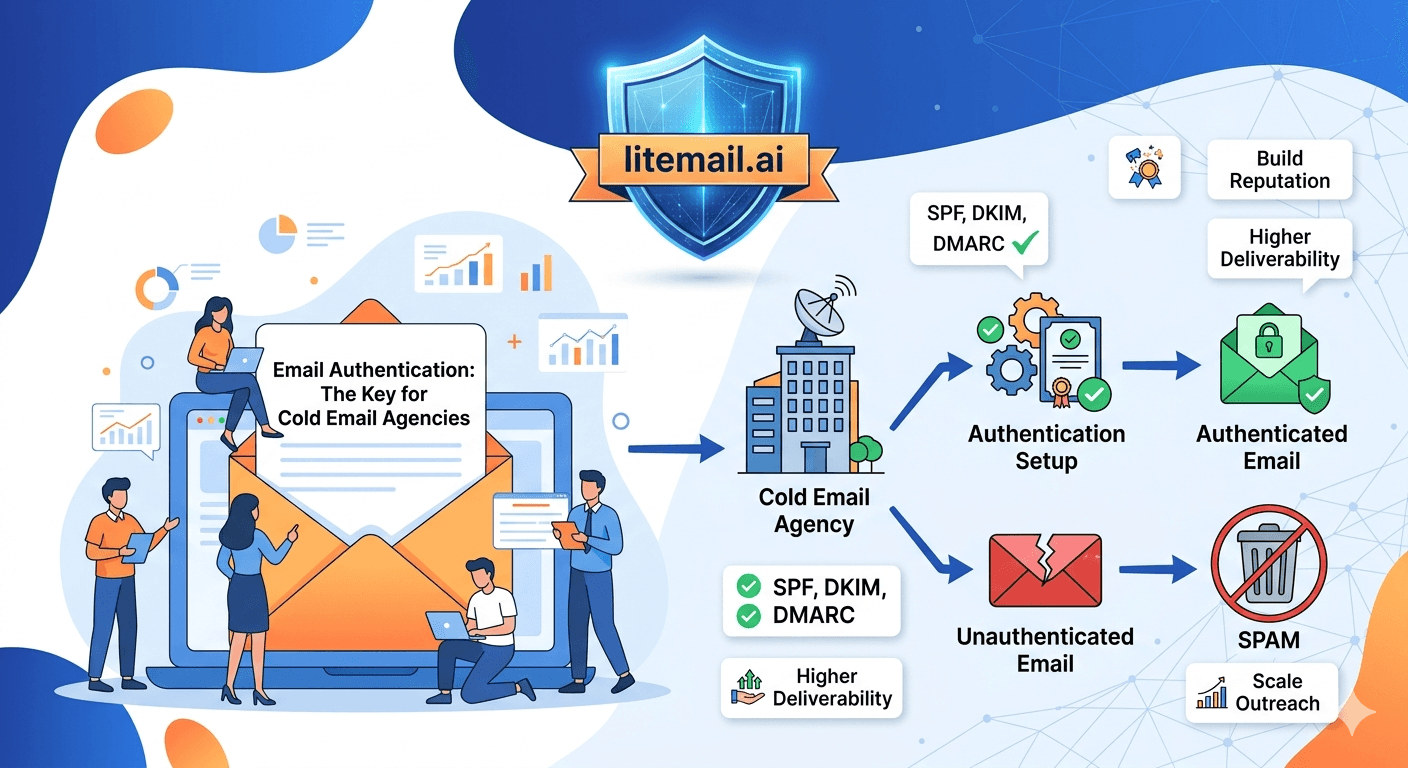
Managing email authentication for one domain takes 20 minutes. Managing it for 50 client domains — across different registrars, different workspace providers, and different sending tools — takes a system. Most cold email agencies do not build that system until something breaks. By then, three clients are in spam and they are spending their Friday diagnosing DNS records instead of growing the business.
💡 TL;DR
Email authentication for cold email agencies means SPF, DKIM, and DMARC configured correctly on every client sending domain — before the first email goes out. At agency scale (20+ clients, 3+ domains each), this is 60 to 150+ DNS configurations to manage and verify. Litemail pre-configures SPF, DKIM, and DMARC on every inbox at $4.99/inbox/month — eliminating the per-domain manual setup and DNS propagation wait entirely. For agencies managing their own DNS, a repeatable verification checklist and a centralized monitoring dashboard are not optional — they are the difference between a scalable operation and a permanent firefighting loop.
SPF, DKIM, DMARC — What Each One Does at Agency Scale
These three records work as a system. Missing any one of them costs inbox placement. Understanding what each does — not just how to configure it — tells you which one to fix first when something goes wrong.
Record | What It Does | What Breaks Without It | Setup Time Per Domain |
|---|---|---|---|
SPF | Authorises which IPs can send from the domain | 10–20% inbox placement loss; soft fail routing | 5 minutes + 24hr propagation |
DKIM | Cryptographically signs each outgoing message | Message integrity fails; spam routing | 10 minutes + 24–48hr propagation |
DMARC | Sets policy when SPF or DKIM fails; enables reporting | Required for Google/M365 bulk senders since 2024 | 5 minutes + 24hr propagation |
At agency scale, the propagation time is the slow variable. Three records per domain × 48-hour propagation window × 10 new client domains per month = 30 DNS configuration tasks per month with a 2-day stagger between setup and go-live. Build that into your onboarding timeline. Teams that do not account for propagation time launch clients on Day 2 and wonder why authentication is failing.
SPF Configuration at Agency Scale — The Mistakes That Multiply
SPF mistakes that are easy to miss on one domain become expensive at 50 domains. These are the three that show up most in agency deliverability audits.
❌
Multiple SPF records on the same domain
This is the most common agency SPF mistake. When a new workspace or sending tool is added for a client — and whoever adds it creates a new SPF record instead of updating the existing one — you end up with two TXT records on the same domain. DNS evaluates only one. The result is unpredictable authentication failures that look like a deliverability mystery. Fix: always check for an existing SPF record before adding one. If one exists, add the new include: entry to it.
❌
Exceeding 10 DNS lookups in a single SPF record
Each include: entry in an SPF record triggers a DNS lookup. The SPF standard caps total lookups at 10. Go over that and the record returns a PermerError — which most receiving servers treat as an authentication failure. Agencies managing clients with multiple tools (CRM, marketing automation, cold email tool) frequently hit this. Use SPF flattening tools like AutoSPF or Dmarcian to consolidate without exceeding the lookup limit.
❌
Using ~all instead of -all after 30 days
~all (soft fail) is the right starting point — it marks unauthorised senders as suspicious without hard-rejecting legitimate email. But leaving clients on ~all permanently means spoofing attempts on their domain are not blocked. Move to -all after 30 days of clean authentication data. Set a calendar reminder per client. This is an easy win that agencies routinely leave unfinished.
DKIM at Agency Scale — Per-Client Setup and the Rotation Schedule
DKIM requires generating a cryptographic key pair — a private key (stored by your email platform) and a public key (published in DNS). For agencies, this means a separate DKIM key per client domain per email platform. At 50 clients with 3 domains each on Google Workspace, that is 150 DKIM records to maintain.
The setup process in Google Workspace Admin Console: Apps → Google Workspace → Gmail → Authenticate Email → Generate new record. Copy the CNAME or TXT record and add it to the client's domain DNS. Allow 48 hours to propagate. Verify via MXToolbox DKIM lookup before launching any campaign.
💡 DKIM key rotation — do not skip this
DKIM keys should be rotated every 6 to 12 months. Most agencies set up DKIM once and never revisit it. Rotating keys reduces the risk of key compromise — and demonstrates good security hygiene if a client's domain is ever investigated for spam activity. Build a 6-month DKIM rotation calendar per client into your operations. It takes 15 minutes per client and prevents a class of deliverability problems that are hard to diagnose after the fact.
DMARC for Cold Email Agencies — Policies, Reporting, and What to Watch
DMARC is the most powerful of the three authentication records for agencies — not just because it blocks spoofing, but because it generates reports. DMARC aggregate reports (RUA) show you which sources are sending email claiming to be from your client's domain. This is your early-warning system for spoofing attempts and authentication failures you did not know about.
Starting DMARC policy for each new client: v=DMARC1; p=quarantine; rua=mailto:[agency monitoring address]. The rua field should point to an email address your agency monitors — or a DMARC reporting tool like Dmarcian, Valimail, or Postmark's DMARC monitor.
After 30 days of clean authentication data per client, update to p=reject. This is the strongest protection against domain spoofing and the setting that Google and Microsoft recognise as compliant with their 2024 bulk sender requirements. A DMARC policy of p=none provides reporting but no protection — do not leave clients on p=none permanently.
[INTERNAL LINK: SPF record setup guide → /blog/what-is-spf-record-how-to-set-up]
The Agency Authentication Verification Checklist — Per Client, Per Domain
Run this checklist for every new client domain before launching any campaign. It takes 15 minutes per domain and prevents the most common authentication failures.
MXToolbox Email Health Check: Enter the client's sending domain. Confirm zero red flags on SPF, DKIM, DMARC, and MX records. Screenshot the result and add to the client's onboarding record.
Single SPF record confirmation: Search the domain's DNS for TXT records. Confirm exactly one record starting with v=spf1. If two exist, merge them immediately.
SPF lookup count: Run the SPF record through kitterman.com/spf/validate.html. Confirm lookup count is under 10.
DKIM verification: Send a test email from the client's inbox to a Gmail address. View original → check Authentication-Results for dkim=pass.
DMARC policy check: Confirm DMARC is set to p=quarantine minimum. Confirm rua address is pointing to your monitoring inbox.
Postmaster setup: Add the client's sending domain to Google Postmaster Tools. Confirm domain verification. Set up reputation change alerts.
The Case for Pre-Configured Authentication — What It Saves at Agency Scale
Earlier I said the verification checklist takes 15 minutes per domain. That is true. But 15 minutes × 3 domains per client × 50 clients = 2,250 minutes — nearly 38 hours of DNS configuration work per full agency build-out. Plus 48-hour propagation windows per domain that delay go-live regardless of how fast you work.
Litemail pre-configures SPF, DKIM, and DMARC on every inbox before delivery. Postmaster-verified reputation within 48 hours. Authentication is passing from day one — no DNS setup, no propagation wait, no verification checklist per domain. At $4.99 per inbox per month with dedicated US and EU IPs available on Google Workspace and Microsoft 365, it collapses 38 hours of setup into provisioning time.
For agencies billing clients at $1,500 to $3,000 per month, 38 hours of technical setup is not a rounding error — it is the equivalent of 1 to 2 billable weeks per build-out. Pre-configured authentication infrastructure pays for itself in setup time savings within the first client onboard.
The Bottom Line
SPF, DKIM, and DMARC must all be configured and passing before any client campaign launches. Missing any one record costs 10 to 30 percentage points of inbox placement.
Multiple SPF records on one domain is the most common agency authentication mistake — always check for an existing record before adding a new one.
SPF lookup count must stay under 10. Use SPF flattening tools when clients have multiple sending services on the same domain.
Rotate DKIM keys every 6 to 12 months per client. Set calendar reminders from day one — this is a step agencies consistently skip until it causes a problem.
Move all client DMARC policies from p=quarantine to p=reject after 30 days of clean authentication data. p=none provides reporting only — it does not protect clients from domain spoofing.
Litemail pre-configured authentication at $4.99/inbox/month eliminates 38+ hours of DNS setup per agency build-out. At agency scale, that time savings is the most direct ROI of pre-warmed inbox infrastructure.
Frequently Asked Questions
What authentication records does a cold email agency need to configure for each client?
Three records per sending domain: SPF (TXT record authorising sending IPs), DKIM (TXT or CNAME record with cryptographic signature for the email platform), and DMARC (TXT record at _dmarc.[domain].com setting policy for authentication failures). All three must be configured, propagated, and verified passing before any client campaign launches.
How long does email authentication setup take for a new client domain?
Manual setup takes 20 to 30 minutes of active work per domain, plus 24 to 48 hours of DNS propagation before the records are live. For agencies adding 3 domains per new client, that is a 2 to 3 day delay between domain registration and campaign go-live — even with perfect execution. Pre-configured inboxes through Litemail eliminate this delay — authentication is passing on delivery, within 48 hours total.
What is the most common email authentication mistake cold email agencies make?
Creating multiple SPF records on the same client domain. This happens when a new workspace or tool is added and the person adding it creates a new SPF TXT record instead of updating the existing one. DNS evaluates only one SPF record per domain — two records produce unpredictable authentication failures. Always check for an existing SPF record before adding a new one.
How should a cold email agency monitor DMARC for 50+ clients?
Use a centralised DMARC reporting tool — Dmarcian, Valimail, or Postmark's DMARC monitor. Point each client domain's DMARC rua address to the reporting tool. This gives you a single dashboard showing authentication pass rates, spoofing attempts, and policy failures across all client domains rather than managing 50 separate inboxes full of DMARC aggregate reports.
Does DMARC need to be on every cold email sending domain?
Yes — and it must be at p=quarantine minimum, p=reject for maximum protection. Since Google's 2024 bulk sender requirements, DMARC is required for all bulk senders. Without DMARC, Google routes a percentage of email to spam automatically regardless of SPF or DKIM status. Start new client domains at p=quarantine, move to p=reject after 30 days of clean authentication data.
Can I use Litemail pre-warmed inboxes to skip manual authentication setup for client domains?
Yes. Litemail pre-configures SPF, DKIM, and DMARC on every inbox before delivery. Authentication is passing from day one — no DNS records to add, no propagation wait, no per-domain verification checklist. For agencies onboarding multiple clients per month, this eliminates the largest time cost in the technical setup process and allows campaign go-live within 48 hours of client onboarding.






