
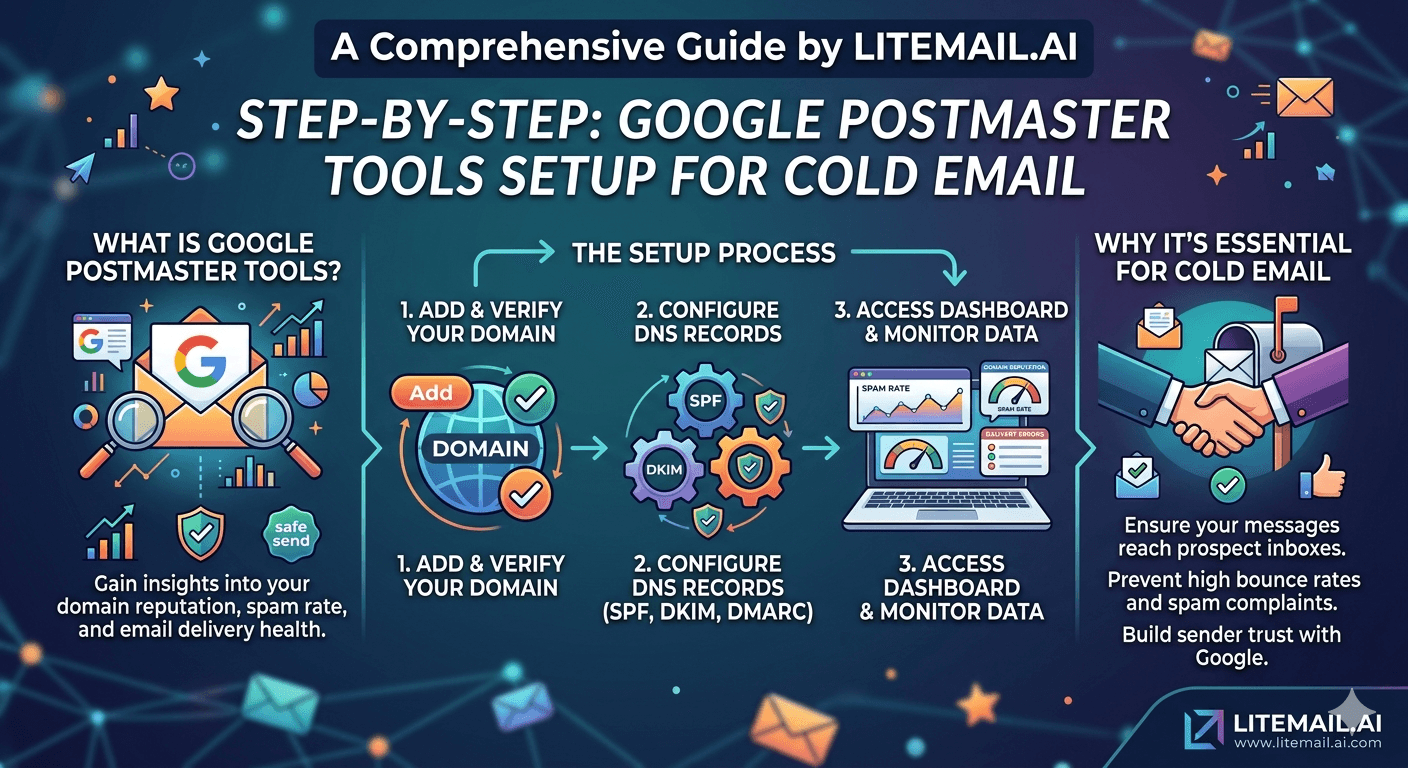
Most cold email teams discover Google Postmaster Tools after something goes wrong. Reply rate falls. They check Postmaster and find their domain reputation has been Low for three weeks. The fix required was obvious — but the data was there the whole time, unread. Setting up Postmaster before you start sending takes 15 minutes. Not having it costs you the 3 to 6 weeks of campaign data you would have needed to catch problems early.
💡 TL;DR
Google Postmaster Tools is a free tool that shows domain reputation, spam rate, and authentication data for Gmail-destined email. Set it up for every sending domain before the first campaign send. Domain verification takes 5 minutes. The two metrics that matter most for cold email: domain reputation (target High — anything below Medium needs immediate investigation) and spam rate (keep under 0.08%, target 0.04% as operating ceiling). Set up email alerts for reputation changes so problems surface automatically rather than waiting for a manual check. Litemail pre-warmed inboxes achieve Postmaster-verified High reputation within 48 hours — the baseline this guide helps you maintain.
Setting Up Google Postmaster Tools — Step by Step
The setup process is straightforward but requires access to your domain's DNS settings. Have your domain registrar login ready before starting. The whole process takes 10 to 15 minutes per sending domain.
Go to postmaster.google.com. Sign in with a Google account — this does not need to be the same account as the sending inbox. Use your main Google account or create a dedicated monitoring account for your agency.
Click the + button to add a domain. Enter your sending domain exactly as it appears in email From addresses — no www, no http. If you send from contact@outreach.yourdomain.com, enter outreach.yourdomain.com.
Verify domain ownership via DNS. Postmaster provides a TXT record to add to your domain's DNS. The record looks like: google-site-verification=[unique code]. Add this as a TXT record in your domain registrar's DNS management panel. Allow 24 to 48 hours for propagation.
Return to Postmaster and click Verify. Once the DNS record has propagated, Postmaster confirms domain ownership. The domain appears in your dashboard. Data begins accumulating from the first Gmail-destined send after verification.
Set up email alerts. In Postmaster dashboard settings, enable email notifications for domain reputation changes. This is the step most teams skip — and the one that makes the difference between catching a problem in 24 hours versus 2 weeks.
Repeat this process for every sending domain in your rotation. At agency scale, add all client domains to a single Postmaster account to get a unified view. Postmaster supports unlimited domain additions on one account.
The 4 Postmaster Metrics That Actually Matter for Cold Email
Postmaster shows several data panels. Not all of them are equally useful for cold email teams. Here are the four that drive real decisions — and what each one means in practice.
Metric | What It Measures | Target Range | Action If Below Target |
|---|---|---|---|
Domain Reputation | Gmail's trust rating for your sending domain | High | Pause, diagnose root cause, address complaint rate or list quality |
Spam Rate | % of sends marked as spam by Gmail recipients | Under 0.08% (target 0.04%) | Immediate pause if above 0.08%; check list hygiene and unsubscribe processing |
Authentication | % of emails passing DKIM and SPF | 100% | Check DNS records immediately — any percentage under 100% means auth failures |
IP Reputation | Trust rating for sending IPs | High | Check MXToolbox for blacklistings; consider IP migration if shared |
Domain reputation is the leading indicator — it moves before spam rate does, and it tells you where the trend is heading. Spam rate is the triggering metric — crossing 0.08% causes immediate algorithmic filter tightening. Authentication should be 100% and constant. Any drop means a DNS record problem that needs same-day attention.
Domain Reputation Tiers — What Each Level Means for Inbox Placement
Postmaster rates domain reputation in four tiers: Bad, Low, Medium, and High. The difference in inbox placement between tiers is not gradual — it is significant and immediate.
📊
High reputation — 90–96% inbox placement
This is the target state. High reputation means Gmail's algorithms treat your sending domain as a trusted source. Emails land in the primary inbox for the majority of sends. Litemail pre-warmed inboxes reach Postmaster-verified High reputation within 48 hours of provisioning. Maintain it by keeping spam rate under 0.04%, bounce rate under 2%, and list hygiene consistent.
📊
Medium reputation — 70–85% inbox placement
Medium is a warning state. Something has changed — complaint rate increased, a list quality issue occurred, or send volume spiked. Do not ignore Medium. It is the 2-week warning before Low. Pause the most aggressive sending sequences, review the last 7 days of campaign data for list quality issues, and reduce daily volume by 30% until reputation returns to High.
📊
Low reputation — under 50% inbox placement
Low means over half your emails are going to spam. This is a crisis state. Pause all sends from the affected domain immediately. Investigate root cause — spam complaints, spam trap hits, or authentication failure. Fix the cause before resuming. Recovery from Low to High takes 4 to 8 weeks of clean, low-volume sending. At this stage, migrating to a fresh pre-warmed domain is faster than recovery.
📊
Bad reputation — near-zero inbox placement
Bad means Gmail is routing nearly all email from this domain to spam. Retire the domain from all cold email sending immediately. Submit DMARC aggregate data review, address the root cause, and provision a replacement domain with pre-warmed inboxes. Recovery from Bad is possible but takes 8 to 12 weeks — replacement is almost always faster.
Reading the Spam Rate Panel — The Number That Triggers Everything
The spam rate panel in Postmaster shows the percentage of your sends that Gmail recipients marked as spam using the "Report spam" button. This is the most actionable real-time metric in Postmaster — and the one that cold email teams need to monitor most closely.
Google's published threshold is 0.08% — above this, Gmail's filters begin tightening in real time. The filter tightening is not a future warning; it is an immediate algorithmic response. Teams that catch spam rate at 0.07% can take corrective action (pause the problematic list segment, review unsubscribe processing) before crossing the threshold. Teams that miss it until it hits 0.12% are already dealing with active filter tightening.
Target 0.04% as your operating ceiling — not 0.08%. Running your campaigns at 0.06 to 0.07% means one bad list batch pushes you over the threshold. Operating at 0.03 to 0.04% gives you a two-to-three times error margin before consequences begin. The campaigns that maintain this level consistently are the ones using verified lists, immediate unsubscribe processing, and relevant, specific targeting that minimises complaint-triggering irrelevance.
[INTERNAL LINK: cold email inbox placement measurement → /blog/cold-email-inbox-placement-measurement]
Google Postmaster Tools v1 vs v2 — What Changed
Google rolled Postmaster Tools onto a new v2 interface, and the change is bigger than a redesign — it removes the exact reputation tiers this guide relies on for quick triage.
What's gone: The Domain Reputation and IP Reputation dashboards — the High/Medium/Low/Bad tiers referenced throughout this guide — have been retired entirely in v2. If you built your monitoring workflow around checking that single reputation label, that workflow no longer exists as-is.
What carries over: Spam rate, authentication status (SPF/DKIM/DMARC), encryption levels, delivery errors, and feedback loop data all remain available in v2 in some form — none of that historical monitoring is lost. If your authentication panel shows anything below 100%, that's a DNS issue to fix immediately — see our SPF, DKIM, and DMARC setup guide.
What's new: v2 adds a Compliance Status dashboard that checks whether your domain meets Gmail's bulk sender requirements (authentication, alignment, one-click unsubscribe), and a Deliverability analysis section that gives a direct verdict on whether Gmail recipients actually want your mail. This matters because a domain can pass every authentication check and still get a "recipients don't want this" signal — the kind of gap our full deliverability guide covers in more depth.
Migration timeline: Google began auto-redirecting accounts to v2 in late September 2025, and the v1 API was retired by the end of 2025. If you're setting up Postmaster fresh today — for example on pre-warmed sending domains — you're already on v2, so there's no migration step needed on your end.
Practical takeaway for cold email senders: Since the reputation tiers this guide's framework leans on are gone in v2, treat spam rate and the new Compliance Status as your primary health signals going forward. Cross-check with MXToolbox for blacklist status, since Postmaster alone won't catch that.
What Postmaster Cannot Tell You — And What Fills the Gap
Postmaster is excellent for Gmail-destined email. It tells you nothing about Outlook, Hotmail, or Microsoft 365-hosted inboxes — which account for a large portion of enterprise B2B cold email targets. A campaign with High Postmaster reputation can still be failing on Microsoft 365 recipients if the sending IP has a Poor Talos Intelligence score or a Yellow SNDS status.
The complete deliverability monitoring stack for cold email: Postmaster for Gmail signals, Microsoft SNDS for Microsoft-hosted inbox signals, MXToolbox for blacklist status across all major blocklists, and monthly seed list testing via GlockApps for direct inbox vs spam placement measurement across all major providers. Postmaster is one instrument in the monitoring dashboard — not the whole picture.
[INTERNAL LINK: IP reputation guide → /blog/cold-email-inbox-ip-reputation]
The Bottom Line
Set up Google Postmaster Tools for every sending domain before the first campaign send. Domain verification takes 5 minutes and data starts accumulating from the first Gmail-destined email after setup.
Target High domain reputation and keep spam rate under 0.04% as an operating ceiling — well below the 0.08% threshold where Gmail's filters begin tightening.
Enable email alerts for domain reputation changes. This replaces daily manual checking with targeted notifications only when action is needed.
Domain reputation tiers indicate inbox placement: High = 90–96%, Medium = 70–85%, Low = under 50%, Bad = near zero. Medium is a warning state that precedes Low by 1 to 2 weeks.
Authentication panel should show 100% DKIM and SPF pass rate. Any percentage below 100% means a DNS record failure requiring same-day investigation — see our SPF, DKIM, and DMARC setup guide if you're troubleshooting a failure.
Postmaster measures Gmail placement only. Pair it with Microsoft SNDS and MXToolbox for complete cross-platform deliverability visibility, and read our full deliverability guide for the complete monitoring stack.
Frequently Asked Questions
What is Google Postmaster Tools and why do cold email senders need it?
Google Postmaster Tools is a free Google service that shows domain reputation, spam rate, authentication pass rates, and IP reputation for email you send to Gmail addresses. Cold email senders need it because it provides the only direct visibility into how Gmail's algorithms are evaluating your sending domain — information that is not available anywhere else and that directly explains inbox placement performance.
How do I set up Google Postmaster Tools for my cold email sending domain?
Go to postmaster.google.com, sign in with a Google account, add your sending domain, verify ownership by adding a TXT record to your domain's DNS, and enable email alerts for reputation changes. The full setup takes 10 to 15 minutes plus 24 to 48 hours for DNS propagation. Add every sending domain — not just the primary one — for complete visibility across your sending infrastructure.
What spam rate should I maintain for Google Postmaster cold email?
Keep spam rate under 0.08% — Google's published threshold for filter tightening. Target 0.04% as your operating ceiling to maintain a buffer against variation. A spike above 0.08% triggers immediate algorithmic filter adjustment that takes 4 to 6 weeks to recover from. Monitor spam rate daily during active campaigns — Postmaster shows this in real time.
What does Low domain reputation in Google Postmaster mean for cold email?
Low domain reputation means Gmail is routing over 50% of your sends from that domain to spam. It is a crisis state — pause all sends from the affected domain immediately, diagnose the root cause (spam complaints, spam traps, authentication failure), fix it, and begin a recovery period of 4 to 8 weeks of clean low-volume sending. At this stage, migrating to a fresh pre-warmed domain is usually faster than in-place recovery.
Can I use one Postmaster account for multiple sending domains?
Yes. One Google account can manage unlimited domains in Postmaster. For agencies managing multiple client sending domains, add all domains to a single Postmaster account for a unified monitoring view. Each domain shows its own reputation, spam rate, and authentication data independently. Configure email alerts per domain so changes on any client domain surface immediately.
Does Google Postmaster show inbox placement rate directly?
No. Postmaster shows domain reputation (which correlates with inbox placement) and spam rate, but not a direct inbox placement percentage. Domain reputation tiers approximate inbox placement: High ≈ 90–96%, Medium ≈ 70–85%, Low ≈ under 50%. For direct inbox placement measurement, use seed list testing tools like GlockApps alongside Postmaster monitoring.
Is Google Postmaster Tools free?
Yes — Postmaster Tools is a free service from Google. There's no cost to add domains, verify them, or view reputation and spam rate data.
What is the Microsoft equivalent of Google Postmaster Tools?
Microsoft's equivalent is SNDS (Smart Network Data Services), which shows sender reputation and complaint data for IPs sending to Outlook/Hotmail/Microsoft 365 recipients — the same role Postmaster plays for Gmail.






