
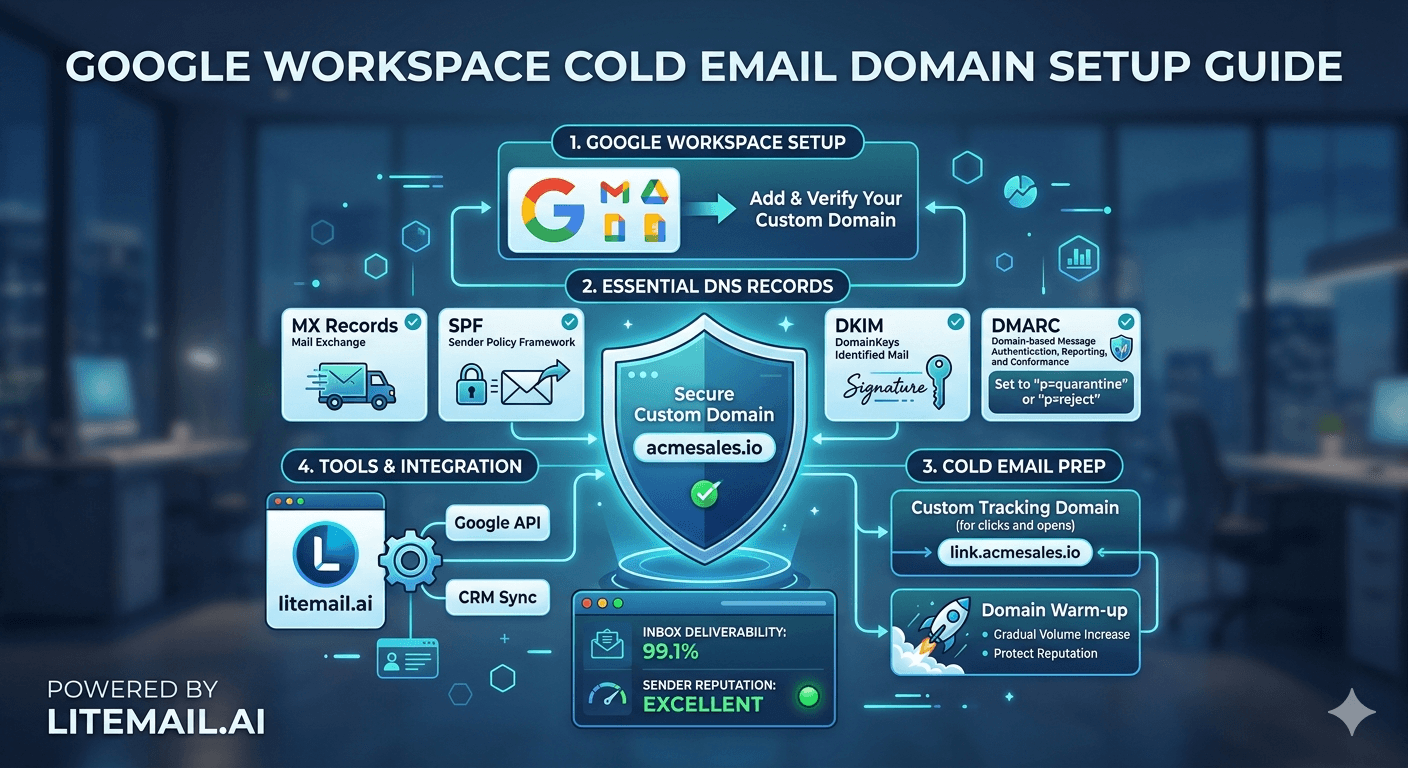
Setting up Google Workspace for cold email takes about 45 minutes if you know the sequence. Most teams get it wrong in the same three places — and those three mistakes are responsible for 80% of cold outreach deliverability problems on Google-hosted domains. The Google Workspace cold email domain setup process has specific requirements that differ from regular Workspace setup, and the order of steps matters more than most guides acknowledge.
💡 TL;DR
Google Workspace cold email domain setup requires: a separate sending domain (never your primary), SPF record listing Google as an authorised sender, DKIM enabled in the Admin Console, DMARC set to "quarantine" or "reject" (not "none"), and a 14–21 day warmup before hitting volume. Skip DMARC or warmup and expect 8–15% inbox placement instead of 90%+. Litemail's pre-warmed Google Workspace inboxes arrive with all authentication pre-configured and Postmaster-verified reputation within 48 hours — at $4.99 per inbox per month. By the end of this guide, you'll know the exact setup sequence and the three mistakes that tank deliverability before the first send.
Before You Touch Google Workspace — The Domain Decision
Don't use your primary business domain for cold outreach. This isn't a preference — it's a protection. If your sending domain gets spam-flagged or reputation-damaged, it affects every email you send from that domain, including sales follow-ups, invoices, and customer support. Use a separate domain for all cold outreach sends.
Google treats subdomains and root domains as connected for reputation purposes. So outreach.yourdomain.com does not protect yourdomain.com the way a separate root domain does. Buy a dedicated sending domain — a close variant works fine: tryyourbrand.com, getyourbrand.io, or yourbrandoutreach.com.
Domain Approach | Protects Primary Domain | Google Reputation Link | Recommended |
|---|---|---|---|
Primary domain (yourbrand.com) | ❌ No | Direct | Never for cold outreach |
Subdomain (outreach.yourbrand.com) | ❌ No | Linked to root | Not recommended |
Separate root domain (tryyourbrand.com) | ✅ Yes | Independent | Always — for every client |
Google Workspace Cold Email Domain Setup: The Exact Sequence
Order matters here. Setting up DKIM before creating the user account, or adding your sending tool before DNS propagates, creates errors that are annoying to debug. Do this in sequence.
Buy your sending domain. Register it at Namecheap, Google Domains, or Cloudflare. Don't use GoDaddy — their DNS interface is slower to propagate and harder to manage at scale.
Create the Google Workspace account for the new domain. Go to workspace.google.com, choose a plan (Business Starter is fine for cold outreach), and add your sending domain. Verify domain ownership using the TXT record method — it's the fastest to propagate.
Create the sending user account. Use a real person's name — firstname@yourdomain.com. Not "outreach@" or "sales@" or "info@". Generic prefixes trigger spam filters. The email should look like it comes from a person.
Configure your SPF record. In your DNS provider, add a TXT record:
v=spf1 include:_spf.google.com ~all. This authorises Google to send on behalf of your domain. Without this, your emails fail SPF checks and land in spam or get rejected.Enable DKIM in Google Admin Console. Go to Admin Console → Apps → Google Workspace → Gmail → Authenticate email. Generate a DKIM key (2048-bit), copy the DNS record, and add it to your domain's DNS. Wait for propagation (up to 48 hours) before enabling DKIM signing.
Set up DMARC. Add a TXT record at _dmarc.yourdomain.com:
v=DMARC1; p=quarantine; rua=mailto:dmarc@yourdomain.com. Set policy to "quarantine" — not "none". "None" is monitoring-only and provides no protection or trust signal to receiving servers.Verify all three at MXToolbox. Run mxtoolbox.com/SuperTool.aspx on your sending domain. SPF, DKIM, and DMARC must all show green before you send a single email.
The DMARC Setting Most Teams Get Wrong
Setting DMARC to "p=none" is not compliance. It's a monitoring mode. Receiving servers don't give your domain any additional trust signal from a DMARC policy of "none". They treat it as if DMARC isn't configured at all.
Most setup guides say "start with p=none to monitor before enforcing". Honest answer: that's fine for your primary domain where you're worried about legitimate senders. For a dedicated cold outreach domain where you control everything that sends, start at "p=quarantine" immediately. The monitoring period is irrelevant when you own every sender on the domain.
In practice, this means you can set your Google Workspace cold email domain DMARC to "quarantine" from day one and get the full deliverability benefit without the monitoring phase. The teams that spend two weeks on "p=none" monitoring are slowing themselves down for no deliverability gain.
💡 What this configuration looks like in full
Your final DNS configuration for a Google Workspace cold email sending domain should have: SPF TXT record at yourdomain.com pointing to _spf.google.com, DKIM TXT record at google._domainkey.yourdomain.com with the 2048-bit key from Admin Console, and DMARC TXT record at _dmarc.yourdomain.com with p=quarantine and a reporting email address. Run MXToolbox. All three green. Then — and only then — start warmup.
Google Workspace Inbox Warmup: The Numbers That Actually Matter
Google's spam filters watch for sudden volume spikes from new domains. A fresh Workspace inbox sending 200 emails on day one gets flagged. The warmup process builds a positive sending history gradually so Google's algorithms see your domain as a legitimate sender before volume ramps.
Here's the ramp that works for Google Workspace sending domains:
Days 1–3: 10–20 emails per day (warmup tool handles this)
Days 4–7: 30–50 emails per day
Days 8–14: 80–100 emails per day
Days 15–21: 150–200 emails per day
Day 21+: up to 400–500 emails per day (Google Workspace limit per day is 2,000 for workspace accounts)
This is where pre-warmed Google Workspace inboxes change the equation entirely. Litemail's pre-warmed inboxes are available in Google Workspace and arrive with existing sending history and Postmaster-verified reputation. Instead of 21 days of warmup, you're sending within 48 hours at sustainable volume. For agencies managing 10+ client inboxes, that's a significant compounding time advantage.
[INTERNAL LINK: email warmup complete guide → /email-warmup-guide]
[INTERNAL LINK: pre-warmed inbox setup → /pre-warmed-inbox-cold-email]
Google Postmaster Tools: Set This Up on Day One
Most teams set up Postmaster Tools after something goes wrong. That's backwards. Set it up before your first send so you have a baseline to compare against.
Go to postmaster.google.com, add your sending domain, and verify ownership using the DNS TXT method. Once verified, you'll see: domain reputation (Bad/Low/Medium/High), IP reputation, spam rate, authentication results, and delivery errors. Check it every week during active campaigns.
The spam rate threshold to watch: keep it under 0.08%. That's Google's published safe zone. Above 0.1% and Gmail starts throttling your sends. Above 0.3% and you risk domain-level blocks that are difficult to recover from. A recruitment firm running outbound for 6 clients on Google Workspace inboxes should have Postmaster Tools configured for every sending domain and a weekly review process — not monthly.
[INTERNAL LINK: Google Postmaster Tools setup guide → /google-postmaster-tools-guide]
[EXTERNAL LINK: Google Postmaster Tools documentation → support.google.com/mail/answer/9981691]
Google Workspace Sending Limits: What Nobody Mentions
Google Workspace accounts have a daily sending limit of 2,000 emails per day per account. This sounds like a lot — and for a single inbox, it is. But there's a per-hour limit too: 500 emails per hour. Exceed it and your account gets temporarily suspended for up to 24 hours.
In practice, no cold outreach campaign should approach these limits from a single inbox. 40–80 emails per day is the safe operational range per sending inbox for sustained campaigns. If you need more volume, add more inboxes — don't push a single inbox to its technical limit. Running 10 inboxes at 50 emails per day is far safer than running one inbox at 500 per day, even if the daily total is identical.
Sending Volume | Inboxes Needed | Daily Sends | Risk Level |
|---|---|---|---|
Small (500/day) | 10–15 | 40–50 per inbox | Low |
Medium (1,500/day) | 30–40 | 40–50 per inbox | Low |
Large (3,000+/day) | 60–80 | 40–50 per inbox | Managed — needs monitoring |
Any volume, single inbox | 1 | 200–500 per inbox | High — expect flags and suspensions |
Key Takeaways
Always use a separate root domain for cold outreach on Google Workspace — subdomains don't protect your primary domain's reputation the way a separate root domain does.
Configure SPF, DKIM, and DMARC in that order before sending anything — verify all three at MXToolbox and only proceed when all three show green.
Set DMARC to "p=quarantine" from day one on a dedicated sending domain — the monitoring phase ("p=none") adds no deliverability benefit when you control all senders on the domain.
Keep spam rate under 0.08% in Google Postmaster Tools — set this up before your first send, not after problems appear.
Run 40–80 emails per day per inbox, not 200+ — volume concentration in a single inbox creates flags even within Google's technical limits.
Pre-warmed Google Workspace inboxes (like Litemail at $4.99/inbox) cut the warmup timeline from 21 days to 48 hours with authentication pre-configured and Postmaster-verified reputation from day one.
Use a real person's name as the sender address — generic prefixes like "outreach@" or "sales@" trigger spam filters before the recipient even reads the subject line.
Frequently Asked Questions
Can I use Google Workspace for cold email outreach?
Yes — Google Workspace is one of the most reliable platforms for cold email when set up correctly. The key requirements are: a separate sending domain (not your primary business domain), proper SPF, DKIM, and DMARC configuration, a 14–21 day warmup period before volume sends, and spam rate monitoring in Google Postmaster Tools. Skip any of these and deliverability drops sharply.
What DNS records do I need for Google Workspace cold email?
You need three DNS records: an SPF TXT record at your root domain authorising Google's sending servers (v=spf1 include:_spf.google.com ~all), a DKIM TXT record at google._domainkey.yourdomain.com with the key generated in your Admin Console, and a DMARC TXT record at _dmarc.yourdomain.com with policy set to quarantine or reject. All three must be configured and verified before sending.
How many emails can I send per day with Google Workspace?
Google Workspace accounts have a hard daily limit of 2,000 emails per day per account. For cold outreach, the practical safe ceiling is 40–80 emails per day per inbox to stay well within deliverability-safe territory. Pushing a single inbox to 200+ per day risks flags and temporary suspension even if it stays under the technical limit. Use multiple inboxes to scale volume safely.
Do I need to warm up a Google Workspace inbox before sending cold email?
Yes — unless you're using pre-warmed inboxes that already have sending history and Postmaster-verified reputation. For a brand-new Google Workspace inbox, start at 20 emails per day and double every 3–4 days over 14–21 days. Skipping warmup on a fresh inbox results in spam placement as Google's algorithms flag the volume spike from a new domain.
What DMARC policy should I set for my cold email sending domain?
Set DMARC to "p=quarantine" from day one on a dedicated cold email sending domain. The "p=none" monitoring phase is appropriate for your primary domain where you're concerned about third-party senders, but on a sending domain you fully control, there's no benefit to the monitoring period. Start at quarantine and move to reject once you've confirmed all legitimate sends are passing authentication.
How do I check if my Google Workspace cold email setup is correct?
Run mxtoolbox.com/SuperTool.aspx on your sending domain and check SPF, DKIM, and DMARC results — all three should show as passing. Then set up Google Postmaster Tools for the domain and send 10–20 test emails to a seed list. Check inbox placement across Gmail, Outlook, and Yahoo before launching any campaign at volume.
Is Google Workspace better than Microsoft 365 for cold email?
Both work well when set up correctly. Google Workspace has a slight edge for Gmail-heavy prospect lists because the sending infrastructure is the same provider as most recipients. Microsoft 365 has an edge for Outlook-heavy industries like finance, law, and enterprise. Many agencies run both and split sending by prospect email domain to optimise deliverability per recipient type.
What sender name should I use for Google Workspace cold outreach?
Use a real person's first and last name — not a role title, company name, or generic prefix. "John Smith" from a company domain consistently outperforms "Sales Team" or "Outreach" in inbox placement and open rates. Spam filters and recipients both respond better to messages that look like they come from a real individual. If you're setting up multiple inboxes, create a believable person identity for each one.






