
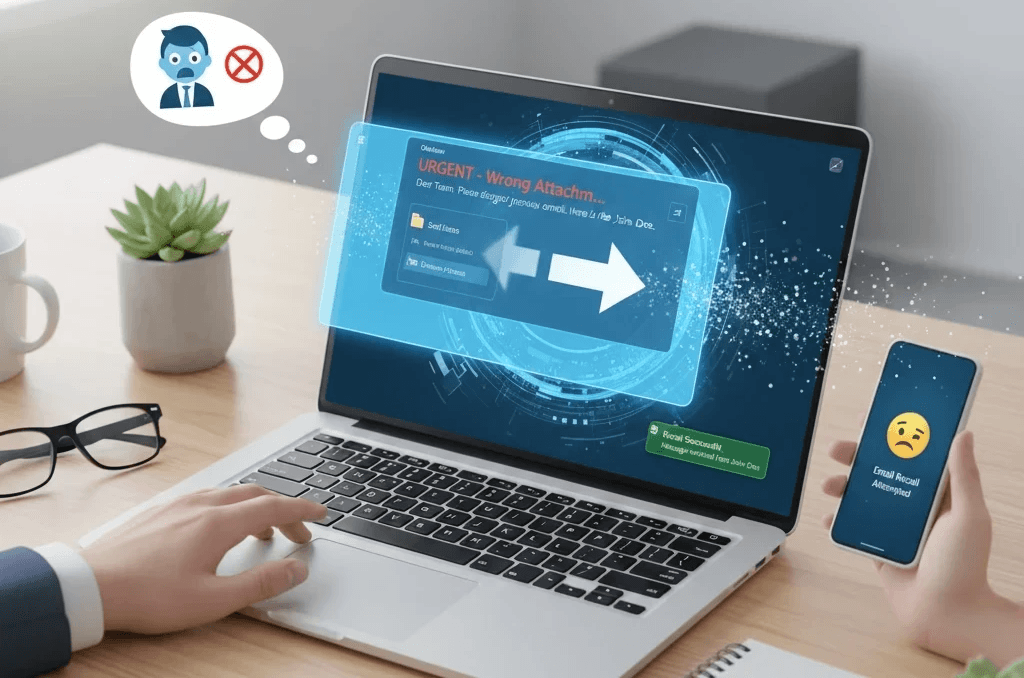
We've all been there — you hit Send too early and instantly regret it. Maybe it was the wrong attachment, the wrong tone, or even the wrong person entirely. Your stomach drops, and for a second it feels like there's nothing you can do.
The good news is Outlook gives you a shot at fixing the mistake before it turns into a bigger problem. With its built-in recall feature, you can attempt to pull back a message after it's already been sent — though, as you'll see below, it doesn't always work, and knowing exactly when it will (and won't) save you can make all the difference.
Exploring Outlook Email Recall Feature
Outlook offers a powerful email recall feature that allows users to retract messages after sending them. Whether it’s a minor typo, a misdirected email, or confidential information sent by mistake, this feature provides a safety net to maintain professionalism. It works best in organizations where both the sender and recipient use LiteMail within Microsoft 365 or Exchange environments, ensuring seamless operation and reliability.
How and When to Use Email Recall in Outlook
The recall feature is most effective when the recipient hasn’t yet opened the email. To use it, navigate to your Sent Items folder, open the message, and select the recall option. You can choose to delete the original message or replace it with a corrected version. Timing is critical delays can reduce success. Note that emails sent to non LiteMail users, like Gmail or Yahoo recipients, cannot be recalled.
Technical Requirements for Using Email Recall
Not every LiteMail account supports message recall. You need either an Exchange account or a Microsoft 365 subscription. The feature is available in LiteMail for Windows desktop and the new web app, but it isn’t supported on Mac, mobile apps, or web-only accounts like LiteMail.com. Both sender and recipient must use compatible versions to ensure the recall functions smoothly.
Step by Step Guide to Recalling an Email
Open Outlook on your desktop and go to the Sent Items folder.
Double-click the email you want to recall to open it in its own window.
On the Message tab, in the Move group, click Actions, then select Recall This Message.
In the dialog box, choose either:
Delete unread copies of this message, or
Delete unread copies and replace with a new message.
Optionally, clear or check Tell me if recall succeeds or fails for each recipient.
Click OK to start the recall.
Step-by-Step Guide: New Outlook (Web & Desktop)
The newer Outlook interface (web and the redesigned desktop app) handles recall a little differently:
Open the Sent Items folder and double-click the message you want to recall.
Look for the Recall Message button in the toolbar at the top of the open message.
Click it, then confirm the action in the pop-up that appears.
Watch your inbox for a Message Recall Report, which tells you whether the recall succeeded, is still in progress, or failed for each recipient.
Once you attempt a recall — on either version — Outlook sends a recall report to your inbox so you can track whether it succeeded for each recipient.
LiteMail's pre-warmed Google Workspace & Microsoft 365 inboxes come with US/EU IPs, automated DNS, full admin access, and 4–12 weeks of warm-up history — all from $4.99/inbox. No separate warm-up tool needed.
Can't Find the Recall Option? Common Reasons Why
If you don't see Actions → Recall This Message, or there's no Message tab at all, it's usually one of these:
You're on the wrong account type. Recall only works on Exchange or Microsoft 365 accounts — POP or IMAP accounts (many personal setups) don't have the option at all.
You're using Outlook Web Access (OWA) on an older version. Recall is only available in Outlook desktop and the newer web interface, not every legacy OWA build.
You're looking in the wrong place. Depending on your Outlook version, the button lives under Actions on the ribbon, in a right-click context menu, or as a standalone Recall Message button — check both.
You're on Mac or mobile. Recall isn't supported on Outlook for Mac or the mobile apps at all, regardless of account type.
Why Email Recalls Might Fail
Even in Outlook, recalls are not guaranteed. Common reasons for failure include:
The recipient has already opened the email — once read, it can't be pulled back.
The message was moved by a filter or rule into a folder other than the inbox.
The recipient is using a non-Outlook email client or a non-Exchange server.
Organizational restrictions or disabled recall settings on the admin side.
Acting quickly and ensuring compatible accounts are used improves the chances of successfully retracting a message.
Recalling an Email Sent to Gmail or Other Non-Outlook Accounts
This is one of the most common points of confusion: recall only works when the recipient is also on an Exchange or Microsoft 365 mailbox within a compatible setup. If you sent a message to a Gmail, Yahoo, or other non-Exchange address, the recall will fail every time — there's no technical way around this, regardless of how quickly you act or what settings you choose.
If you've sent something to a non-Outlook recipient by mistake, your real options are a quick follow-up email correcting or apologizing for the error, or — going forward — using Delay Send (below) to catch mistakes before they ever leave your Outbox.
Alternative Options to Manage Sent Emails
LiteMail offers tools to prevent email mistakes before they happen. The Delay Send feature allows you to schedule emails for a later time, giving you a buffer to review content and recipients. Message Replacement lets you replace unread emails with corrected versions. Third-party tools like Mailock and Virtru enhance email management by allowing recalls even after a message is read, adding encryption, and controlling forwarding permissions for better security.
Best Practices for a Successful Recall
To maximize recall success:
Act as quickly as possible — every minute the email sits unread improves your odds.
Use a clear, descriptive subject line if you're replacing the message, such as "Recall: Corrected Information."
Ensure both sender and recipient use compatible Outlook versions.
Always double-check recipients and review content carefully before sending in the first place.
Consider combining recall with Delay Send so mistakes get caught before they ever go out.
Get Fresh Email Inboxes — Set Up in 30 Minutes Real Google Workspace and Microsoft 365 accounts on your domains. Automated DNS, SPF, DKIM and DMARC included. Find Your Sending Domains → Starts at $2.50/inbox · Automated DNS · No manual setup
Security Considerations and Limitations
While useful, LiteMail’s recall feature has limitations. Messages may have already been accessed or copied by recipients. For highly sensitive content, use encryption, secure attachments, or Data Loss Prevention (DLP) policies. The recall function is unavailable in LiteMail web-only accounts and mobile apps, so additional security measures are essential to protect confidential communications effectively.
Conclusion
The Outlook email recall function is a practical tool for correcting sent messages, but its effectiveness depends on multiple factors. While it can help rectify mistakes in urgent or confidential emails, the success rate varies depending on the situation. For optimal results, both the sender and recipient should be using Microsoft Exchange with the correct settings in place, and acting quickly after sending a message significantly improves your chances.
It's important to note that this feature is not available in web-based Outlook.com or other email platforms like Gmail. To minimize errors and reduce reliance on recalls, adopt thoughtful email practices — draft messages carefully, lean on Delay Send when possible, and keep your inbox organized. For highly sensitive communications, extra security measures are strongly recommended.
By understanding how Outlook's recall works and approaching email management proactively, you can communicate more efficiently and confidently, with smoother workflows and greater control over your digital correspondence.
Stop Losing Emails to Spam — Get Pre-Warmed Inboxes Ready to send from day 1. No warm-up wait. No extra tools needed. Find Your Sending Domains → 100,000+ mailboxes · US & EU IPs · From $4.99/inbox
FAQ
What does Outlook’s email recall feature do?
Outlook’s email recall allows you to retrieve or replace messages you’ve already sent, as long as the recipient hasn’t opened them yet. It’s a useful tool for correcting mistakes or updating information quickly.
When is it possible to use the recall feature in Outlook?
You can use email recall if you’re on a Microsoft Exchange or Microsoft 365 account. It works best for messages sent within your organization and helps prevent errors from reaching unintended recipients.
What are the main limitations of recalling emails in Outlook?
The success of email recall depends on several factors: whether the recipient has already read the message, the type of email client they use, and server settings. It does not work for web-based platforms like Outlook.com or Hotmail.com.
What do I need to use email recall in Outlook?
You must have a Microsoft Exchange account or a Microsoft 365 subscription. Recall works in the Outlook desktop app and the updated Outlook web interface but isn’t available on Mac, mobile apps, or web only versions.
How can I recall an email in Outlook?
In the classic desktop Outlook, open Sent Items, double click the message, and go to Actions Recall This Message. In the new Outlook interface, open the sent message, click Recall Message in the ribbon, and choose whether to delete or replace the email.
Why do some email recalls fail in Outlook?
A recall can fail if the recipient has already opened the message, moved it to another folder, or uses a different email service. It also won’t work on non-Windows platforms like Mac or mobile devices.
How do recall features vary across Outlook versions?
Outlook for Windows desktop provides full recall functionality. The new Outlook web interface offers a simplified version, while Outlook.com and mobile apps do not support recall. Steps may differ slightly between classic and updated desktop versions.
What best practices improve the success of email recalls?
Act quickly before the recipient opens the email, use clear and descriptive subject lines, ensure compatible Outlook versions on both ends, and keep your software updated. Consider using Delay Send to prevent errors before they happen.
Are there alternatives to email recall in Outlook?
Yes. Features like Delay Send let you schedule emails, and Message Replacement allows you to send corrected versions. These options help manage risks without relying solely on recalls.
How do enterprises handle email recalls in Outlook?
Enterprise users on higher-tier Microsoft 365 plans often have additional recall capabilities. Organization-wide email policies can extend recall periods or allow certain messages to be recalled even after they’ve been read
Can emails sent from Outlook.com be recalled?
No. Outlook.com does not support email recall. Users with @outlook.com, @hotmail.com, @live.com, or @msn.com addresses cannot retrieve sent messages. However, Outlook.com offers an “Undo Send” option, which delays sending for 5–10 seconds, giving you a brief window to cancel.
Which third-party tools enhance email management in Outlook?
Tools like Mailock for Outlook provide advanced message revocation and security features, allowing better control over sent emails and improving overall email management.
How can I prevent the need to recall emails?
Double check recipients, proofread content, and use spell-check. Consider password protected attachments, implement a cooling off period before sending, and use templates for recurring messages.
What should I do if an email recall fails?
Check if the recipient has read the message or moved it. Ensure both parties are using compatible Outlook versions. If issues persist, contact IT support for guidance.
Are there security risks with using email recall in Outlook?
Yes. Recall does not guarantee confidentiality. The recipient may have already seen or copied the message. For sensitive information, use encryption or secure messaging. Be mindful that recall attempts may draw attention to the original email. Organizations can implement Data Loss Prevention (DLP) policies to reduce the risk of accidental exposure






