
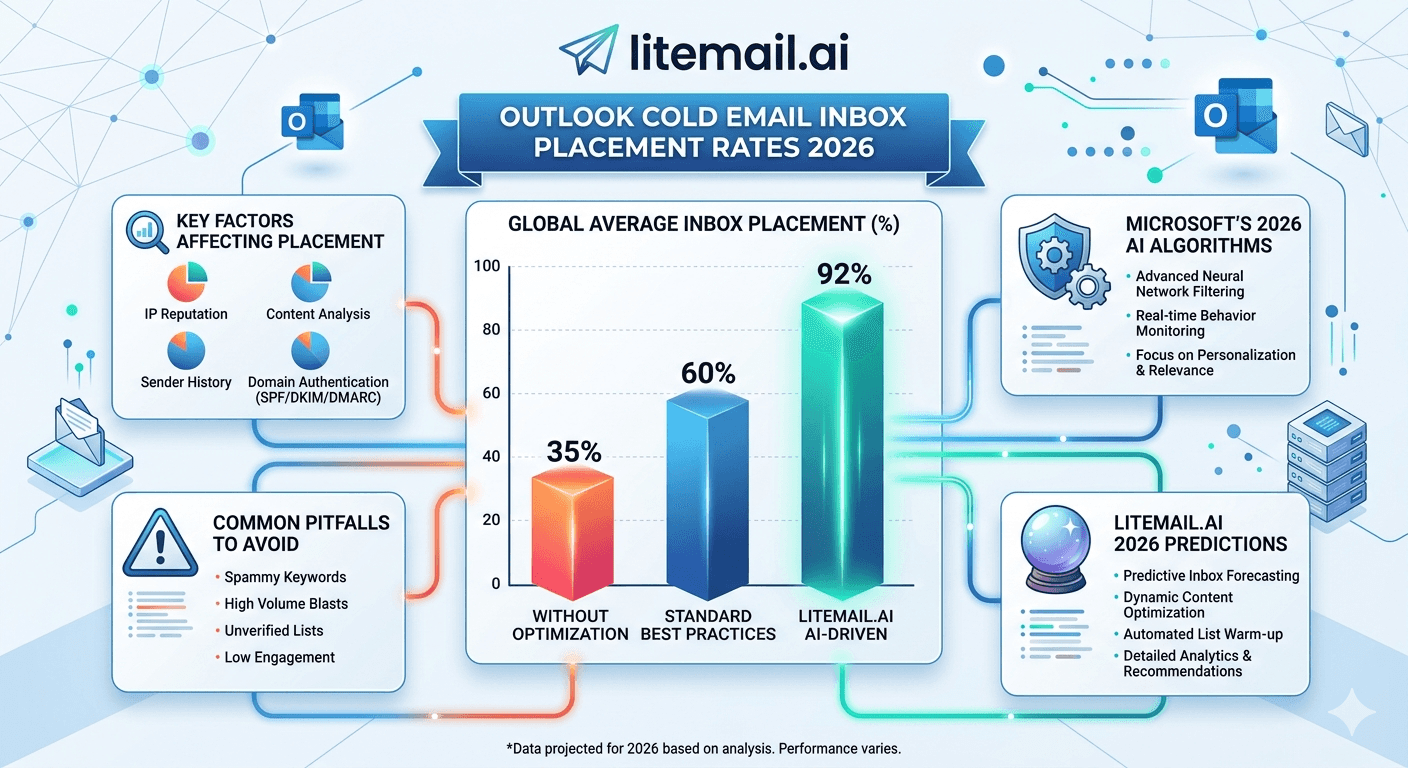
Outlook blocks cold email differently than Gmail — and most outreach teams don't know that until they're already in Junk. Gmail's spam filters are probabilistic and domain-reputation-based. Microsoft's Defender filters are more aggressive, more rule-based, and far less forgiving of new domains. A team running 60% inbox placement on Outlook while celebrating 90% on Gmail isn't succeeding. They're losing half their pipeline to one email provider and not even tracking it separately. By the end of this, you'll know exactly what drives Outlook cold email inbox placement in 2026, where the thresholds sit, and what to fix first.
💡 TL;DR
Outlook cold email inbox placement in 2026 depends on Microsoft's Smart Network Data Services (SNDS) score, your domain age, SPF/DKIM/DMARC authentication, and list hygiene — in roughly that order. Target placement rates above 85% for Outlook-heavy B2B lists. Inboxes with US and EU dedicated IPs and clean sending history — like Litemail's pre-warmed inboxes — start with established Microsoft sender reputation, which cuts Junk placement from typical first-month rates of 40–60% down to under 10%. Don't benchmark your Outlook placement against Gmail. They use completely different filtering logic.
Why Outlook Filters Work Nothing Like Gmail
Gmail uses machine learning models trained on billions of signals — user behaviour, content, domain age, sending patterns. It's probabilistic. It adapts. Outlook uses Microsoft Defender, which is more rules-based, reputation-list-driven, and quick to blacklist at the IP level.
The practical difference: Gmail will usually give a new sending domain a grace period of a few weeks before aggressively filtering. Outlook will Junk you on day one if your IP isn't on a known good list or your domain is under 30 days old. This trips up teams who tested their campaigns on Gmail, got decent numbers, and assumed Outlook would behave the same way.
Factor | Gmail Weight | Outlook Weight | Notes |
|---|---|---|---|
Domain age | Medium | High | Outlook penalises new domains harder |
IP reputation | Medium | Very high | Microsoft SNDS score matters most |
SPF/DKIM/DMARC | High | High | Required on both, non-negotiable |
Engagement rate | Very high | Medium | Gmail rewards opens/clicks more |
List hygiene | High | Very high | Outlook hard-bounces flag faster |
Content triggers | Medium | Low | Outlook cares less about spam words |
Look at that table carefully. IP reputation and list hygiene carry more weight on Outlook than almost anything else. You can write perfect copy and still end up in Junk if your sending IP has any history with Microsoft's blocklist systems.
Microsoft SNDS: The Metric You're Probably Not Tracking
SNDS stands for Smart Network Data Services. It's Microsoft's free IP reputation monitoring tool, and most cold email operators have never opened it. That's a problem.
SNDS scores your sending IPs as green (good), yellow (caution), or red (blocked). A red rating means your emails are going to Junk or being blocked outright on all Outlook and Hotmail inboxes — regardless of your content, authentication, or list quality. And you won't know it's happening unless you check.
💡 How to check your SNDS score
Go to postmaster.live.com and register with the sending IP address. Microsoft will confirm your IP ownership via a test email, then give you access to your SNDS dashboard. Check it weekly — not monthly. Yellow ratings can move to red in 48 hours during a bad campaign run. If you're using a pre-warmed inbox provider with dedicated IPs, ask for SNDS status confirmation before you start sending. This is a 10-minute check that can save weeks of troubleshooting.
In practice, this means your inbox provider's IP reputation matters more for Outlook placement than almost anything you do with your copy or subject lines. A clean IP with verified sending history is the foundation. Everything else is secondary.
Authentication Setup That Outlook Actually Respects
SPF, DKIM, and DMARC are required on both Gmail and Outlook. But Outlook enforces DMARC alignment more strictly. If your SPF and DKIM aren't perfectly aligned with your sending domain, Microsoft will Junk you even when Gmail lets you through.
⚡
SPF record — one record, one domain
Your SPF record should reference your sending IP or provider's IP range directly. Don't include multiple providers in a single SPF record — Microsoft flags records with more than 10 DNS lookups. One clean SPF record per domain. If you're using Litemail or another inbox provider, they should configure this for you before you send a single email.
🔑
DKIM — 2048-bit key, aligned with sending domain
Use a 2048-bit DKIM key, not 1024-bit. Microsoft has been phasing out 1024-bit key acceptance since 2024. Make sure the DKIM d= value matches your From: domain exactly. Misaligned DKIM is the most common cause of DMARC failures on Outlook — and DMARC failures send you straight to Junk.
🛡️
DMARC — start with p=none, move to p=quarantine
Start with DMARC policy p=none to monitor without affecting delivery. After 2 weeks of clean data, move to p=quarantine. Never jump straight to p=reject on a new domain — it can cause legitimate email to bounce while your reputation is still building. Set rua= to an address you actually monitor so you get aggregate reports when something breaks.
📊
MX and reverse DNS — often skipped, always matters
Set up MX records even on sending-only domains. Outlook checks for valid MX records as part of its filtering logic — domains without them get treated with extra suspicion. Reverse DNS (PTR records) should also resolve cleanly to your sending domain. This is a 5-minute setup that most cold email operators skip entirely.
List Hygiene Standards Outlook Demands — Not Suggests
Here's the honest version: Outlook is less forgiving about bad list quality than Gmail. Gmail will let a 5% bounce rate slide for a few weeks before the reputation hit shows up. Outlook starts flagging domains at 3% hard bounces and the decay is faster.
The practical number to track: keep hard bounce rate under 2% per campaign. Not per month — per campaign send. A single list with 200 bad addresses out of 5,000 will create a bounce rate of 4%, and on an Outlook-heavy B2B list, that's enough to trigger Junk folder placement for weeks.
Metric | Safe Zone | Warning Zone | Critical — Pause Sending |
|---|---|---|---|
Hard bounce rate | Under 2% | 2–3% | Over 3% |
Spam complaint rate | Under 0.05% | 0.05–0.1% | Over 0.1% |
Soft bounce rate | Under 5% | 5–8% | Over 8% |
Reply rate (signal) | Over 2% | 1–2% | Under 1% |
The spam complaint threshold for Outlook is tighter than Gmail's 0.08% guideline. Microsoft starts factoring complaint signals into your sender score at 0.05%. Validate every list against a verification tool before sending — not after your numbers start dropping.
How to Actually Test Outlook Inbox Placement
You might be thinking — but how do I know what my current Outlook placement rate is? Most cold email tools don't separate placement by email provider. They show you an aggregate delivery rate that blends Gmail, Outlook, and everything else into one misleading number.
Here's a practical testing method. Set up seed accounts: create 5 to 10 test email addresses at Outlook.com and Hotmail.com. Add them to your active sequences. After each campaign send, check those seed inboxes manually. If 4 out of 10 Outlook seed emails landed in Junk, your Outlook placement rate is approximately 60%. That's your real baseline — not the 92% delivery rate your tool reports.
💡 Tools for provider-level placement testing
GlockApps and Mail-Tester both offer inbox placement testing across multiple providers including Outlook and Hotmail. Run a test before every major campaign launch — not just once during setup. Outlook placement can degrade between campaigns as your IP reputation shifts. A $20 test before a 2,000-email send is always worth it.
Actually — scratch that last point slightly. Don't just test before campaigns. Run a seed send once per week on any active campaign that's been running longer than 30 days. Placement rates drift. Weekly checks catch the drift before it becomes a crisis.
When You're Already Landing in Outlook Junk — The Recovery Plan
It happens. You're in Junk on Outlook inboxes and you need to fix it without nuking your entire sending setup. Here's what actually works, in order of impact.
🔴
First: pause the affected domains immediately
Don't keep sending while you troubleshoot. Every email that lands in Junk during a reputation recovery attempt makes the problem worse. Pause the affected sending domains and shift active sequences to clean domains with verified Outlook placement while you run the recovery steps.
🔍
Second: check SNDS and Microsoft's Sender Support portal
Log into postmaster.live.com and check your SNDS score. If you're red, submit a delisting request through Microsoft's Sender Support portal at sendersupport.microsoft.com. They typically respond within 24–72 hours. Include your DMARC report data and a commitment to resolve any list quality issues.
🧹
Third: scrub your list before resuming
Remove all hard bounces. Re-verify the remaining list. Drop any contacts you haven't confirmed with a real-time verification tool. Resuming with a cleaner list is what keeps you out of Junk long-term — not just the delisting request.
📈
Fourth: ramp back up slowly over 2 weeks
Don't return to full send volume on day one of recovery. Start at 20–30 emails per day per inbox for the first week, then increase to 40–50 in week two. Monitor SNDS daily during the ramp. A recovered IP that jumps straight back to full volume often re-triggers Microsoft's filters within days.
The Bottom Line
Outlook uses Microsoft Defender and SNDS-based IP scoring — not Gmail-style machine learning. The filtering logic is different, and your Gmail numbers don't predict your Outlook placement.
Check your SNDS score at postmaster.live.com weekly. A yellow-to-red transition can happen in 48 hours during a bad campaign run.
Keep hard bounce rate under 2% per campaign on Outlook-heavy lists — Microsoft flags faster than Gmail at 3%+ bounce rates.
DKIM must use a 2048-bit key aligned exactly with your From: domain. Misaligned DKIM is the most common cause of Outlook DMARC failures.
Use seed accounts at Outlook.com and Hotmail.com to test real placement — your sending tool's aggregate delivery rate won't show you provider-specific data.
Pre-warmed inboxes on dedicated IPs with clean Microsoft sending history skip the 40–60% first-month Junk placement that new domains typically experience.
If you're already in Junk: pause, check SNDS, submit a Microsoft delisting request, scrub your list, and ramp back at 20–30 emails/inbox/day for week one.
Frequently Asked Questions
Why is my cold email going to Outlook Junk but not Gmail Spam?
Outlook and Gmail use fundamentally different filtering systems. Outlook weights IP reputation and SNDS score more heavily. Gmail weights user engagement signals. An inbox that passes Gmail's filters can still fail Outlook's IP-reputation checks — especially on domains under 30 days old or IPs with any Microsoft blocklist history.
What is a good Outlook cold email inbox placement rate in 2026?
Target above 85% inbox placement on Outlook-heavy B2B lists. Anything below 75% indicates an IP or authentication issue worth diagnosing immediately. Teams using pre-warmed inboxes with dedicated IPs and clean Microsoft sending history consistently hit 90%+ placement from the first campaign week.
Does DMARC matter more for Outlook than Gmail?
Outlook enforces DMARC alignment more strictly. If your SPF or DKIM d= value doesn't match your From: domain exactly, Microsoft treats it as an alignment failure and routes to Junk. Gmail is more lenient with soft DMARC failures. Always verify DMARC alignment specifically for Outlook before launching a campaign.
How do I check my IP reputation on Microsoft's servers?
Register your sending IP at postmaster.live.com to access Microsoft's SNDS dashboard. It shows your IP's current rating (green, yellow, red) and complaint data from Outlook and Hotmail users. Check it weekly during active campaigns. If you're red, use Microsoft's Sender Support portal at sendersupport.microsoft.com to request delisting.
What bounce rate is too high for Outlook cold email?
Keep hard bounce rate under 2% per campaign. Outlook begins flagging sender reputation at 3%+ hard bounces — faster than Gmail's equivalent threshold. Always verify your list against a real-time email verification tool before sending to any Outlook-heavy B2B list. Resuming after a Junk placement with an unverified list guarantees a relapse.
Can I use Microsoft 365 inboxes for cold email outreach?
Yes — Microsoft 365 works well for cold outreach when set up correctly with SPF, DKIM, and DMARC configured per domain, dedicated IPs, and proper send volume ramp-up. Litemail provides pre-warmed inboxes on both Google Workspace and Microsoft 365 with authentication pre-configured, which removes the setup complexity and gets you to safe sending volume faster.
How long does it take to recover Outlook inbox placement after landing in Junk?
With a successful Microsoft delisting request and clean list, 2 to 3 weeks is a realistic recovery timeline. The first week should be a full pause on affected domains. Week two resumes at 20–30 emails/day per inbox. Week three can return to normal volume if SNDS shows a green rating throughout. Rushing the ramp risks re-triggering the same filters.






