
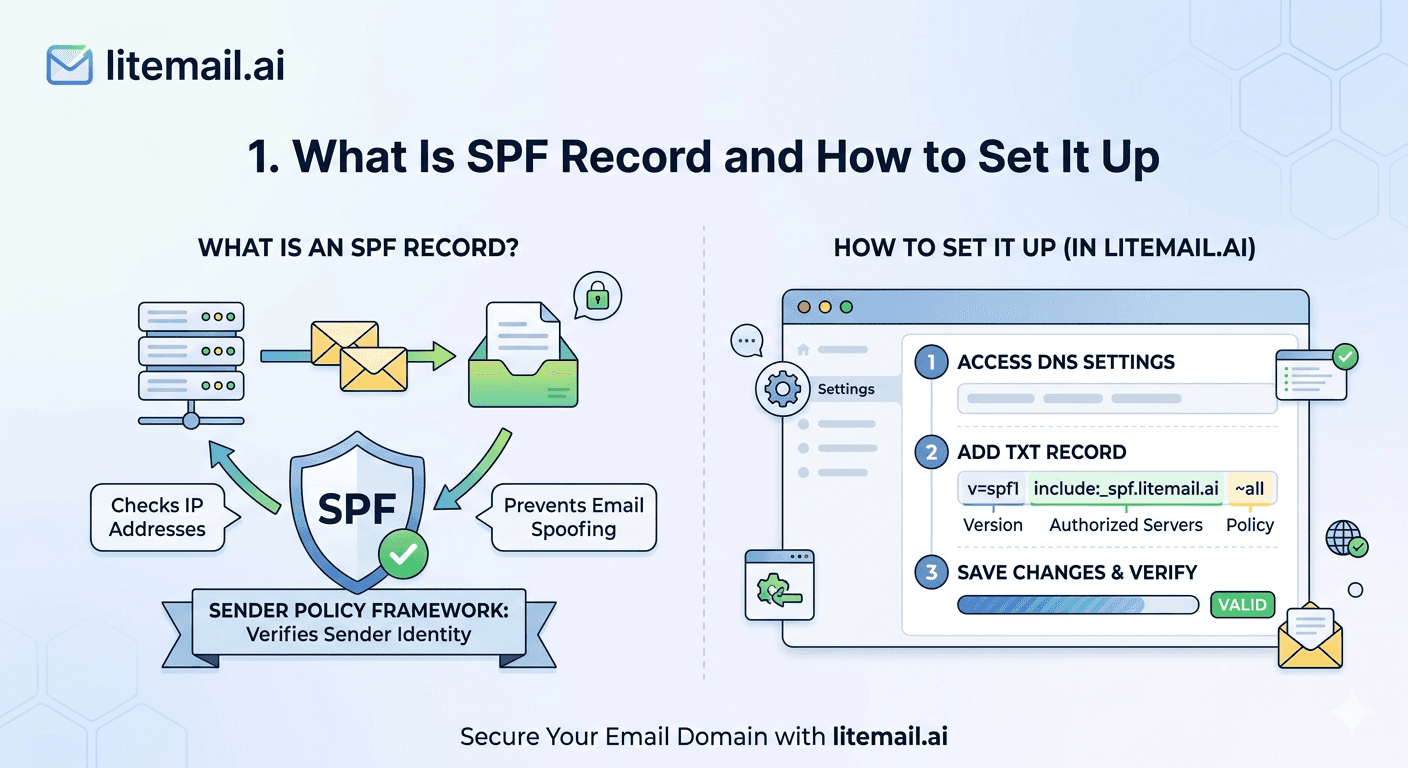
An SPF record is a DNS TXT record that tells receiving mail servers which systems are authorized to send email on behalf of your domain. It helps receiving servers identify unauthorized senders and reduces the risk of domain spoofing.
SPF is used for everything from business email to marketing platforms and cold email. The basic setup is simple: publish one SPF record in your domain's DNS and list the legitimate services that send email for that domain.
If you use multiple sending domains, Google Workspace, Microsoft 365, or third-party email platforms, the configuration needs more care. This guide explains what an SPF record is, how SPF works, the correct SPF syntax, how to set it up, and common SPF mistakes to avoid.
💡 TL;DR
An SPF (Sender Policy Framework) record is a DNS TXT record that specifies which mail servers and services can send email on behalf of your domain.
A basic SPF record starts with v=spf1 and includes the authorized sending services, followed by an SPF policy such as ~all or -all.
Google Workspace: v=spf1 include:_spf.google.com ~all
Microsoft 365: v=spf1 include:spf.protection.outlook.com ~all
A domain should have one SPF policy, even when multiple services send email. If you use several sending platforms, their authorization mechanisms need to be combined into the same SPF record rather than publishing separate SPF records.
After publishing or updating SPF, verify the DNS record and make sure every legitimate sending service is authorized. (For the complete authentication stack, see our SPF, DKIM, DMARC Setup Guide.)
What Is an SPF Record and How Does It Work?
SPF stands for Sender Policy Framework. It is an email authentication method that lets a domain owner publish a list of servers and services authorized to send email using that domain.
When a receiving mail server gets a message, it can check the domain used by the sender against the domain's SPF policy. The receiving server then evaluates whether the sending source is authorized according to that policy.
For example, if your domain uses Google Workspace to send email, your SPF record can authorize Google's mail servers with:
v=spf1 include:_spf.google.com ~all
The receiving server evaluates the sender against that policy and produces an SPF result such as Pass, Fail, SoftFail, Neutral, None, or another defined SPF result.
SPF is therefore not simply a list of "good emails." It is a published policy that tells receiving systems which sources are authorized to send mail for your domain.
SPF for Cold Email: How Multiple Sending Domains Work
SPF is configured per domain, not once for an entire business.
For example, suppose you use:
company.comfor your primary business emailgetcompany.comfor outreachtrycompany.comfor another sending domain
Each domain has its own DNS records and therefore needs its own SPF configuration.
If getcompany.com sends through Google Workspace, its SPF record needs to authorize Google's sending infrastructure. If another domain uses Microsoft 365, that domain needs the appropriate Microsoft 365 SPF authorization.
Do not copy one domain's SPF record to every other domain unless the same sending services are actually being used.
The important rule is simple: every sending domain should authorize the services that actually send email for that domain.
Using multiple domains does not mean creating one giant SPF record for all of them. Each domain is evaluated independently.
How to Set Up an SPF Record for Google Workspace
If Google Workspace is the only service sending email from your domain, a typical SPF record is:
v=spf1 include:_spf.google.com ~all
Add the record as a TXT record in the DNS settings for your domain.
Basic setup:
Sign in to your DNS hosting provider.
Open your domain's DNS records.
Create a new TXT record.
Use
@as the host/name when your provider uses@for the root domain.Add the SPF value:
v=spf1 include:_spf.google.com ~all
Save the record.
Verify that the published SPF record can be found in DNS.
If another legitimate service also sends email from the same domain, don't create a second SPF record. Add the required authorization mechanism to the existing SPF policy, while keeping the complete record within SPF's DNS-lookup limits.
How to Set Up an SPF Record for Microsoft 365
For a domain sending mail through Microsoft 365, the commonly used SPF record is:
v=spf1 include:spf.protection.outlook.com ~all
Add it as a TXT record in your domain's DNS settings.
The process is similar to Google Workspace:
Open your DNS provider.
Go to the DNS settings for your domain.
Add or edit the TXT record used for SPF.
Enter the appropriate SPF policy.
Save the change.
Verify the published record.
If Microsoft 365 is not your only sending platform, combine the required authorization mechanisms into the existing SPF policy rather than creating another SPF record for the same domain.
What Does an SPF Record Look Like?
An SPF record is published as a DNS TXT record and normally begins with v=spf1.
A simple SPF record can look like this:
v=spf1 include:_spf.google.com ~all
Each part has a specific purpose:
SPF part | What it means |
|---|---|
| Identifies the record as an SPF version 1 policy |
| Authorizes another domain's SPF policy |
| The domain whose SPF policy is being included |
| Specifies the policy for sources that don't match the authorized mechanisms |
SPF can also authorize specific IP addresses. For example:
v=spf1 ip4:192.0.2.1 ~all
You can combine multiple authorized sources in one SPF record when necessary:
v=spf1 include:_spf.google.com include:example.com ~all
However, adding more services can increase DNS lookups, so SPF records should be kept as simple as possible
Common SPF Record Problems and How to Fix Them
No SPF record found
This usually means the domain does not have a valid SPF TXT record published at the expected DNS location. Check your DNS records and verify that the record is published for the correct domain.
More than one SPF record
Publishing multiple separate SPF TXT records for the same domain can cause SPF evaluation problems. If multiple services send mail for the domain, combine their authorization mechanisms into a single SPF policy.
SPF record exceeds the DNS lookup limit
SPF evaluation has a limit of 10 DNS-based lookups. Adding too many include, a, mx, exists, or redirect mechanisms can cause the SPF check to return a failure such as PermError.
Keep your SPF policy as simple as possible and review third-party includes before adding them.
SoftFail (~all)
~all means the sender did not match the authorized mechanisms and is treated as a SoftFail. The receiving system decides how to handle the message.
Fail (-all)
-all produces an SPF Fail for unauthorized sources. Before using a strict policy, make sure every legitimate sending service is included in your SPF configuration.
SPF record is not updating
DNS changes can take time to propagate depending on your DNS provider and TTL settings. Verify the record from an external DNS/SPF checker rather than relying only on your local DNS cache.
SPF Record Syntax — What Each Part Means
An SPF record looks technical. But once you understand what each component does, it is straightforward to set up correctly — and easy to spot when it is wrong.
Component | What It Does | Example |
|---|---|---|
v=spf1 | Declares this is an SPF record — always first | v=spf1 |
include: | Authorises IPs owned by a third-party service | include:_spf.google.com |
ip4: | Authorises a specific IPv4 address or range | ip4:123.45.67.89 |
~all | Soft fail — unauthorised IPs are marked suspicious but not rejected | ~all |
-all | Hard fail — unauthorised IPs are rejected | -all |
?all | Neutral — no policy on unauthorised IPs (not recommended) | ?all |
Use ~all (soft fail) when setting up SPF for the first time — it gives you visibility into authentication failures without risking legitimate email being rejected. Move to -all (hard fail) after 30 days of clean authentication data and once you are confident all legitimate sending sources are listed.
SPF Record Setup by Email Platform — Exact DNS Records
Here are the exact SPF records for the most common cold email sending platforms. Add these as TXT records in your domain registrar's DNS management panel. One record per domain — do not create multiple SPF records for the same domain.
📋
Google Workspace
TXT record: v=spf1 include:_spf.google.com ~all. Add at the root domain (@). This covers all Google Workspace sending IPs including Gmail's outbound infrastructure. If you also send from other services (CRM, marketing tool), add their include: entries before the ~all: v=spf1 include:_spf.google.com include:other-service.com ~all.
📋
Microsoft 365
TXT record: v=spf1 include:spf.protection.outlook.com ~all. Same rules apply — add at root domain, only one SPF record. Microsoft 365's SPF record covers Exchange Online sending IPs. If you are also sending from Dynamics or other Microsoft services, Microsoft's own documentation lists the additional include: entries needed.
📋
Custom SMTP (other providers)
If you are connecting a cold email sending tool via SMTP, check the tool's documentation for their SPF include: entry. Most major providers (SendGrid, Mailgun, Postmark) have a dedicated SPF include: subdomain. Add it alongside your primary email platform's include: entry in the same SPF record.
The 3 Most Common SPF Mistakes That Break Cold Email Deliverability
These mistakes are responsible for a disproportionate share of cold email deliverability problems. Check every new sending domain for all three before the first send.
❌
Mistake 1: Multiple SPF records on the same domain
This is the most common mistake and one of the most damaging. DNS only evaluates one SPF record per domain. If there are two SPF TXT records — for example, from two different services you set up at different times — the result is unpredictable. Some servers will fail both; some will pick one arbitrarily. The fix: merge all SPF entries into a single TXT record. v=spf1 include:_spf.google.com include:spf.protection.outlook.com ~all is a valid single record.
❌
Mistake 2: SPF record with too many DNS lookups
Each include: statement in an SPF record triggers a DNS lookup. The SPF standard limits total lookups to 10. Go over 10 and the SPF record returns a PermerError — which most servers treat as a failure. Check your lookup count at kitterman.com/spf/validate.html before finalising any SPF record with multiple include: entries.
❌
Mistake 3: SPF without DKIM and DMARC
SPF alone is not enough. Without DKIM, your emails are not cryptographically signed — receiving servers cannot confirm the email content has not been modified in transit. Without DMARC, there is no policy for what to do when SPF or DKIM fails. All three work together. SPF passing while DKIM or DMARC is missing still results in email being sorted to spam by many receiving systems.
How to Verify Your SPF Record Is Working — Before Sending a Single Email
Setting up the record is step one. Verifying it is working is step two — and most people skip it. Here is the 10-minute verification process.
Go to MXToolbox → SPF Record Lookup. Enter your sending domain. Confirm one SPF record exists, it passes validation, and all include: entries resolve without errors.
Check lookup count. MXToolbox's result shows DNS lookup count. Keep it under 10. If it is over 10, consolidate include: entries using SPF flattening tools like AutoSPF.
Send a test email to a Gmail address. Open the email. Click the three dots in the top right. Select "Show original." In the Authentication-Results header, look for: spf=pass. If it shows spf=fail or spf=softfail, the record is misconfigured.
Check that DKIM and DMARC are also passing. Same header. You want: dkim=pass and dmarc=pass alongside spf=pass. Any failure is a deliverability problem that needs fixing before launching a campaign.
[INTERNAL LINK: DKIM setup guide for cold email → /blog/dkim-setup-cold-email]
SPF, Pre-Warmed Inboxes, and Cold Email — How They Fit Together
SPF is necessary but not sufficient for cold email deliverability. Think of it as one layer in a three-layer authentication stack: SPF verifies the sending IP, DKIM signs the message, and DMARC sets the policy for failures. All three need to be in place.
The good news: if you are using Litemail pre-warmed inboxes, SPF, DKIM, and DMARC are pre-configured on every inbox before delivery. You do not go through the manual DNS setup and propagation wait. Postmaster-verified reputation within 48 hours means authentication is already passing when the inbox is handed over — not something you need to set up and debug.
For teams managing their own domain setup, the manual process adds 2 to 3 days per domain batch due to DNS propagation time. At 10 clients with 3 domains each, that is 30 domains × 2 to 3 days = 60 to 90 days of staggered setup time. Pre-configured authentication at the inbox level collapses that to 48 hours per batch regardless of domain count.
The Bottom Line
An SPF record is a DNS TXT record that tells receiving servers which IPs are authorised to send from your domain. Missing SPF costs 10 to 20 percentage points of inbox placement — every day, on every email from that domain.
For Google Workspace:
v=spf1 include:_spf.google.com ~all. For Microsoft 365:v=spf1 include:spf.protection.outlook.com ~all. One record per domain only. (See our full SPF setup for Google Workspace guide for domain-specific edge cases.)Multiple SPF records on one domain are one of the most common cold email deliverability mistakes — they result in unpredictable authentication failures.
SPF alone is not enough. DKIM and DMARC must also be configured. All three need to show pass in email headers before launching any campaign — our complete SPF, DKIM, DMARC setup guide walks through all three together.
Verify using MXToolbox SPF Lookup and a Gmail test email before the first send. Fixing a broken SPF record takes 5 minutes; finding it after 2 weeks of underperformance is far more expensive.
Litemail pre-configures SPF, DKIM, and DMARC on every inbox — eliminating the 2 to 3 day per-domain manual setup and DNS propagation wait for teams managing multiple sending domains.
Frequently Asked Questions
What is an SPF record in email?
An SPF (Sender Policy Framework) record is a DNS TXT record that specifies which mail servers and services are authorized to send email on behalf of a domain. Receiving mail servers can use the SPF policy to evaluate whether the sending source is authorized. A missing or misconfigured SPF record can contribute to SPF authentication failures and affect email delivery.
How do I set up an SPF record for cold email?
To set up SPF for cold email, add an SPF TXT record to the DNS settings of each sending domain. The SPF value depends on the email service you use. For example, Google Workspace commonly uses v=spf1 include:_spf.google.com ~all, while Microsoft 365 commonly uses v=spf1 include:spf.protection.outlook.com ~all.
If multiple services send email from the same domain, combine their required authorization mechanisms into the same SPF policy rather than publishing separate SPF records. After making the DNS change, verify that the published SPF record is valid.
Can I have two SPF records on one domain?
A domain should have one SPF policy. Publishing multiple separate SPF records can cause SPF evaluation errors because receiving servers may not be able to determine a single valid SPF policy.
If multiple email services send from the same domain, combine the required authorization mechanisms into one SPF record. For example:
v=spf1 include:_spf.google.com include:spf.protection.outlook.com ~all
Make sure every included service is actually authorized to send email for the domain.
Is SPF enough for cold email deliverability?
No. SPF is one part of email authentication and does not by itself guarantee inbox placement or deliverability.
For a complete authentication setup, consider SPF, DKIM, and DMARC together. SPF helps authorize sending sources, DKIM adds a cryptographic signature to messages, and DMARC defines how receiving servers should handle messages that fail authentication checks.
For cold email, authentication should be combined with other deliverability practices such as proper DNS configuration, sender reputation, list quality, sending practices, and compliant email content.
How do I check if my SPF record is working?
Use an SPF or DNS lookup tool to check the SPF record published for your domain. Confirm that the expected SPF policy is returned and that there are no syntax or configuration errors.
You can also send a test email and inspect the message's authentication results. Look for an SPF result such as spf=pass in the email headers.
If the result is spf=fail, spf=softfail, or another unexpected result, review the published SPF policy and confirm that the sending service is authorized.
What does ~all vs -all mean in an SPF record?
~all represents an SPF SoftFail for sources that do not match the authorized mechanisms. -all represents an SPF Fail for unauthorized sources.
For example:
v=spf1 include:_spf.google.com ~all
uses SoftFail, while:
v=spf1 include:_spf.google.com -all
uses Fail.
The appropriate policy depends on your email-sending setup. Before using -all, make sure all legitimate sending services and sources are correctly authorized in the SPF record.
What does an SPF record look like?
A basic SPF record can look like this:
v=spf1 include:_spf.google.com ~all
The record begins with v=spf1, followed by mechanisms that identify authorized sending sources and an all mechanism that specifies the policy for sources that do not match.
The exact SPF record depends on which email services send mail for your domain.
How many SPF records can a domain have?
A domain should publish one SPF policy. If multiple email providers or sending platforms are used, their required SPF mechanisms should be combined into the same record.
Creating multiple separate SPF records for the same domain can result in SPF errors.
How long does an SPF record take to update?
SPF changes depend on DNS propagation and the record's TTL. Some DNS changes become visible relatively quickly, while others can take longer.
After updating SPF, check the record using a DNS or SPF lookup tool to confirm that the new value is publicly visible.






