
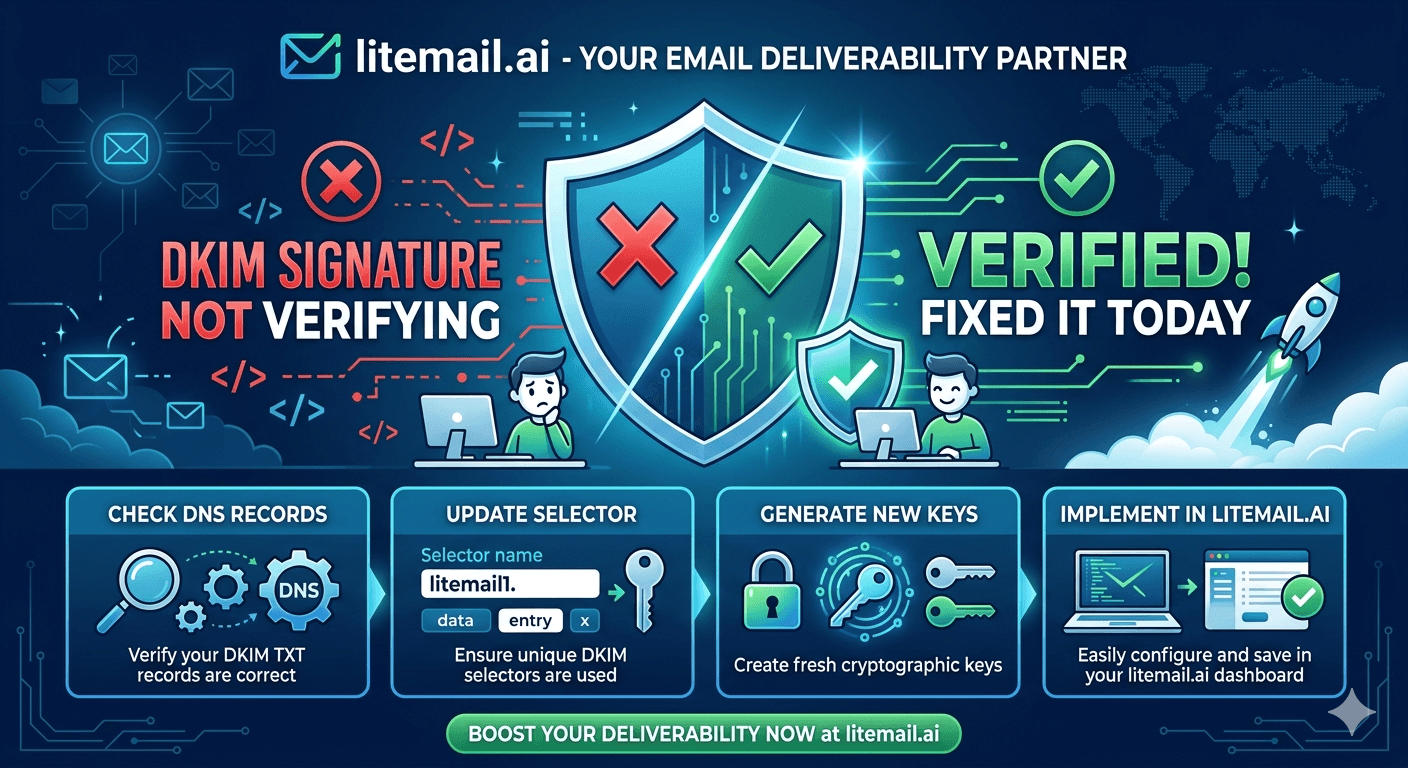
A DKIM verification failure is silent on your end and damaging on the receiving end. Your emails send normally. No error message appears. But every email arrives unsigned — and receiving mail servers score unsigned email from cold email domains significantly lower than authenticated email. If your cold email deliverability has dropped and everything looks fine on the surface, DKIM is the first thing to check.
What a DKIM Failure Looks Like (And How to Confirm It)
DKIM failure isn't always obvious. Here are the three ways it presents and how to confirm each one.
Symptom | What It Indicates | How to Confirm |
|---|---|---|
Open rate dropped suddenly | Possible DKIM failure — emails routing to spam | Send test to Gmail, check headers for dkim=fail |
Mail-tester score below 9/10 | DKIM contributing to score reduction | Check mail-tester report for DKIM-specific deduction |
MXToolbox DKIM check failing | DKIM DNS record missing or misconfigured | mxtoolbox.com/dkim — enter domain and selector |
Gmail header shows dkim=fail | DKIM signing not active on outgoing emails | Show Original on received email, check Authentication-Results |
Google Postmaster reputation dropped | Could be DKIM — run all checks to isolate | Full MXToolbox deliverability check on sending domain |
✅ The Fastest DKIM Diagnostic
Send an email from your cold email inbox to a Gmail address you control. In Gmail, open the email → three-dot menu → Show Original. In the Authentication-Results section, look for "dkim=pass" or "dkim=fail". If it shows "dkim=fail" or "dkim=none", DKIM is not working and the steps below tell you exactly why and how to fix it.
DKIM Failure Causes: Google Workspace
GWS DKIM failures have three common causes. Check them in this order — each one is progressively less common but causes the same symptom.
Cause 1: DKIM Not Activated in Google Admin (Most Common)
The DNS record exists but DKIM signing was never activated. This is the most frequent cause — operators add the DKIM TXT record to DNS and assume that's sufficient. It isn't. DKIM must also be turned on in the Google Admin console.
Check: Google Admin Console → Apps → Google Workspace → Gmail → Authenticate Email. Look for your sending domain. Status should show "Authenticating email." If it shows "Not generating keys" or "Keys not added to domain," DKIM is not active.
Fix: If the domain shows "Not generating keys," click "Generate New Record," copy the DKIM TXT record shown, add it to DNS (if not already there), wait 24–48 hours for propagation, then return and click "Start Authentication."
Cause 2: DNS Propagation Incomplete
The DKIM TXT record was added to DNS but hasn't fully propagated. Propagation takes 15–60 minutes at most DNS providers, up to 48 hours in rare cases.
Check: Go to mxtoolbox.com/dkim. Enter your domain name and the DKIM selector (for GWS, the default selector is "google"). If the check shows "DKIM Record Not Found," DNS hasn't propagated or the record was added incorrectly.
Fix: If the record isn't found, verify it was added correctly in your DNS provider. The host field for GWS DKIM is typically google._domainkey (note: this is a TXT record, not CNAME). Wait 30–60 minutes and recheck.
Cause 3: Wrong DKIM Selector or Record Format
The record exists and propagated but the content is wrong — a copy-paste error or wrong selector name.
Check: In your DNS provider, view the DKIM TXT record you added. Compare it exactly to the value shown in Google Admin Console under Authenticate Email. The values must match character-for-character — including the p= value which is the long encoded public key string.
Fix: If values don't match, delete the existing DKIM record and re-add it using the exact value from Google Admin Console. Generate a new key if the original is no longer accessible.
DKIM Failure Causes: Microsoft 365
MS365 DKIM failures have a different root cause than GWS — and a specific two-step setup that's easier to miss.
Cause 1: DKIM Signing Not Enabled in Microsoft 365 Defender (Most Common)
Microsoft 365 DKIM requires two separate steps: adding CNAME records to DNS AND enabling DKIM signing in Microsoft 365 Defender. Completing only the DNS step leaves DKIM inactive — no error, no warning, just unsigned emails.
Check: Go to security.microsoft.com → Email and Collaboration → Policies and Rules → Threat Policies → Email Authentication Settings → DKIM. Select your sending domain. Status should show "Enabled." If it shows "Disabled" or there's a configuration error shown, DKIM signing is not active.
Fix: On the DKIM page, select your domain and toggle the Enable switch to On. If you get an error saying the CNAME records aren't found, DNS hasn't propagated yet — wait 30–60 minutes and try again. Do not proceed until the enable action completes without error.
Cause 2: CNAME Records Added Incorrectly
Microsoft 365 DKIM uses two CNAME records (selector1._domainkey and selector2._domainkey), not TXT records. Accidentally adding them as TXT records or typing the record values incorrectly causes DKIM to fail even after enabling in Defender.
Check: In your DNS provider, verify both DKIM records are: Type = CNAME (not TXT), Host = selector1._domainkey and selector2._domainkey, Value = exactly as shown in Microsoft 365 Defender's DKIM setup page for your domain.
Fix: Delete incorrect records and re-add as CNAME type with the exact values from Microsoft 365 Defender. Wait 60 minutes for propagation, then re-enable DKIM in Defender.
Verifying DKIM Is Working After the Fix
Run all four of these checks after implementing any DKIM fix. Don't assume the fix worked — verify before resuming campaigns.
MXToolbox DKIM check: mxtoolbox.com/dkim — enter domain and selector ("google" for GWS, "selector1" or "selector2" for MS365). Should show the DKIM record found and no errors.
Gmail header check: Send a test from your inbox to Gmail → Show Original → Authentication-Results must show dkim=pass. Anything else means DKIM is still not active on outgoing emails.
Mail-tester.com score: Send a test to mail-tester.com. Any DKIM-related score deduction means DKIM isn't fully configured. Target 9/10 or 10/10.
Google Postmaster Tools: After 24–48 hours of DKIM-authenticated sends, verify domain reputation is holding or recovering. If Postmaster reputation improved, DKIM fix was successful.
💡 Don't Run Campaigns Until All Four Pass
One passing check doesn't confirm DKIM is fully working — the Gmail header check and mail-tester together confirm both DNS and signing activation. Running campaigns before confirming dkim=pass in Gmail headers continues to send unsigned emails while you think the fix is applied. Take the extra 5 minutes to verify all four before resuming sends.
DKIM Key Length: 1024 vs 2048 for Cold Email
When generating a new DKIM key — either because you're setting up a new domain or because you're rotating an existing key — choose 2048-bit over 1024-bit.
2048-bit DKIM keys are the current security standard and are required by Google for senders sending to Gmail at scale as of 2024. Some older DNS providers don't support 2048-bit keys through their UI — if yours doesn't, consider switching to Cloudflare DNS which has excellent TXT record length support. 1024-bit keys still function for DKIM authentication but are considered weaker and may produce lower trust signals with some enterprise email security gateways over time.
Skip Manual DKIM Setup With Pre-Warmed Inboxes
If DKIM configuration is a recurring problem — misconfigured records, activation steps missed, key rotation causing delivery drops — the simplest fix for ongoing cold email infrastructure management is to use Litemail pre-warmed inboxes, where DKIM is activated and verified before delivery.
Every Litemail inbox arrives with DKIM signing active (not just the DNS record published — fully activated and verified), SPF and DMARC also pre-configured, and Good or High Postmaster reputation from day one. The DKIM verification check on mxtoolbox.com passes immediately on delivery. The Gmail header check shows dkim=pass without any manual setup. At $4.99/inbox, the administrative overhead of manual DKIM setup across multiple domains is eliminated.
Skip DKIM Setup Entirely — Pre-Configured Inboxes from Litemail
Every Litemail inbox has DKIM activated and verified before delivery. No DNS records to add, no admin console activation steps to miss. Check dkim=pass in Gmail headers within minutes of receiving your inbox. $4.99/inbox.
Get Pre-Configured Inboxes from $4.99 →
DKIM activated on delivery · SPF and DMARC pre-configured · Verified Good/High reputation · No minimum order
About Litemail — Litemail provides pre-warmed Google Workspace and Microsoft 365 inboxes for cold email outreach. From $4.99/inbox with automated DNS, dedicated US and EU IPs, and full admin access. View pre-warmed inbox plans →
Related reading:
SPF, DKIM, DMARC Setup Guide 2026 · DMARC Not Working: Fix Guide 2026 · Outlook Cold Email SPF, DKIM, DMARC Setup · SPF Record for Google Workspace Cold Email · DKIM Key 1024 vs 2048 for Cold Email
Key Takeaways
DKIM failure is silent — emails send normally but arrive unsigned, with no error message on your end. Confirm DKIM status by checking the Gmail header (Show Original → Authentication-Results → dkim=pass or dkim=fail).
For Google Workspace, the most common DKIM failure cause is completing the DNS record step without activating DKIM signing in Google Admin Console → Apps → Gmail → Authenticate Email. Both steps are required.
For Microsoft 365, the most common cause is adding the CNAME records to DNS without enabling DKIM in Microsoft 365 Defender. DKIM signing must be explicitly enabled in security.microsoft.com after the DNS records propagate.
Verify the fix with all four checks before resuming campaigns: MXToolbox DKIM lookup, Gmail header showing dkim=pass, mail-tester.com score of 9/10+, and Postmaster Tools reputation stabilised.
Use 2048-bit DKIM keys — required by Google for scale senders and the current security standard. 1024-bit still works but produces weaker trust signals with enterprise security gateways over time.
Litemail pre-warmed inboxes ship with DKIM activated and verified — no DNS setup steps to complete, no activation to miss. Check dkim=pass in Gmail headers immediately on delivery.
Frequently Asked Questions
Why is my DKIM signature not verifying?
Two most common causes: (1) For Google Workspace — DKIM DNS record added but signing not activated in Google Admin Console. Go to Admin → Apps → Google Workspace → Gmail → Authenticate Email and confirm status shows "Authenticating email." (2) For Microsoft 365 — CNAME records added but DKIM signing not enabled in Microsoft 365 Defender. Go to security.microsoft.com → Policies → Email Authentication Settings → DKIM and toggle Enable for your domain. Both platforms require DNS records AND an explicit activation step.
How do I check if DKIM is working for my cold email?
Send a test email from your cold email inbox to a Gmail address you control. In Gmail, open the email → three-dot menu → Show Original. In the Authentication-Results section near the top, look for dkim=pass (working) or dkim=fail/dkim=none (not working). Also run mxtoolbox.com/dkim with your domain and selector ("google" for GWS, "selector1" for MS365). Both checks should pass before running any cold email campaigns.
Does DKIM failure affect cold email deliverability?
Yes — significantly. Unsigned emails (dkim=fail or dkim=none) receive lower trust scores from receiving mail servers. Enterprise email gateways (Proofpoint, Mimecast, Microsoft Defender for Office 365) treat DKIM failure as a strong negative signal. For cold email where sender reputation is built from scratch, DKIM authentication is foundational — it's one of the three records (with SPF and DMARC) that together establish authenticated sender identity.
How long does it take to fix a DKIM signature not verifying?
For GWS: if the DNS record exists and just needs activation — 5 minutes in Google Admin Console, then wait 30 minutes and verify. If the DNS record is wrong or missing — 15 minutes to correct it, plus 30–60 minutes for DNS propagation, then activate in Google Admin. For MS365: if CNAME records are correct but DKIM not enabled — 2 minutes in Microsoft 365 Defender. If CNAME records are wrong — 15 minutes to correct, 30–60 minutes propagation, then enable in Defender.
What is the DKIM selector for Google Workspace?
The default DKIM selector for Google Workspace is "google" — the full selector string is "google._domainkey." When checking DKIM on mxtoolbox.com/dkim, enter your domain and "google" as the selector. For Microsoft 365, the selectors are "selector1" and "selector2" — Microsoft uses two rotating selectors. Check both on mxtoolbox.com to confirm both CNAME records are propagated and resolving correctly.
Do Litemail pre-warmed inboxes have DKIM set up?
Yes — DKIM is both published in DNS and activated (signing enabled) on every Litemail inbox before delivery. No manual DNS setup or activation steps required. Send a test email within minutes of receiving your Litemail inbox credentials — the Gmail header will show dkim=pass immediately. mxtoolbox.com/dkim will show the DKIM record found and valid. If either check fails on a Litemail inbox, contact support — this is outside the standard delivery quality.
DKIM Not Working Fix | Litemail Pre-Configured Inboxes
DKIM activated on every inbox before delivery. No setup steps to miss. dkim=pass on the Gmail header check from day one. $4.99/inbox.
View Plans & Pricing →
Related reading:
SPF, DKIM, DMARC Setup Guide · DMARC Not Working Fix Guide · Outlook SPF, DKIM, DMARC Setup · SPF Record for GWS Cold Email · DKIM Key 1024 vs 2048






