
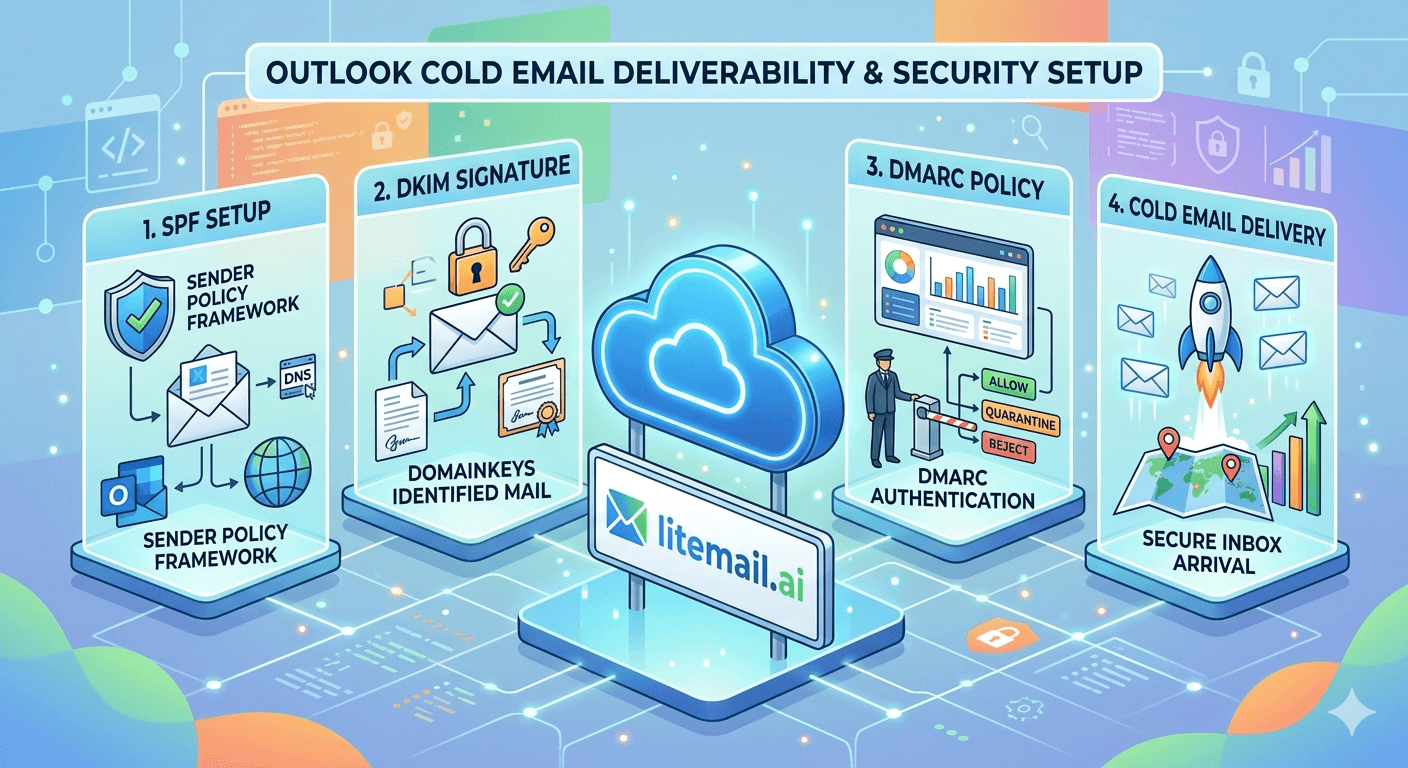
Outlook cold email authentication has one configuration step that trips up more setups than any other: DKIM for Microsoft 365 requires both DNS records and activation inside Microsoft 365 Defender — and adding only one of the two leaves emails unsigned. Unsigned emails from MS365 inboxes land in spam even on pre-warmed infrastructure. Here's the complete, correct process.
Why Authentication Is Non-Negotiable for Outlook Cold Email
Microsoft 365 inboxes for cold email send from Microsoft's mail servers — which means receiving mail servers verify your sender identity against the authentication records you've published in DNS. Get any one of the three records wrong and cold emails fail authentication, triggering spam filter escalation on both Microsoft-hosted and Gmail-hosted recipients.
Record | Purpose | What Failure Looks Like |
|---|---|---|
SPF | Authorises Microsoft's mail servers to send for your domain | SPF FAIL in Gmail headers → significant spam filter trigger |
DKIM | Cryptographically signs outgoing email to verify message integrity | DKIM FAIL → treated as potentially spoofed or tampered |
DMARC | Enforcement policy for when SPF or DKIM fails; provides reporting | Without DMARC, no enforcement on authentication failures — weak overall posture |
SPF Record for Outlook Cold Email: Exact Format
The correct SPF TXT record for a domain sending cold email from Microsoft 365:
Record type: TXT
Host/Name: @ (root domain)
Value: v=spf1 include:spf.protection.outlook.com -all
TTL: 3600
Common errors:
Wrong include: include:outlook.com or include:microsoft.com both fail. The correct include is include:spf.protection.outlook.com — exactly as written.
Two SPF records: Only one TXT record starting with v=spf1 is allowed per domain. If you have an existing SPF record, edit it — don't add a second one.
~all instead of -all: Use -all (hard fail) for dedicated cold email domains. ~all produces weaker enforcement.
✅ Verify SPF on MXToolbox
Go to mxtoolbox.com/spf, enter your sending domain, and confirm: SPF Record Found + SPF Syntax Check: Pass + the include:spf.protection.outlook.com appears in the record. Takes 60 seconds and confirms the record is propagated and correct.
DKIM Setup for Microsoft 365 Cold Email: The Two-Step Process
DKIM for MS365 requires two steps — and omitting either one leaves DKIM non-functional despite no error message on your end.
Step 1: Generate DKIM Keys in Microsoft 365 Defender
Go to security.microsoft.com → Email and Collaboration → Policies and Rules → Threat Policies → Email Authentication Settings → DKIM tab
Find your sending domain in the list and click on it
Click "Create DKIM keys" — Microsoft generates two CNAME records
Copy both CNAME records Microsoft shows you
Step 2: Add the CNAME Records to DNS
The two records look like this (with your domain substituted):
Record 1: Type: CNAME | Host: selector1._domainkey | Value: selector1-yourdomain-com._domainkey.tenantname.onmicrosoft.com
Record 2: Type: CNAME | Host: selector2._domainkey | Value: selector2-yourdomain-com._domainkey.tenantname.onmicrosoft.com
Add both to your domain's DNS settings. Wait 30–60 minutes for propagation.
Step 3: Activate DKIM Signing in Microsoft 365 Defender
Return to security.microsoft.com → DKIM tab → select your domain → toggle "Enable" to On. If it shows an error, DNS hasn't propagated yet — wait 30 minutes and try again. Once enabled, the status shows "Signing" — DKIM is now active.
🚩 The Most Common MS365 DKIM Mistake
Adding the CNAME records to DNS but not toggling Enable in Microsoft 365 Defender. The DNS records exist but DKIM signing is inactive. Every email leaves unsigned. The mistake produces no error — you just see DKIM FAIL in deliverability tests with no obvious cause. Both steps are required: DNS records AND Defender activation.
DMARC Record for Outlook Cold Email
The correct DMARC TXT record:
Record type: TXT
Host/Name: _dmarc (results in _dmarc.yourdomain.com)
Value (starting DMARC): v=DMARC1; p=none; rua=mailto:dmarc@yourdomain.com
Value (after 2 weeks of clean reports): v=DMARC1; p=quarantine; sp=quarantine; rua=mailto:dmarc@yourdomain.com
Start at p=none for the first 2 weeks on a new domain to monitor authentication without risking rejection. Move to p=quarantine after reviewing 2 weeks of clean aggregate reports in your dmarc@ inbox. This graduated approach prevents legitimate email from being incorrectly rejected during initial setup.
Verifying Outlook Cold Email Authentication Is Complete
Run these three checks after completing all three DNS records:
MXToolbox full deliverability check: mxtoolbox.com → enter your sending domain → run the Email Health check. All five items (MX, SPF, DKIM, DMARC, blacklist) should show green. Red on DKIM almost always means the Defender activation step was not completed.
Mail-tester.com: Send a test from your MS365 inbox to the provided address. Score of 9/10 or 10/10 confirms all three records are correctly configured. The detailed report shows which specific item is causing any deduction below 9.
Gmail header check: Send a test from your MS365 inbox to a Gmail address. Click three dots → Show Original. Look for Authentication-Results: spf=pass, dkim=pass, dmarc=pass. Any fail result identifies which record needs investigation.
Litemail pre-warmed MS365 inboxes have SPF, DKIM, and DMARC pre-configured before delivery. All three checks pass immediately on delivery — verify on mxtoolbox.com within minutes of receiving credentials.
Get MS365 Authentication Pre-Configured — Litemail Pre-Warmed Inboxes
Every Litemail MS365 inbox ships with SPF, DKIM (activated in Defender), and DMARC pre-configured and verified. No manual setup. Verify green on mxtoolbox.com on delivery. $4.99/inbox.
Get Pre-Warmed MS365 Inboxes from $4.99 →
SPF, DKIM, DMARC pre-configured · Verified Good/High reputation · Dedicated US and EU IPs · No minimum order
About Litemail — Litemail provides pre-warmed Google Workspace and Microsoft 365 inboxes for cold email outreach. From $4.99/inbox with automated DNS, dedicated US and EU IPs, and full admin access. View pre-warmed inbox plans →
Related reading:
SPF, DKIM, DMARC Setup Guide for Cold Email 2026 · DMARC Not Working: Fix Guide 2026 · Troubleshooting MS365 Cold Email 2026 · SPF Record for Google Workspace 2026 · Outlook Cold Email Troubleshooting: 9 Fixes
Key Takeaways
SPF for MS365 cold email: v=spf1 include:spf.protection.outlook.com -all — published as a single TXT record at @. One SPF record per domain only. Use -all not ~all.
DKIM for MS365 requires two steps: (1) generate keys in Microsoft 365 Defender and add both CNAME records to DNS, (2) toggle Enable On in Defender after DNS propagates. Omitting step 2 leaves emails unsigned — the most common MS365 DKIM error.
DMARC: start at p=none for 2 weeks to monitor, move to p=quarantine after reviewing clean aggregate reports. Publish at _dmarc.yourdomain.com as a TXT record.
All three records must pass. SPF + DKIM + DMARC together. Two passing and one failing produces nearly the same deliverability damage as all three failing for cold email purposes.
Verify with three checks after setup: mxtoolbox.com full deliverability check (all green), mail-tester.com (9/10 or 10/10), and Gmail header inspection (SPF/DKIM/DMARC all pass).
Litemail pre-warmed MS365 inboxes ship with all three records pre-configured and verified — including DKIM activation in Defender. Verify on mxtoolbox.com on delivery, no manual setup required.
Frequently Asked Questions
What is the correct SPF record for Microsoft 365 Outlook cold email?
v=spf1 include:spf.protection.outlook.com -all — published as a TXT record at @ (root domain) in your DNS settings. One SPF record per domain only. The include:spf.protection.outlook.com must be exact — include:outlook.com or include:microsoft.com will not work. Use -all (hard fail) for dedicated cold email domains.
Why is my MS365 DKIM not working even after adding DNS records?
Almost certainly because you added the CNAME records to DNS but didn't activate DKIM signing in Microsoft 365 Defender. Both steps are required. Go to security.microsoft.com → Email and Collaboration → Policies and Rules → Threat Policies → Email Authentication Settings → DKIM → select your domain → toggle Enable to On. If you see an error, DNS hasn't propagated yet — wait 30–60 minutes and try again.
Do I need DMARC for Outlook cold email in 2026?
Yes — practically speaking. DMARC is technically required by Google for senders sending 5,000+ emails per day to Gmail. For all senders, DMARC provides the enforcement layer that makes SPF and DKIM meaningful — without it, authentication failures have no consequence for bad actors, and your overall sender posture is weaker. Start at p=none for 2 weeks to monitor without risk, then move to p=quarantine.
How do I verify my MS365 SPF, DKIM, and DMARC are working correctly?
Three checks: (1) mxtoolbox.com → full deliverability check → all five items green. (2) Send a test email to mail-tester.com → 9/10 or 10/10. (3) Send a test from your MS365 inbox to Gmail → Show Original → confirm SPF: pass, DKIM: pass, DMARC: pass in the authentication-results section. All three should confirm immediately with correctly configured records.
Do Litemail pre-warmed MS365 inboxes come with SPF, DKIM, and DMARC set up?
Yes. Every Litemail MS365 inbox ships with SPF configured (v=spf1 include:spf.protection.outlook.com -all), DKIM activated — both DNS records added and Defender activation completed — and DMARC published at an appropriate enforcement level. Verify on mxtoolbox.com within minutes of receiving your inbox credentials. All five items should show green without any manual configuration required.
What happens to Outlook cold email if DKIM is not set up?
Emails leave unsigned — every outgoing email lacks the cryptographic signature that receiving servers use to verify authenticity. Modern spam filters treat unsigned email with significantly more suspicion: Gmail, Microsoft Defender, Proofpoint, and Mimecast all apply higher spam scoring to unauthenticated email. For cold email specifically, DKIM failure can reduce primary inbox placement from 88–96% to 40–60% — the same range as a fresh unwarmed inbox.
Outlook Cold Email SPF, DKIM, DMARC | Litemail MS365 Inboxes
All three records pre-configured before delivery. DKIM activated in Defender. Verify green on mxtoolbox.com from day one. $4.99/inbox.
View Plans & Pricing →
Related reading:
SPF, DKIM, DMARC Setup Guide · DMARC Not Working Fix Guide · MS365 Cold Email Troubleshooting · SPF Record for GWS 2026 · Outlook Troubleshooting: 9 Fixes






