
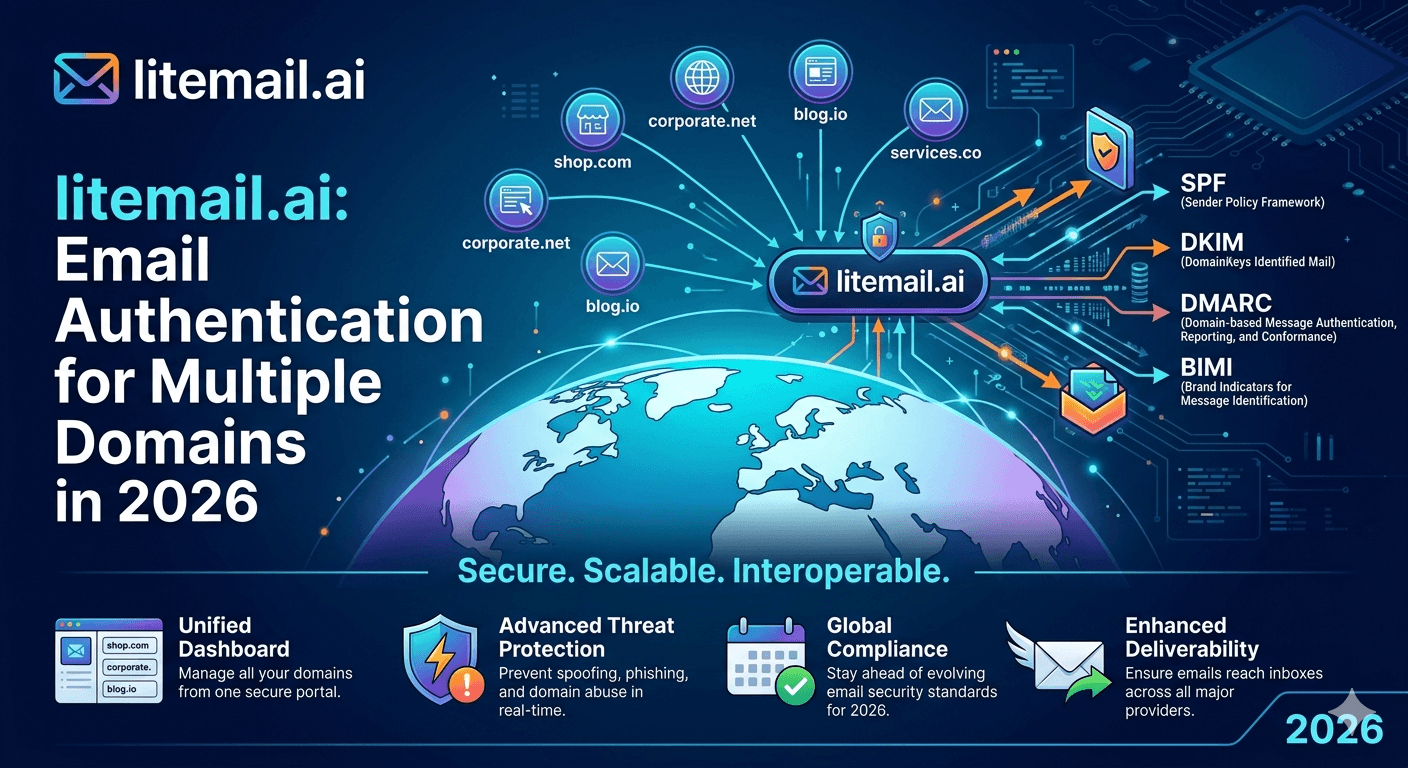
Most guides explain how to set up email authentication for one domain. Nobody explains what happens when you scale to 10, 30, or 80 domains — and the mistakes that are trivial on one domain become catastrophic across a large portfolio. This is the guide for people managing authentication at scale.
Authentication at Scale: Different Problems Than Single-Domain
Single-domain authentication is a one-time setup task. Multi-domain authentication is an ongoing management process. The problems are different in kind, not just in quantity.
Three things break at scale that don't break at small volume:
DNS propagation lag confusion. When you change authentication records across 30 domains simultaneously, propagation timing varies by registrar and by record type. Teams make the mistake of assuming all domains are live when the first few show correct in mxtoolbox — they're not. Each domain must be verified independently.
DKIM key rotation management. DKIM keys should be rotated every 6–12 months. On a single domain this is a reminder you set and forget. On 30 domains, it becomes a project that teams regularly skip — leaving old, potentially compromised DKIM keys active on sending domains.
DMARC report volume. DMARC aggregate reports arrive for every domain separately. At 30 domains, you're looking at 30 sets of reports — none of which most teams actually review. The reports contain critical information about authentication failures and spoofing attempts.
💡 Start With a Domain Authentication Tracker
Before scaling beyond 5 domains, create a simple spreadsheet tracking: domain name, registrar, DNS manager, SPF status, DKIM selector and activation date, DMARC policy and report email, last verification date. Update it every time you add a domain or change a record. Without this, large domain portfolios become unmanageable within 3 months.
SPF Across Multiple Domains: The Lookup Limit Problem
SPF has a hard limit of 10 DNS lookups per authentication check. Single-domain setups rarely hit this. Multi-domain setups can hit it when domains send from multiple providers simultaneously.
Each include: statement in your SPF record counts as one DNS lookup. Here's how they add up:
SPF Include | Lookup Count | Notes |
|---|---|---|
include:_spf.google.com | 1 | GWS sending |
include:spf.protection.outlook.com | 1 | MS365 sending |
include:amazonses.com | 4 | SES expands to multiple lookups |
include:sendgrid.net | 2 | Sendgrid expands |
Additional third-party tools | 1–3 each | CRMs, scheduling tools, etc |
If you're only sending cold email from Google Workspace or Microsoft 365, you need 1 include statement. Stay well under the 10-lookup limit. If you're routing through multiple providers, use SPF flattening — tools like AutoSPF or SPF Optimizer that resolve nested includes into flat IP lists, reducing lookup count.
DKIM Management at Scale: The Key Rotation Problem
DKIM key rotation is the authentication task most multi-domain operators fail to maintain. Here's the right process.
How DKIM Selectors Work Across Domains
Each domain has its own DKIM record, published in DNS under a selector (usually "google" for GWS or "selector1"/"selector2" for MS365). The DKIM record is separate per domain — it doesn't carry over. When you set up a new domain, you must generate and activate DKIM specifically for that domain in your email provider's admin console.
The DKIM Rotation Schedule
Rotate DKIM keys every 6 months on cold email domains, every 12 months on low-volume sending domains. The rotation process:
Generate a new DKIM key pair in Google Admin or Microsoft 365 Defender.
Publish the new public key as a new DNS TXT record under a new selector (google2, selector3, etc).
Wait 48 hours for propagation — do not deactivate the old key yet.
Switch DKIM signing to the new selector in your email provider's admin console.
After 24 hours of confirmed signing under the new key, deactivate and remove the old DNS record.
🚩 Never Deactivate DKIM Before the New Key Is Active
The single most common DKIM rotation error is deactivating the old DKIM record in DNS before the new key is live and confirmed. This leaves a gap where outgoing emails are unsigned — and any authentication check during that gap fails. Always run old and new DKIM simultaneously for at least 24 hours before removing the old record.
DMARC at Scale: Reports, Policies, and Subdomain Management
DMARC becomes genuinely complex at scale — not because the record is complex, but because managing reports across 30+ domains without a system is untenable.
DMARC Report Aggregation
Set your DMARC rua address to a dedicated email address or service that aggregates reports across all your domains. Services like Postmark DMARC or DMARC Analyzer consolidate reports from all domains into a single dashboard. Without this, you're either ignoring reports (risk) or drowning in per-domain email reports (impractical).
DMARC Policy Progression
New domains start at p=none (monitoring only). After 2 weeks of clean DMARC reports with no unexpected authentication failures, move to p=quarantine. After another 2 weeks of clean reports, move to p=reject. This progression on every new domain takes 4 weeks — build it into your domain onboarding process.
Subdomain Handling
A DMARC record on your root domain does not automatically cover subdomains — unless you include sp=quarantine or sp=reject in your DMARC record. For cold email, you want: v=DMARC1; p=reject; sp=reject; rua=mailto:dmarc@[aggregator-domain]. The sp= parameter applies the subdomain policy explicitly.
The Authentication Verification Routine for Multi-Domain Operations
Build this into your weekly operations — it takes 20 minutes for up to 20 domains.
📋Weekly: Run Bulk MX Check on All Active Domains
Use mxtoolbox.com or dmarcian's batch checker to run SPF/DKIM/DMARC verification across all sending domains simultaneously. Flag any that changed status since last week. DNS can be modified by registrar updates, domain renewals, or provider admin changes — not always intentionally.
📋Monthly: Review DMARC Aggregate Reports
Check DMARC reports for any authentication failures that suggest a spoofing attempt or misconfigured sending tool. Any source sending email from your domain that doesn't appear in your SPF record shows up in DMARC reports — this is how you catch unauthorised use of your domain.
📋Quarterly: DKIM Key Rotation Review
Check the DKIM activation date on every domain in your tracker. Any domain with a DKIM key older than 6 months on a cold email domain is due for rotation. Schedule the rotation and update the tracker.
💡 Litemail Handles Authentication Setup Automatically
Every Litemail pre-warmed inbox arrives with SPF, DKIM, and DMARC pre-configured and verified. For agencies managing 20+ domains, this eliminates the per-domain authentication setup time entirely. Your authentication tracker starts fully populated for every Litemail inbox in your portfolio — not a project to build from scratch.
Scale Authentication Without the Headaches — Pre-Warmed Inboxes from Litemail
Every Litemail inbox ships with SPF, DKIM, and DMARC pre-configured and verified. No per-domain authentication setup. $4.99/inbox. Scale to 80 domains at the same quality.
Get Pre-Warmed Inboxes from $4.99 →
Authentication pre-configured · Dedicated US and EU IPs · Full admin access · No minimum order
About Litemail — Litemail provides pre-warmed Google Workspace and Microsoft 365 inboxes for cold email outreach. From $4.99/inbox with automated DNS, dedicated US and EU IPs, and full admin access. View pre-warmed inbox plans →
Related reading:
SPF, DKIM, DMARC Auto-Setup for Pre-Warmed Inboxes 2026 · Email Authentication for Cold Email Agencies · DMARC Not Working Fix Guide 2026 · SPF Record Errors Troubleshooting · DKIM Key 1024 vs 2048 for Cold Email
Key Takeaways
Multi-domain authentication creates management problems that single-domain setups don't have: propagation verification, DKIM key rotation at scale, and DMARC report volume.
SPF has a 10 DNS lookup limit. Cold email domains sending from one provider (GWS or MS365) use 1 lookup — well within limits. Adding multiple providers and tools can breach this limit. Use SPF flattening tools if you approach 8+ lookups.
DKIM keys should be rotated every 6 months on cold email domains. Build rotation into a quarterly review process with a domain authentication tracker spreadsheet.
Never deactivate a DKIM record before the replacement key is active and confirmed. Run old and new keys simultaneously for at least 24 hours before removing the old record.
Set DMARC rua to a report aggregation service — not individual email addresses — when managing 5+ domains. Postmark DMARC or DMARC Analyzer consolidate all domain reports into one view.
Litemail pre-warmed inboxes ship with SPF, DKIM, and DMARC pre-configured and verified — eliminating per-domain authentication setup time for every inbox in your portfolio.
Frequently Asked Questions
Do I need separate SPF, DKIM, and DMARC records for each cold email domain?
Yes. Authentication records are per-domain — they don't carry over from one domain to another. Each domain needs its own SPF TXT record, its own DKIM record (generated and activated separately in your email provider's admin console), and its own DMARC TXT record. Litemail configures all three automatically for every inbox delivered.
What is the SPF 10-lookup limit and how do I avoid it?
SPF authentication allows a maximum of 10 DNS lookups per check. Each include: statement in your SPF record counts as at least one lookup (some providers expand to multiple). For cold email domains sending from only Google Workspace or Microsoft 365, you use 1 lookup — well within limits. If you send through multiple providers, count your lookups and use SPF flattening tools (AutoSPF, MXToolbox SPF Flattener) if approaching 8+.
How often should I rotate DKIM keys on cold email domains?
Every 6 months for active cold email domains, every 12 months for low-volume sending domains. Rotate by generating a new DKIM key pair, publishing it under a new selector in DNS, waiting 48 hours for propagation, switching signing to the new selector in your email provider's admin console, and then removing the old key after 24 hours of confirmed signing under the new one.
How should I manage DMARC reports across 30+ domains?
Use a DMARC report aggregation service like Postmark DMARC, DMARC Analyzer, or dmarcian. Set your DMARC rua address on all domains to point to the aggregation service, which consolidates reports into a single dashboard. Reviewing 30 individual report email inboxes is not operationally sustainable. Review aggregated reports monthly for authentication failures and spoofing attempts.
Does DMARC on a root domain cover subdomains automatically?
Not by default. Your DMARC record on domain.com doesn't cover subdomain.domain.com unless you include sp=quarantine or sp=reject in your DMARC record. For cold email domain portfolios, include sp=reject in every DMARC record: v=DMARC1; p=reject; sp=reject; rua=mailto:your-aggregator-address.
How does Litemail handle authentication for multiple domains?
Every Litemail inbox ships with SPF, DKIM (activated in provider admin), and DMARC pre-configured and verified before delivery. When you order 30 inboxes, all 30 arrive with authentication in place. No per-domain setup process. Your job is to verify each one in mxtoolbox.com before sending — which takes 2 minutes per domain rather than the 30–45 minutes of manual setup.
Email Authentication for Multiple Domains | Litemail
Pre-configured SPF, DKIM, DMARC on every inbox delivered. Scale to 80 domains without the authentication setup overhead. From $4.99/inbox.
View Plans & Pricing →
Related reading:
SPF, DKIM, DMARC Auto-Setup 2026 · Email Authentication for Agencies · DMARC Fix Guide 2026 · SPF Record Troubleshooting · DKIM Key 1024 vs 2048






