
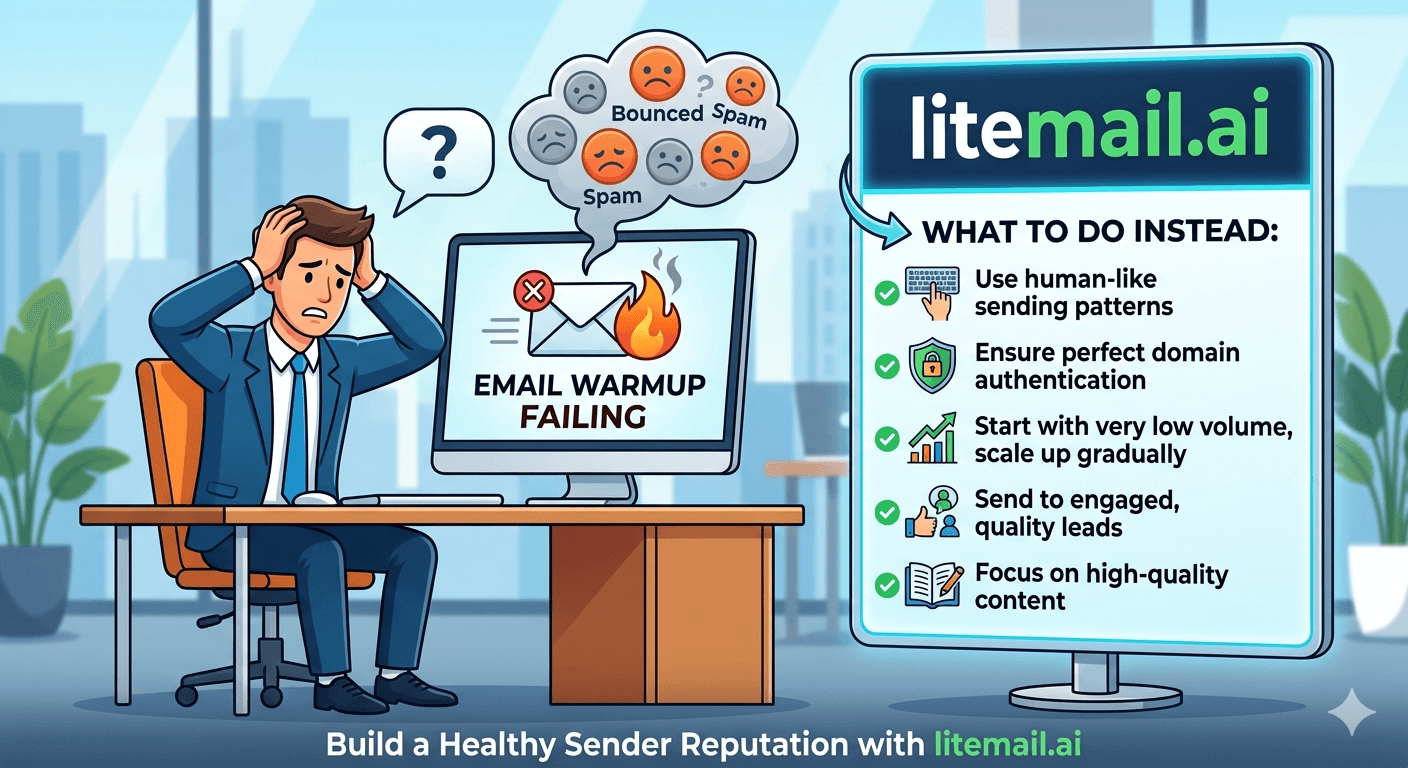
You ran warmup for 30 days. Postmaster still shows Low reputation. Inbox placement is stuck at 45%. Your warmup tool says everything is fine. This is a specific failure mode — and it has a specific cause that warmup tools are designed to obscure rather than fix. The problem is almost never the warmup process itself. It is the infrastructure underneath it.
💡 TL;DR
Email warmup fails when it is running on a shared IP, missing authentication records, or on a domain with a pre-existing negative signal. Warmup tools build sending volume history — they do not fix IP reputation, domain blacklisting, or authentication failures. If warmup is not moving your Postmaster reputation from Low to High after 21 days, stop — the problem is not warmup speed, it is a structural issue that more warmup time will not fix. Pre-warmed inboxes on dedicated IPs with Postmaster-verified reputation within 48 hours bypass the warmup problem entirely at $4.99 per inbox per month.
The 4 Reasons Email Warmup Fails — and Which One You Have
Not all warmup failures look the same. Before trying to fix it, diagnose which category you are in. The fix is different for each.
Failure Type | Symptom | What Warmup Can Fix | What It Cannot |
|---|---|---|---|
Shared IP contamination | Postmaster stuck at Low despite clean sends | Nothing — IP is shared | IP reputation owned by pool |
Missing authentication | Emails landing in spam despite good volume history | Nothing — warmup does not configure DNS | DKIM, SPF, DMARC failures |
Domain blacklisting | Postmaster showing Bad, MXToolbox hits | Nothing — domain is flagged | Blocklist removal |
Warmup tool network quality | Open rates look good, real inbox placement poor | Partially — with better network | Inflated engagement from bot accounts |
The fourth failure — warmup tool network quality — is the one most people do not know about. Some warmup tools inflate engagement metrics using networks of accounts that receiving servers have already identified as automated. High "open rates" from these networks do not improve real-world inbox placement because the servers know the difference.
Check Authentication Before Anything Else — It Takes 10 Minutes
Most of the time, email warmup failure is an authentication problem masquerading as a reputation problem. These are different problems with completely different fixes. Check authentication first — every time, on every inbox — before spending another day on warmup.
Go to MXToolbox.com → Email Health. Enter your sending domain. Run the full check. Look for any red or yellow flags on SPF, DKIM, or DMARC.
Send a test email to a Gmail account. Open it, click the three dots, select "Show original." Look for Authentication-Results in the headers. You want: dkim=pass, spf=pass, dmarc=pass. Any "fail" or "none" result means authentication is broken.
Check DMARC specifically. A missing DMARC record does not cause a hard failure on SPF or DKIM tests — it just causes silent spam routing. Many warmup tools do not alert you to a missing DMARC record. Check it directly at MXToolbox's DMARC lookup.
If any authentication record is missing or failing, fix that before continuing warmup. Adding 14 more days of warmup volume on top of a broken DKIM record accomplishes nothing.
The Shared IP Problem Warmup Tools Won't Tell You About
Here is something warmup tool marketing does not mention: if your inbox is on a shared IP — which most Google Workspace and Microsoft 365 accounts are by default — warmup builds volume history on an IP you do not control. The IP's reputation is owned by the pool, not by you.
A recruitment agency running cold outreach for 8 clients had been warming inboxes for 45 days. Reply rates were flat. They checked their sending IP — it was on two blocklists they had never triggered. A neighbour on the shared pool had sent a spam campaign six weeks earlier. The blocklisting followed the IP, not the account. 45 days of warmup data was irrelevant because the IP itself was flagged.
The solution was not more warmup. It was migrating to dedicated IPs with clean, verified sending history. Litemail's dedicated US and EU IPs with Postmaster-verified reputation within 48 hours solved in two days what 45 days of warmup had not moved.
What Works Instead of Extended Warmup
If warmup has not moved your Postmaster reputation after 21 days, stop adding warmup time. Do one of the following instead — in order of how quickly they produce results.
✅
Option 1: Switch to pre-warmed inboxes on dedicated IPs
The fastest fix. Pre-warmed inboxes at $4.99 per inbox per month come with dedicated IPs carrying clean verified sending history, SPF/DKIM/DMARC pre-configured, and Postmaster-verified reputation within 48 hours. You go from stuck warmup to full send volume in 48 hours — not 21 more days. This is the right choice when you need to send now, not in three weeks.
✅
Option 2: Fix authentication, then restart warmup from day one
If authentication is the problem, fix the records and restart warmup completely — do not continue from where you left off. The warmup progress on a broken authentication setup does not transfer to a fixed one. Postmaster treats the corrected setup as a new sender and needs to re-evaluate from a clean baseline.
✅
Option 3: New domain if current domain is blacklisted
A blacklisted domain cannot be warmed past the blacklisting. Check MXToolbox. If the domain is listed, request removal from each blocklist — most have a self-service form — but do not wait for removal before registering a replacement. Removal takes 2 to 6 weeks. A new pre-warmed domain takes 48 hours.
Diagnosing Your Specific Warmup Failure in 30 Minutes
Run through this checklist in order. The first item that shows a problem is your root cause.
Check MXToolbox blacklists. Enter your sending IP address. Any listing = domain/IP problem. Skip warmup; fix this first.
Check authentication headers. Send test to Gmail. View original. Confirm dkim=pass, spf=pass, dmarc=pass. Any failure = authentication problem.
Check Google Postmaster domain reputation. Log in to postmaster.google.com. Check your sending domain. Bad or Low after 21+ days of warmup = IP reputation problem, not warmup speed.
Check your warmup tool's network. Ask the provider what percentage of their warmup network uses real business email accounts versus automated accounts. High-quality networks use verified real inboxes. Low-quality networks use disposable or automated accounts that servers have flagged.
Check send volume during warmup. If you were sending over 50 emails per day from a new inbox in week one, you may have triggered spam filter categorisation before warmup could establish positive signals. Volume during warmup matters as much as duration.
The Warmup Myth That Wastes the Most Time
The most widely repeated bad advice in cold email is this: "just warm up longer." If warmup is not working after 21 days, more warmup time is almost never the answer. The underlying problem does not get better with time — it stays broken while you wait.
Actually — this is worth being blunt about. Warmup tools do one specific thing well: they build a volume history on your inbox that shows receiving servers a pattern of consistent, low-complaint sending. That is valuable. But it only matters if the IP is clean, authentication is passing, and the domain is not flagged. Warmup is not a fix-all — it is the last layer of preparation, not the foundation.
[INTERNAL LINK: pre-warmed inbox guide → /blog/pre-warmed-inbox-cold-email]
The Bottom Line
Email warmup fails for four reasons: shared IP contamination, broken authentication, domain blacklisting, and low-quality warmup tool networks. Identify which one before adding more warmup time.
If Postmaster reputation has not moved from Low to Medium after 21 days of warmup, stop. More time will not fix an IP, authentication, or blacklisting problem.
Check authentication headers before anything else — it takes 10 minutes and is the most common hidden cause of persistent warmup failure.
Shared IPs cannot be fixed through warmup. If your inbox is on a shared IP pool, migration to dedicated IPs is the only structural fix.
Pre-warmed inboxes on dedicated IPs with Postmaster-verified reputation within 48 hours bypass the entire warmup problem for $4.99 per inbox per month.
Warmup is the last preparation layer, not the foundation. IP cleanliness and authentication are the foundation. Warmup only works when those are already in place.
Frequently Asked Questions
Why is my email warmup not improving inbox placement?
The most common causes are: shared IP contamination (the IP you are on carries other senders' bad history), broken authentication (missing or failing DKIM, SPF, or DMARC), or domain blacklisting. Warmup builds volume history — it does not fix any of these underlying problems. Check MXToolbox blacklists, authentication headers, and Postmaster reputation before adding more warmup time.
How long should email warmup take before inbox placement improves?
On a clean dedicated IP with authentication configured, Postmaster reputation should move from Low to Medium within 14 days and reach High by day 21. If it has not moved after 21 days, the problem is structural — not warmup speed. More warmup time will not fix a shared IP issue, authentication failure, or domain blacklisting.
Does email warmup work on shared IPs?
Partially. Warmup builds inbox-level sending history, but it cannot override shared IP reputation. If the shared IP pool your inbox is on carries negative signals from other senders, warmup will not clean that. The only fix for shared IP contamination is migrating to a dedicated IP with clean sending history.
What is the fastest alternative to email warmup for cold email?
Pre-warmed inboxes on dedicated IPs. Litemail provides inboxes with Postmaster-verified reputation within 48 hours, SPF/DKIM/DMARC pre-configured, and dedicated US or EU IPs at $4.99 per inbox per month. You skip the 21-day warmup process entirely and start at full send volume — 150 to 200 per inbox per day — from day one.
Can I continue warmup if authentication was broken and I just fixed it?
No — restart from day one. Warmup progress on a broken authentication setup does not transfer to the corrected configuration. Postmaster evaluates the corrected setup as a new sender baseline and needs fresh signal history. Continue from a broken foundation and the warmup timeline becomes unreliable and unpredictable.
How do I know if my warmup tool is using a low-quality network?
Ask the provider directly what percentage of their network uses real business email accounts. Quality warmup networks use verified business inboxes — Gmail, Google Workspace, Microsoft 365 accounts with organic sending history. Low-quality networks use disposable or automated accounts that ISPs have already identified. If the provider cannot or will not answer this question, assume a low-quality network.






