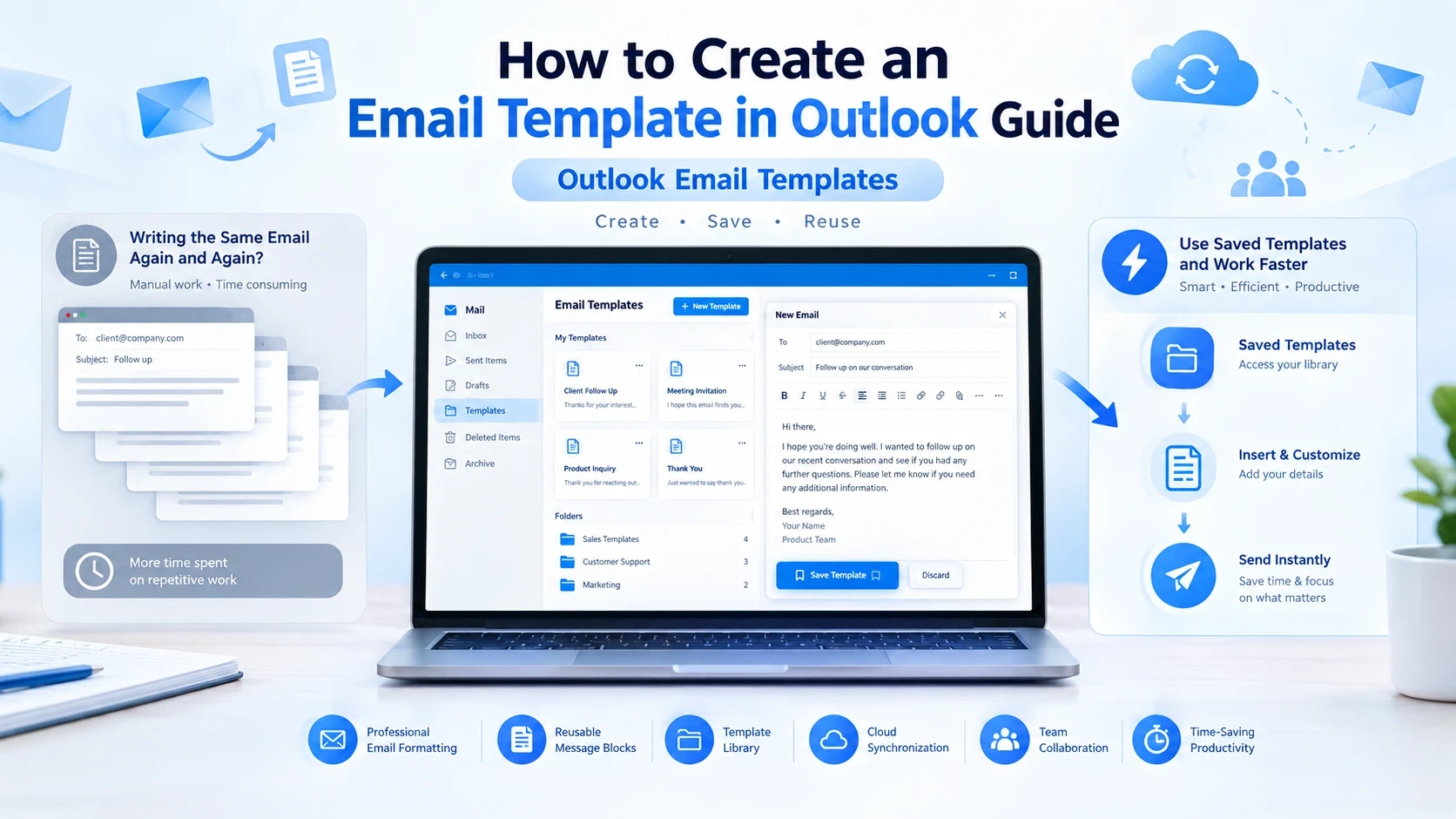
Writing the same email again and again can waste a lot of time. Whether you are replying to customers, sending sales messages, following up with clients, or sharing regular updates with your team, creating an email template can make your work much faster.
Microsoft Outlook allows users to create reusable email templates that can be saved and used whenever needed. Instead of typing the same message every time, you can create it once and use it again with a few clicks.
In this guide, you will learn how to create an email template in Outlook step by step. We will cover Outlook desktop, New Outlook, Outlook Web, how to save and edit templates, how to share email templates with your team, and best practices for using them effectively.
By the end of this guide, you will know how to create Outlook email templates that save time and improve your daily email workflow.
What Is an Email Template in Outlook?
An email template in Outlook is a saved email format that you can reuse whenever you need it.
Instead of writing the same email from the beginning, you can create a template that already contains:
Email subject
Message content
Formatting
Signature
Important links
Standard information
For example, a business may create templates for:
Customer replies
Sales follow-ups
Meeting invitations
Appointment reminders
Internal announcements
Welcome emails
An Outlook email template helps you maintain consistency and reduces the time spent writing repeated message
Why Should You Use Email Templates in Outlook?
Creating templates is useful for both individuals and teams.
Save Time
If you send similar emails every day, templates remove repetitive work.
For example:
A sales team can create templates for:
First outreach emails
Follow-up messages
Demo requests
Customer responses
Instead of writing each email manually, they can insert a prepared template and customize it.
Improve Email Consistency
Templates help ensure every email follows the same format.
Businesses can maintain:
Professional tone
Correct information
Brand messaging
Proper formatting
This is especially useful when multiple team members communicate with customers.
Reduce Mistakes
Writing the same email repeatedly increases the chance of mistakes.
A saved template helps prevent:
Missing information
Wrong links
Incorrect formatting
Forgotten details
How to Create an Email Template in Outlook Desktop
The classic Outlook desktop application allows users to create email templates using the Outlook Template (.oft) format.
Follow these steps:
Step 1: Open Outlook and Create a New Email
First, open Microsoft Outlook on your computer.
Click:
Home → New Email
A new email window will open.
Step 2: Write Your Email Template
Now create the email that you want to save as a template.
Add:
Subject line
Email message
Formatting
Images or links (if needed)
Example:
Subject:
Meeting Follow-Up
Email Body:
Hi {{Name}},
Thank you for your time today. It was great discussing your requirements.
Please let me know if you have any questions or if you would like to continue the conversation.
Best regards,
{{Your Name}}
Step 3: Save the Email as an Outlook Template
After writing your email:
Click File
Select Save As
Choose a location
Change the file type to:
Outlook Template (*.oft)
Click Save
Your Outlook email template is now created.
Step 4: Use Your Saved Outlook Email Template
To use your template:
Open Outlook
Go to Home
Click New Items
Select More Items
Choose Choose Form
Then:
Select User Templates in File System
Choose your saved template
Click Open
Your saved email template will appear.
You can edit the message before sending it.
How to Create an Email Template in New Outlook
Microsoft introduced a newer Outlook experience with a different interface.
The process is slightly different from classic Outlook.
Create a Template Using My Templates
Follow these steps:
Open Outlook
Click New Mail
Select the Apps icon
Choose My Templates
Click + Template
Add your template name
Add your email content
Save it
Your template will now be available whenever you write a new email.
Insert a Template in New Outlook
To use a saved template:
Create a new email
Open My Templates
Select your saved template
Insert it into the message
You can edit the content before sending.
How to Create Email Templates in Outlook Web
If you use Outlook through a browser, such as Outlook.com or Microsoft 365 Outlook Web, you can also create reusable email templates.
The web version does not work exactly like the classic Outlook desktop app, but Microsoft provides a simple template feature through My Templates.
Step 1: Open Outlook Web
First:
Open Outlook in your browser
Sign in to your Microsoft account
Click New Mail to create a new message
Step 2: Open My Templates
Inside the new email window:
Click the Apps icon or three dots menu
Select My Templates
If you cannot see My Templates, you may need to add it from Outlook add-ins.
Step 3: Create a New Template
Click:
+ Template
Then:
Add a template title
Write your email message
Save the template
For example:
Template name:
Customer Follow-Up
Template content:
Hi {{Name}},
Thank you for contacting us. We have received your request and our team will get back to you shortly.
Best regards,
{{Company Name}}
Step 4: Use Your Outlook Web Template
When writing a new email:
Open My Templates
Select your saved template
Insert it into the email
Edit details if required
Send your message
This makes repeated communication much faster.
How to Create Outlook Email Templates for Different Uses
Outlook templates can be used for many professional and personal tasks.
The best template depends on your daily communication needs.
Sales Email Templates
Sales teams often send similar emails to potential customers.
Instead of writing every message manually, they can create templates for:
First contact emails
Product introductions
Follow-ups
Demo requests
Meeting confirmations
Example:
Subject: Quick question about your business
Hi {{Name}},
I noticed your company is working on {{specific area}}.
We help businesses improve {{solution}} and save time through better workflows.
Would you be open to a quick conversation?
Best,
{{Your Name}}
Customer Support Email Templates
Support teams answer many similar questions every day.
Templates can help with:
Customer replies
Issue updates
Refund requests
Account information
Example:
Subject: Update regarding your request
Hi {{Name}},
Thank you for contacting our support team.
We have reviewed your request and our team is currently working on it.
We will update you as soon as possible.
Regards,
Support Team
Business Email Templates
Companies can use Outlook templates for regular business communication.
Common examples:
Meeting invitations
Project updates
Internal announcements
Client communication
Example:
Subject: Project Update
Hi Team,
Here is the latest update regarding the project.
Completed tasks:
{{Task 1}}
{{Task 2}}
Next steps:
{{Next Action}}
Thank you.
Follow-Up Email Templates
Follow-up emails are important for sales, networking, and business communication.
Instead of creating a new message every time, save follow-up templates.
Example:
Subject: Following up
Hi {{Name}},
I wanted to follow up on my previous email.
I would love to know your thoughts and see if this is something worth discussing.
Please let me know if you have any questions.
Thanks,
{{Name}}
How to Share Email Templates in Outlook
Many businesses use shared email templates so teams can communicate consistently.
Shared email templates for Outlook are useful when multiple employees need access to the same messages.
For example:
Sales teams
Customer support teams
Marketing departments
HR teams
Method 1: Share Templates Using Microsoft 365
If your organization uses Microsoft 365, you can share templates through approved company tools.
Teams can store templates in:
Shared mailboxes
SharePoint
Microsoft Teams
Outlook add-ins
This allows employees to access the same approved messages.
Method 2: Share Outlook Template Files
Classic Outlook templates are saved as:
You can share these files with team members.
Steps:
Save your Outlook template
Send the .oft file to your team
Team members save it on their computer
They can open and use the template
Method 3: Use Shared Template Add-ins
For larger teams, Outlook add-ins can make sharing easier.
Benefits:
Central template library
Easy updates
Team access
Better control
This is useful for organizations that frequently use the same email messages.
How to Edit and Update Outlook Email Templates
Over time, your templates may need changes.
For example:
Updated contact information
New pricing
New company details
Changed links
Updating templates regularly keeps your emails accurate.
Editing Classic Outlook Templates
To update an Outlook .oft template:
Open the saved template
Make changes
Click Save As
Replace the old template file
Editing My Templates in Outlook Web
To update a web template:
Open My Templates
Find the template
Edit the content
Save changes
How to Edit and Update Outlook Email Templates
Over time, your templates may need changes.
For example:
Updated contact information
New pricing
New company details
Changed links
Updating templates regularly keeps your emails accurate.
Editing Classic Outlook Templates
To update an Outlook .oft template:
Open the saved template
Make changes
Click Save As
Replace the old template file
Editing My Templates in Outlook Web
To update a web template:
Open My Templates
Find the template
Edit the content
Save changes
Best Practices for Outlook Email Templates
Creating a template is easy, but creating a useful template requires planning.
Follow these practices:
Keep Templates Short
People receive many emails every day.
A good template should be:
Clear
Direct
Easy to read
Avoid unnecessary paragraphs.
Always Personalize Before Sending
Templates save time, but they should not look automated.
Before sending:
Change:
Name
Company
Situation
Details
A personalized email feels more natural.
Use Clear Subject Lines
Your subject line affects whether people open your email.
Good examples:
Quick question about {{company}}
Meeting follow-up
Update regarding your request
Avoid:
Important!!!
Urgent offer
Buy now
Update Templates Regularly
Old information can create problems.
Review templates regularly for:
Broken links
Wrong contact details
Outdated information
Create Different Templates for Different Situations
Do not use one template for everything.
Create separate templates for:
Sales
Common Problems With Outlook Email Templates
Although Outlook email templates are useful, users sometimes face issues when creating or using them.
Below are some common problems and their solutions.
Outlook Template Option Is Missing
Sometimes users cannot find the template option in Outlook.
This can happen because:
The feature is not enabled
You are using a different Outlook version
The add-in is not installed
Solution:
Try these steps:
Open a new email
Check the Apps or More Options menu
Search for My Templates
Add the feature if available
If you are using classic Outlook, make sure you are saving templates as:
Outlook Email Templates Are Not Saving
If your template is not saving correctly, check:
File permissions
Correct saving format
Storage location
For classic Outlook:
Click File
Select Save As
Choose:
Outlook Template (*.oft)
Save again
Outlook Templates Are Not Showing
Sometimes saved templates do not appear when you try to use them.
Possible reasons:
Template saved in the wrong folder
Outlook was updated
Template file was moved
Solution:
Check the location where your templates are saved.
For .oft templates:
Open Outlook
Go to:
Home → New Items → More Items → Choose FormSelect:
User Templates in File System
Your saved templates should appear there.
Difference Between Classic Outlook and New Outlook Templates
Microsoft currently offers different Outlook experiences.
The template process depends on which version you use.
Feature | Classic Outlook | New Outlook |
|---|---|---|
Template format | .oft files | My Templates |
Saving method | Save As | Template add-in |
Sharing | File sharing | Cloud-based options |
Best for | Individual users | Modern workflows |
Before creating templates, check which Outlook version you are using.
Outlook Templates vs Email Automation Tools
Outlook templates are useful for simple repeated emails, but businesses with larger outreach needs may require more advanced solutions.
The right choice depends on your workflow.
Outlook Email Templates
Best for:
Personal emails
Internal communication
Customer replies
Small teams
Advantages:
✅ Easy to create
✅ Included with Outlook
✅ Good for repeated messages
✅ Simple to use
Limitations:
❌ Limited automation
❌ No advanced tracking
❌ No email sequences
❌ Manual sending required
Email Automation Tools
Email automation platforms are designed for larger campaigns.
They can provide:
Automated email sequences
Follow-up scheduling
Analytics
Personalization
Campaign tracking
Team collaboration
Best for:
Sales teams
Marketing teams
Lead generation
Customer outreach
When Should You Use Outlook Templates?
Outlook templates are a good option when you need to send the same type of message occasionally.
Examples:
Replying to common customer questions
Sending meeting confirmations
Sharing regular updates
Sending internal announcements
When Should You Use Email Automation?
Automation tools are better when you need to:
Contact many prospects
Run sales campaigns
Track responses
Send scheduled follow-ups
Manage multiple email sequences
For example:
A salesperson manually sending 20 follow-up emails may use Outlook templates.
A sales team contacting thousands of prospects may need an email automation platform.
How to Improve Your Outlook Email Templates
A template should save time while still feeling personal.
Follow these improvements:
Add Personalization Fields
Instead of:
Hello customer,
Use:
Hello {{First Name}},
Personalization makes emails feel more relevant.
Create Templates Based on Goals
Instead of one general template, create separate templates for:
New customer inquiries
Sales outreach
Follow-ups
Support replies
Meeting requests
Test Different Versions
Try different:
Subject lines
Opening sentences
Calls-to-action
Then keep the versions that perform better.
Frequently Asked Questions About Outlook Email Templates
How do I create an email template in Outlook?
To create an email template in Outlook:
Open a new email
Write your message
Save it as an Outlook Template (.oft) in classic Outlook
In New Outlook, use the My Templates feature.
How do I create a template email in Outlook?
You can create a template email by writing a reusable message and saving it as a template.
In classic Outlook:
File → Save As → Outlook Template (.oft)
In New Outlook:
Apps → My Templates → Create Template
How do I create Outlook email templates?
The process depends on your Outlook version.
Classic Outlook uses saved .oft files, while New Outlook uses the My Templates feature.
Both methods allow you to reuse emails without rewriting them.
Can I share email templates with my team in Outlook?
Yes.
You can share templates using:
Outlook template files (.oft)
Shared mailboxes
Microsoft 365 tools
Outlook add-ins
Shared email templates for Outlook help teams maintain consistent communication.
Where are Outlook email templates stored?
Classic Outlook templates are usually saved as:
The location depends on where you choose to save the file.
New Outlook templates are stored through the My Templates feature.
Can Outlook templates be automated?
Basic Outlook templates require manual use.
For automatic sending, scheduling, tracking, and follow-ups, you usually need dedicated email automation tools.
How do I create an Outlook email template for sales?
Create a template that includes:
Personalized greeting
Clear value statement
Short message
Simple CTA
Sales teams often create templates for:
Cold outreach
Follow-ups
Meeting requests
Customer communication
Conclusion
Creating email templates in Outlook is a simple way to save time and improve your daily communication. Instead of writing the same emails repeatedly, you can create reusable messages that help you respond faster and maintain consistency.
Whether you use classic Outlook templates, New Outlook's My Templates feature, or shared email templates for Outlook teams, the right setup can make your workflow more efficient.
For personal communication and small teams, Outlook templates are a practical solution. However, businesses that need advanced outreach, automation, tracking, and large-scale campaigns may benefit from dedicated email workflow tools.
The key is to create templates that are:
Clear
Professional
Easy to customize
Relevant to the recipient
A good email template is not just a shortcut — it is a tool that helps you communicate better while saving valuable time.