
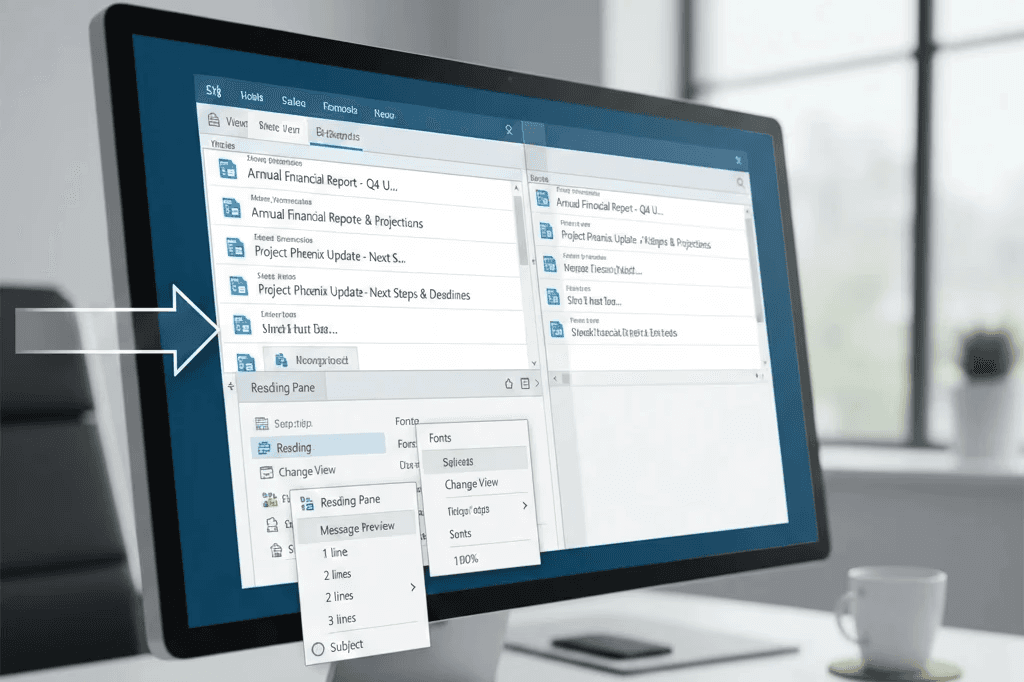
Restore the Reading Pane to Make the Subject Line Visible
The reading pane controls how emails appear as you browse your inbox. When it’s turned off or collapsed, Outlook may only show a small preview of each message often cutting off or hiding the subject line. Re-enable it by going to View → Reading Pane → Right or Bottom. This instantly expands the preview area, giving the subject line more room and making it readable in a single glance. Most Outlook display problems are solved with this one simple adjustment
Adjust Message Preview Lines for Better Subject Visibility
Outlook lets you choose how many lines of content you want to preview in your message list. If set to 1 line, the subject line may appear squeezed or cut short. Increase it to 2 or 3 lines through View → Message Preview. This gives emails more space and makes the subject line stand out more clearly. Many professionals use 2-line previews for the perfect balance between visibility and inbox space.
Expand the Reading Pane Width to Avoid Subject Truncation
A narrow reading pane often results in long subject lines being shortened with making them unreadable. Simply drag the divider between your email list and reading pane to widen the space. This small UI adjustment dramatically improves the readability of long subjects especially for newsletters, reports, or client updates sent through LITEMAIL.
Change the Outlook View Layout for a Cleaner Subject Display
Outlook’s Compact, Single, and Preview layouts each show email details differently. Switching layouts can fix subject line issues instantly. Go to View → Change View and test each option. Single layout is the most spacious and often shows the full subject line without cutting it off, while Compact is popular for users who prefer seeing more emails at once.
Enable Conversations to Group Subjects More Clearly
Threaded conversation mode groups messages with the same subject line together. When disabled, multiple messages with identical subjects appear disconnected, making it harder to identify the main topic. Turn it on with View → Show as Conversations. This feature not only displays subjects more clearly but also reduces inbox clutter.
Reset Your Outlook View in One Click if Subject Line is Missing Entirely
Sometimes the subject line disappears due to a custom view setting or accidental configuration change. Instead of troubleshooting manually, reset the entire layout:
View → Reset View.
This returns Outlook to its default clean display with the subject line fully visible. It’s the fastest fix when nothing else seems to work.
Increase Text Size and Font for Better Readability
If subject lines are technically visible but still hard to read, it may be a font-size issue. Go to View Settings → Other Settings and increase the font for Column Heading and Row Font. A slightly larger font not only improves readability but also prevents misclicks or missed messages—especially helpful for teams handling outreach campaigns using LITEMAIL.
Outlook Mobile Users: Use Focused Inbox for Cleaner Subject Lines
On mobile, subject lines often appear compressed due to small screen space. Enabling Focused Inbox in the app helps prioritize important messages and makes subject lines appear more organized. Additionally, expanding the message list view or switching to Single Line Layout ensures the subject is displayed more clearly during quick scans on the go.
Conclusion
Seeing the full subject line in Outlook is essential for staying organized, avoiding miscommunication, and managing email efficiently especially for remote teams and professionals who rely heavily on fast decision-making. With the simple adjustments outlined in this guide, you can restore complete visibility, improve message clarity, and streamline your everyday workflow. Whether you’re using Outlook on desktop, web, or mobile, these steps ensure your inbox stays clean, readable, and optimized for productivity. And when paired with LITEMAIL, your email performance becomes even smoother, faster, and more professional.
FAQ
Why is my Outlook subject line not visible?
Because the reading pane or view settings may be collapsed, hidden, or modified.
How do I make Outlook show the full subject?
Widen the reading pane, increase preview lines, or change the layout.
Does resetting view settings fix subject issues?
Yes Reset View usually restores full subject line visibility instantly.
Why is the subject line cut off or shortened?
The reading pane is too narrow or preview lines are too limited.
Is this fix the same for Outlook Web?
Mostly yes adjusting layout, preview, and conversation mode works similarly.
Can I enlarge the subject line font?
Yes, under View Settings → Other Settings → Row Font.
Why is the subject line smaller on mobile?
Mobile shows compact previews; enabling Focused Inbox improves readability.






