
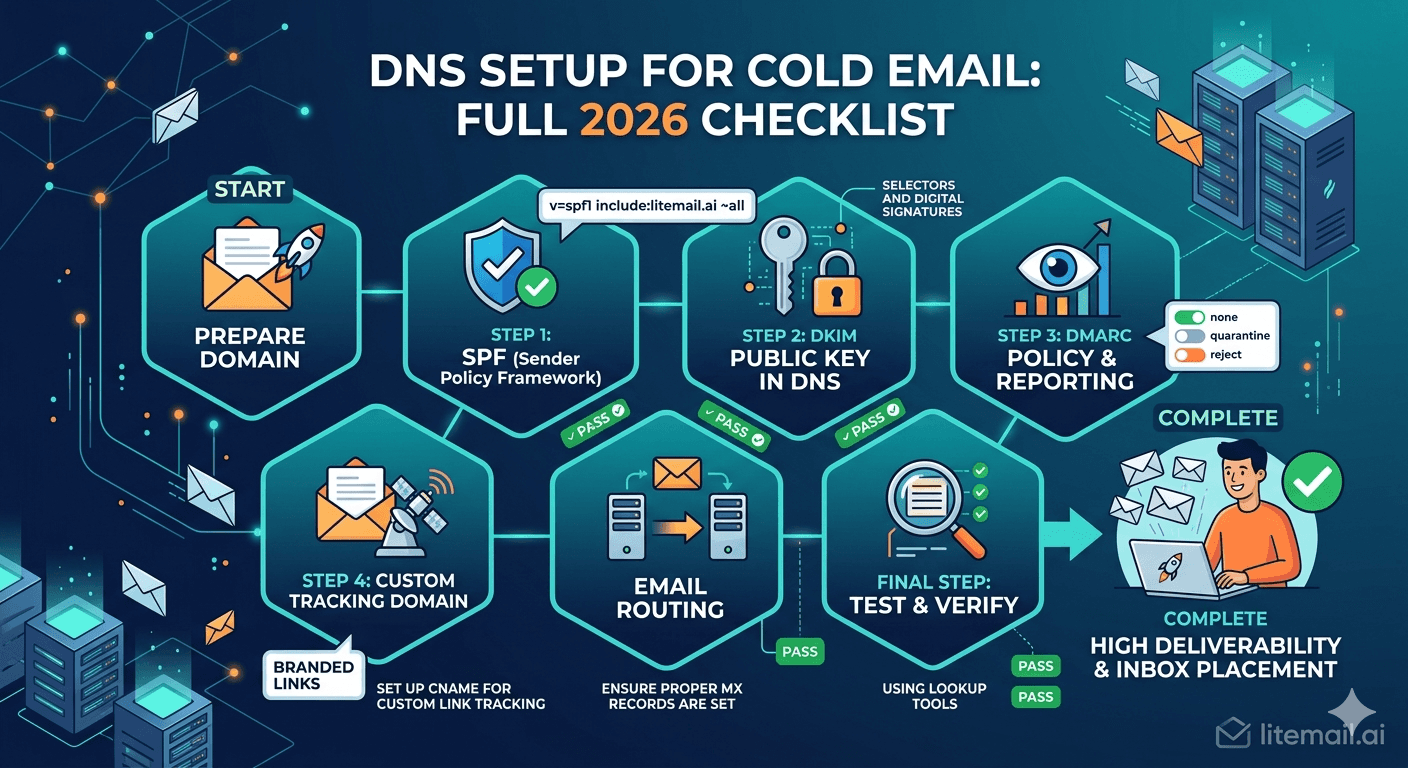
Forty percent of cold email deliverability failures trace back to a broken DNS record. Not a bad list. Not aggressive copy. Not spam complaint rates. A single misconfigured TXT record that silently fails authentication on every send while your tool reports "delivered" across the board. This checklist covers every DNS record a cold email domain needs — in the exact format that passes, with the specific mistakes that cause failures.
Why DNS Is the Foundation, Not a Detail
Email authentication works as a chain. SPF tells receiving servers which mail servers are allowed to send on your domain's behalf. DKIM cryptographically signs each email so the recipient can verify it wasn't tampered with in transit. DMARC tells receiving servers what to do when SPF or DKIM fail. If any link in this chain breaks, the receiving server treats your email as potentially fraudulent — and filters it accordingly.
In our testing at Litemail, inboxes with all three records correctly configured achieve 94–96% primary inbox placement from day one. Inboxes with one broken record — even if the other two pass — drop to 60–75% placement on identical lists with identical copy. The difference is the authentication chain, not the inbox reputation.
💡 One Check That Tells You Everything
Send a test email to a Gmail address you control. View the full email headers (three-dot menu → Show Original). You'll see SPF: PASS, DKIM: PASS, DMARC: PASS — or you'll see a failure on one or more. Any failure in the headers is a deliverability problem regardless of what your sending tool reports. Check this before every new campaign domain launch.
SPF Record: Exact Format and Common Errors
SPF (Sender Policy Framework) specifies which mail servers can send email from your domain. The record lives as a TXT record on your domain's DNS.
Correct SPF Format for Google Workspace
v=spf1 include:_spf.google.com ~all
Correct SPF Format for Microsoft 365
v=spf1 include:spf.protection.outlook.com ~all
The 3 Most Common SPF Failures
Multiple SPF records. You can only have one SPF TXT record per domain. Having two records — even identical ones — causes a PermError that fails authentication on every send. Check your DNS for duplicate TXT records starting with "v=spf1" and delete all but one.
Using -all instead of ~all. Hard fail (-all) rejects emails that don't match the SPF record. This causes legitimate emails to bounce when recipients use email forwarding. Use ~all (soft fail) unless you have a specific reason for hard fail and have tested every forwarding scenario.
Not including your sending tool's mail servers. If you use a third-party sending tool that sends through its own SMTP servers, you need to include those servers in your SPF record too. Example:
v=spf1 include:_spf.google.com include:sendgrid.net ~all. Check your sending tool's documentation for their required SPF include.
DKIM Record: Setup and Verification
DKIM (DomainKeys Identified Mail) adds a cryptographic signature to each email. The private key lives on your mail server. The public key lives in your DNS. When an email arrives, the receiving server looks up the public key in DNS and verifies the signature.
How to Generate DKIM for Google Workspace
Log into Google Admin (admin.google.com)
Go to Apps → Google Workspace → Gmail → Authenticate email
Select your domain and click "Generate new record"
Copy the CNAME or TXT record value provided
Add it to your DNS as a TXT record at:
google._domainkey.yourdomain.comWait 24–48 hours for DNS propagation, then click "Start authentication"
How to Generate DKIM for Microsoft 365
Go to Microsoft 365 Defender → Email & Collaboration → Policies → DKIM
Select your domain
Click "Enable" — Microsoft will prompt you to add two CNAME records to DNS
Add both CNAME records to your domain's DNS
Return to the DKIM page and enable signing after DNS propagates
Common DKIM Failures
DKIM selector mismatch is the most common failure. The selector in your DNS record must match the selector your mail server is using. Google Workspace defaults to the selector "google" — so your DNS record should be at google._domainkey.yourdomain.com. If you've previously set up DKIM with a different selector and changed it, the old record may still be live in DNS causing conflicts. Check for multiple _domainkey records and remove stale ones.
DMARC Record: Policy Stages and Exact Format
DMARC (Domain-based Message Authentication, Reporting, and Conformance) tells receiving servers what to do when SPF or DKIM fails. It also sends you reports about authentication activity on your domain.
Stage 1: Monitor (Days 1–30)
Add as a TXT record at _dmarc.yourdomain.com:
v=DMARC1; p=none; rua=mailto:dmarc@yourdomain.com; ruf=mailto:dmarc@yourdomain.com; fo=1
p=none means no action is taken on failures — you're just monitoring. The rua and ruf fields send you daily and failure reports. Review these reports after 30 days to confirm SPF and DKIM are passing at above 98% rate.
Stage 2: Quarantine (Days 30–60)
v=DMARC1; p=quarantine; pct=100; rua=mailto:dmarc@yourdomain.com
p=quarantine moves failed emails to spam folder rather than delivering to inbox. pct=100 applies the policy to all emails. Move to this stage only after confirming 98%+ pass rate at Stage 1.
Stage 3: Reject (Day 60+)
v=DMARC1; p=reject; pct=100; rua=mailto:dmarc@yourdomain.com
p=reject causes failing emails to be rejected outright. Most cold email operations stay at p=quarantine — reject is more appropriate for branded corporate domains than sending domains.
The Full DNS Checklist — Run Before Every Campaign Launch
This is the complete pre-send DNS verification checklist. Run it on every new domain before connecting it to a sending tool.
☑1. Check SPF at mxtoolbox.com/spf.aspx
Result must be PASS. PermError = multiple SPF records. SoftFail or HardFail = check include statements match your sending infrastructure.
☑2. Check DKIM at mxtoolbox.com/dkim.aspx
Enter your selector ("google" for GWS, "selector1" or "selector2" for MS365). Result must be PASS. If key not found, the record isn't propagated yet or the selector name is wrong.
☑3. Check DMARC at mxtoolbox.com/dmarc.aspx
Record must exist. p=none is acceptable for new domains. p=missing means no DMARC record — Gmail's sender requirements make this mandatory for bulk senders in 2026.
☑4. Send test to Gmail + check headers
Send from your new inbox to a Gmail address. View original headers. SPF, DKIM, DMARC must all show PASS. Any failure = stop, fix the record, retest.
☑5. Check mail-tester.com score
Score must be 9/10 or 10/10. Any lower = a fixable configuration problem. The tool shows exactly which check failed and why.
☑6. Check Postmaster Tools reputation (48 hours after inbox delivery)
For pre-warmed inboxes: Good or High. For fresh inboxes: Unknown (expected — reputation builds over time). Low = inbox has been flagged — do not send until investigated.
Litemail pre-warmed inboxes pass every check on this list on delivery. DNS records are pre-configured — no manual setup. Every inbox scores 10/10 on mail-tester.com and shows Good or High in Postmaster Tools within 48 hours.
Skip the DNS Setup Entirely — Get Pre-Configured Inboxes
Every Litemail pre-warmed inbox ships with automated SPF, DKIM, and DMARC — all three records correctly configured. No manual DNS setup. No PermError from duplicate records. No DKIM selector mismatches. $4.99/inbox, campaign-ready in 24 hours.
Get Pre-Warmed Inboxes from $4.99 →
Automated DNS setup · Verified Good/High in Postmaster Tools · Full admin access · No minimum order
About Litemail — Litemail provides pre-warmed Google Workspace and Microsoft 365 inboxes for cold email outreach. From $4.99/inbox with automated DNS, dedicated US and EU IPs, and full admin access. View pre-warmed inbox plans →
Related reading:
SPF DKIM DMARC Pre-Warmed Inboxes Auto Setup 2026 · SPF Record Errors Troubleshooting · DMARC Not Working Fix Guide 2026 · What Is an SPF Record and How to Set It Up · DKIM Key 1024 vs 2048 for Cold Email
Key Takeaways
40% of cold email deliverability failures trace back to a broken DNS record — SPF, DKIM, or DMARC — that fails silently while your sending tool reports emails as delivered.
Multiple SPF records on the same domain cause a PermError that fails authentication on every send — the most common and most invisible DNS mistake in cold email.
DKIM selector mismatch is the second most common failure — the selector in your DNS record must exactly match what your mail server is using.
DMARC policy progression: p=none for days 1–30 (monitor), p=quarantine for days 30–60, p=reject for day 60+ (only when SPF and DKIM pass rates are consistently above 98%).
Run the 6-item DNS checklist before every new domain campaign launch — SPF check, DKIM check, DMARC check, Gmail headers test, mail-tester.com score, and Postmaster Tools reputation.
Litemail pre-warmed inboxes ship with all DNS records pre-configured — every inbox passes the full checklist on delivery without any manual setup.
Frequently Asked Questions
What DNS records does a cold email domain need in 2026?
Three records are required: SPF (a TXT record specifying which servers can send on your behalf), DKIM (a TXT or CNAME record with your public key for email signing), and DMARC (a TXT record at _dmarc.yourdomain.com specifying your policy for authentication failures). All three must pass before sending any campaign emails. MX records are also needed if you want replies to land in the inbox rather than bouncing.
Why does my SPF record keep failing?
The most common cause is multiple SPF records on the same domain — only one is allowed. Check your DNS for duplicate TXT records starting with "v=spf1" and delete all but the correct one. Other causes: incorrect include statements (missing your sending tool's mail servers), using -all when your emails are being forwarded, or DNS propagation not yet complete after a recent change.
How long does DNS propagation take for cold email records?
SPF and DMARC records typically propagate in 15–60 minutes. DKIM can take up to 24–48 hours for full global propagation. Don't test or send campaign emails until at least 48 hours after adding DKIM to DNS. During that window, test at mxtoolbox.com and Gmail headers to confirm propagation is complete.
Is DMARC required for cold email in 2026?
Yes — Google's and Yahoo's sender requirements published in early 2024 make DMARC mandatory for bulk senders. "Bulk" is defined as more than 5,000 emails per day to Gmail addresses. Technically, cold email to individual B2B contacts may fall below this threshold — but having DMARC configured is best practice regardless of volume, and some receiving servers now require it independently of Google's policy.
What is the difference between ~all and -all in SPF records?
~all is a soft fail — emails from unspecified servers are marked suspicious but still delivered. -all is a hard fail — emails from unspecified servers are rejected outright. Use ~all for cold email domains. Hard fail (-all) causes problems with email forwarding and can cause legitimate emails to bounce when recipients redirect mail from one server to another.
Do Litemail pre-warmed inboxes come with DNS already configured?
Yes. Every Litemail pre-warmed inbox arrives with SPF, DKIM, and DMARC pre-configured and verified. No manual DNS setup required. Every inbox passes the full checklist: 10/10 on mail-tester.com, Good or High in Google Postmaster Tools within 48 hours, and PASS results on all three DNS record checks at mxtoolbox.com.
How do I check if my cold email domain's DNS is correct?
Use mxtoolbox.com — it has separate checkers for SPF, DKIM, and DMARC. Check all three. Then send a test email to a Gmail address and view the original headers — SPF, DKIM, and DMARC should all show PASS. Finally, check mail-tester.com for a comprehensive score of 9/10 or 10/10. This three-tool check covers 95% of DNS configuration issues.
Buy Pre-Warmed Email Inboxes & Domains | Litemail
Buy pre-warmed email accounts, inboxes and domains from $4.99/inbox. Google Workspace & Microsoft 365. Automated DNS, US & EU IPs. Setup in 5 minutes.
Related reading:
SPF DKIM DMARC Auto Setup 2026 · SPF Record Errors Troubleshooting · DMARC Not Working Fix 2026 · What Is an SPF Record · Email Authentication for Cold Email Agencies
📺 Watch: DNS Setup for Cold Email SPF DKIM DMARC 2026 — search YouTube for step-by-step DNS configuration guides from Hunter.io or Lemlist channels.






