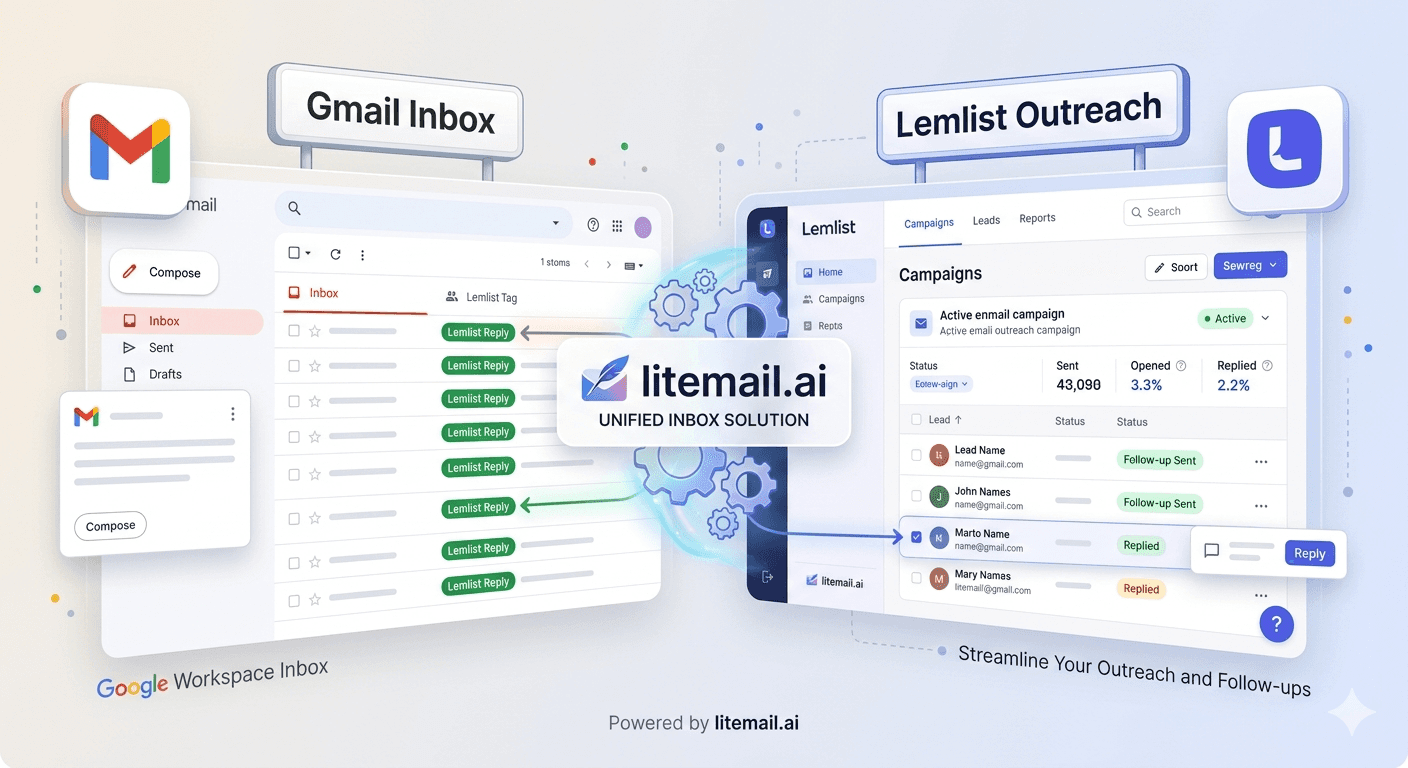
Lemlist will happily send from whatever inboxes you connect — and that's exactly the problem, because if you plug in fresh Google Workspace inboxes, Lemlist sends beautifully personalized emails straight into spam. Lemlist is a strong outreach platform for sequences, personalization, and multichannel, but it doesn't provide inbox infrastructure — you bring the inboxes. Get those wrong and Lemlist can't save you. Here's how Lemlist users get the best from Google Workspace inboxes: connecting via OAuth, why you should disable Lemwarm on warmed inboxes, a silent-failure trap to watch, and the setup that makes Lemlist perform.
Lemlist Doesn't Give You Inboxes
Start with the key fact many Lemlist users miss. Lemlist is the outreach layer, not the infrastructure layer.
Lemlist handles sequences, personalization (including its strong image and LinkedIn features), and sending logic. But it doesn't provide the inboxes you send from — you connect your own Google Workspace or Microsoft 365 accounts. So your deliverability depends entirely on the inboxes you bring. Connect fresh, unwarmed Google Workspace inboxes and you get fresh-inbox deliverability: straight to spam, no matter how good your Lemlist sequence is.
💡 Lemlist is the sequence layer; inboxes are separate
Lemlist runs your sequences and personalization brilliantly, but it doesn't supply inbox infrastructure — you bring your own Google Workspace inboxes. That means deliverability rests on your inboxes, not on Lemlist. A great Lemlist sequence sent from fresh, unwarmed inboxes still lands in spam. So the highest-leverage decision for a Lemlist user isn't the sequence; it's the quality of the inboxes you connect. Get the inboxes right and Lemlist's strengths finally reach real inboxes.
So your Google Workspace inboxes make or break Lemlist deliverability. Here's how to connect them. For the tool comparison, see our Smartlead integration guide.
Connecting Google Workspace to Lemlist via OAuth
Here's how to connect Google Workspace inboxes to Lemlist properly. OAuth is the right method, and for Google Workspace it's effectively required.
In Lemlist, go to Settings > Email Accounts (or Email Providers).
Choose Add email account > Connect with Google.
Sign in with the Google Workspace account credentials for the inbox.
Grant Lemlist OAuth access when prompted — the connection completes in seconds.
Send a test email from Lemlist to confirm the connection before activating sequences.
Use OAuth, not SMTP. For Google Workspace, Google routes cold email through the API rather than SMTP relay, so OAuth is the reliable method — and Lemlist's LinkedIn and image-personalization features need OAuth for full functionality. SMTP-only connections limit Lemlist and hurt reliability. For authentication basics, see our authentication checklist.
Disable Lemwarm on Pre-Warmed Inboxes
Here's a setting that trips up Lemlist users with warmed inboxes. Lemwarm, Lemlist's built-in warm-up, should be turned off on inboxes that are already warmed.
Lemwarm is Lemlist's warm-up feature (included on higher plans), using a shared-pool model. It's meant for warming fresh inboxes. If your Google Workspace inboxes are already pre-warmed, running Lemwarm on them wastes your daily sending on warm-up emails, doesn't improve an already-good reputation, and risks double-warming if another warm-up is also running. On pre-warmed inboxes, disable Lemwarm.
🚩 Don't run Lemwarm on already-warmed inboxes
The common Lemlist mistake with pre-warmed inboxes is leaving Lemwarm running on them. Lemwarm is built to warm fresh inboxes; on already-warmed ones it wastes daily sending capacity on warm-up emails, adds no reputation benefit, and risks double-warming if another system is also warming. If your inboxes arrived pre-warmed, turn Lemwarm off and use that capacity for real outreach. Running warm-up on an already-warm inbox is effort spent for nothing.
So disable Lemwarm on warmed inboxes. For warm-up context, see our complete warm-up guide.
The Silent-Failure Trap to Know
Here's a Lemlist quirk worth knowing, because it can quietly stop your sends. Lemlist can show “Connected” even when the connection has broken.
Lemlist has a known silent-failure mode: it can display an inbox as “Connected” even after the OAuth access has been partially revoked, so your sends quietly stop while the status still looks green. If your sending suddenly drops but the inbox shows connected, don't trust the green status. The fix is to remove and re-add the sending address, which forces a fresh OAuth handshake and restores sending.
🚩 “Connected” in Lemlist doesn't always mean sending
Watch for Lemlist's silent-failure mode: an inbox showing “Connected” while sends have actually stopped, because OAuth scopes were partially revoked without the status updating. If your volume suddenly drops but the inbox still shows green, don't assume it's fine — reauthenticate by removing and re-adding the address to force a fresh OAuth handshake. Trusting the green “Connected” label at face value can leave you thinking you're sending when you're not, silently killing a campaign.
So don't trust a green status if sends drop. For monitoring sends, see our inbox health metrics guide.
The Foundation That Makes Lemlist Perform
Pull it together: getting the best from Lemlist means connecting Google Workspace inboxes via OAuth (required for full features), disabling Lemwarm on already-warmed inboxes, and watching for the silent-failure trap. But the biggest lever is the inboxes themselves — Lemlist's deliverability is only as good as what you connect.
Connect fresh inboxes and Lemlist sends to spam; connect pre-warmed inboxes and Lemlist's sequences and personalization reach real inboxes. Pre-warmed Google Workspace inboxes connect to Lemlist via OAuth in minutes, need no Lemwarm (warm-up's already done), and land reliably from day one — turning Lemlist's strengths into actual replies.
So the foundation for Lemlist performance is strong inboxes: warmed, authenticated, OAuth-connected. Bring those, disable Lemwarm, mind the silent-fail trap, and Lemlist does what it's good at — reaching prospects with personalized sequences that actually land.
Litemail pre-warmed Google Workspace inboxes are built for Lemlist users: connect via OAuth in minutes, no Lemwarm needed (genuine warm-up history already built in), verified Good or High Postmaster reputation within 48 hours, dedicated US and EU IPs, SPF/DKIM/DMARC pre-configured, and full admin access from $4.99/inbox. For the Woodpecker equivalent, see our Smartlead integration guide.
Inboxes built for Lemlist users. Litemail pre-warmed Google Workspace inboxes connect to Lemlist via OAuth in minutes, need no Lemwarm (warm-up already done), with verified Good or High in Postmaster, dedicated US and EU IPs, and SPF/DKIM/DMARC pre-configured — Lemlist's sequences reaching real inboxes, from $4.99/inbox. Full admin access included. Get Pre-Warmed Inboxes from $4.99 →
About Litemail — Litemail provides pre-warmed Google Workspace and Microsoft 365 inboxes for cold email outreach. From $4.99/inbox with automated DNS, dedicated US and EU IPs, and full admin access. View pre-warmed inbox plans →
Related reading: Smartlead Integration · Authentication Checklist · Complete Warm-Up Guide · Inbox Health Metrics · Inbox Rotation Strategies · Litemail Pre-Warmed Inboxes — Plans and Pricing
The Bottom Line
Lemlist runs sequences and personalization but doesn't provide inboxes — deliverability rests on what you connect.
A great Lemlist sequence from fresh, unwarmed inboxes still lands in spam — inbox quality is the real lever.
Connect Google Workspace via OAuth (Settings > Email Accounts > Connect with Google) — required for full features.
Disable Lemwarm on already-warmed inboxes — it wastes sending capacity and adds no reputation benefit.
Watch Lemlist's silent-failure mode — it can show “Connected” after sends stop; fix by removing and re-adding the address.
Pre-warmed inboxes connect via OAuth in minutes, need no Lemwarm, and land reliably from day one.
Frequently Asked Questions
How do I connect a Google Workspace inbox to Lemlist?
In Lemlist, go to Settings > Email Accounts (or Email Providers), choose Add email account > Connect with Google, sign in with the Google Workspace account credentials, and grant Lemlist OAuth access when prompted — the connection completes in seconds. Then send a test email from Lemlist to confirm before activating sequences. Use OAuth, not SMTP: Google routes cold email through the API rather than SMTP relay for Workspace, so OAuth is the reliable method and is required for Lemlist's full feature set.
Does Lemlist provide the inboxes I send from?
No. Lemlist handles sequences, personalization (including its strong image and LinkedIn features), and sending logic, but it doesn't provide inbox infrastructure — you connect your own Google Workspace or Microsoft 365 accounts. So your deliverability depends entirely on the inboxes you bring. Connect fresh, unwarmed inboxes and you get fresh-inbox deliverability: straight to spam, no matter how good your Lemlist sequence is. The quality of the inboxes you connect is the highest-leverage decision for a Lemlist user's deliverability.
Should I use Lemwarm on pre-warmed inboxes?
No — disable it. Lemwarm is Lemlist's built-in warm-up feature, using a shared-pool model, meant for warming fresh inboxes. If your Google Workspace inboxes are already pre-warmed, running Lemwarm on them wastes your daily sending capacity on warm-up emails, doesn't improve an already-good reputation, and risks double-warming if another warm-up is also running. On pre-warmed inboxes, turn Lemwarm off and use that capacity for real outreach — running warm-up on an already-warm inbox is effort spent for nothing.
Why should I use OAuth instead of SMTP with Lemlist?
Because for Google Workspace, Google routes cold email through the API rather than the SMTP relay, so OAuth is the reliable connection method — and Lemlist's LinkedIn integration and image-personalization features need OAuth for full functionality. SMTP-only connections limit what Lemlist can do and hurt connection reliability. OAuth also avoids app-password complexity. So connect Google Workspace inboxes to Lemlist via OAuth (Connect with Google) rather than SMTP, both for reliability and to unlock Lemlist's full feature set.
Why did my Lemlist sends stop while showing Connected?
This is Lemlist's known silent-failure mode: it can display an inbox as “Connected” even after the OAuth access has been partially revoked, so your sends quietly stop while the status still looks green. If your sending suddenly drops but the inbox shows connected, don't trust the green status. The fix is to remove and re-add the sending address, which forces a fresh OAuth handshake and restores sending. Watch for this whenever volume drops unexpectedly but the connection still appears fine.
What inboxes work best with Lemlist?
Pre-warmed Google Workspace or Microsoft 365 inboxes with full admin access for OAuth. Litemail pre-warmed Google Workspace inboxes are built for Lemlist users: they connect via OAuth in minutes, need no Lemwarm (genuine warm-up history is already built in), and land reliably from day one, with verified Good or High Postmaster reputation within 48 hours, dedicated US and EU IPs, SPF/DKIM/DMARC pre-configured, and full admin access from $4.99/inbox. That turns Lemlist's sequences and personalization into emails that actually reach real inboxes instead of spam.
Buy Pre-Warmed Email Inboxes & Domains | Litemail
Buy pre-warmed email accounts, inboxes and domains from $4.99/inbox. Google Workspace & Microsoft 365. Connect to Lemlist via OAuth in minutes, no Lemwarm needed, US & EU IPs.
No minimum order · Built for Lemlist users · US and EU IPs
Related reading: Smartlead Integration · Authentication Checklist · Complete Warm-Up Guide · Inbox Health Metrics · Litemail Pre-Warmed Inboxes — Plans and Pricing