
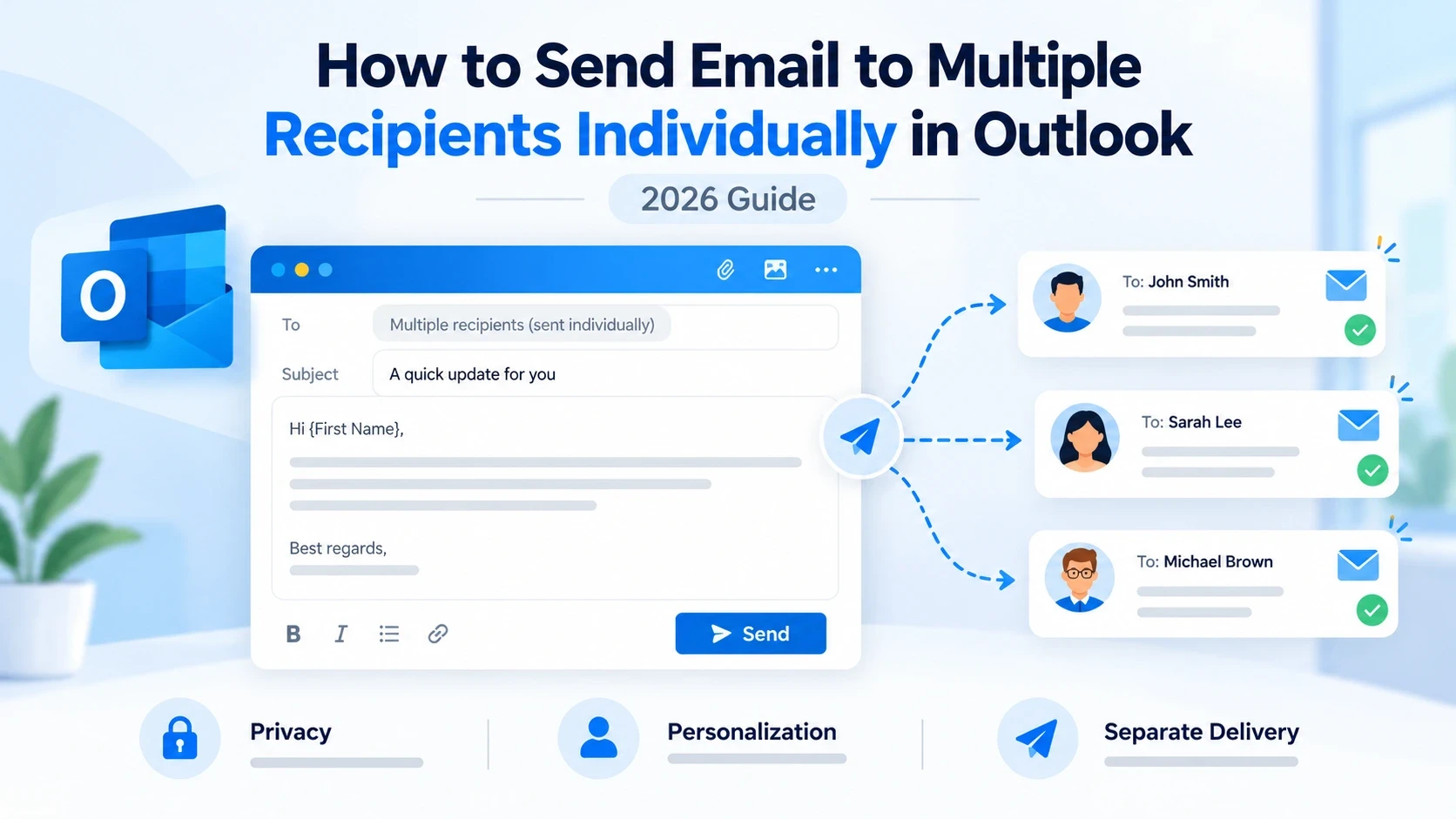
Sending one email to many people sounds simple, but the method you choose can affect privacy, personalization, and email performance.
If you add multiple recipients in the "To" field or use CC, everyone may see the other email addresses. Using BCC hides addresses, but it still sends the same message as one bulk email.
For professional communication, sales outreach, invitations, and customer follow-ups, sending each email separately is usually the better option.
Microsoft Outlook provides several ways to send the same email to multiple recipients individually. You can use Outlook Mail Merge for personalized emails, manually send separate messages for small lists, or use professional email platforms when you need to scale.
In this guide, you will learn:
How to send emails to multiple recipients individually in Outlook
How to use Outlook Mail Merge
How to send the same email separately without showing recipients
How Gmail handles individual email sending
When to use email automation tools instead of Outlook
How businesses send personalized emails at scale
What Does Sending an Email to Multiple Recipients Individually Mean?
Sending an email to multiple recipients individually means every person receives a separate email instead of receiving one shared message.
For example, imagine you want to send the same introduction email to 100 potential customers.
A basic method would be:
To:
john@example.com
sarah@example.com
mike@example.com
This creates one email conversation with multiple recipients.
A better method is:
Email 1 → John
Email 2 → Sarah
Email 3 → Mike
Each person receives a separate email that looks like it was sent only to them.
This approach is commonly used for:
Sales outreach
Business proposals
Recruitment emails
Customer communication
Event invitations
Marketing campaigns
Why Send Emails Individually Instead of Using CC or BCC?
Many people use CC or BCC when emailing multiple contacts, but these methods have limitations.
1. Better Privacy
When you send one email to multiple people, exposing email addresses can create privacy concerns.
Individual emails keep every recipient separate.
2. More Professional Communication
A personal email feels more direct than a message sent to a large group.
Compare:
Generic:
"Hello everyone, we wanted to introduce our service."
vs.
Personalized:
"Hi Sarah, I noticed your company is expanding its sales team and wanted to share something that may help."
Individual sending allows better personalization.
3. Higher Engagement
People are more likely to respond when an email feels written specifically for them.
Individual emails allow you to add:
Recipient name
Company name
Industry details
Custom opening lines
4. Better for Business Outreach
Sales teams rarely send one visible email to hundreds of prospects.
Professional outreach usually requires:
Separate emails
Personalization
Follow-ups
Tracking
How to Send Email to Multiple Recipients Individually in Outlook
There are three main methods depending on how many emails you need to send.
Method 1: Use Outlook Mail Merge (Best Option)
Outlook Mail Merge is the easiest built-in method for sending the same email individually to many recipients.
It works with:
Microsoft Outlook
Microsoft Word
Excel contact lists
This method allows you to create personalized emails and send each one separately.
Step 1: Create Your Recipient List in Excel
First, prepare your contacts.
Example:
First Name | Email Address | Company |
|---|---|---|
John | ABC Company | |
Sarah | XYZ Company | |
Mike | Test Company |
Save the file as an Excel spreadsheet.
Step 2: Open Microsoft Word
Open Microsoft Word.
Go to:
Mailings → Start Mail Merge → Email Messages
This changes your Word document into an email template.
Step 3: Select Your Recipients
Click:
Select Recipients → Use Existing List
Choose your Excel file.
Now Outlook can use your contact information.
Step 4: Write Your Email
Create your email message.
Example:
Hi First Name,
I wanted to reach out because I noticed your company is working in the software industry.
I thought our solution might help your team improve productivity.
Best regards,
Your Name
You can insert personalization fields:
First Name
Company
Job Title
So every recipient receives a customized email.
Step 5: Send Individual Emails
Click:
Finish & Merge → Send Email Messages
Outlook will automatically create separate emails for every recipient.
Each person receives:
Their own email
Their own recipient field
No visible contact list
Method 2: Send Multiple Individual Emails Manually in Outlook
If you only need to send emails to a small number of people, manually creating separate emails may be the easiest option.
This method works best for:
5–20 recipients
Personal messages
Important business communication
Follow-ups
Steps to Send Individual Emails Manually
Step 1: Open Outlook
Open Microsoft Outlook and click:
New Email
Step 2: Add One Recipient
Enter only one email address in the "To" field.
Example:
Do not add multiple recipients.
Step 3: Write Your Email
Create your message normally.
You can personalize it with:
Name
Company
Specific details
Step 4: Send The Email
Click:
Send
Then repeat the process for the next recipient.
Advantages of Manual Sending
✅ Simple setup
✅ No additional tools required
✅ Good for personal emails
Disadvantages
❌ Time-consuming for large lists
❌ No automation
❌ Difficult to manage follow-ups
❌ Easy to make mistakes
For dozens or hundreds of recipients, this method is not practical.
Method 3: Use Outlook + Excel for Larger Email Lists
If you have many contacts, combining Outlook with Excel makes the process easier.
This approach is useful when you need to send:
Customer updates
Business announcements
Invitations
Sales messages
Example Excel Sheet
Name | Company | |
|---|---|---|
David | Company A | |
Emma | Company B | |
James | Company C |
You can connect this list with Outlook Mail Merge.
Benefits of Outlook + Excel
Faster than manual sending
Allows personalization
Keeps recipients separate
Reduces copy-paste errors
How to Send The Same Email to Multiple Recipients Separately in Gmail
Although Outlook is one of the most common business email tools, Gmail users can also send individual emails to multiple recipients.
There are several methods.
Method 1: Gmail Mail Merge
Gmail Mail Merge allows users to send personalized emails separately.
You can use:
Gmail
Google Sheets
Google Workspace features
Steps:
Step 1:
Create a Google Sheet with recipient information.
Example:
Name | |
|---|---|
John | |
Sarah |
Step 2:
Create an email template in Gmail.
Step 3:
Connect your recipient list.
Step 4:
Send emails individually.
Each recipient receives a separate email.
Method 2: Gmail Extensions
For larger campaigns, users can use email productivity extensions.
These tools can help with:
Personalization
Scheduling
Tracking
Follow-ups
Outlook vs Gmail: Sending Individual Emails Comparison
Feature | Outlook | Gmail |
|---|---|---|
Manual sending | Yes | Yes |
Mail Merge | Yes | Yes |
Excel integration | Excellent | Google Sheets |
Personalization | Yes | Yes |
Best for businesses | Yes | Yes |
Large outreach campaigns | Limited | Limited without tools |
Why Outlook Mail Merge Is Not Enough for Large Email Campaigns
Outlook Mail Merge is useful, but it has limitations.
It is designed mainly for:
Small business communication
Internal emails
Invitations
Basic personalization
It is not built for professional cold email campaigns.
When sending hundreds or thousands of emails, businesses need more advanced features.
Problems With Sending Large Volumes From Outlook
1. Sending Limits
Email providers limit how many messages one account can send.
Sending too many emails from one inbox can create problems.
2. Poor Deliverability
Large sending volume from a single mailbox can increase the risk of:
Spam filtering
Lower sender reputation
Reduced inbox placement
3. No Advanced Follow-Up Automation
Outlook Mail Merge does not provide:
Automated sequences
Multi-step follow-ups
Campaign analytics
Reply tracking
4. Limited Scaling
Managing hundreds of individual emails manually becomes difficult.
Sales teams need systems that can handle:
Multiple inboxes
Multiple domains
Automated sending
Performance tracking
How Businesses Send Individual Emails at Scale
Professional teams usually combine three things:
1. Email Outreach Software
Used for:
Creating campaigns
Sending sequences
Managing follow-ups
Tracking replies
2. Multiple Sending Inboxes
Instead of sending thousands of emails from one account, businesses use multiple inboxes.
Benefits:
Better sending distribution
Lower risk
Easier scaling
3. Email Deliverability Infrastructure
A strong email foundation includes:
Proper domain setup
SPF configuration
DKIM authentication
DMARC protection
Healthy sending reputation
How Litemail Helps With Sending Emails at Scale
For small groups, Outlook Mail Merge is enough.
However, businesses running B2B outreach campaigns need more than just sending emails.
They need reliable email infrastructure.
Litemail helps teams create a scalable sending setup with:
Ready-to-use sending accounts
Domain configuration support
SPF, DKIM, and DMARC setup
Instead of spending weeks creating and warming new inboxes, teams can start with prepared email infrastructure.
This allows businesses to focus more on:
Finding leads
Writing better messages
Improving conversions
When Should You Use Outlook vs Litemail?
Situation | Best Option |
|---|---|
Sending 5–20 personal emails | Outlook manual sending |
Sending invitations | Outlook Mail Merge |
Sending customer updates | Outlook/Gmail Mail Merge |
Sending hundreds of sales emails | Email outreach platform |
Scaling cold email campaigns | Litemail + outreach tools |
Best Practices When Sending Emails to Multiple Recipients Individually
Sending emails individually is not only about separating recipients. The way you manage your emails also affects engagement, professionalism, and deliverability.
Follow these best practices to get better results.
1. Personalize Your Emails
A common mistake is sending the exact same message to everyone.
Even if you send emails individually, a generic message may feel like a mass email.
Instead, personalize important elements:
Recipient name
Company name
Industry
Specific problem
Relevant offer
Example:
Generic Email:
Hi,
I wanted to introduce our service. Let me know if you are interested.
Personalized Email:
Hi Sarah,
I noticed your team recently expanded its sales department. I thought our email infrastructure solution could help your team scale outreach more efficiently.
Personalized emails usually create better engagement.
2. Keep Your Email List Clean
Before sending emails, make sure your list contains valid contacts.
Remove:
Incorrect email addresses
Duplicate contacts
Old inactive addresses
Invalid domains
A poor-quality list can increase:
Bounce rates
Spam complaints
Reputation problems
3. Avoid Sending Too Many Emails From One Account
Every mailbox has sending limits.
Sending hundreds of emails from one personal inbox can create problems.
Email providers monitor:
Sending volume
Sending speed
Recipient reactions
Spam complaints
For larger campaigns, distribute sending across multiple healthy inboxes.
4. Use Proper Email Authentication
If you are sending business emails, make sure your domain has:
SPF
Confirms authorized sending servers.
DKIM
Verifies email authenticity.
DMARC
Protects your domain from unauthorized use.
Proper authentication improves trust with email providers.
5. Monitor Email Performance
After sending emails, track:
Replies
Bounce rate
Open rate
Spam complaints
Positive responses
This helps you understand what is working and what needs improvement.
Common Mistakes When Sending Emails Individually
Mistake 1: Using CC Instead of Individual Emails
Adding multiple people in CC means everyone can see the recipient list.
Problems:
Privacy concerns
Looks unprofessional
Poor personalization
Better option:
Use Mail Merge or separate emails.
Mistake 2: Using BCC for Large Campaigns
BCC hides recipients, but it is not the same as sending individual emails.
Problems:
No personalization
Limited tracking
Looks like bulk email
Not suitable for sales outreach
Mistake 3: Sending Too Many Emails Too Quickly
A new or inactive mailbox sending hundreds of emails suddenly may trigger spam filters.
Better approach:
Increase volume gradually
Maintain engagement
Use healthy inboxes
Mistake 4: Ignoring Follow-Ups
Many business conversations require multiple touchpoints.
A proper outreach process includes:
Initial email
Follow-up
Reminder
Final message
Manual Outlook sending becomes difficult when managing many follow-ups.
Mistake 5: Sending From One Inbox Only
Using one mailbox for all outreach creates unnecessary risk.
Professional teams usually use multiple inboxes to distribute sending activity.
How To Send Individual Emails at Scale Without Losing Deliverability
When your email volume grows, the process changes.
A professional setup usually includes:
Step 1: Create Sending Infrastructure
Use:
Dedicated domains
Multiple inboxes
Proper authentication
Step 2: Prepare Email Accounts
Before sending campaigns:
Configure DNS
Set SPF/DKIM/DMARC
Build sending history
Step 3: Use Outreach Automation
Automation helps manage:
Personalized emails
Follow-ups
Reply tracking
Campaign organization
Step 4: Monitor Deliverability
Track:
Inbox placement
Sender reputation
Bounce rates
This prevents campaigns from damaging your domains.
Frequently Asked Questions
Can I send the same email to multiple recipients individually in Outlook?
Yes. You can use Outlook Mail Merge with Microsoft Word and Excel to send separate emails to multiple recipients.
Each recipient receives their own email instead of seeing a shared recipient list.
How do I send an email to multiple recipients without them knowing?
Avoid using CC.
Use:
Outlook Mail Merge
Gmail Mail Merge
Individual email sending
These methods send separate emails and keep recipient information private.
Is BCC the same as sending individual emails?
No.
BCC hides recipient addresses, but it is still one email sent to multiple people.
Individual emails are separate messages created for each recipient.
How many emails can I send from Outlook?
The sending limit depends on your Outlook account type.
Microsoft 365 business accounts and personal Outlook accounts have different sending restrictions.
For high-volume outreach, businesses usually use dedicated email sending infrastructure.
What is the best way to send personalized emails to hundreds of people?
For hundreds of recipients, manual Outlook sending is not efficient.
A better approach is:
Email automation platform
Multiple sending inboxes
Proper deliverability setup
Personalized email sequences
Can I send mass emails individually from Outlook for free?
Yes, Outlook Mail Merge allows basic individual sending without extra software.
However, it is better suited for smaller campaigns.
Large-scale outreach requires dedicated tools.
How do I send the same email to multiple recipients separately in Gmail?
You can use:
Gmail Mail Merge
Google Sheets integration
Email automation tools
These options create separate emails for each recipient.
Outlook Mail Merge vs Email Outreach Tools
Feature | Outlook Mail Merge | Outreach Platform |
|---|---|---|
Individual emails | Yes | Yes |
Personalization | Basic | Advanced |
Follow-ups | Limited | Automated |
Tracking | Limited | Detailed |
Multiple inboxes | No | Yes |
Large campaigns | Not ideal | Designed for scaling |
Sending emails to multiple recipients individually in Outlook is simple when you are contacting a small group of people.
For small tasks, Outlook Mail Merge is an effective solution because it allows you to send separate emails while keeping recipients private.
However, when you move from dozens of emails to hundreds or thousands of B2B outreach messages, Outlook alone is not enough.
Professional email sending requires:
Reliable inbox infrastructure
Multiple sending accounts
Personalized outreach
For businesses scaling cold email campaigns, solutions like Litemail help create the foundation needed for reliable sending by providing pre-warmed Google Workspace and Microsoft 365 inbox infrastructure.
The right approach depends on your volume:
Small communication → Outlook Mail Merge
Medium campaigns → Email automation tools
Large B2B outreach → Dedicated email infrastructure
By choosing the right method, businesses can send personalized emails at scale while protecting sender reputation and improving inbox placement.