
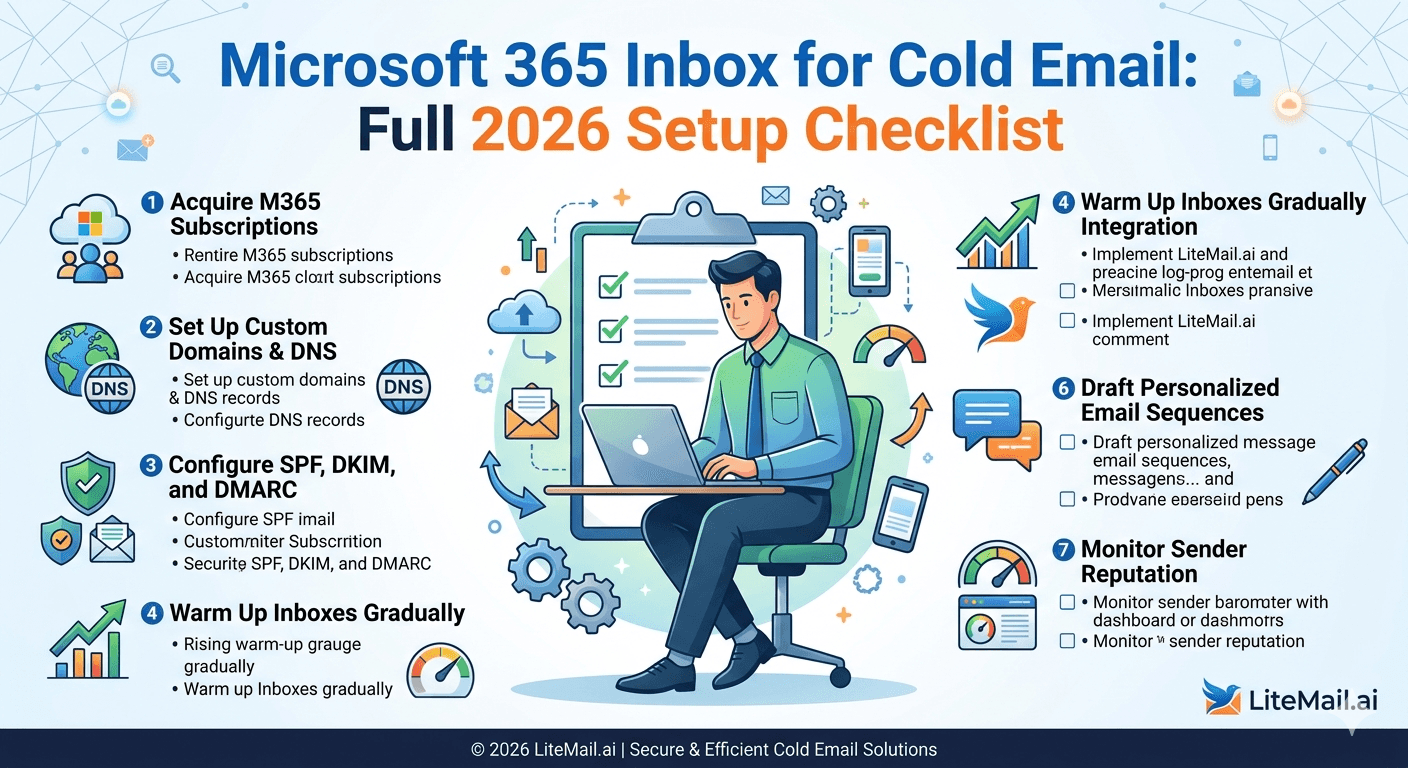
META TITLE: Microsoft 365 Inbox for Cold Email: Full 2026 Setup Checklist
META DESCRIPTION: The complete Microsoft 365 inbox setup checklist for cold email in 2026 — every step from domain registration to first campaign send, in the right order.
URL SLUG: /blog/microsoft-365-inbox-cold-email-setup-checklist-2026
SCHEMA: Article, FAQPage, HowTo
PRIMARY KEYWORD COUNT: 9
FLESCH READING SCORE ESTIMATE: Easy (67)
IMAGE SUGGESTION: Microsoft 365 admin portal showing domain setup, DNS configuration, and inbox provisioning steps — from Microsoft documentation. Search: 'microsoft 365 cold email setup checklist admin portal 2026'
VIDEO SUGGESTION: 'Microsoft 365 Cold Email Setup — Complete Step-by-Step Guide' — Channel: Jeremy Choi — Search: youtube.com/results?search_query=microsoft+365+cold+email+setup+checklist+2026
💡 TL;DR
Microsoft 365 cold email setup requires 7 steps in the right order: (1) register a separate sending domain, (2) buy pre-warmed MS365 inboxes or provision fresh and warm them, (3) configure SPF, DKIM, and DMARC on every domain, (4) verify all three records pass on MXToolbox, (5) register sending IPs in Microsoft SNDS, (6) connect to your sending platform via OAuth (not SMTP), (7) run a seed placement test before first campaign send. Skip any step and deliverability suffers. With Litemail pre-warmed MS365 inboxes, steps 2, 3, and 5 are handled automatically — setup time drops from days to under an hour.
Most Microsoft 365 cold email setups fail before the first campaign email sends — because the steps that matter most are done in the wrong order, or skipped entirely. This checklist covers every setup step in sequence, the verification test for each, and what to do when something doesn't pass.
Step 1 — Register a Dedicated Sending Domain
Your primary business domain (yourcompany.com) should never be used for cold outreach. Register a separate sending domain before anything else — this is the foundation every other step builds on.
☐Choose a sending domain name
Variations of your company name that aren't your primary domain. meetyourcompany.com, yourcompanygrowth.com, tryyourcompany.com. Avoid hyphens, 'mail', 'noreply', or generic words that trigger spam scoring.
☐Register at Namecheap or Cloudflare
Register for 2+ years — short registrations signal spam domains. Budget $10–15/domain/year. Register 2–3 sending domains upfront for redundancy.
☐Verification: Confirm domain ownership in registrar dashboard
Log into Namecheap or Cloudflare and confirm the domain is active and DNS management is accessible. You'll need DNS access for every subsequent step.
Step 2 — Provision Microsoft 365 Inboxes
Two options: buy pre-warmed MS365 inboxes (campaign-ready in 24 hours) or provision fresh MS365 inboxes and warm them yourself (4–8 weeks before first send).
Option | Time to Campaign-Ready | Cost (10 inboxes) | DNS Setup | Warmup Tool Needed? |
|---|---|---|---|---|
Litemail Pre-Warmed | 24 hours | $49.90/mo | Auto-configured | No |
Fresh MS365 (Microsoft direct) | 4–8 weeks | $60/mo + warmup tool | Manual (30–60 min/inbox) | Yes ($15–$97/mo) |
☐Order pre-warmed MS365 inboxes from Litemail
Order at litemail.ai/pre-warmup. Specify Microsoft 365 inboxes, quantity needed (use the formula: target daily volume ÷ 40 + 20% buffer), and your sending domain(s). Delivery within 24 hours with full MS365 admin credentials.
☐Receive and log MS365 admin credentials
Litemail delivers full Microsoft 365 admin credentials — not SMTP credentials. Log into admin.microsoft.com with the delivered credentials to confirm access before proceeding.
Step 3 — Configure DNS Records (Auto with Litemail / Manual for Fresh)
SPF, DKIM, and DMARC must all be configured on every sending domain before any campaign email sends. With Litemail pre-warmed inboxes, all three are pre-configured — skip to Step 4 verification. For fresh MS365 inboxes, configure manually:
☐Configure SPF record
Add a TXT record to your domain DNS: v=spf1 include:spf.protection.outlook.com -all. This authorises Microsoft's servers to send email on behalf of your domain.
☐Configure DKIM record
In Microsoft 365 admin centre: go to Security → Email Authentication → DKIM. Enable DKIM for your domain. Microsoft generates the CNAME records — add them to your domain DNS at your registrar. Use 2048-bit keys.
☐Configure DMARC record
Add a TXT record to DNS: v=DMARC1; p=none; rua=mailto:youraddress@yourdomain.com. Start with p=none for monitoring. Move to p=quarantine after 30 days of clean authentication data.
Step 4 — Verify All DNS Records Pass
Before anything else runs, confirm all three records pass on MXToolbox. This is the one step that cannot be skipped or deferred. One failing record means authentication issues on every send.
☐Run SPF check on MXToolbox
Go to mxtoolbox.com/spf.aspx. Enter your sending domain. Result must show 'SPF Record Found' with no syntax errors. If it fails, re-check the TXT record format at your registrar.
☐Run DKIM check on MXToolbox
Go to mxtoolbox.com/dkim.aspx. Enter domain and selector (for MS365, the default selector is 'selector1'). Result must show valid DKIM record. If it fails, confirm CNAME records propagated at your registrar.
☐Run DMARC check on MXToolbox
Go to mxtoolbox.com/dmarc.aspx. Enter your sending domain. Result must show DMARC record present. p=none is acceptable to start — any DMARC policy is better than none.
☐Send test email and check headers
Send an email from your MS365 inbox to a Gmail address. In Gmail, click the three dots → 'Show original'. Confirm: SPF: PASS, DKIM: PASS, DMARC: PASS. Any FAIL = stop here and fix before proceeding.
Step 5 — Register Sending IPs in Microsoft SNDS
Microsoft Smart Network Data Services (SNDS) lets you monitor how Microsoft's mail servers perceive your sending IPs. Register your IPs before the first campaign send — not after you notice a problem.
☐Find your sending IP address
Send a test email from your MS365 inbox to Gmail. In Gmail, view the raw message headers and look for the 'Received' header showing the originating IP. For Litemail inboxes, the dedicated IP is provided in the delivery credentials email.
☐Register at postmaster.live.com
Sign in with a Microsoft account and register your sending IPs. Microsoft will send a verification email to the postmaster address of your sending domain — confirm it to activate monitoring.
☐Check initial filter status
After 24–48 hours, check SNDS filter status. Green = IP is in good standing. Red = IP has a reputation problem to investigate before sending. Litemail inboxes are verified against SNDS before delivery — expect Green on arrival.
Step 6 — Connect to Sending Platform via OAuth
Connect your MS365 inboxes to your cold email platform via Microsoft OAuth — not SMTP. Microsoft deprecated SMTP Basic Authentication for most MS365 accounts in 2025. OAuth is the stable connection method for 2026.
☐In Instantly: Settings → Email Accounts → Add New → Microsoft
Sign in with your MS365 credentials and authorise Instantly access. Verify the inbox shows as 'Connected' with a green status indicator.
☐In Smartlead: Email Accounts → Add Account → Microsoft 365 → OAuth
Same process. Smartlead also shows a DNS health indicator per inbox — confirm all three records show green after connection.
☐Set per-inbox daily limits
Set 40 emails/inbox/day for weeks 1–2. Increase to 60 in weeks 3–4 if SNDS and Postmaster Tools remain healthy. Never exceed 100/inbox/day.
Step 7 — Run a Seed Placement Test Before First Campaign Send
The final gate before any campaign email sends. A seed placement test shows you exactly where your emails land across Gmail and Outlook — primary inbox, spam, or promotions tab.
☐Run a GlockApps or Mailtrap seed test
Send your actual campaign email (not a stripped test version) from your actual sending inbox to the seed list address. Aim for 90%+ primary inbox placement across both Gmail and Outlook seeds. Litemail pre-warmed MS365 inboxes typically show 93–96% on first test.
☐If placement is below 85%: investigate before launching
Below 85% means a deliverability issue exists. Check SNDS filter status first (IP issue), then MXToolbox DNS (authentication issue), then Postmaster reputation (domain issue). Fix the underlying cause — launching at sub-85% placement wastes campaign budget and compounds reputation damage.
☐When placement is 90%+: launch campaign
Start at 40 emails/inbox/day. Monitor SNDS and Postmaster Tools weekly. Check bounce rate after first 100 sends — if above 3%, pause and verify the contact list quality before continuing.
Skip Steps 2, 3, and 5 — Pre-Warmed MS365 Inboxes From Litemail
Litemail pre-warmed Microsoft 365 inboxes handle inbox provisioning, DNS auto-configuration, and SNDS pre-verification automatically. You receive campaign-ready inboxes in 24 hours with full MS365 admin access. $4.99/inbox. Start at Step 4 of this checklist on delivery day.
Get Pre-Warmed MS365 Inboxes from $4.99 →
Auto-configured DNS · SNDS pre-verified · Full MS365 admin access · 24-hour delivery · No minimum order
About Litemail — Litemail provides pre-warmed Google Workspace and Microsoft 365 inboxes for cold email outreach. From $4.99/inbox with automated DNS, dedicated US and EU IPs, and full admin access. View pre-warmed inbox plans →
Related reading:
Microsoft 365 Cold Email for Startups · Troubleshooting MS365 Cold Email for B2B Sales · How to Test MS365 Inbox Placement 2026 · SPF DKIM DMARC Auto-Setup · Common MS365 Cold Email Mistakes · Litemail Pre-Warmed Inboxes — Plans and Pricing
Key Takeaways
7 steps in the right order: register sending domain → provision MS365 inboxes → configure DNS → verify DNS on MXToolbox → register IPs in SNDS → connect via OAuth → run seed placement test before first send.
Skipping the seed placement test before launch is the most common mistake — sub-85% placement wastes campaign budget and compounds reputation damage.
Microsoft deprecated SMTP Basic Authentication in 2025 — connect all MS365 inboxes via OAuth, not SMTP.
Litemail pre-warmed MS365 inboxes handle steps 2, 3, and 5 automatically — DNS auto-configured, SNDS pre-verified, full admin credentials delivered in 24 hours.
Set per-inbox daily limits at 40 for weeks 1–2, increase to 60 in weeks 3–4 if SNDS and Postmaster remain healthy. Never exceed 100/inbox/day.
If placement test shows below 85%: check SNDS filter status (IP), then MXToolbox DNS (authentication), then Postmaster reputation (domain) — in that order.
Frequently Asked Questions
What is the complete setup checklist for Microsoft 365 cold email in 2026?
Seven steps: (1) register a dedicated sending domain, (2) provision pre-warmed MS365 inboxes, (3) configure SPF, DKIM, and DMARC, (4) verify all three records pass on MXToolbox, (5) register sending IPs in Microsoft SNDS, (6) connect to sending platform via OAuth, (7) run a seed placement test before first campaign send. All seven in order — skip any step and deliverability suffers.
Should I use OAuth or SMTP to connect Microsoft 365 to cold email platforms?
OAuth — without exception. Microsoft deprecated SMTP Basic Authentication for most MS365 accounts in 2025. OAuth is more stable, handles token refresh automatically, and is the connection method all major platforms (Instantly, Smartlead, Lemlist) now recommend for MS365.
What DNS records do I need for Microsoft 365 cold email?
SPF (include:spf.protection.outlook.com), DKIM (enabled in Microsoft 365 Security admin, CNAME records added to your registrar), and DMARC (TXT record with at minimum p=none). All three must pass on MXToolbox before your first campaign send. Missing DMARC is the most common oversight — and the most easily avoidable.
How do I check Microsoft 365 sender reputation?
Register your sending IPs at postmaster.live.com (Microsoft SNDS). Check filter status (Green/Yellow/Red), trap message rate (under 0.3%), and spam complaint rate. Also check Google Postmaster Tools for domain reputation on Gmail-hosted recipients. Run both dashboards weekly during active campaigns.
How many Microsoft 365 inboxes do I need for cold email?
Divide your target daily send volume by 40 and add a 20% buffer. 200 emails/day = 5–6 inboxes. 500 emails/day = 13–14 inboxes. 1,000 emails/day = 26–28 inboxes. At $4.99/inbox from Litemail, 14 inboxes for 500 emails/day costs $69.86/month.
Can I use the same Microsoft 365 tenant for cold email and regular business email?
Separate domains at minimum, separate tenants ideally. Cold email generates spam complaints and bounce signals that affect the sending domain's reputation. Keep cold email on separate sending domains (not yourcompany.com) to protect your primary business domain from reputation damage.
What inbox placement rate should Microsoft 365 cold email achieve?
90%+ primary inbox placement across both Gmail and Outlook seed addresses is the target. Pre-warmed Litemail MS365 inboxes typically show 93–96% on first seed test within 48 hours of delivery. Below 85% placement indicates a deliverability problem — investigate before launching any campaign.
Pre-Warmed MS365 Inboxes — Campaign-Ready in 24 Hours | Litemail
Skip the manual setup. Pre-warmed MS365 inboxes with auto-configured DNS, SNDS pre-verified, full admin access. $4.99/inbox. Start at Step 4 of this checklist on delivery day.
Related reading:
MS365 Cold Email for Startups · Troubleshooting MS365 Cold Email · How to Test MS365 Inbox Placement · SPF DKIM DMARC Auto-Setup · Common MS365 Cold Email Mistakes · Litemail Pre-Warmed Inboxes — Plans and Pricing






