
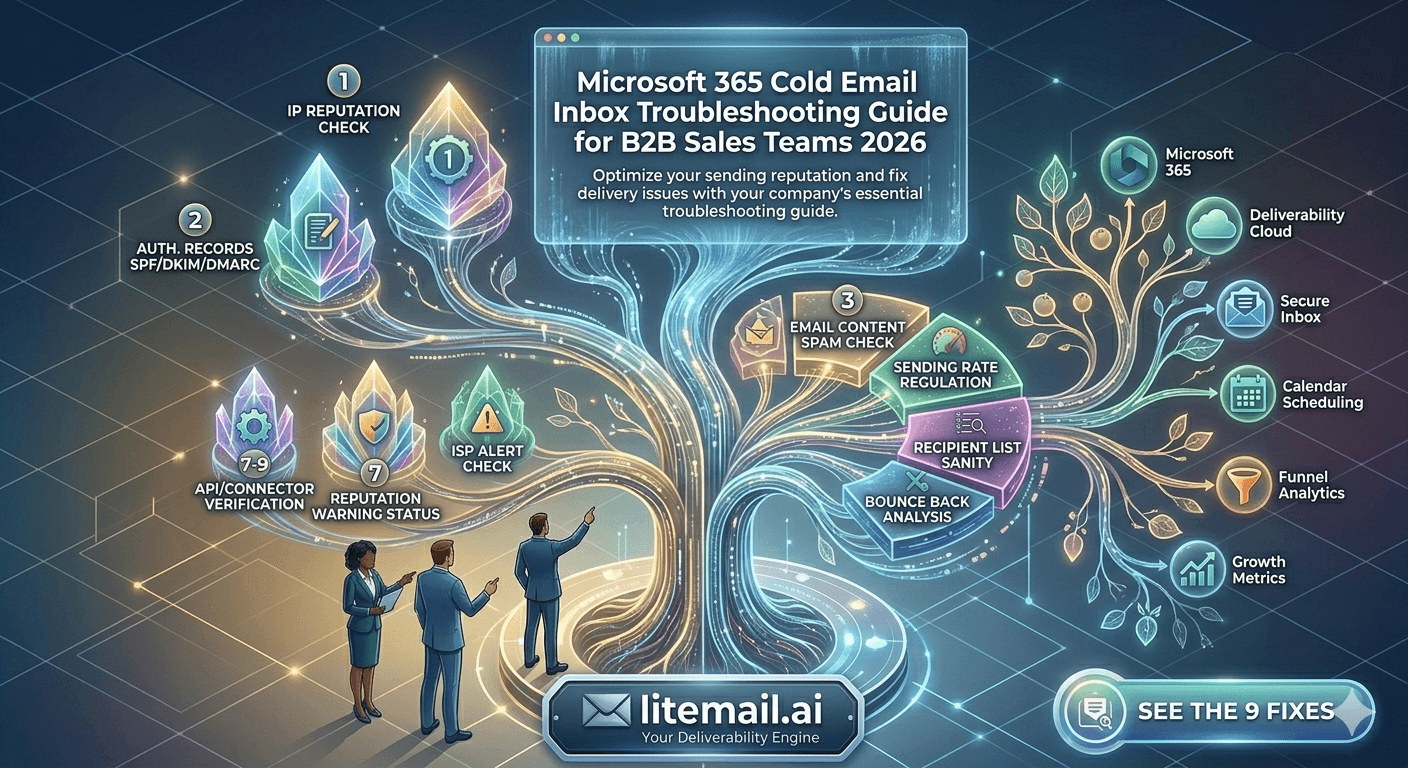
A B2B SaaS sales team of 5 reps ran 3 months of outbound through Microsoft 365 inboxes before realizing 40% of their sends were landing in Junk Mail at enterprise prospects. Reply rates were 0.3% — they blamed the messaging. The actual problem was a misconfigured DMARC policy, a shared IP flagged in Microsoft SNDS, and inboxes that had never been genuinely warmed. Three configuration problems. Three months of wasted pipeline. This guide covers every Microsoft 365 cold email inbox failure mode specific to B2B sales teams — and the exact fix for each.
The 5 Microsoft 365 Cold Email Failure Modes B2B Teams Hit Most
Microsoft 365 cold email inbox problems cluster around five categories. Most B2B sales teams encounter at least two simultaneously — and because the symptoms overlap, teams often fix the wrong problem first.
🔴
1. Authentication Failures (SPF/DKIM/DMARC)
Microsoft 365's Exchange Online Protection requires all three authentication records to pass. A single failure — even a minor SPF softfail — increases Junk Mail placement probability significantly. Unlike Gmail, which often allows soft authentication failures through with minor reputation penalty, Outlook's inbound filters treat authentication failures as a hard negative signal. Fix authentication first before investigating anything else.
🔴
2. IP Reputation in Microsoft SNDS
Microsoft maintains its own IP reputation database entirely separate from Google's. An IP with clean Google Postmaster reputation can simultaneously be flagged Red in Microsoft SNDS. B2B sales teams that check Postmaster Tools and declare their infrastructure clean often haven't checked Microsoft's side at all. Go to postmaster.live.com — it's free, it takes 5 minutes, and it's the only tool that gives you Microsoft's actual assessment of your sending IP.
🟡
3. Inbox Not Genuinely Warmed
Microsoft 365 inboxes require genuine warm-up history just like Google Workspace inboxes. A fresh M365 inbox — or one warmed by bot-script tools for 3 days and called "pre-warmed" — will have Unknown or Low sending reputation with Microsoft's filters. The minimum legitimate warm-up duration for a Microsoft 365 inbox before B2B cold sending is 4 to 6 weeks of real engagement signals.
🟡
4. SMTP-Only Access Without Real Ownership
Many B2B sales teams buy Microsoft 365 inboxes from providers that give SMTP credentials only. This means you're renting access through someone else's platform. When that platform changes terms, shuts down, or restricts sending volumes, your entire sales infrastructure disappears. Full Microsoft 365 admin access means you own the account outright — and your warm-up history, your sending reputation, and your infrastructure survive any provider change.
🟡
5. No EU Datacenter Assignment for European Prospects
Microsoft 365 infrastructure spans multiple datacenters globally. For B2B cold email targeting European decision-makers, your Microsoft 365 inboxes should be provisioned with EU-based IP assignments. US datacenter IPs sending to European corporate Microsoft 365 domains face additional EOP scrutiny. Dedicated EU IPs for European campaign targeting can improve primary inbox placement by 20 to 30 percentage points on European domains.
Authentication Setup That Actually Works for M365 Cold Sending
Most authentication guides cover the basics. This covers the Microsoft 365-specific nuances that basic guides miss — the details that separate working authentication from authentication that passes Gmail checks but fails on Outlook recipient servers.
DMARC Policy Levels and B2B Sending
Start with DMARC at p=none (monitoring only) for the first 2 weeks after setting up a new sending domain. Check your DMARC aggregate reports — most DNS providers forward these to your admin email — and confirm all legitimate sends are aligned with SPF and DKIM. Once you see 100% alignment across 2 weeks of reports, move to p=quarantine.
Don't skip p=none just because you're confident in your configuration. Every B2B sales team that's confidently skipped to p=reject has eventually found a sending source they forgot to authorize — usually a CRM, a marketing tool, or an email signature platform — sending unauthenticated mail on their domain.
DKIM Key Length for Microsoft Recipients
Use 2048-bit DKIM keys rather than 1024-bit. Microsoft's spam filters give slightly higher trust scores to emails signed with 2048-bit keys. Most providers generate 1024-bit keys by default — check your DKIM TXT record length in DNS and upgrade if needed. Google Workspace Admin console lets you rotate to 2048-bit in Settings → Gmail → Authenticate Email.
💡 The Authentication Sequence for New B2B Sending Domains
Day 1: Set SPF, DKIM (2048-bit), DMARC (p=none). Day 2: Wait 48 hours for DNS propagation. Day 3: Verify in MXToolbox — all three green. Day 4: Send test to a Microsoft 365 address you control. Check headers for SPF PASS, DKIM PASS, DMARC PASS. Only then: start warm-up. This sequence eliminates the most common B2B sales team error of warming inboxes with broken authentication.
Warming Microsoft 365 Inboxes for B2B Cold Email: What's Different
Microsoft 365 inbox warm-up has specific characteristics that differ from Google Workspace warm-up. Most warm-up guides are written for Gmail — and the differences matter when your prospect list is heavily enterprise Microsoft 365.
First: warm-up tool networks that are primarily Gmail-to-Gmail exchanges don't build meaningful reputation with Microsoft's filters. If your warm-up network sends 90% of engagement signals between Gmail accounts, your Microsoft 365 inbox is building Google reputation but not Microsoft reputation. For M365 cold email, you need a warm-up tool network that includes significant Microsoft 365-to-Microsoft 365 engagement.
Second: the ramp-up schedule should be more conservative for M365 inboxes targeting enterprise corporate domains. Start at 10 emails per day in week one, reach 30 per day by week four, and only push to 50 per day after 6 weeks of consistent clean sends with no Junk Mail placement. Enterprise Microsoft 365 inboxes — those at large corporate domains — apply stricter inbound filtering than consumer Outlook.com accounts.
Week | Daily Send Volume | Warm-Up Activity | Check |
|---|---|---|---|
1–2 | 5–10 emails/day | High — 30–40 warm-up sends | Verify SNDS status |
3–4 | 15–20 emails/day | Medium — 20–30 warm-up sends | Check Outlook placement |
5–6 | 25–35 emails/day | Low — 10–15 warm-up sends | Test M365 placement |
7+ | Up to 50 emails/day | Maintenance — 5–10 warm-up sends | Weekly SNDS check |
The Platform Lock-In Problem Specific to M365 B2B Sales Infrastructure
B2B sales teams that buy Microsoft 365 sending inboxes bundled with their sequencing tool — a common arrangement — often discover a significant problem when they try to switch tools: their inboxes don't come with them.
Platform-bundled M365 inboxes typically use SMTP credentials rented through the provider's platform. The warm-up history exists inside the provider's system — not in a Microsoft 365 admin account you own. When you cancel or switch, the inboxes either disappear entirely or become inaccessible outside the original platform's OAuth environment.
For a B2B sales team that's built 6 months of warm-up history into 20 Microsoft 365 inboxes — and then decides to switch from one sequencing tool to another — this means rebuilding from scratch. Six months of sending reputation gone. A quarter of outbound pipeline on hold while new inboxes warm up.
⚠️ The Ownership Test Before You Buy
Before buying any Microsoft 365 cold email inboxes, ask: "Do I receive the Microsoft 365 admin console credentials — not just SMTP?" and "Do these inboxes continue to exist and work if I cancel my subscription?" If either answer is no, you're building sales infrastructure on a foundation you don't own. Litemail delivers full Microsoft 365 admin access from $4.99/inbox — you own the account outright from day one.
Diagnosing Junk Mail Placement on Enterprise Microsoft 365 Recipients
Landing in Junk Mail on enterprise Microsoft 365 recipients is the most common B2B cold email complaint — and the hardest to diagnose because there are multiple possible causes that all produce the same symptom.
Work through this diagnosis in order. Start with the most common causes:
Check headers on a test email sent to a corporate M365 address you control. Look for SCL (Spam Confidence Level) score — anything above 4 is routing to Junk Mail. Note what authentication results show.
Check SNDS at postmaster.live.com for your sending IP. Red status means Microsoft is actively filtering your IP — nothing else matters until you fix this.
Check SPF, DKIM, DMARC in MXToolbox. All three must pass. A DKIM FAIL on M365 headers means either a key mismatch or an outdated selector — fix DNS.
Check your tracking link domain. Run it through MXToolbox URL reputation checker. Shared tracking domains from bulk email tools are frequently flagged in Microsoft's URL reputation database.
Strip HTML from a test email and resend. If placement improves, your HTML template is triggering Microsoft Defender's content scanning.
If all five checks pass and you're still hitting Junk Mail on a specific corporate domain, the problem is almost certainly that company's own inbound email policy — set by their IT team to quarantine cold outreach regardless of sender quality. There's no infrastructure fix for this. That prospect needs a different channel.
Why Pre-Warmed Microsoft 365 Inboxes Solve Most of These Problems
The majority of Microsoft 365 cold email troubleshooting problems trace back to the setup stage — inboxes that were provisioned incorrectly, configured manually with DNS errors, or warmed too quickly with bot-script tools. Pre-warmed Microsoft 365 inboxes that arrive with genuine reputation already built eliminate the most expensive failure modes before you send your first campaign email.
Specifically: automated SPF/DKIM/DMARC configuration means no DNS setup errors. Dedicated US and EU IPs mean no shared pool contamination affecting your Microsoft SNDS status. Genuine 4 to 12 weeks of warm-up history means Microsoft's filters already recognize your inboxes as legitimate senders before you touch them.
Litemail pre-warmed Microsoft 365 inboxes cost $4.99/inbox/month and arrive with full admin access — not SMTP rental. Your infrastructure is yours from day one. Postmaster reputation verified Good or High within 48 hours. Works via OAuth with Instantly, Smartlead, Lemlist, Saleshandy, Apollo, and every major B2B sequencing platform.
Volume Management for B2B Sales Teams Running Multiple Reps
B2B sales teams with multiple reps often make one critical inbox architecture mistake: they run all reps through the same sending domain. One domain, 5 reps, each sending 50 emails per day — that's 250 emails per day from a single domain, concentrated risk in one place.
Better architecture: each rep gets a dedicated sending domain with 2 to 3 inboxes per domain. Rep 1 sends from rep1domain.com (3 inboxes, 150 emails/day max). Rep 2 from rep2domain.com. And so on. Domain failures are isolated to one rep rather than taking down the entire team's outbound infrastructure simultaneously.
Team Size | Domains Needed | Inboxes Per Domain | Daily Send Capacity | Monthly Cost (Litemail) |
|---|---|---|---|---|
1 rep | 1–2 | 2–3 | 100–150/day | $10–$15/mo |
3 reps | 3–6 | 2–3 each | 300–450/day | $30–$45/mo |
5 reps | 5–10 | 2–3 each | 500–750/day | $50–$75/mo |
10 reps | 10–20 | 2–3 each | 1,000–1,500/day | $100–$150/mo |
Monitoring Microsoft 365 Cold Email Inboxes: The B2B Sales Dashboard
Google Postmaster Tools doesn't cover Microsoft 365 sending reputation. B2B sales teams that only check Postmaster are monitoring half their infrastructure. Add these Microsoft-specific monitoring touchpoints to your weekly routine.
Weekly: check sending IP status in Microsoft SNDS. Check bounce rate in your sequencing tool — keep under 2% per campaign. Test-send to a corporate Microsoft 365 address you control and check Junk Mail placement. Monthly: run a full GlockApps placement test across both Gmail and Microsoft 365 recipients. Check PTR records for all sending IPs in MXToolbox.
For B2B sales teams where a third or more of prospects are on Microsoft 365 corporate domains, this monitoring is not optional. The Microsoft side of your infrastructure can degrade silently — while your Gmail stats look fine — for weeks before you notice the pipeline impact.
Self-Configured M365 vs Pre-Warmed: The True Cost for B2B Teams
B2B sales teams often configure Microsoft 365 inboxes themselves to save money. The calculation usually doesn't work out the way they expect.
Microsoft 365 Business Basic costs $6/user/month. Add a warm-up tool at $30 to $69/month. Add 6 to 8 weeks before inboxes reach reliable sending status. Add the time cost of DNS setup, warm-up tool configuration, and ongoing monitoring — realistically 4 to 6 hours of sales ops time per domain setup. For a sales team where ops time is measured against pipeline generation, this is expensive time spent on infrastructure rather than selling.
Litemail pre-warmed Microsoft 365 inboxes arrive campaign-ready in 24 hours at $4.99/inbox — already cheaper than Microsoft 365 Business Basic before you factor in warm-up tools or setup time. For a B2B sales team that should be focused on prospect engagement rather than email infrastructure, this isn't a budget line — it's a leverage decision.
Complete Microsoft 365 Inbox Verification Before First B2B Campaign Send
Never send a B2B cold email campaign from a Microsoft 365 inbox you haven't verified with these specific checks. The 20 minutes this takes prevents weeks of deliverability recovery.
Full Microsoft 365 inbox verification flow for B2B sales teams — authentication, IP reputation, and placement testing before campaign launch.
Step 1 — Authentication Verification
MXToolbox → check SPF, DKIM, DMARC. All three must show green. Any yellow or red — fix DNS before proceeding.
Step 2 — Microsoft SNDS IP Check
postmaster.live.com → enter sending IP → confirm Green or not listed. Red status means stop — fix IP reputation before sending anything to M365 recipients.
Step 3 — Placement Test
Send 3 test emails over 3 days to a corporate Microsoft 365 address you control. Confirm primary inbox placement — not Junk. If landing in Junk, work through the diagnosis checklist above.
Step 4 — Header Verification
On the corporate M365 test email, check headers for: SPF PASS, DKIM PASS, DMARC PASS, SCL score under 4. Any failure triggers the relevant fix from the troubleshooting sections above.
✅ The 20-Minute Pre-Campaign Checklist
Authentication check (5 min) + SNDS IP check (5 min) + placement test (5 min) + header review (5 min) = 20 minutes that protects your entire B2B outbound pipeline. Run it on every new inbox, every new domain, every new batch — regardless of provider or previous experience.
Frequently Asked Questions
Why is my Microsoft 365 cold email landing in Junk Mail at enterprise companies?
The most common causes in order: IP flagged in Microsoft SNDS (check postmaster.live.com), authentication failure in SPF/DKIM/DMARC (check MXToolbox), inbox not genuinely warmed (Unknown sending history), shared tracking domain flagged in Microsoft URL reputation, or recipient company's own inbound IT policy blocking cold outreach. Work through these in order — fix authentication and SNDS first before investigating content or policy issues.
How do I check my Microsoft 365 sending reputation?
Use Microsoft SNDS (Smart Network Data Services) at postmaster.live.com to check your sending IP's status in Microsoft's reputation database. Green means clean. Red means Microsoft is actively filtering your IP. Also register for Microsoft JMRP (Junk Mail Reporting Program) for ongoing feedback loop monitoring. These tools are separate from Google Postmaster Tools and required for full deliverability visibility when sending to Microsoft 365 recipients.
What is the maximum safe sending volume for Microsoft 365 cold email inboxes?
50 emails per day per inbox maximum for established Microsoft 365 inboxes. For new inboxes in their first 30 days, stay under 30 per day. Microsoft's technical limit is 500/day, but approaching that limit triggers bulk-sender classification in Exchange Online Protection. For B2B sales teams, this means one inbox per 30 to 50 daily cold emails — the same ratio as Google Workspace inboxes.
Should each sales rep have their own sending domain?
Yes — per-rep domain isolation prevents one rep's deliverability problems from affecting the entire team. A spam complaint or Junk Mail spike from one rep's campaign only damages that rep's domain, not the whole team's outbound infrastructure. Each rep needs 2 to 3 inboxes across their dedicated sending domain. At $4.99/inbox from Litemail, a 3-inbox-per-rep setup costs under $15/month per rep in inbox costs.
Do Microsoft 365 inboxes need warm-up before B2B cold email?
Yes — Microsoft 365 inboxes require genuine warm-up before B2B cold sending, just like Google Workspace inboxes. The minimum is 4 to 6 weeks of real engagement signals. Fresh or bot-warmed Microsoft 365 inboxes have Unknown sending reputation with Microsoft's filters and will face elevated Junk Mail placement at enterprise recipients. Pre-warmed Microsoft 365 inboxes from Litemail arrive with 4 to 12 weeks of genuine warm-up history, campaign-ready in 24 hours.
Pre-Warmed Microsoft 365 Inboxes for B2B Sales — From $4.99
Litemail delivers pre-warmed Microsoft 365 and Google Workspace inboxes with full admin access, dedicated US and EU IPs, automated SPF/DKIM/DMARC, and verified Good reputation within 48 hours. Campaign-ready in 24 hours. Works with every major B2B sequencing tool via OAuth. No platform lock-in — you own every inbox outright.
Get Pre-Warmed M365 Inboxes from $4.99 →
Microsoft 365 and Google Workspace available · Full admin access · Dedicated US and EU IPs · No minimum order
About Litemail — Litemail provides pre-warmed Google Workspace and Microsoft 365 inboxes for cold email outreach. From $4.99/inbox with automated DNS setup, dedicated US and EU IPs, and full admin access. View pre-warmed inbox plans →
Related reading: Outlook Cold Email Troubleshooting: 9 Fixes · DMARC Not Working: Fix Guide 2026 · Best Pre-Warmed Inbox Providers in 2026 (Ranked) · Email Warmup Sequence Optimal Settings 2026 · Risks of Google Workspace Inbox Setup for Marketing Agencies · Instantly.ai Review 2026 · Litemail Pre-Warmed Inboxes — Plans and Pricing







