
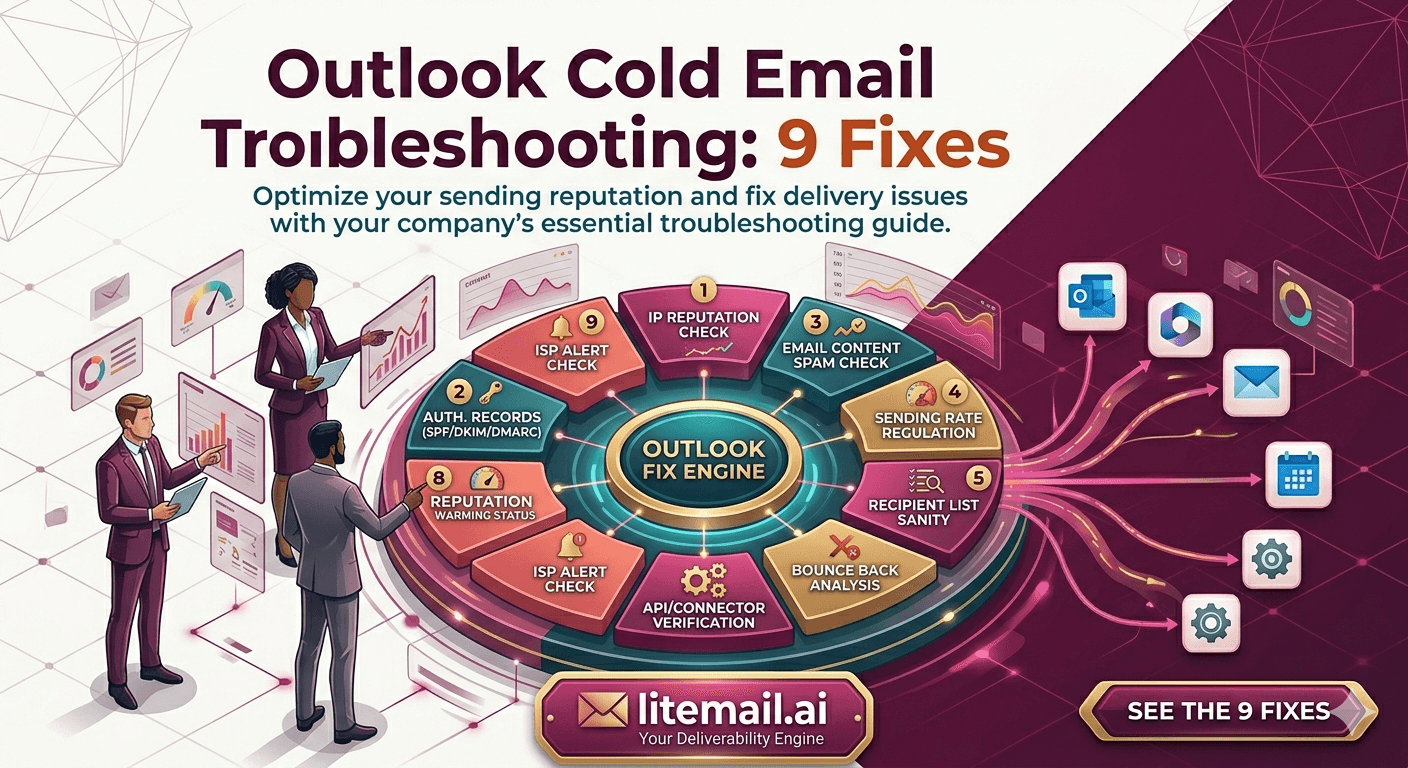
Outlook's spam filters work differently from Gmail's — and cold email setups optimized for Gmail often fail specifically on Outlook recipient domains. A recruitment agency running outreach for 6 enterprise clients found that campaigns hitting Microsoft 365 corporate inboxes had a 34% lower primary placement rate than identical campaigns targeting Gmail addresses. Same inboxes. Same copy. Same sequences. The difference was Outlook-specific filtering behavior that their Gmail-optimized setup wasn't accounting for. These are the 9 most common Outlook cold email failures and the exact fix for each one.
Why Outlook Filters Cold Email Differently Than Gmail
Gmail evaluates sender reputation primarily at the domain level using signals aggregated in Google Postmaster Tools. Outlook's filtering — Microsoft Defender for Office 365 and Exchange Online Protection — weighs IP reputation more heavily and applies stricter heuristics on email content and link patterns.
Filter Factor | Gmail Weight | Outlook/EOP Weight | Implication |
|---|---|---|---|
Domain reputation | Very high | Medium | Good Postmaster rep doesn't guarantee Outlook placement |
IP reputation | Medium | Very high | Shared IPs that pass Gmail can fail Outlook |
Link/URL scanning | Medium | High | Tracking links trigger Outlook filters more aggressively |
SPF/DKIM/DMARC | Required | Required | Same requirement — both enforce authentication |
Bulk sender patterns | Medium | High | Consistent send timing and volume patterns flagged |
The practical takeaway: a setup that works perfectly for Gmail recipients can fail on Outlook corporate domains even when your Google Postmaster data looks clean. Outlook troubleshooting requires a separate diagnostic lens.
Fix 1 and Fix 2: Authentication Failures Specific to Outlook
Fix 1 — DKIM Selector Mismatch
Outlook's Exchange Online Protection checks DKIM more aggressively than most senders expect. If you have multiple DKIM selectors configured but your sending domain publishes an outdated or mismatched selector, Outlook will fail the DKIM check even when Gmail passes it. This happens most often when you've changed inbox providers and the old DKIM selector is still in DNS alongside the new one.
Fix: Go to your DNS provider, remove any outdated DKIM TXT records, and confirm only the active selector used by your current sending infrastructure is published. Then send a test email to a Microsoft 365 address you control, check headers for DKIM: PASS, and confirm the selector shown matches your active configuration.
Fix 2 — SPF Include Exceeding Lookup Limit
SPF has a hard limit of 10 DNS lookups per evaluation. Outlook enforces this strictly — Gmail is more lenient. If your SPF record includes multiple sending tools (Google Workspace, a CRM, a transactional email provider, your cold email tool), you can easily exceed 10 lookups. When you do, Outlook treats SPF as failing — even though your record is technically correctly formatted.
Fix: Use MXToolbox's SPF record checker to count your lookup depth. If you're over 10, use an SPF flattening service like dmarcian or AutoSPF to collapse your SPF into a flat IP list that doesn't consume lookup budget. Recheck after flattening.
⚠️ The SPF Lookup Problem Is Invisible in Gmail
Gmail is lenient about SPF lookup depth. Outlook is not. If your campaigns send to a mix of Gmail and Outlook domains, you can have perfect Gmail deliverability while simultaneously failing SPF on every Microsoft 365 recipient — and never know it unless you specifically test Outlook placement.
Fix 3 and Fix 4: IP Reputation Problems on Outlook
Fix 3 — Shared IP Pool Contamination
Microsoft maintains its own IP reputation database — separate from the blacklists Gmail consults. An IP address can have Good reputation in Google Postmaster Tools and simultaneously be flagged in Microsoft's Sender Reputation Data (SRD). This means an inbox on a shared IP that passes all Gmail deliverability checks can still land in Outlook Junk Mail.
Fix: Check your sending IP against Microsoft's Smart Network Data Services (SNDS) at postmaster.live.com. A red status means Microsoft's filters are actively deprioritizing your IP. If you're on shared IPs, the only permanent fix is dedicated IPs — Microsoft's filters don't recover easily from shared pool contamination. This is why dedicated US and EU IP addresses matter for agencies targeting Microsoft 365 corporate domains.
Fix 4 — IP Not Listed in Microsoft SNDS
If your sending IP is new or has low volume history with Microsoft, it may not appear in SNDS at all — which Microsoft treats as unknown and suspicious. This is the Outlook equivalent of Unknown domain reputation in Google Postmaster.
Fix: Register your IP with Microsoft's JMRP (Junk Mail Reporting Program) at postmaster.live.com. This establishes a feedback loop with Microsoft and helps build IP reputation over time. Also ensure your IP has a valid reverse DNS (PTR) record — Outlook checks this and treats missing PTR records as a spam signal.
Fix 5 and Fix 6: Content and Link Problems
Fix 5 — Tracking Link Domain Reputation
Outlook scans every URL in your email against Microsoft's URL reputation database. If you're using a shared tracking domain from your sending tool (the default for most platforms), that domain may be flagged by Microsoft even though it's not flagged by Google. One high-volume spammer using the same shared tracking domain is enough to get the domain blacklisted in Microsoft's filters.
Fix: Use a custom tracking domain — either your own domain or a dedicated subdomain specifically for tracking. Most sending tools support custom tracking domains in their settings. Set it up as a subdomain of your sending domain (e.g., track.yourdomain.com) rather than a generic shared platform URL. This isolates your tracking reputation from other users of the same tool.
Fix 6 — HTML-Heavy Emails Triggering Defender Scanning
Microsoft Defender for Office 365 applies aggressive scanning to emails with heavy HTML formatting, multiple images, or complex inline styles. Cold emails that use elaborate HTML templates — the kind that look like marketing newsletters — trigger more Defender scrutiny than plain-text or minimal-HTML emails.
Fix: Strip email templates back to plain text or near-plain text for cold outreach. No background colors, no image-heavy layouts, no multiple columns. A plain-text email with minimal HTML is both less likely to trigger Outlook's content filters and more likely to feel human to the recipient. This is a win on two fronts.
Fix 7 and Fix 8: Sending Volume and Timing Problems
Fix 7 — Consistent Send Timing Patterns
Outlook's filters recognize mechanical sending patterns. If you send exactly 47 emails every day at 9:03 AM with identical intervals between sends, Exchange Online Protection flags this as automated bulk behavior and increases scrutiny. Gmail is more tolerant of this — Outlook less so.
Fix: Enable random send delays in your sequencing tool. Most platforms support this — set sends to randomize within a 3 to 8 minute window rather than firing at precise intervals. Also vary your daily volume slightly (40 one day, 48 the next) rather than sending the identical number each day. These small variations break the mechanical pattern that triggers Outlook's bulk-sending heuristics.
Fix 8 — Exceeding Safe Per-Inbox Daily Volume for Microsoft 365
Microsoft 365 accounts have an outbound sending limit of 500 emails per day per account — higher than the safe cold email threshold of 50 per day per inbox. But sending close to that limit is itself a spam signal. Outlook's filters are tuned to be suspicious of any inbox consistently sending high volumes of similar messages.
Fix: Keep cold email sends to a maximum of 50 per inbox per day for Microsoft 365 accounts — the same limit that applies to Google Workspace inboxes. Don't test the Microsoft limit just because it's technically higher. High-volume sends from a single Microsoft 365 inbox will trigger bulk-sender classification even within Microsoft's own system.
💡 The 30-Per-Day Conservative Limit for New Microsoft 365 Inboxes
For Microsoft 365 inboxes in their first 30 days of cold sending, stay under 30 emails per day per inbox — more conservative than the 50/day limit for mature inboxes. Microsoft's filters apply extra scrutiny to accounts that ramp up cold sending volume quickly. Build up gradually over the first month before pushing to 50/day.
Fix 9: The One Fix Most Guides Don't Mention
The most common Outlook deliverability problem that gets misdiagnosed as a content or authentication issue is actually a recipient domain policy problem. Many mid-sized and enterprise companies running Microsoft 365 have custom inbound filtering policies set by their IT teams — policies that block or quarantine cold email regardless of your sender reputation or authentication.
This isn't something you can fix from your side. But you can detect it. If you see normal inbox placement across consumer Outlook.com addresses but low placement specifically on corporate Microsoft 365 domains (company.com, firmname.com), the issue is almost certainly recipient-side filtering policy rather than your sending infrastructure.
In practice, this means: don't waste time trying to optimize sending infrastructure to get past corporate Outlook inbound policies. Instead, prioritize those prospects for LinkedIn outreach or phone touchpoints where domain-level filtering doesn't apply. Your cold email infrastructure is fine. Their IT policy is the wall — and it's not yours to climb.
Microsoft 365 vs Google Workspace Sending Inboxes: Which Performs Better for Outlook Recipients?
Here's a question that comes up constantly: should you use Microsoft 365 sending inboxes when emailing Outlook recipients, on the logic that Microsoft-to-Microsoft delivery is more trusted?
The answer is: it depends, but not as much as you'd think. Microsoft does give slight preferential treatment to sending inboxes on Microsoft infrastructure — but only when those inboxes have clean, verified sending histories. A poorly configured or freshly provisioned Microsoft 365 sending inbox will perform worse to Outlook recipients than a well-warmed Google Workspace inbox with clean dedicated IPs.
Scenario | Best Sending Inbox | Reason |
|---|---|---|
Primarily Gmail recipients | Google Workspace | Native trust, Postmaster Tools visibility |
Primarily Outlook/M365 recipients | Either — warmed M365 preferred | Warmed M365 gets slight preferential trust from Outlook |
Mixed recipient base | Both — 60/40 split | Maximizes placement across both filter systems |
For agencies sending to mixed lists, running both Google Workspace and Microsoft 365 inboxes in a 60/40 split is the strongest setup. Litemail provides both GWS and M365 pre-warmed inboxes from $4.99/inbox — the same price, the same warm-up quality, the same DNS automation.
The Outlook-Specific Diagnostic Checklist
Work through this in order. Most Outlook deliverability problems trace back to one of the first three checks — don't skip ahead to content fixes until you've confirmed infrastructure is clean.
Check DKIM selector in email headers — send to a Microsoft 365 address, check headers for DKIM: PASS and confirm selector matches
Check SPF lookup count — MXToolbox SPF checker, confirm under 10 lookups
Check sending IP in Microsoft SNDS — postmaster.live.com, confirm Green or not listed
Check IP in Microsoft JMRP — confirm registered for feedback loop if high volume
Check PTR record for sending IP — MXToolbox, confirm valid reverse DNS exists
Check tracking domain reputation — confirm custom tracking domain, not shared platform URL
Check email HTML weight — strip to minimal HTML or plain text if using rich templates
Check send timing randomization — confirm random delays enabled in sending tool
Check per-inbox daily volume — confirm under 50/day for established, under 30/day for new inboxes
How to Test Outlook Placement Before Campaign Launch
Don't discover Outlook placement problems mid-campaign. Test before you launch. You need access to at least two Microsoft 365 test addresses — ideally one corporate M365 domain and one Outlook.com consumer address.
Send a test sequence of 5 emails over 3 days to both addresses. Check where each email lands — primary inbox, junk, or not delivered. Check the full email headers on the Microsoft 365 address for authentication results. If you see Junk Mail placement on the corporate domain but primary inbox on Outlook.com, the problem is almost certainly recipient-side IT policy rather than your infrastructure. If both land in Junk, it's your infrastructure — work through the 9 fixes above.
✅ The Test Setup Worth Building Once
Set up a permanent test inbox at a Microsoft 365 domain you control — not a client domain. Use it as your pre-launch Outlook placement test address for every campaign. A $6/month Microsoft 365 Business Basic account gives you a corporate M365 test inbox that mimics the filtering behavior of real enterprise Outlook recipients. Run every new inbox and every new campaign through it before sending to actual prospects.
Recovering Outlook Placement After a Deliverability Problem
Outlook reputation recovery is slower than Gmail reputation recovery. Once Microsoft's filters flag your IP or domain, it takes consistent clean sending over 3 to 6 weeks before placement rates normalize. There's no Postmaster Tools equivalent for Microsoft that lets you watch the recovery in real time — you're testing placement periodically and waiting.
The recovery protocol: stop all cold sends from affected inboxes, run warm-up tool activity only for 2 to 3 weeks, then reintroduce cold sends at 10 to 15 emails per day before ramping back up. Test Outlook placement weekly during recovery. For severe cases — IP blacklisted in Microsoft SNDS, persistent Junk Mail placement across weeks — replace the affected inboxes entirely rather than attempting rehabilitation.
Microsoft SNDS IP reputation check — a required step in Outlook-specific deliverability troubleshooting that most teams skip.
Frequently Asked Questions
Why do cold emails land in Outlook Junk Mail but not Gmail Spam?
Outlook and Gmail use different filtering systems with different weighting. Outlook's Exchange Online Protection weighs IP reputation and URL scanning more heavily than Gmail. An inbox with Good Google Postmaster reputation can simultaneously have poor standing in Microsoft's Sender Reputation Data if the sending IP is flagged in Microsoft's own database. Check your sending IP against Microsoft SNDS at postmaster.live.com as your first diagnostic step.
How do I check my IP reputation for Outlook specifically?
Use Microsoft's Smart Network Data Services (SNDS) at postmaster.live.com. Enter your sending IP address and check the status — Green means clean, Yellow means caution, Red means actively filtered. Also check PTR records in MXToolbox and register for Microsoft's Junk Mail Reporting Program (JMRP) to establish a feedback loop. These steps are separate from Google Postmaster Tools and required for Outlook-specific diagnosis.
Should I use Microsoft 365 inboxes to send cold email to Outlook recipients?
Warmed Microsoft 365 inboxes get slight preferential treatment from Outlook's filters compared to Google Workspace inboxes — but only when properly configured and warmed. A poorly warmed M365 inbox will perform worse than a well-warmed GWS inbox. For campaigns targeting mixed Gmail and Outlook recipients, run a 60/40 split of Google Workspace and Microsoft 365 inboxes. Litemail provides both GWS and M365 pre-warmed inboxes from $4.99/inbox.
What is the safe sending volume per inbox for Microsoft 365 cold email?
50 emails per day per inbox maximum for established Microsoft 365 inboxes. For inboxes in their first 30 days of cold sending, stay under 30 per day. Microsoft's technical limit is 500/day, but sending near that limit triggers bulk-sender classification in Outlook's filters. Stay at 50/day or under to avoid mechanical bulk-sending pattern detection.
How long does Outlook deliverability recovery take after a spam filter problem?
3 to 6 weeks of consistent clean sending for moderate problems. Severe cases — IP listed in Microsoft SNDS, persistent Junk Mail placement — can take longer, and inbox replacement is often faster than rehabilitation. Unlike Gmail, there's no Postmaster Tools equivalent for real-time Microsoft reputation monitoring. Test Outlook placement weekly during recovery using a Microsoft 365 test inbox.
Fix Outlook Delivery at the Infrastructure Level — Pre-Warmed M365 Inboxes from $4.99
Litemail provides pre-warmed Microsoft 365 and Google Workspace inboxes with dedicated US and EU IPs, automated SPF/DKIM/DMARC, and verified Good Postmaster reputation within 48 hours. From $4.99/inbox — the clean infrastructure that makes Outlook troubleshooting a one-time setup task rather than an ongoing crisis.
Get Pre-Warmed Inboxes from $4.99 →
Microsoft 365 and Google Workspace available · Dedicated US and EU IPs · Full admin access · No minimum order
About Litemail — Litemail provides pre-warmed Google Workspace and Microsoft 365 inboxes for cold email outreach. From $4.99/inbox with automated DNS setup, dedicated US and EU IPs, and full admin access. View pre-warmed inbox plans →
Related reading: Troubleshooting Microsoft 365 Cold Email Inbox for B2B Sales Teams · DMARC Not Working: Fix Guide 2026 · Why Emails Land in Promotions Tab: Fix Guide · Best Pre-Warmed Inbox Providers in 2026 (Ranked) · Email Warmup Sequence Optimal Settings 2026 · Google Email Sender Guidelines 2026: What Changed · Litemail Pre-Warmed Inboxes — Plans and Pricing







