
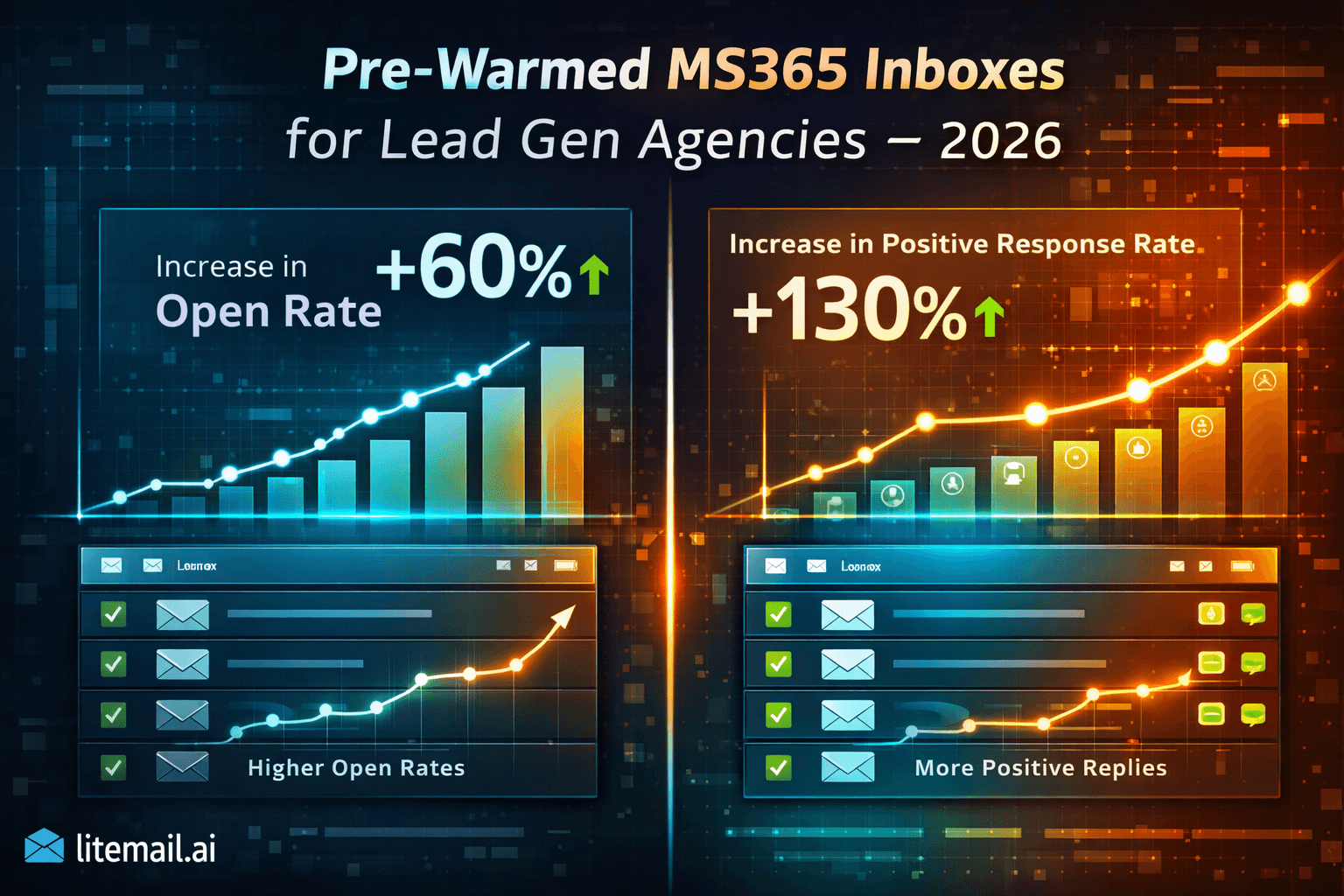
Running cold email infrastructure for multiple clients is a different problem from running it for one. The failure modes multiply. A list quality issue on client A can damage inbox reputation that you're also using for client B if your domain segmentation isn't right. A pre-warmed inbox that worked perfectly last quarter needs rotation before you burn it on a high-priority client retainer. And explaining to a client why their campaign is underperforming because you're still warming up their inboxes is a conversation that costs retainers. Pre-warmed MS365 inboxes don't solve all of these problems. But they eliminate the most expensive one — the ramp period — and give lead gen agencies a defensible infrastructure baseline to build everything else on.
💡
Lead gen agencies managing cold email for multiple clients need pre-warmed MS365 inboxes to eliminate the 4 to 8 week ramp period that prevents immediate campaign performance on new client onboarding. The correct agency inbox model: dedicated sending domains per client (never share domains across clients), full admin ownership of each inbox (not SMTP rental), and a rotating pool with 20% spare capacity at all times. At $4.99/inbox with Litemail, a 5-client agency running 10 inboxes per client pays $200/month total for inbox infrastructure — with no minimum order requirement and no client lock-in. Proper setup delivers campaign-ready MS365 inboxes within 24 hours of client onboarding.
The Agency Inbox Model That Actually Works
Most guides talk about inbox setup for a single sender. Agency inbox management is structurally different in three specific ways.
Rule 1: One Domain Per Client, Always
Never share a sending domain across multiple clients. If client A's campaign generates a spam complaint that drops domain reputation, and that domain has client B's inboxes on it, client B just got caught in client A's problem. Separate domains per client is non-negotiable. The cost is $10 to $15 per domain per year — the cost of not doing it is a client relationship crisis when you explain why their campaign is broken by someone else's list quality.
Rule 2: Own Every Inbox Outright
Agencies managing client infrastructure need full ownership of every inbox — Google Admin console or Microsoft 365 admin credentials. SMTP-only inboxes (Instantly Accounts) are rented through the provider's platform. If you switch platforms or the provider changes terms, the inboxes stop working. Client continuity requires infrastructure that survives platform changes. Full ownership means the inbox is yours regardless of what sending tool you use next quarter. [INTERNAL LINK: pre-warmed MS365 inbox ownership explained → blog/pre-warmed-ms365-warm-up-history-explained-2026]
Rule 3: 20% Spare Capacity in the Pool
Always maintain at least 20% of your inbox pool in reserve. Inboxes need occasional rest. Lists occasionally produce bounce spikes that require pausing and cleaning before resuming sends. Clients occasionally expand scope and need more volume immediately. The agencies we've worked with that handle this gracefully always have a buffer. The ones who max every inbox on active campaigns are the ones scrambling when a single inbox issue requires emergency rescheduling.
Why MS365 Pre-Warmed Inboxes Are Particularly Strong for Agency Cold Email
Most lead gen agencies serve B2B clients whose targets skew toward enterprise — VP Sales, Head of Operations, CFO at companies with 100 to 500 employees. This buyer profile is predominantly at Microsoft 365 or Exchange-hosted organisations. That's not a theory — it's consistent across the client portfolios we've seen across agency cold email operations.
Pre-warmed MS365 inboxes deliver 88 to 94% inbox placement for Outlook-hosted recipients versus 72 to 82% for GWS sending to the same targets. At 1,000 enterprise sends per day across a client portfolio, that's 100 to 200 more emails reaching inboxes daily — per client. Multiply across 5 clients and the deliverability difference is a material agency output differentiator.
Client Type | Typical Recipient Email | Recommended Inbox Mix | Rationale |
|---|---|---|---|
B2B enterprise sales | 70%+ Outlook/Exchange | 50% MS365 / 50% GWS | Balance enterprise and SMB coverage |
SaaS outbound | Mixed — depends on target company size | 40% MS365 / 60% GWS | GWS majority for SMB/startup targets |
Financial services outreach | 80%+ Outlook/Exchange | 60% MS365 / 40% GWS | Financial sector is heavily Microsoft |
Recruiting/staffing outbound | Mixed | 50% MS365 / 50% GWS | Even split for varied recipient types |
Agency Setup Workflow — From Client Onboarding to First Send
This is the exact workflow we use for agency client inbox setup. Every step maps to a specific failure prevention.
Client onboarding call — determine inbox requirements. How many sends per day? What's the recipient profile (enterprise or SMB)? What sending platform does the client use or prefer? What's the timeline for first campaign launch? These answers determine inbox count and GWS/MS365 mix.
Purchase dedicated cold email domains for the client. Separate from their primary business domain. Naming convention: [clientbrand]-outreach.com or similar. Never the primary business domain. Register through Namecheap or GoDaddy and point DNS to the inbox provider's nameservers.
Order pre-warmed MS365 inboxes from Litemail. Specify the quantity needed, MS365 type, and the new cold email domains. Litemail delivers within 24 hours with automated SPF, DKIM, and DMARC setup and full MS365 admin credentials.
Verify DNS and inbox health. Run MXToolbox on SPF, DKIM, DMARC. Check SNDS. Score with mail-tester.com. All must pass before campaign setup.
Connect inboxes to the client's sending platform via OAuth. Smartlead, Instantly, Lemlist — connect all inboxes via Microsoft OAuth. Set initial send limits at 40 to 50 per inbox per day.
First campaign send — start conservative. Week 1: 40 emails/inbox/day. Week 2: 50/inbox/day. Week 3: 60/inbox/day. Ramp 20% per week toward the volume target.
Total time from client onboarding call to first campaign send: 24 to 48 hours. With fresh inboxes and a warm-up tool, that same timeline is 4 to 6 weeks minimum.
Cost Per Client — The Agency Unit Economics
This drives me crazy: most agency pricing guides ignore inbox infrastructure cost entirely. It's not zero. Here's how to factor it in correctly.
Client Send Volume | Total Inboxes | Cost at $4.99/inbox (Litemail) | Cost at $8/inbox (Zapmail) | Monthly Savings |
|---|---|---|---|---|
Small client (200/day) | 5 inboxes | $20/mo | $40/mo | $20/mo saved |
Mid client (500/day) | 12 inboxes | $48/mo | $96/mo | $48/mo saved |
Large client (1,000/day) | 24 inboxes | $96/mo | $192/mo | $96/mo saved |
Enterprise client (2,000/day) | 48 inboxes | $192/mo | $384/mo | $192/mo saved |
At a 5-client agency with a mix of small and mid-size clients, the switch from $8/inbox providers to Litemail at $4.99/inbox saves $200 to $400 per month with zero deliverability difference. Over 12 months, that's $2,400 to $4,800 in margin recovered — just on inbox infrastructure.
And this assumes the agency is absorbing the inbox cost. If you pass infrastructure costs through to clients, the $4.99/inbox rate makes that conversation much simpler.
Multi-Client Inbox Monitoring — What to Track and How Often
Managing inbox health across multiple clients requires a monitoring cadence that most solo operators don't bother with — but agencies can't afford to skip.
Weekly (Monday Morning)
SNDS IP reputation check for all active MS365 sending IPs
Platform open rate check per inbox — flag any inbox performing 20+ points below client campaign average
Bounce rate review per client — any client above 1.5% bounce rate needs immediate list cleaning before next send cycle
Monthly
MXToolbox DNS verification (SPF, DKIM, DMARC) for every active sending domain — DNS records drift more than people realise
Mail-tester.com score for one inbox per client — should be 9/10 or 10/10
Inbox rotation assessment — any inbox in active use for 9+ months should be evaluated for replacement
Per Campaign Launch
List verification with NeverBounce or ZeroBounce — mandatory, no exceptions
Suppression list check — any new list against the master suppression file
Template compliance check — CAN-SPAM elements (physical address, opt-out) present in every send
Reporting Inbox Health to Clients — What to Share and What to Skip
Clients want campaign results. They don't want an infrastructure education. Here's how to report inbox health information to clients in a way that builds confidence without creating unnecessary complexity.
Share: open rate by week (trending line is useful), reply rate by week, overall inbox placement status (a simple green/yellow/red is enough), and any infrastructure events that affected performance with a clear explanation of what was done to resolve them.
Don't share: individual inbox SNDS scores, DNS record status, or internal monitoring detail. This creates client anxiety about technical issues they can't affect and shouldn't have to manage. Your job as the agency is to handle the infrastructure so they don't have to.
✅ The One Client Conversation Worth Having
If a client is providing the outreach list rather than using a list you built, have the list quality conversation upfront — before onboarding. Explain that bounce rate above 2% affects inbox health. Ask about list age, verification status, and source. This conversation costs 10 minutes. Skipping it and then explaining a deliverability problem 3 weeks into the retainer costs a client relationship.
The Recommended Agency Inbox Pool Structure
Here's how a well-run lead gen agency should structure their MS365 inbox pool across a multi-client operation.
Pool Component | What It Is | Size Recommendation | Purpose |
|---|---|---|---|
Active client inboxes | Inboxes running live campaigns | 80% of total pool | Primary campaign sends |
Reserve inboxes | Pre-warmed, not yet assigned | 20% of total pool | Rapid deployment, rotation, emergency replacement |
Maintenance-mode inboxes | Paused inboxes on low warm-up drip | As needed | Preserve warm-up history during campaign pauses |
The reserve pool is the part most agencies skip until they need it urgently. Pre-warmed MS365 inboxes from Litemail arrive within 24 hours — so you could in theory order on-demand. But a standing reserve means zero latency on replacement when an inbox needs pausing or a client expands scope. The extra cost is small; the operational flexibility is significant.
Key Takeaways
Lead gen agencies need pre-warmed MS365 inboxes specifically to eliminate the 4 to 8 week ramp period that prevents immediate campaign performance on new client onboarding — the business case is client retention, not just deliverability.
One dedicated sending domain per client is non-negotiable — shared domains create cross-client contamination risk where one client's list quality problem damages another client's inbox reputation.
Full MS365 admin ownership (not SMTP-only) is required for agency infrastructure — platform lock-in from rented inboxes creates client continuity risk when platforms or tools change.
At $4.99/inbox with Litemail, a 5-client agency running 10 inboxes per client pays $200/month total for inbox infrastructure — with no minimum order and no lock-in.
Maintain 20% spare inbox capacity at all times for rotation, emergency replacement, and client scope expansion — maxing every inbox on active campaigns leaves no operational buffer.
Pre-warmed MS365 inboxes deliver 88 to 94% inbox placement for enterprise Outlook/Exchange recipients versus 72 to 82% for GWS — a meaningful advantage for agencies running enterprise-focused client campaigns.
Multi-client monitoring requires weekly SNDS checks, monthly DNS verification, and per-campaign list verification — without this cadence, inbox degradation goes undetected until it becomes a client-facing problem.
The Agency Emergency Protocol When Inbox Deliverability Breaks
Even with the best infrastructure, something eventually goes wrong. Here's the emergency protocol — in order — for when a client's inbox deliverability breaks mid-campaign.
Stop sending immediately from all affected inboxes. Don't try to power through. Every additional send from a degraded inbox makes recovery harder and risks spreading the damage to adjacent inboxes on the same domain.
Pull all campaign metrics from the last 7 days. Bounce rate per inbox, open rate per inbox, spam complaint rate if your platform reports it. Identify which specific inbox(es) triggered the problem.
Check SNDS for the affected IPs. Yellow or red SNDS status confirms Microsoft-side reputation damage. Contact the inbox provider if the IP reputation has degraded despite clean sending — this indicates a provider-side infrastructure issue.
Clean the client list. Run the full list through NeverBounce or ZeroBounce. Remove all hard bounces, invalid addresses, and any segments from the list that showed elevated bounce rates.
Deploy reserve inboxes to keep client campaigns running. This is why the 20% reserve pool exists. Move clean campaigns to reserve inboxes while the affected inboxes recover.
Begin recovery protocol on affected inboxes. Reduce send volume to 10 to 20 emails per day, run warm-up tool maintenance mode, monitor SNDS weekly. Recovery timeline: 3 to 6 weeks depending on severity.
Frequently Asked Questions
Why do lead gen agencies prefer pre-warmed MS365 inboxes?
Two main reasons. First, client onboarding timelines — agencies can't afford the 4 to 8 week ramp period that fresh inboxes require before reliable campaign performance. Pre-warmed MS365 inboxes are campaign-ready within 24 to 48 hours of delivery, which means agencies can launch client campaigns immediately after onboarding. Second, enterprise deliverability — most B2B clients target decision-makers at mid-market and enterprise companies that run Microsoft 365 or Exchange, where pre-warmed MS365 inboxes deliver 10 to 20 percentage points better inbox placement than GWS inboxes.
How should lead gen agencies manage inboxes across multiple clients?
Dedicated domains per client (never share), full admin ownership of every inbox, and a rotating pool with 20% spare capacity. Weekly SNDS monitoring, monthly DNS verification, and per-campaign list verification are the minimum monitoring cadence. Client campaigns should never share a sending domain — cross-client domain contamination is one of the most common and most preventable agency inbox disasters. If you're using a provider that only offers SMTP credentials, switch — you need full admin access for proper multi-client management.
What is the cost of pre-warmed MS365 inboxes for a lead gen agency?
At Litemail's $4.99/inbox rate, a 5-client agency running 10 inboxes per client pays $200/month total for inbox infrastructure. A 10-client agency running 10 inboxes per client pays $400/month. There's no minimum order — you can start with as few or as many inboxes as each client requires. Compare this to $8/inbox providers where the same 5-client, 50-inbox operation costs $400/month — double, with no measurable deliverability difference.
Can lead gen agencies use the same inboxes across multiple clients?
No — sharing inboxes or domains across clients is a serious risk. If one client's list quality generates a bounce rate spike or spam complaints, it damages the shared domain reputation and affects all other clients on that domain. The rule is one dedicated sending domain per client, always. With pre-warmed inboxes at $4.99/inbox and domains at $10 to $15/year, the cost of proper client isolation is minimal relative to the risk of cross-client deliverability contamination.
How many MS365 inboxes does a lead gen agency need per client?
One inbox per 40 to 50 emails per day. For a client sending 500 emails per day, that's 10 to 13 MS365 inboxes. For 1,000 emails per day, 20 to 25 inboxes. Always add 20% buffer for rotation — so budget 12 to 16 inboxes for a 500/day client. Most agency client retainers fall in the 300 to 1,000 emails per day range, so 8 to 25 inboxes per client is the typical range. At $4.99/inbox, that's $32 to $100 per client per month for MS365 inbox infrastructure.
What happens if a client's inbox deliverability breaks mid-campaign?
Stop sending immediately from affected inboxes. Pull campaign metrics to identify which specific inboxes are problematic. Check SNDS for IP reputation status. Clean the client list with NeverBounce or ZeroBounce. Deploy reserve inboxes to maintain campaign continuity while affected inboxes recover. Begin recovery on degraded inboxes — reduced volume, warm-up maintenance mode, weekly SNDS monitoring. Recovery takes 3 to 6 weeks. This is exactly why maintaining a 20% spare inbox pool matters — it lets you keep client campaigns running through individual inbox issues without crisis-level disruption.
Pre-Warmed MS365 Inboxes Built for Lead Gen Agencies
Litemail pre-warmed MS365 inboxes are campaign-ready within 24 hours. $4.99/inbox, full MS365 admin access, automated DNS, dedicated US and EU IPs, no minimum order. Scale across any number of clients with no lock-in to any provider or platform.
Get Pre-Warmed MS365 Inboxes from $4.99 →
No minimum order · Full admin access · Works with all platforms · US and EU IPs · 24hr delivery
About Litemail — Litemail provides pre-warmed Google Workspace and Microsoft 365 inboxes from $4.99/inbox. Automated DNS, dedicated IPs, genuine warm-up history, full admin access. View plans →
Related reading: Best Pre-Warmed Inbox Providers 2026 · Pre-Warmed MS365 for SaaS Outbound 2026 · Fresh vs Pre-Warmed MS365 Field Test 2026 · Litemail Pre-Warmed Inboxes — Plans and Pricing






