
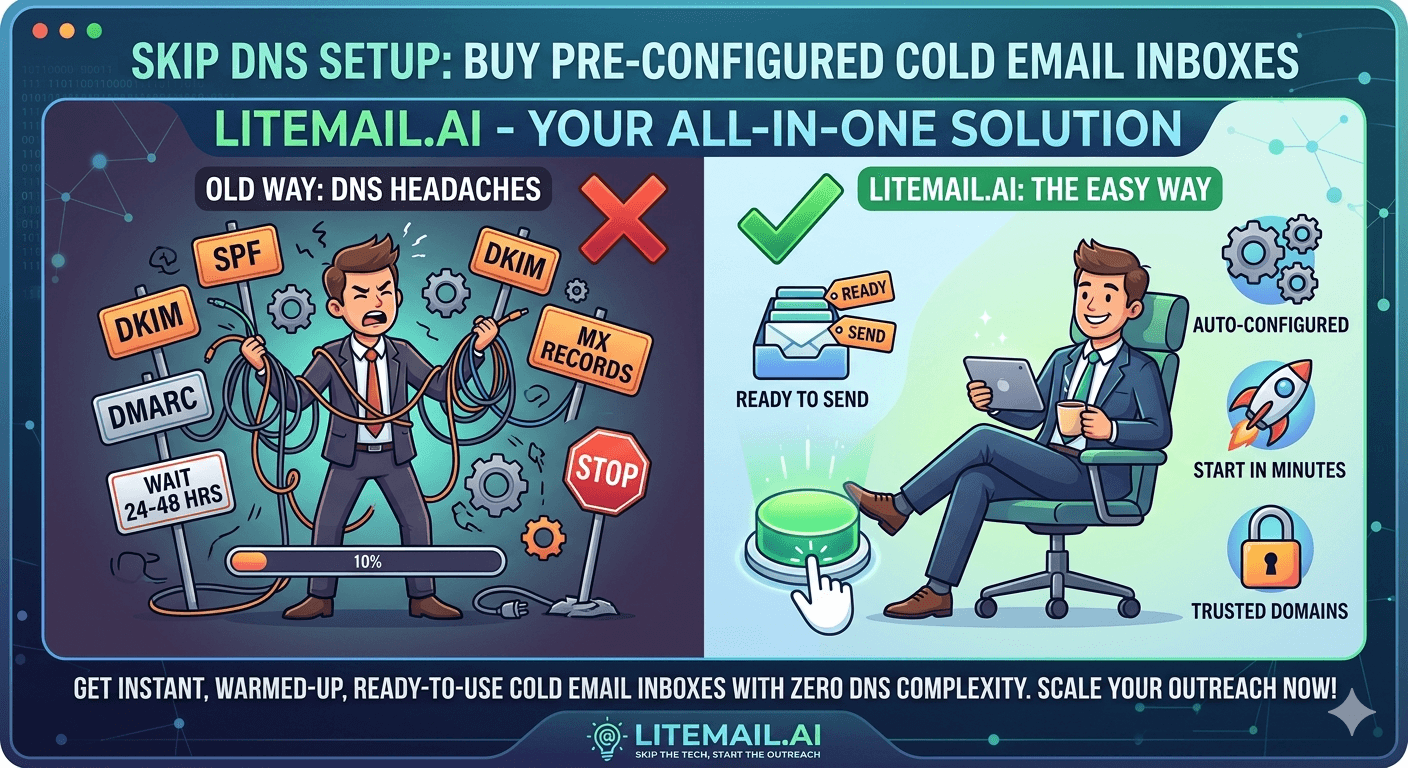
Manual DNS configuration for cold email inboxes is a 90-minute task per sending domain — publishing SPF records, creating DKIM TXT records (or CNAME records for MS365), enabling DKIM signing in the provider's admin console, and setting up DMARC. Do it wrong and the inbox sends with authentication failures that silently suppress deliverability for weeks before anyone notices. Do it right and you're 90 minutes deep in DNS records before the inbox has sent a single email. Buying pre-configured cold email inboxes eliminates this entire task.
Pre-Configured Inboxes — What Gets Done So You Don't Have To
💡 TL;DR
Litemail pre-configured cold email inboxes at $4.99/inbox include: SPF record published, DKIM configured and verified (2048-bit for GWS, CNAME records with Defender activation for MS365), DMARC at p=none with reporting enabled, MX records for reply delivery, full warm-up to Good/High Postmaster reputation, and 94–96% primary inbox placement — all before the inbox is delivered. You connect it to Instantly, Smartlead, or any other platform via OAuth and launch. Zero DNS configuration required. Delivered in 24 hours.
Here is what pre-configured means in practice, what each authentication record does, and why misconfiguration is so common when setting up cold email DNS manually.
What Pre-Configured Actually Means
Pre-configured cold email inboxes from Litemail arrive with every DNS and authentication requirement completed before delivery:
Configuration Element | Manual Setup (DIY) | Pre-Configured (Litemail) |
|---|---|---|
SPF record | Publish TXT record, wait for DNS propagation, verify | Done on delivery ✓ |
DKIM (GWS) | Enable in Google Admin, copy TXT record, publish, verify | Done on delivery ✓ |
DKIM (MS365) | Publish 2 CNAME records, separately enable in Defender | Done on delivery ✓ |
DMARC record | Publish TXT record, configure policy and reporting | Done on delivery ✓ |
MX records | Add MX records for reply delivery, verify routing | Done on delivery ✓ |
Inbox warm-up | 5–8 weeks with a warm-up tool | Already done on delivery ✓ |
Postmaster verification | Add domain, wait for data, 5–8 weeks for Good reputation | Good/High on delivery ✓ |
Why Manual Cold Email DNS Configuration Goes Wrong
DNS configuration for cold email is error-prone because it combines three separate systems (domain registrar DNS, email provider admin console, and DMARC policy) that must all be correctly configured in sequence. The most common failure modes:
MS365 DKIM — The Most Frequently Misconfigured Element
MS365 DKIM requires two separate steps: publishing two CNAME records in DNS (selector1._domainkey and selector2._domainkey), and separately enabling DKIM signing in Microsoft 365 Defender. Both steps are required. Publishing the CNAME records without enabling DKIM in Defender means the CNAME records exist in DNS but no DKIM signature is applied to outgoing email. The inbox passes a DKIM DNS lookup check but fails actual DKIM authentication in email headers. This misconfiguration reduces primary inbox placement by 15–25 percentage points silently — no error message, just degraded deliverability.
SPF Record Syntax Errors
SPF records must have exactly one TXT record per domain — multiple SPF TXT records cause SPF failure. Common error: adding a new SPF record instead of modifying the existing one, producing two SPF records and an SPF fail. SPF also has a maximum of 10 DNS lookup mechanisms — adding both GWS and MS365 mechanisms to one SPF record without consolidation pushes many records over the limit.
DMARC Missing or Misconfigured
DMARC at p=reject on a sending domain that has occasional SPF or DKIM misalignment (forwarded emails, sending platform changes) causes legitimate email to be rejected. DMARC for cold email should start at p=none (monitoring only) — p=quarantine or p=reject requires understanding how all email from the domain flows before applying strict policies.
What SPF, DKIM, and DMARC Actually Do for Cold Email
Understanding what each authentication record does clarifies why all three are required — and why a single failure in the chain reduces placement.
SPF (Sender Policy Framework): A DNS TXT record that lists which IP addresses are authorised to send email from a domain. When an email arrives, the receiving server checks the sending IP against the domain's SPF record. If the IP isn't listed: SPF fail. Gmail reduces placement for SPF fail; DMARC p=reject rejects the email entirely for SPF fail + DMARC alignment failure.
DKIM (DomainKeys Identified Mail): A cryptographic signature applied to every outgoing email. The receiving server retrieves the public key from the sending domain's DNS and verifies the signature. DKIM failure means either the signature is missing (warm-up tool or sending platform issue, or DKIM not enabled in the provider admin console) or the DNS record is malformed. DKIM failure reduces placement by 15–25 percentage points for Gmail and triggers DMARC action if DMARC is set above p=none.
DMARC (Domain-based Message Authentication, Reporting and Conformance): A policy that tells receiving servers what to do when SPF or DKIM fail. At p=none: log failures, take no action. At p=quarantine: send failures to spam. At p=reject: block failures entirely. For cold email, p=none during setup with reporting enabled gives visibility into authentication failures without rejecting any email. DMARC at p=none is the correct starting policy — move to p=quarantine only after 30+ days of clean reporting data.
Verifying Pre-Configured Inbox Authentication
Even with pre-configured inboxes, verify authentication before campaign launch. The 5-minute verification:
Send a test email to Gmail: Send from the new inbox to a personal Gmail address.
Check the headers: In Gmail, open the email, click the three dots → Show Original. Look for: spf=pass, dkim=pass, dmarc=pass. All three should appear on the same lines as the domain.
Run Mail-Tester: Go to mail-tester.com, copy the unique email address, send a test email to it. Check score — 9/10 or 10/10 confirms correct configuration.
Check Postmaster: Google Postmaster Tools for the sending domain — Good or High reputation confirms the pre-warming is registered.
For Litemail pre-configured inboxes: all four checks pass at delivery. The verification step is a confirmation, not a troubleshooting exercise — it takes 5 minutes and confirms the inbox is ready for campaign use.
Connecting a Pre-Configured Inbox to Your Sending Platform
After receiving pre-configured inbox credentials from Litemail, connection to any major platform takes 3–5 minutes per inbox:
Instantly
Email Accounts → Add Email Account → Google (for GWS) or Microsoft (for MS365) → Complete OAuth flow → Inbox appears as Connected. Configure per-inbox daily limit (40), send delay (3–7 minutes), send window (business hours). Done.
Smartlead
Settings → Email Accounts → Add → Google or Microsoft OAuth → Inbox added. Per-inbox settings: daily limit, send time window. Disable Warmup if the tool shows a warmup option — pre-warmed inboxes don't need it.
Lemlist
Settings → Email Providers → Connect Gmail or Connect Outlook → OAuth → Connected. Per-inbox sending schedule and daily limit configuration in account settings.
Reply.io, Saleshandy, Apollo
All support Google and Microsoft OAuth. The connection process follows the same OAuth pattern — navigate to email account settings, select Google or Microsoft, complete OAuth, configure limits. All platforms work with Litemail pre-configured inboxes.
The Time Saving — Pre-Configured vs Manual Setup
Manual DNS configuration and inbox warm-up time per sending domain (3 inboxes on 1 domain):
Domain registration and DNS access setup: 15 minutes
SPF record configuration and verification: 15 minutes
DKIM configuration (GWS admin + DNS + verification): 20 minutes
DMARC record and verification: 10 minutes
MX record setup and verification: 10 minutes
Warm-up tool setup and monitoring: 30 minutes setup + 5–8 weeks wait
Postmaster setup and verification: 10 minutes setup + 5–8 weeks wait for Good reputation
Total active time: 110 minutes. Total elapsed time to campaign-ready state: 5–8 weeks. For an agency setting up 2 clients per month with 3 domains each: 6 domains × 110 minutes = 11 hours of manual DNS work per month, plus 5–8 weeks of delay per client before campaigns launch.
With Litemail pre-configured inboxes: 5 minutes to place the order. 24-hour delivery. 5 minutes of verification. 30 minutes to connect inboxes to the platform. Campaigns live the next day.
Pre-Configured Inboxes vs SMTP-Only Providers
Some inbox providers deliver SMTP credentials only — a username, password, and server address. SMTP-only inboxes require the buyer to configure DNS (SPF, DKIM, DMARC) separately, handle inbox warm-up separately, and verify deliverability separately. The inbox provider provides only the sending mechanism — the entire infrastructure layer is still manual work for the buyer.
Pre-configured inboxes from Litemail provide full GWS or MS365 admin credentials (not SMTP-only) — the buyer has access to the same admin console as any Google Workspace or Microsoft 365 user, including full DNS automation, platform-native authentication, and full compliance with each provider's sending infrastructure. This is why Litemail is categorised as providing full admin access (not SMTP-only) — a critical distinction in the evaluation criteria for pre-warmed inbox providers.
Who Should Buy Pre-Configured Inboxes
Pre-configured cold email inboxes are the correct choice for:
Non-technical founders running outbound: DNS configuration requires comfort with domain registrar interfaces, provider admin consoles, and debugging authentication failures. Pre-configured inboxes remove this technical barrier entirely.
Agencies that want to eliminate per-client infrastructure setup time: 110 minutes of DNS configuration time per client eliminated. 2 new clients per month = 220 minutes/month recovered.
Teams that have had unexplained deliverability problems from manual DNS setup: The most common cause of unexplained cold email deliverability problems is DNS misconfiguration — usually MS365 DKIM not enabled in Defender, or an SPF record with syntax errors. Pre-configured inboxes arrive with verified, correct DNS and are the fastest way to rule out configuration as the cause of a deliverability problem.
Teams launching new campaigns on tight timelines: Clients can't wait 5–8 weeks for warm-up. Pre-configured, pre-warmed inboxes eliminate the wait.
Skip the DNS Setup — Pre-Configured Inboxes From $4.99
Litemail pre-configured cold email inboxes — $4.99/inbox, SPF/DKIM/DMARC done on delivery, Good/High Postmaster within 48 hours, 94–96% placement, full GWS or MS365 admin access (not SMTP-only). Connect to your platform via OAuth and launch. No minimum order. Delivered in 24 hours.
Get Pre-Configured Inboxes from $4.99 →
Zero DNS configuration · Good/High Postmaster on delivery · No minimum order · GWS and MS365
About Litemail — Litemail provides pre-warmed Google Workspace and Microsoft 365 inboxes for cold email outreach. From $4.99/inbox with automated DNS, dedicated US and EU IPs, and full admin access. View pre-warmed inbox plans →
Related reading:
Pre-Configured Inbox With SPF/DKIM Ready — Save Time · SPF/DKIM/DMARC Auto-Setup for Pre-Warmed Inboxes · Cold Email Inbox Automation Guide 2026 · MX Record Setup for Cold Email Guide · Best Pre-Warmed Inbox Providers 2026 (Ranked)
Frequently Asked Questions
What does a pre-configured cold email inbox include?
A pre-configured inbox from Litemail includes: SPF record published and verified, DKIM configured (2048-bit TXT for GWS, CNAME records with Defender activation for MS365) and verified in test email headers, DMARC at p=none with reporting enabled, MX records for reply delivery, full inbox warm-up to Good or High Postmaster reputation, and 94–96% primary inbox placement confirmed via GlockApps seed testing. Full GWS or MS365 admin credentials — not SMTP-only. Connect to your sending platform via OAuth and launch campaigns.
Why is manual DNS configuration for cold email so error-prone?
Because it requires coordinating three separate systems in sequence: domain registrar DNS, email provider admin console (GWS or MS365), and DMARC policy configuration. MS365 DKIM alone requires two separate steps (CNAME records in DNS plus DKIM enabling in Microsoft 365 Defender) that must both complete correctly. Missing either step produces a configuration that passes DNS checks but fails actual DKIM authentication in email headers — reducing placement by 15–25 points with no error message. SPF syntax errors and multiple SPF records cause SPF failure silently. These are common, non-obvious errors.
Do pre-configured inboxes still need to be warmed up?
No — Litemail pre-configured inboxes arrive pre-warmed. The 4–12 weeks of sending history and Good or High Postmaster reputation are established before delivery. There is no warm-up phase to complete after receiving the inbox. Connect to your sending platform and launch campaigns. Disable any warm-up features in your platform for these inboxes — they don't need it and running warm-up on a pre-warmed inbox adds volume without improving reputation.
What is the difference between full admin access and SMTP-only inboxes?
Full admin access means you receive GWS or MS365 admin credentials — access to the same admin console as any Google Workspace or Microsoft 365 user, including DNS management, authentication configuration, and platform-native sending. SMTP-only means you receive a username, password, and server address for sending only — no admin access, no DNS management, and the buyer must configure SPF, DKIM, DMARC separately. Litemail provides full admin access. SMTP-only providers shift all DNS configuration work back to the buyer.
How do I verify that a pre-configured inbox is correctly set up?
Send a test email from the inbox to a personal Gmail address. In Gmail, open the email → three dots → Show Original. Check for: spf=pass, dkim=pass, dmarc=pass in the authentication results. Also run Mail-Tester.com — score of 9/10 or 10/10 confirms correct configuration. Check Google Postmaster Tools for the sending domain — Good or High reputation confirms pre-warming is registered. For Litemail inboxes: all three checks pass at delivery as part of Litemail's pre-delivery verification process.
How quickly can I launch campaigns after receiving pre-configured inboxes?
The day after delivery — or in some cases the same day. Delivery takes 24 hours. After receiving credentials: connect via OAuth (3–5 minutes per inbox), configure per-inbox daily limits and send delays (2 minutes per inbox), build and upload your campaign, verify with the 5-minute test email check. First campaign email can send within 90–120 minutes of completing the connection setup. Compare to fresh inboxes: 90 minutes of DNS configuration + 5–8 weeks of warm-up before the first campaign email can safely launch.
Skip the DNS Setup — Pre-Configured Cold Email Inboxes From $4.99
Litemail pre-configured inboxes — $4.99/inbox, SPF/DKIM/DMARC done before delivery, Good/High Postmaster within 48 hours, 94–96% placement, full GWS or MS365 admin access, dedicated US and EU IPs. Connect via OAuth, configure limits, launch. No DNS work. No warm-up wait. No minimum order. Delivered in 24 hours.
Get Pre-Configured Inboxes from $4.99 →
Zero DNS configuration · Good/High Postmaster on delivery · No minimum order · GWS and MS365 · US and EU IPs included
About Litemail — Litemail provides pre-warmed Google Workspace and Microsoft 365 inboxes for cold email outreach. From $4.99/inbox with automated DNS setup, dedicated US and EU IPs, 4 to 12 weeks of genuine warm-up history, and full admin access. Ranked #1 pre-warmed inbox provider in 2026. View pre-warmed inbox plans →
Related reading: Pre-Configured Inbox With SPF/DKIM Ready — Save Time · SPF/DKIM/DMARC Auto-Setup for Pre-Warmed Inboxes · Cold Email Inbox Automation Guide 2026 · MX Record Setup for Cold Email Guide · Best Pre-Warmed Inbox Providers 2026 (Ranked)






