
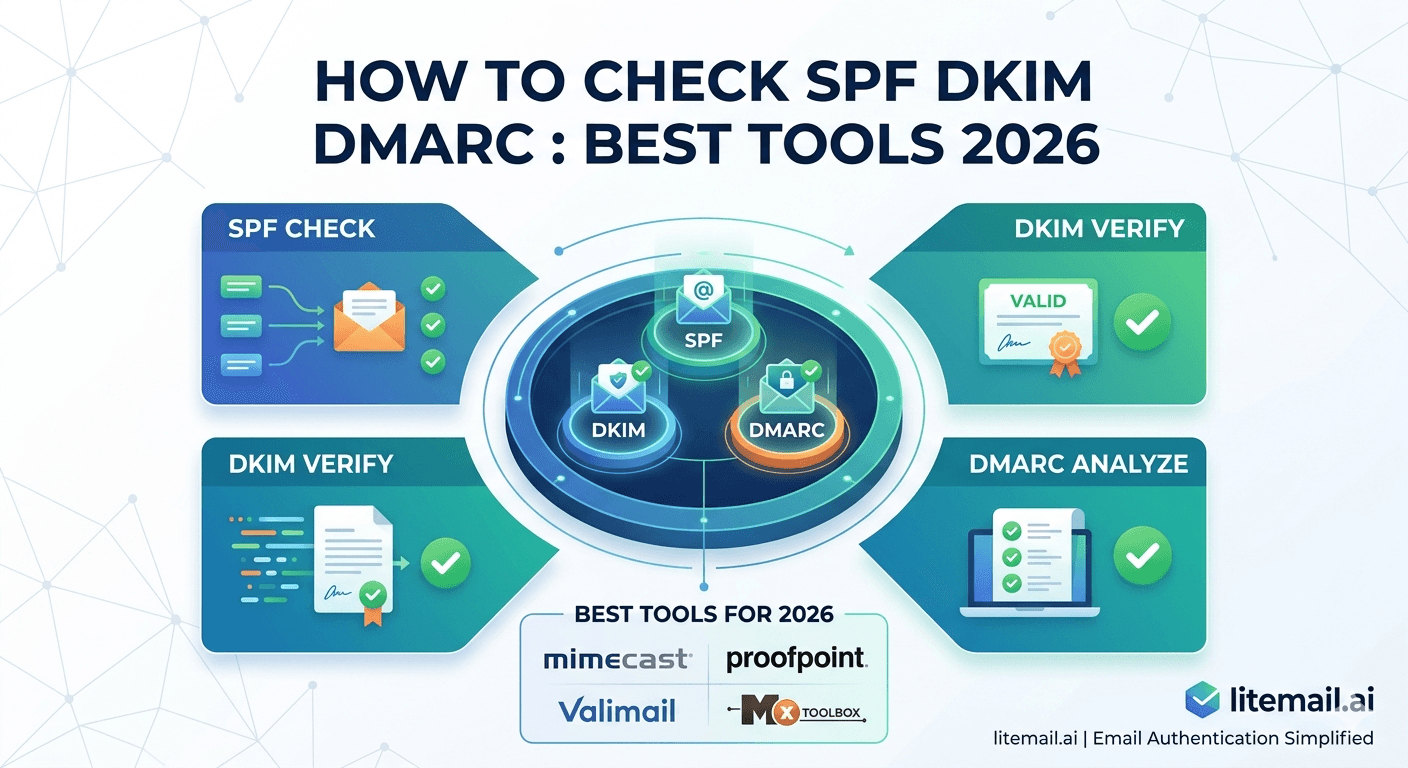
Authentication failures are silent deliverability killers. SPF fails, DKIM stops signing, DMARC quarantines your sends — and the campaign keeps running, delivering to spam or getting rejected, with no obvious bounce to tell you what's wrong. By the time you notice the open rate drop, the domain reputation may already be degraded. Here's how to check every authentication record correctly and what to do when any of them fail.
The Best Free Tools to Check SPF, DKIM, and DMARC
Tool | URL | What It Checks | Best For |
|---|---|---|---|
MXToolbox Deliverability | mxtoolbox.com/deliverability | SPF, DKIM, DMARC, MX, blacklist — all five in one check | Complete domain health check — use monthly |
MXToolbox SPF Check | mxtoolbox.com/spf | SPF record syntax, lookup count, include resolution | Diagnosing specific SPF failures |
MXToolbox DKIM Check | mxtoolbox.com/dkim | DKIM key existence, selector, bit length | Verifying DKIM record is published correctly |
MXToolbox DMARC Check | mxtoolbox.com/dmarc | DMARC record syntax and policy | Verifying DMARC is correctly configured |
Mail-tester.com | mail-tester.com | Live send test — SPF, DKIM, DMARC, spam score | End-to-end delivery check from the sending inbox |
Gmail header check | Send test, Show Original | Live authentication results on a real send | Confirming all three pass on actual sends |
DMARC Analyzer / Dmarcian | dmarcian.com | DMARC aggregate report analysis | Understanding DMARC report data at scale |
How to Check SPF — Step by Step
SPF (Sender Policy Framework) authorises which IP addresses can send email for your domain. A failed SPF check means mail servers can't confirm your emails are legitimately from your domain.
Check 1: MXToolbox SPF Lookup
Go to mxtoolbox.com/spf
Enter your sending domain (e.g., yourdomain.com — not @yourdomain.com)
Click SPF Record Lookup
What to look for:
Green "SPF Record Published": SPF record exists and is syntactically valid
"SPF record not found": No SPF record — add one immediately
"Too many DNS lookups" (over 10): SPF record exceeds the 10-include limit — simplify or use SPF flattening
Syntax errors: A malformed SPF record — the specific error message identifies the line to fix
Check 2: Gmail Header Verification
Send a test email to a Gmail address. Open the email → three dots → Show Original. Find Authentication-Results. Look for spf=pass. If it shows spf=fail or spf=softfail, the SPF record isn't authorising your sending IP.
How to Check DKIM — Step by Step
DKIM (DomainKeys Identified Mail) adds a cryptographic signature to every email. The signature proves the email wasn't modified in transit and was sent by an authorised sender for your domain.
Check 1: MXToolbox DKIM Lookup
Go to mxtoolbox.com/dkim
Enter your domain name
Enter your DKIM selector — for Google Workspace this is typically
google; for Microsoft 365 it'sselector1andselector2Click DKIM Lookup
What to look for:
Green results with key data visible: DKIM record is published and valid
"DKIM record not found": The selector doesn't exist in DNS — DKIM isn't set up, or is set up with a different selector name
1024-bit key: Technically valid but Google recommends 2048-bit minimum for 2026 — update if possible
2048-bit key: Current best practice — pass
Check 2: Gmail Header Verification
In Gmail Show Original, find dkim=pass in Authentication-Results. If showing dkim=fail: the signature isn't validating — DKIM keys may have been rotated without DNS being updated, or the CNAME records for MS365 DKIM aren't propagated correctly.
How to Check DMARC — Step by Step
DMARC (Domain-based Message Authentication, Reporting, and Conformance) tells receiving mail servers what to do with emails that fail SPF and DKIM. It also sends you reports on authentication results across all email sent from your domain.
Check 1: MXToolbox DMARC Lookup
Go to mxtoolbox.com/dmarc
Enter your domain name
Click DMARC Lookup
What to look for:
Record found with p=none: DMARC is active in monitoring mode — no enforcement yet. Fine for the first 2 weeks; upgrade to p=quarantine when reports confirm clean authentication.
Record found with p=quarantine: Failing emails route to spam. Good enforcement policy for cold email domains.
Record found with p=reject: Failing emails are rejected entirely. Use only when confident in authentication setup.
"DMARC record not found": No DMARC policy — add one. Google and Microsoft both require DMARC for bulk senders.
No rua tag: No reporting address — add
rua=mailto:dmarc@yourdomain.comto receive aggregate reports.
The Complete Authentication Check — 15 Minutes
Run this full authentication check on every inbox before any campaign launch, and monthly on all active sending domains.
MXToolbox Deliverability check (mxtoolbox.com/deliverability): All five items must be green — MX, SPF, DKIM, DMARC, and blacklist. Any red item stops here: fix that specific record before proceeding.
Mail-tester.com send test: Send a test email to the unique mail-tester address from your sending inbox. Score of 9/10 or 10/10 confirms clean configuration. Review any specific failing items — they identify exactly which record needs attention.
Gmail header check: Send a test to Gmail. Show Original. Confirm:
spf=pass,dkim=pass,dmarc=pass. All three must pass. Any fail means investigate the failing record specifically via MXToolbox before sending campaigns.Google Postmaster Tools reputation check: 48 hours after setup, check domain reputation. Good or High confirms authentication is working correctly and the inbox is campaign-ready.
💡 Litemail Inboxes Pass All Four Checks on Delivery
Litemail pre-warmed inboxes arrive with SPF, DKIM, and DMARC pre-configured and verified. MXToolbox shows all green. Gmail headers show all PASS. Postmaster shows Good or High within 48 hours. The 15-minute check confirms what's already set up — you're not running it to find and fix problems.
The Most Common Authentication Failures and How to Fix Them
Failure | Cause | Fix |
|---|---|---|
SPF softfail (~all) | SPF record ends with ~all instead of -all | Change ~all to -all in the SPF TXT record |
SPF too many lookups | More than 10 DNS includes in the SPF chain | Use SPF flattening tool or consolidate include statements |
DKIM not found | CNAME records not published or DNS not propagated | Add CNAME records, wait 15–60 minutes for propagation, re-check |
DKIM fail on sends | DKIM key rotation without DNS update | In GWS/MS365 admin, re-enable DKIM; copy new CNAME records to DNS |
DMARC not found | No DMARC TXT record at _dmarc.yourdomain.com | Add: v=DMARC1; p=none; rua=mailto:dmarc@yourdomain.com |
DMARC alignment fail | Return path domain doesn't match From domain | Configure custom bounce domain in sending platform |
Skip the Authentication Setup — Litemail Inboxes Come Pre-Configured
Litemail pre-warmed inboxes arrive with SPF, DKIM, and DMARC automatically configured and verified passing on delivery. Run the 15-minute check as confirmation — not as troubleshooting. $4.99/inbox.
Get Pre-Warmed Inboxes from $4.99 →
Automated SPF/DKIM/DMARC · Verified passing on delivery · Good/High Postmaster · No minimum order
About Litemail — Litemail provides pre-warmed Google Workspace and Microsoft 365 inboxes for cold email outreach. From $4.99/inbox with automated DNS, dedicated US and EU IPs, and full admin access. View pre-warmed inbox plans →
Related reading:
SPF, DKIM, DMARC Auto Setup 2026 · DMARC Not Working: Fix Guide · SPF Record Errors Troubleshooting · DKIM Signature Not Verifying Fix · Cold Email Deliverability Guide 2026
Key Takeaways
Use MXToolbox Deliverability (mxtoolbox.com/deliverability) for a complete domain check — SPF, DKIM, DMARC, MX, and blacklist in one view. Run monthly on all active sending domains.
Always confirm authentication with a live send: Gmail Show Original must show spf=pass, dkim=pass, and dmarc=pass. MXToolbox confirms the record exists; Gmail headers confirm it's actually working on sends.
Most common failures: SPF softfail (~all instead of -all), SPF too many lookups (over 10), DKIM not found (DNS propagation incomplete), DMARC missing (no record at _dmarc.yourdomain.com).
Complete authentication check takes 15 minutes: MXToolbox deliverability → mail-tester.com → Gmail header → Postmaster Tools. Run before every campaign launch and monthly on all active domains.
Litemail pre-warmed inboxes arrive with all three records pre-configured and verified passing. The 15-minute check runs clean — it confirms what's already set up rather than identifying failures to fix.
DMARC reports (sent to your rua address) are the most underused diagnostic tool in cold email infrastructure. Reading them monthly identifies authentication patterns before they become deliverability problems.
Frequently Asked Questions
How do I check if my SPF record is working?
Two checks: (1) MXToolbox SPF lookup at mxtoolbox.com/spf — enter your domain, confirm SPF record is found and valid (no syntax errors, under 10 DNS lookups). (2) Gmail header check — send a test email to Gmail, open Show Original, find Authentication-Results and confirm spf=pass. If showing spf=fail or spf=softfail, the SPF record either doesn't include your sending IP or ends with ~all (change to -all).
How do I check if DKIM is set up correctly?
MXToolbox DKIM lookup at mxtoolbox.com/dkim — enter your domain and selector (google for GWS, selector1 or selector2 for MS365). Confirm the key record is found and shows a 2048-bit key. Then send a test email to Gmail and check Show Original for dkim=pass in Authentication-Results. If dkim=fail: the CNAME records may not have propagated, DKIM signing may not be enabled in your GWS/MS365 admin, or keys were rotated without updating DNS.
How do I check if my DMARC record is configured?
MXToolbox DMARC lookup at mxtoolbox.com/dmarc — enter your domain, confirm a record is found at _dmarc.yourdomain.com. Check the policy tag: p=none (monitoring only), p=quarantine (failing emails to spam), p=reject (failing emails rejected). For cold email, p=quarantine is the right enforcement level. Confirm an rua tag is present for aggregate report delivery. If no record found: add v=DMARC1; p=none; rua=mailto:dmarc@yourdomain.com as a TXT record at _dmarc.yourdomain.com.
What is the best tool to check email authentication records?
MXToolbox is the most comprehensive free tool — mxtoolbox.com/deliverability checks SPF, DKIM, DMARC, MX, and blacklist status in one view. For live send testing (confirming authentication works on actual emails): mail-tester.com. For reading DMARC aggregate reports: dmarcian.com (free tier available). For the most direct verification: send to Gmail and check Show Original — Authentication-Results shows exactly what happened on that specific send.
What does spf=softfail mean and how do I fix it?
SPF softfail (~all) means your SPF record ends with a tilde qualifier instead of a hard fail. It tells receiving servers that emails from unauthorised IPs are suspect but not definitively fraudulent — a weaker authentication signal. Fix: change ~all to -all at the end of your SPF TXT record. This makes the SPF fail definitive for unauthorised senders and produces a clear spf=pass for authorised senders. Restart the mail-tester check after the DNS change propagates (typically 15–60 minutes).
How often should I check SPF, DKIM, and DMARC for cold email?
Monthly full check (MXToolbox deliverability on all active sending domains), plus a verification check whenever: you add a new sending domain, you configure a new inbox on an existing domain, you change DNS providers, or your campaign platform updates its infrastructure (which can require SPF record updates). Also run the full check immediately when open rate drops unexpectedly — authentication failures are a common silent cause of sudden placement drops that don't generate bounce notifications.
Check SPF DKIM DMARC | Litemail Pre-Configured Inboxes
Litemail inboxes arrive with all three records pre-configured and verified. Run the 15-minute check as confirmation. $4.99/inbox.
View Plans & Pricing →
Related reading:
SPF DKIM DMARC Auto Setup · DMARC Not Working Fix · SPF Errors Troubleshooting · DKIM Fix Guide · Deliverability Guide 2026






