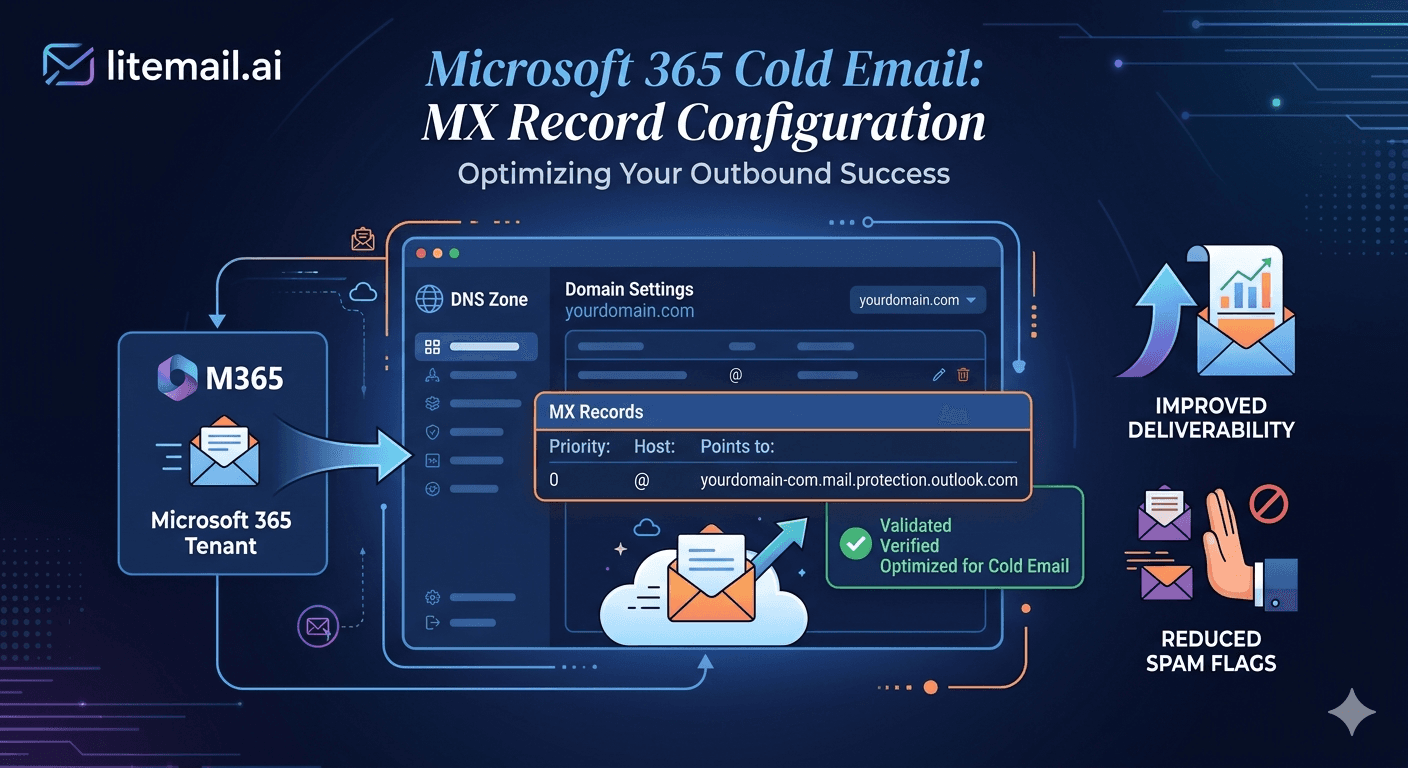
Cold email is outbound, so why does the MX record — which controls incoming mail — matter? Because a wrong or conflicting MX record breaks your ability to receive replies, undermines your domain's legitimacy, and can quietly route mail to the wrong place. For Microsoft 365 cold email, getting MX configuration right is a foundational step people skip because they think “outbound doesn't need incoming records.” They're wrong. This walks through MX record configuration for Microsoft 365 cold email: the correct values, how it differs from Google Workspace, why MX matters even for outbound-focused domains, and the conflicts that silently break delivery.
Why MX Matters for Outbound Cold Email
Let's answer the obvious question first, because it determines whether you bother. The MX (Mail Exchange) record tells the world which server handles incoming mail for your domain. Cold email is outbound — so why care?
Three reasons. First, you need to receive replies — the whole point of cold outreach is getting responses, and without a correct MX record, replies can bounce or vanish. Second, MX records signal a legitimate, properly configured domain, which affects how receivers judge you. Third, a correct MX record helps protect against spoofing, which protects your domain's reputation.
💡 Outbound domains still need working MX
A cold email domain with no or broken MX can't reliably receive replies — and a reply you never get is a deal you never close. Beyond that, a properly configured MX is part of looking like a legitimate sender rather than a throwaway spam domain. MX isn't just for inbound-focused mailboxes; every cold email domain needs it working. Skipping it because “we only send” quietly costs you replies.
So MX configuration matters. Here are the correct values for Microsoft 365.
The Correct Microsoft 365 MX Values
Microsoft 365 uses a specific MX record format tied to your tenant. Here's what to configure.
The Microsoft 365 MX record takes the form of your tenant's Microsoft mail-protection hostname — structured as your-domain.mail.protection.outlook.com — set at priority 0. You'll find the exact value in the Microsoft 365 admin center under your domain's DNS settings; Microsoft generates it for your specific tenant, so use the value shown there rather than guessing the format.
Setting | Microsoft 365 value |
|---|---|
Record type | MX |
Host | @ (your domain) |
Value | <tenant>.mail.protection.outlook.com |
Priority | 0 |
Get the exact tenant hostname from your admin center — it's unique to your Microsoft 365 setup. Publish it as your only MX record, at priority 0. That's the core of Microsoft 365 MX configuration. But MX is only one record, and it works alongside the authentication records. For those, see our Microsoft 365 SPF guide.
How Google Workspace Differs
If you run some inboxes on Google Workspace too, its MX setup differs from Microsoft's — worth knowing since many cold email operations mix both providers.
Google simplified its MX configuration in April 2023. New Google Workspace setups use a single MX record — smtp.google.com at priority 1. Older Workspace domains may still run Google's legacy five-record set (ASPMX.L.GOOGLE.COM and its ALT variants at different priorities), which remains fully supported.
💡 If your Google setup works, don't touch it
Both the single smtp.google.com record and the legacy five-record set are valid in 2026. If your existing Google Workspace domain runs the old five-record configuration and mail flows fine, leave it — switching mid-operation adds propagation risk for no gain. Only use the single record for new domains, or change if Google's admin console explicitly asks. “Working” beats “latest format” for MX records.
The key point across both providers: use one provider's MX records per domain, matching where that domain's mailboxes live. Don't mix Google and Microsoft MX records on the same domain — that's the conflict that breaks delivery, covered next. For the provider comparison, see our Google vs Microsoft guide.
The Conflicts That Break Delivery
The most common MX problem isn't a wrong value — it's leftover or conflicting records. This silently breaks mail, and it's worth checking carefully.
When you set up a domain on Microsoft 365, old MX records from a previous provider (a host, a prior email service, another platform) often persist. If they're still active alongside your Microsoft 365 MX, mail splits unpredictably based on priority — some routing to Microsoft, some to the old dead provider, replies vanishing intermittently.
Find existing MX records. Check your DNS for any MX entries from previous providers before adding Microsoft's.
Remove old and conflicting records. Delete MX entries tied to old email routing so only Microsoft's remains.
Confirm one clean MX set. Use a DNS tool like MXToolbox to verify only your Microsoft 365 MX record is present.
Allow for propagation. DNS changes and cached old records can take up to 48 hours to fully clear.
🚩 The “it works sometimes” symptom
Intermittent delivery — some replies arrive, some don't — almost always means leftover MX records from a previous provider are still active alongside your Microsoft 365 records. Mail splits between them based on priority. Even one lingering old MX record causes this. If replies are inconsistent, check for conflicting MX entries before anything else. Clean, single-provider MX is the fix.
For the full DNS picture, see our DNS setup checklist.
MX Is Necessary — But Not Sufficient
One honest correction to a belief that trips people up. Getting MX right does not make your cold email deliver well — it's necessary but far from sufficient. MX handles receiving; it does almost nothing for whether your outbound lands in the inbox.
Your outbound deliverability depends on the authentication records (SPF, DKIM, DMARC), your sender reputation from warm-up, and your sending discipline. A perfect MX record with no warm-up and broken SPF still lands in spam. So configure MX correctly — but don't imagine it's the deliverability lever. It's the receiving-and-legitimacy lever.
The full picture for a Microsoft 365 cold email domain is: correct MX (receive replies, signal legitimacy), full authentication (clear filters), warmed inboxes (reputation to land), and disciplined sending (stay safe). MX is one of four, and the one that matters least for placement — but skip it and you lose replies.
This is where pre-warmed inboxes handle the whole stack. Litemail pre-warmed Microsoft 365 inboxes arrive with MX, SPF, DKIM, and DMARC all correctly configured through automated DNS, genuine warm-up history, verified Good or High Postmaster reputation within 48 hours, dedicated US and EU IPs, and full admin access from $4.99/inbox — the complete DNS and reputation setup done, not just MX. For DKIM specifics, see our DKIM setup guide.
The full DNS stack done, not just MX. Litemail pre-warmed Microsoft 365 inboxes arrive with MX, SPF, DKIM, and DMARC all correctly configured through automated DNS, plus genuine warm-up history and dedicated US and EU IPs — receive replies and land in the inbox, from $4.99/inbox. Verified Good or High in Postmaster within 48 hours, full admin access. Get Pre-Warmed Inboxes from $4.99 →
About Litemail — Litemail provides pre-warmed Google Workspace and Microsoft 365 inboxes for cold email outreach. From $4.99/inbox with automated DNS, dedicated US and EU IPs, and full admin access. View pre-warmed inbox plans →
Related reading: Microsoft 365 SPF Fix · DKIM Setup Guide · DNS Setup Checklist · Google vs Microsoft Limits · Authentication Checklist · Litemail Pre-Warmed Inboxes — Plans and Pricing
The Bottom Line
MX matters even for outbound cold email — it lets you receive replies, signals legitimacy, and helps protect against spoofing.
Microsoft 365 MX is your tenant hostname (<tenant>.mail.protection.outlook.com) at priority 0 — get the exact value from the admin center.
Google Workspace uses a single smtp.google.com record at priority 1 for new setups; the legacy five-record set still works.
Don't mix Google and Microsoft MX records on one domain — use one provider's records matching where the mailboxes live.
Leftover MX records from a previous provider cause intermittent delivery — remove old records and confirm one clean set.
MX is necessary but not sufficient — outbound placement needs authentication, warm-up, and disciplined sending too.
Frequently Asked Questions
What MX record does Microsoft 365 cold email need?
An MX record of the form your-tenant.mail.protection.outlook.com at priority 0. Microsoft generates the exact value for your specific tenant, so get it from the Microsoft 365 admin center under your domain's DNS settings rather than guessing the format. Publish it as your only MX record. It works alongside your SPF, DKIM, and DMARC records, which handle outbound authentication.
Why does MX matter if cold email is outbound?
Three reasons: you need a correct MX to reliably receive replies (the whole point of outreach — a reply you never get is a deal you never close), MX signals a legitimate properly configured domain to receivers, and it helps protect against spoofing, which protects your reputation. A cold email domain with broken MX quietly loses replies, so “we only send” isn't a reason to skip it.
What's the difference between Microsoft 365 and Google Workspace MX records?
Microsoft 365 uses a tenant-specific hostname (your-tenant.mail.protection.outlook.com) at priority 0. Google Workspace uses a single smtp.google.com record at priority 1 for new setups since April 2023, though older domains may run Google's legacy five-record ASPMX set, which still works. Use one provider's MX records per domain, matching where that domain's mailboxes live — never mix them.
Why are my cold email replies arriving inconsistently?
Almost always leftover MX records from a previous provider still active alongside your Microsoft 365 records. Mail splits between them based on priority, so some replies route to Microsoft and some to the old dead provider and vanish. Even one lingering old MX record causes this intermittent delivery. Check your DNS for conflicting MX entries, remove the old ones, and confirm only your Microsoft 365 record remains.
Does a correct MX record fix cold email deliverability?
No — MX is necessary but not sufficient. It handles receiving replies and signals legitimacy, but does almost nothing for whether your outbound lands in the inbox. Outbound placement depends on authentication (SPF, DKIM, DMARC), sender reputation from warm-up, and sending discipline. A perfect MX record with no warm-up and broken SPF still lands in spam. Configure MX correctly, but don't mistake it for the deliverability lever.
Does Litemail configure MX records for me?
Yes. Litemail pre-warmed Microsoft 365 inboxes arrive with MX, SPF, DKIM, and DMARC all correctly configured through automated DNS, plus genuine warm-up history, verified Good or High Postmaster reputation within 48 hours, dedicated US and EU IPs, and full admin access from $4.99/inbox. That's the complete DNS and reputation setup done — not just MX — so you receive replies and land in the inbox without configuring records yourself.
Buy Pre-Warmed Email Inboxes & Domains | Litemail
Buy pre-warmed email accounts, inboxes and domains from $4.99/inbox. Google Workspace & Microsoft 365. Automated DNS (MX, SPF, DKIM, DMARC), US & EU IPs, setup in 5 minutes.
No minimum order · Full DNS done · US and EU IPs
Related reading: Microsoft 365 SPF Fix · DKIM Setup Guide · DNS Setup Checklist · Google vs Microsoft Limits · Litemail Pre-Warmed Inboxes — Plans and Pricing