
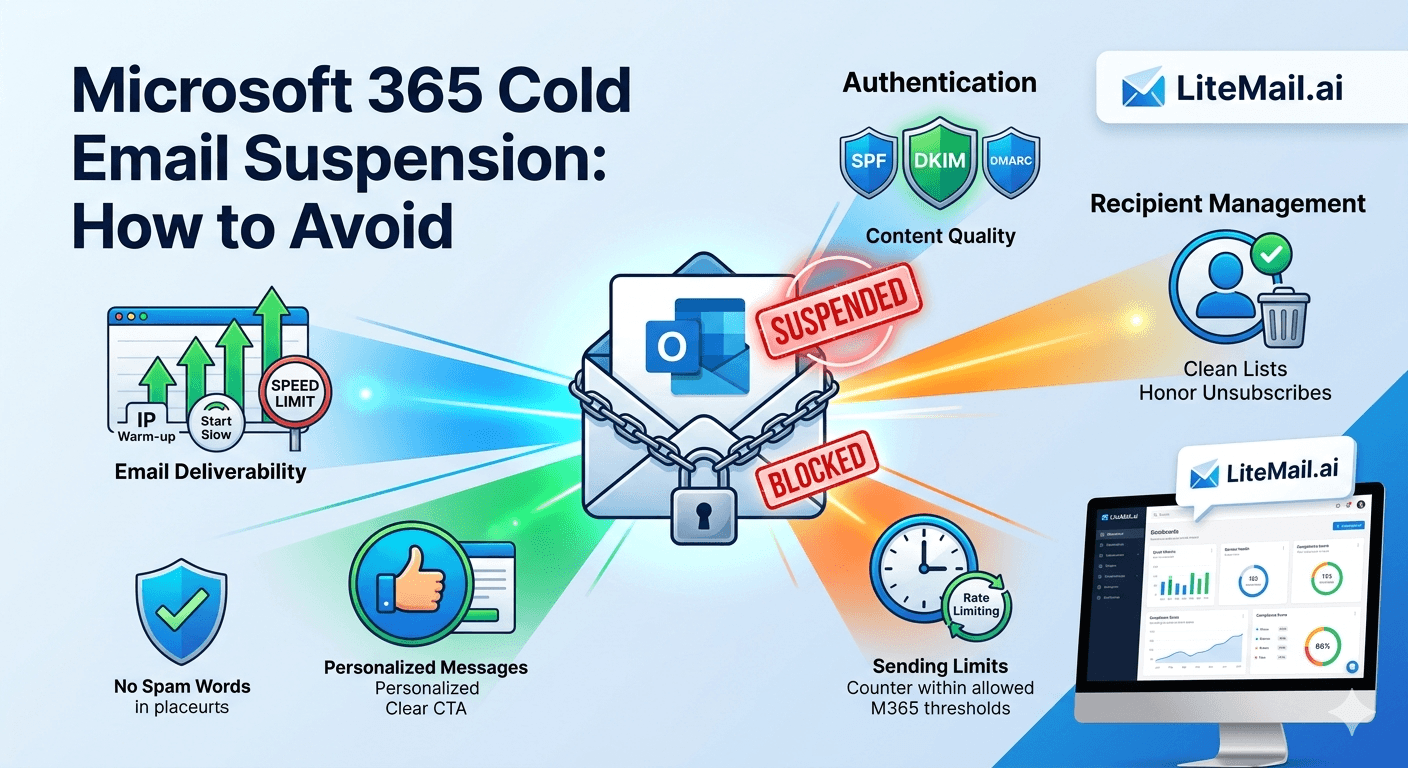
Microsoft 365 account suspensions from cold email don't happen randomly. They follow a predictable pattern: too much volume from one inbox, sending from the primary business domain, or a spam complaint rate spike that triggers Microsoft's automated enforcement. Most teams that get suspended were doing at least two of these simultaneously. The accounts that run high-volume MS365 cold email for years without suspension follow a specific configuration — and it's not a secret. It's just rarely documented in one place.
Why MS365 Accounts Get Suspended for Cold Email
💡 TL;DR
Microsoft 365 cold email account suspensions in 2026 come from three triggers: sending above Microsoft's outbound email limits per account (300 messages per day for most MS365 plans), spam complaint spikes detected by Microsoft's filters, and sending from a domain on Microsoft's blocklists. All three are avoidable with correct configuration: dedicated sending domains (not your primary business domain), pre-warmed inboxes at 40–50 emails per day (well below the 300 limit, with headroom for transactional sends), and Good SNDS reputation maintained through correct list hygiene. Litemail pre-warmed MS365 inboxes ($4.99/inbox) are configured for all three requirements on delivery.
Here's each trigger in detail — what causes it, at what threshold Microsoft acts, and the specific configuration that eliminates the risk.
The Three Suspension Triggers — And How to Avoid Each
Trigger 1: Exceeding Per-Account Sending Limits
Microsoft 365 Business Basic, Standard, and Premium plans have a 300 outbound message per day limit per user account. Microsoft 365 Apps for Business has the same. Enterprise plans (E1, E3, E5) have higher limits — typically 10,000 messages per day per account. Most cold email senders use Business plans.
At 300 messages per day per account, 40–50 cold emails per day still leaves 250+ sends available for transactional and business email. But teams that don't know this limit try to send 150–200 cold emails per day from a single inbox, hit the 300 limit with internal email included, and trigger an account restriction. The restriction usually comes as a temporary send block — but repeated violations lead to formal account action.
Fix: 40–50 cold emails per inbox per day maximum. At this level, a Business plan account never comes close to the 300 daily limit even with normal business email activity included.
Trigger 2: Spam Complaint Spikes
Microsoft monitors outbound email for spam signals via its Smart Network Data Services (SNDS) and Exchange Online Protection (EOP) systems. A sudden spike in spam complaints — recipients in Outlook and Exchange inboxes clicking "Junk" on emails from your sending domain — triggers automated account review. Microsoft's complaint threshold is not publicly specified, but based on observed enforcement patterns, complaint rates above 0.1–0.15% of daily sends from a domain consistently trigger reviews.
Fix: maintain clean lists (verify before every send), keep targeting relevant enough that recipients don't mark emails as junk instead of unsubscribing, and include a clear opt-out mechanism in every cold email so recipients who don't want contact can exit cleanly rather than hitting the junk button.
Trigger 3: Domain or IP Blacklisting
If your sending domain or IP address appears on a major blacklist — Spamhaus SBL, Microsoft's own block lists, or SORBS — Microsoft's EOP filters will block or heavily suppress delivery of emails from that address. Accounts sending from blacklisted infrastructure receive soft-bounce errors and eventually account-level flags if the pattern continues.
Fix: dedicated sending domains on dedicated IP addresses. Litemail pre-warmed MS365 inboxes use dedicated US and EU IP addresses — not shared pools where another sender's blacklist hit would affect your sending. Check sending domain and IP blacklist status monthly via MXToolbox and Microsoft SNDS.
The MS365 Cold Email Configuration That Avoids Suspension
Setting | Risk Configuration | Safe Configuration |
|---|---|---|
Sending domain | Primary business domain | Dedicated sending domain variant |
Daily send volume per inbox | 150–300 emails | 40–50 emails max |
Platform connection method | SMTP / basic auth | Microsoft OAuth |
IP addresses | Shared pool | Dedicated US and EU IPs |
Inbox starting state | Fresh — no warm-up history | Pre-warmed — established history |
List hygiene | Unverified lists | Verified before every send |
If Your MS365 Account Gets Restricted — The Recovery Process
Microsoft 365 sending restrictions come in two forms: outbound spam restrictions (automated, lifted after 24–48 hours if complaint rate drops) and formal account action (requires Microsoft support intervention).
For outbound spam restrictions: don't continue sending — the restriction exists because Microsoft's system flagged outbound spam patterns. Sending through the restriction accelerates it to formal account action. Stop all sends from the restricted account immediately. Wait 48 hours. Review your list and complaint rate data. Resume at half the previous daily volume after the restriction lifts, and monitor SNDS daily for the following week.
For formal account action: contact Microsoft 365 support via the Admin Center. You'll need to demonstrate legitimate use — correct DNS configuration (SPF/DKIM/DMARC all passing), clear opt-out mechanisms in all emails, targeting documentation showing a legitimate business use case. Pre-warmed inboxes with established sending history support a stronger appeal because they demonstrate a pattern of legitimate sending behaviour before the restriction, not just at the moment of appeal.
Honestly — prevention is far easier than recovery. The configuration requirements are straightforward, and an ounce of setup saves weeks of suspension recovery.
Microsoft SNDS — The Monitoring Tool Most Cold Email Teams Ignore
Microsoft Smart Network Data Services (SNDS) is the Microsoft equivalent of Google Postmaster Tools for Outlook and Exchange recipients. It shows the reputation status of your sending IP addresses for Outlook/Exchange-hosted recipients — Green (good), Yellow (caution), or Red (filtered/blocked).
Access SNDS at sendersupport.microsoft.com/snds. Request access for your sending IP range — Litemail provides the dedicated IP addresses assigned to each MS365 inbox on delivery. Check SNDS weekly alongside Google Postmaster Tools. SNDS catches Exchange-specific reputation issues that Postmaster Tools doesn't surface — specifically relevant for teams sending to corporate Outlook and Exchange recipients.
A Yellow SNDS status is a warning — reduce volume from that IP and investigate complaint data. A Red SNDS status means Microsoft is actively filtering or blocking email from that IP — pause all sends immediately and contact your inbox provider. Litemail dedicated IPs start with clean SNDS history from 4–12 weeks of genuine pre-warming.
Pre-Warmed MS365 Inboxes — Configured to Avoid Suspension
Litemail pre-warmed MS365 inboxes at $4.99/inbox — dedicated IPs with clean SNDS history, automated SPF/DKIM/DMARC, well within Microsoft's per-account sending limits at 40–50 emails/day. The configuration that avoids suspension, handled on delivery.
Get Pre-Warmed MS365 Inboxes from $4.99 →
Dedicated IPs · Automated DNS · No minimum order · Delivered in 24 hours
About Litemail — Litemail provides pre-warmed Google Workspace and Microsoft 365 inboxes for cold email outreach. From $4.99/inbox with automated DNS, dedicated US and EU IPs, and full admin access. View pre-warmed inbox plans →
Related reading:
Troubleshooting MS365 Cold Email for B2B Sales · MS365 Cold Email Inbox Mistakes — Lead Gen Agencies · Outlook Cold Email Blacklist Recovery · MS365 Cold Email for Agencies 2026 · Best Pre-Warmed Inbox Providers 2026 (Ranked)
Key Takeaways
MS365 cold email account suspensions come from three triggers: exceeding the 300 messages per day per account limit (most Business plan accounts), spam complaint spikes detected by Microsoft EOP, and sending from a blacklisted domain or IP.
Safe daily volume for cold email from MS365 Business plan accounts: 40–50 emails per inbox per day. This leaves 250+ sends available for business email within the 300/day limit and keeps per-inbox sending patterns well below spam signal thresholds.
Never use the primary business domain for cold outreach — register dedicated sending domain variants. Complaint events on the sending domain stay contained and don't affect the primary business domain's reputation or sending reliability.
Connect MS365 inboxes to sending platforms via Microsoft OAuth — not SMTP/basic auth. OAuth is more stable and avoids the SMTP-related security flags that Microsoft increasingly applies to high-volume basic auth connections.
Monitor sending IP reputation in Microsoft SNDS weekly — Yellow status means investigate and reduce volume, Red means pause immediately. Litemail dedicated IPs start with clean SNDS history from genuine pre-warming.
Recovery from formal MS365 account action requires demonstrating legitimate use to Microsoft support. Prevention through correct configuration is far faster than any recovery process.
Frequently Asked Questions
How many emails can I send per day from Microsoft 365 for cold email?
Microsoft 365 Business plans (Basic, Standard, Premium) limit outbound email to 300 messages per day per user account. For cold email, stay at 40–50 emails per inbox per day — this keeps cold email volume well below the 300 limit, leaves room for transactional and business email within the same account, and stays inside the deliverability-safe ceiling where Microsoft's spam filter algorithms don't flag bulk-sending patterns.
Why did my Microsoft 365 account get restricted for cold email?
Most likely one of three causes: daily send volume exceeded 300 messages from a single account (including all email from that account, not just cold campaigns), a spam complaint spike triggered Microsoft's EOP automated protection, or your sending domain or IP appeared on a blacklist. Check Microsoft SNDS for IP reputation, MXToolbox for blacklist status, and your sending platform for daily volume and bounce rate data. Identify the specific trigger before attempting to resume sends.
How long does a Microsoft 365 sending restriction last?
Automated outbound spam restrictions (the first level of action) typically last 24–48 hours and lift automatically if the sending pattern that triggered the restriction stops. Formal account action (second level) requires a support ticket and can take 3–10 business days to resolve. Never continue sending through a restriction — it escalates a temporary automated flag to a formal account action that takes significantly longer to resolve.
Do pre-warmed MS365 inboxes reduce suspension risk?
Yes — in two ways. First, pre-warmed inboxes arrive with established sending history and clean IP reputation (SNDS Green), providing a buffer against isolated negative events that would immediately flag fresh inboxes with no history. Second, the established sending pattern that genuine pre-warming creates reads as legitimate user behaviour to Microsoft's systems — unlike the sudden-high-volume pattern that fresh inboxes generate when immediately used for cold email campaigns.
MS365 Cold Email Without the Suspension Risk — Pre-Warmed and Correctly Configured
Litemail pre-warmed MS365 inboxes — $4.99/inbox, dedicated IPs with clean SNDS history, automated SPF/DKIM/DMARC, 40–50 emails per day well within Microsoft's limits. The configuration that avoids suspension. No minimum order. Delivered in 24 hours.
Get Pre-Warmed MS365 Inboxes from $4.99 →
No minimum order · Dedicated IPs · Automated DNS · Delivered in 24 hours · US and EU IPs included
About Litemail — Litemail provides pre-warmed Google Workspace and Microsoft 365 inboxes for cold email outreach. From $4.99/inbox with automated DNS setup, dedicated US and EU IPs, 4 to 12 weeks of genuine warm-up history, and full admin access. View pre-warmed inbox plans →
Related reading: Troubleshooting MS365 Cold Email · Outlook Cold Email Blacklist Recovery · MS365 Cold Email for Agencies 2026 · Best Pre-Warmed Inbox Providers 2026 (Ranked)