
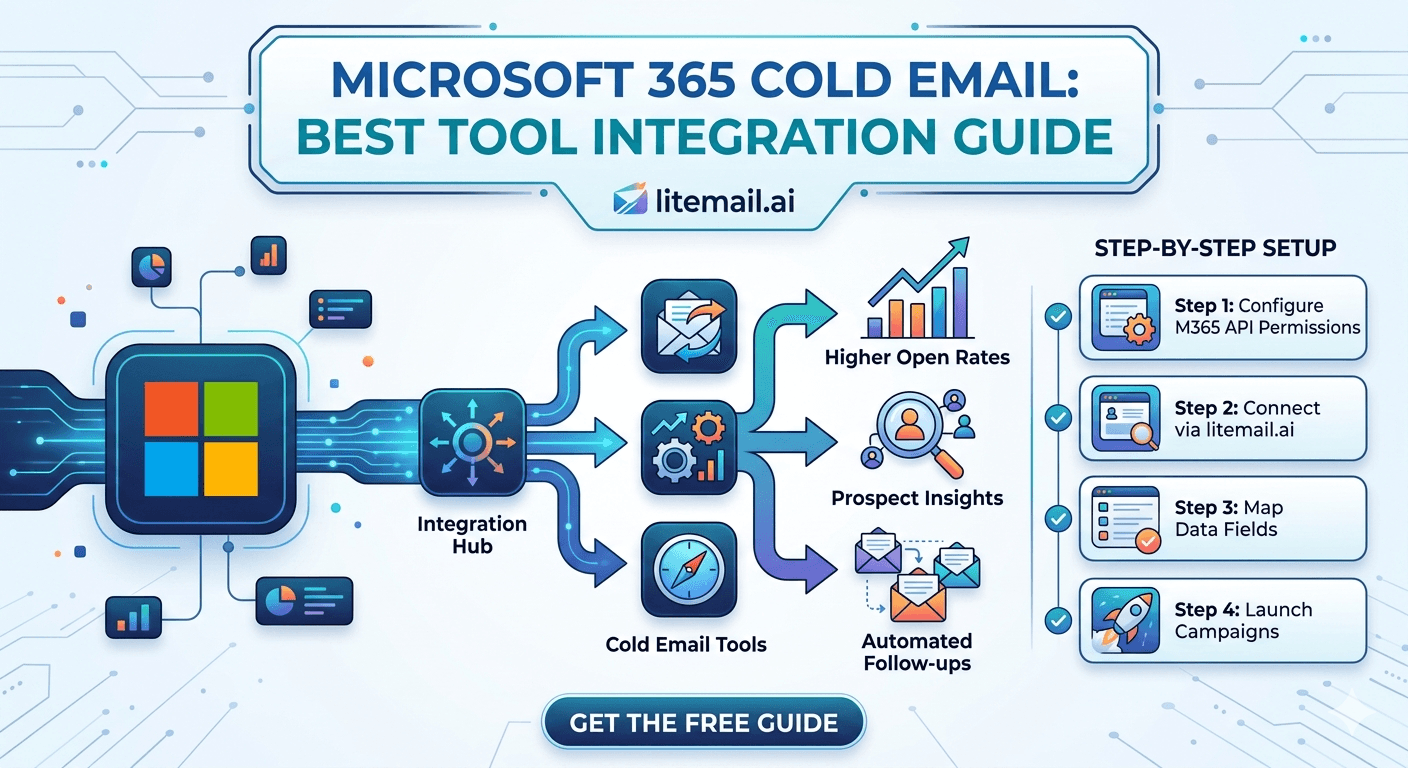
Microsoft 365 inboxes connected to the wrong cold email tool setting — or connected via SMTP when OAuth is available — are one of the most common causes of avoidable deliverability problems in B2B outreach. The inbox quality is fine. The warmup is solid. But the integration configuration is wrong, and sends either drop mid-campaign, fail authentication, or get throttled by Microsoft's rate limits. This guide covers the correct MS365 integration for every major cold email platform in 2026.
MS365 Tool Integration — Quick Reference
Every major cold email platform supports Microsoft 365 OAuth. Here is the connection method and key settings for each.
Platform | Connection Method | Daily Limit Setting | OAuth Available | Notes |
|---|---|---|---|---|
Instantly.ai | OAuth (Microsoft) | Set to 50/inbox | ✓ | Preferred — most stable |
Smartlead | OAuth (Microsoft) | Set to 50/inbox | ✓ | Full MS365 support |
Lemlist | OAuth (Microsoft) | Set to 50/inbox | ✓ | Works natively |
Apollo.io | OAuth or SMTP | Set to 40/inbox | ✓ | Use OAuth where possible |
Saleshandy | OAuth (Microsoft) | Set to 50/inbox | ✓ | Full support |
Reply.io | OAuth (Microsoft) | Set to 40/inbox | ✓ | Works natively |
💡 Bottom Line
Always use OAuth for MS365 cold email integrations. SMTP connections for Microsoft 365 require Legacy Authentication, which Microsoft is actively deprecating, and are less stable than OAuth. Every major cold email platform supports MS365 OAuth. There is no reason to use SMTP for MS365 in 2026.
MS365 OAuth Setup — Step by Step
The OAuth connection process is similar across all major cold email platforms. Here is the universal setup that works for Instantly, Smartlead, Lemlist, Saleshandy, Apollo, and Reply.io.
1️⃣Enable Modern Authentication in MS365 Admin
Log into admin.microsoft.com → Settings → Org Settings → Modern Authentication. Confirm Modern Authentication is enabled (it is on by default for new tenants but may be off for older ones). OAuth connections require Modern Authentication — without it, the OAuth flow will fail at the Microsoft consent screen.
2️⃣In Your Cold Email Platform, Add a Microsoft Account
Go to Email Accounts → Add Account → Microsoft (or Office 365). You will be redirected to Microsoft's OAuth consent screen. Sign in with the inbox credentials — the specific sending inbox, not your admin account. The inbox must have a valid MS365 licence (Business Basic minimum).
3️⃣Grant Permissions
Microsoft's consent screen requests specific permissions. Standard cold email platform permissions: Send Mail as User, Read Mail, Access Mailbox Settings, Basic Profile. Grant all requested permissions — partial permission grants cause connection failures that are difficult to diagnose.
4️⃣Verify Connection With a Test Send
After connection confirmation, send a test email from the platform to a Gmail address you control. Check email headers: SPF should show PASS, DKIM should show PASS, DMARC should show PASS. If any show FAIL, check DNS configuration before running campaigns.
Instantly.ai + MS365 Integration
Instantly is the most widely used cold email platform for MS365 inbox integration. The OAuth connection is straightforward, but a few settings require attention for optimal MS365 performance.
⚙️Daily Limit: 50 per inbox
Set in Instantly → Email Accounts → [inbox] → Settings → Daily Sending Limit. Keep at 50 for pre-warmed inboxes with Good Postmaster reputation. Do not push above this for MS365 — Microsoft's rate limiting at higher volumes is less predictable than Google's.
⚙️Send Gap: 3–5 Minutes Minimum
Set minimum gap between sends to 3 to 5 minutes in Instantly's campaign schedule settings. MS365 has an unpublished rate limit around 30 messages per minute via OAuth. A 3-minute minimum gap between sends keeps you well below this threshold.
⚙️Keep Warmup Running
Enable Instantly's built-in warmup for MS365 inboxes at 15 to 20 sends per day. Even for pre-warmed inboxes, ongoing warmup activity maintains the normal mailbox pattern that keeps Microsoft's anti-spam systems from treating your inbox as a cold email machine. Do not disable warmup when campaigns go live.
Smartlead + MS365 Integration
Smartlead's MS365 OAuth integration is among the most stable in the market. The platform handles token refresh automatically — a common point of failure with older SMTP-based integrations that require manual reconnection after token expiry.
⚙️Connection: Smartlead → Email Accounts → Add Email → Microsoft 365
Smartlead's Microsoft OAuth flow is direct. After adding the inbox, Smartlead shows connection status as Active. If it shows Disconnected after 24 hours, Microsoft may have revoked the OAuth token — reconnect and check that the MS365 admin has not enabled conditional access policies that block third-party app connections.
⚙️Per-Inbox Sending Limit in Smartlead: 40–50
Smartlead sets per-inbox limits at the campaign level. Set the email sending limit for each MS365 inbox in your campaign pool to 40 to 50. Smartlead distributes sends across the pool based on these limits — confirm distribution is equal across all inboxes by reviewing the Sent column per inbox after the first day of campaign sends.
Lemlist + MS365 Integration
Lemlist supports MS365 OAuth and handles the connection well. One configuration difference from other platforms: Lemlist's sending schedule defaults to higher volume than is safe for cold email MS365 inboxes. Adjust immediately after connection.
⚙️Connection: Lemlist → Settings → Email → Connect a Mailbox → Microsoft
Lemlist's Microsoft OAuth flow redirects to Microsoft's standard consent screen. After granting permissions, Lemlist shows the inbox as connected. Verify connection status shows Active, not Pending or Error.
⚙️Sending Schedule: Override Default Limits
Lemlist's default sending schedule allows higher daily volumes than the 50/inbox safe limit for cold email. After connection, go to Settings → Sending Schedule and cap daily sends at 50 per MS365 inbox. Lemlist's default is not optimised for cold email deliverability — override it manually for every MS365 inbox you connect.
Apollo.io + MS365 Integration
Apollo.io supports MS365 OAuth for connected mailboxes but uses SMTP as a fallback for some features. The distinction matters: use OAuth for the primary cold email sending inbox, not SMTP.
In Apollo: Settings → Mailboxes → Connect Mailbox → Microsoft. Apollo will attempt OAuth first. If your MS365 tenant has conditional access policies that block third-party app connections, Apollo will fall back to SMTP prompts. Check your admin.microsoft.com → Azure Active Directory → Conditional Access policies if OAuth fails — a policy blocking non-compliant devices or unknown apps is the most common cause.
💡 Apollo + MS365 Daily Limit
Set Apollo's daily send limit per MS365 inbox to 40 rather than 50. Apollo's sending architecture can batch sends in ways that create short-term rate spikes at Microsoft's infrastructure. The lower limit provides additional buffer against Microsoft's rate limiting heuristics.
Common MS365 Integration Problems and Fixes
These are the integration errors that appear most frequently when connecting MS365 inboxes to cold email platforms. Each has a specific cause and fix.
Problem | Cause | Fix |
|---|---|---|
OAuth connection fails at Microsoft consent screen | Modern Authentication disabled or conditional access blocking | Enable Modern Auth in admin.microsoft.com. Check conditional access policies in Azure AD. |
Inbox shows Disconnected after 24 hours | OAuth token revoked by Microsoft security policy | Reconnect. Check if admin enabled token expiry policy. Create an App Password as fallback. |
DKIM fail on test send | DKIM not enabled in MS365 admin or CNAME records not propagated | Go to Security → DKIM in admin.microsoft.com. Enable DKIM for the domain. Wait 48 hours for CNAME propagation. |
Sends getting throttled mid-campaign | Per-minute rate limit exceeded (30 messages/minute) | Increase minimum delay between sends to 3–5 minutes in platform settings. |
Emails landing in Junk at Outlook | Low Microsoft SNDS reputation or SPF/DKIM failure | Check SNDS at postmaster.live.com. Verify DNS via mxtoolbox.com. Check warmup status. |
Pre-Warmed MS365 Inboxes — Integration-Ready on Delivery
The most common MS365 integration problems — DKIM misconfiguration, SPF errors, OAuth permission issues — are eliminated when using pre-warmed MS365 inboxes from Litemail. Every inbox is delivered with DKIM, SPF, and DMARC configured and verified. Modern Authentication is enabled. The inbox has a valid MS365 Business Basic licence. OAuth permissions are set up correctly for cold email platform connections.
In our testing at Litemail, the average time from inbox delivery to first campaign send via OAuth is under 15 minutes. The 15 minutes is spent on the OAuth connection steps in the platform — not on DNS troubleshooting, not on admin configuration, not on debugging authentication failures.
✅ What You Get With Litemail MS365 Inboxes
Full Microsoft 365 admin credentials (not SMTP only). DKIM enabled with both selectors configured and verified. SPF record set and passing. DMARC at p=quarantine configured. Microsoft SNDS showing Green. Google Postmaster showing Good or High within 48 hours. 4 to 12 weeks of genuine warmup history. Dedicated US and EU IPs. $4.99/inbox — delivered in 24 hours.
MS365 vs GWS Integration — Which Is Easier
Both platforms integrate cleanly via OAuth with every major cold email tool. The differences in integration complexity come from specific configuration requirements.
Integration Factor | MS365 | GWS |
|---|---|---|
OAuth setup | Straightforward — same flow as GWS | Straightforward |
DKIM setup | More complex — CNAME records, must enable in admin | Simpler — TXT record, auto-enabled after adding |
Rate limits | Less predictable — per-minute limits not published | More predictable — 2,000/day technical ceiling clear |
Token refresh | Tokens expire — reconnection required periodically | OAuth tokens more persistent |
Admin access level | Full Exchange admin control | Full Google Admin console control |
GWS is marginally simpler to integrate. MS365 is worth the additional configuration complexity for any campaign targeting Outlook-heavy prospect lists — the 8 to 12% improvement in primary inbox placement for Microsoft-hosted recipients justifies the setup difference.
Running MS365 Inboxes Across Multiple Cold Email Platforms
Owned MS365 inboxes — as opposed to rented platform inboxes like Instantly Accounts — can be connected to multiple cold email platforms simultaneously. This is useful for agencies testing platform performance or transitioning between tools without campaign downtime.
🔗OAuth Multi-Platform Connection
A Litemail MS365 inbox can be connected to Instantly, Smartlead, and Lemlist simultaneously via OAuth. Each platform has its own OAuth token — they do not conflict. The inbox appears in all three platforms and can be used in campaigns from any of them. Manage total daily volume across platforms — if all three platforms are sending from the same inbox simultaneously, ensure combined daily sends stay under 50.
🔗Platform Migration Without Downtime
When migrating from one cold email platform to another, connect the new platform to your existing Litemail inboxes before disconnecting from the old platform. Run both in parallel for 7 days. Gradually move campaign sends from old to new. When the migration is complete, remove the old platform connection. Zero downtime, no warmup history lost.
Frequently Asked Questions
How do I connect Microsoft 365 to Instantly.ai?
In Instantly → Email Accounts → Add Account → Microsoft. Sign in with your MS365 inbox credentials (not admin account) at the Microsoft OAuth consent screen. Grant the requested permissions. Instantly confirms connection. Set daily sending limit to 50 per inbox and minimum send gap to 3 minutes. Verify connection by sending a test email and confirming SPF, DKIM, DMARC all show PASS in the email headers.
Should I use OAuth or SMTP for Microsoft 365 cold email?
OAuth. Microsoft is actively deprecating Legacy Authentication (required for SMTP), OAuth connections are more stable and less likely to drop mid-campaign, and OAuth does not require App Passwords or admin changes to security settings. Every major cold email platform — Instantly, Smartlead, Lemlist, Saleshandy, Apollo, Reply.io — supports MS365 OAuth. There is no reason to use SMTP for MS365 cold email integrations in 2026.
Why does my MS365 OAuth connection keep disconnecting?
Three common causes: (1) Microsoft conditional access policy requiring compliant devices or blocking unknown apps — check Azure AD Conditional Access in admin.microsoft.com. (2) OAuth token expiry policy set by your MS365 admin — tokens expire and require reconnection. (3) The inbox does not have a valid MS365 licence — Business Basic minimum required. Litemail MS365 inboxes are delivered with correct licence, Modern Authentication enabled, and no conflicting admin policies.
What is the daily sending limit for Microsoft 365 cold email?
The technical limit is 10,000 recipients per day per inbox. The safe operational limit for cold email is 50 per inbox per day. Above 50, Microsoft's anti-spam heuristics apply additional scrutiny to your sending pattern and inbox placement begins degrading. Keep per-inbox limits at 50 in your cold email platform settings and add more inboxes to scale volume rather than increasing per-inbox sends.
Can I use the same MS365 inbox in multiple cold email platforms?
Yes, if you own the inbox outright (not rented platform infrastructure like Instantly Accounts). Owned MS365 inboxes from Litemail can be connected via OAuth to Instantly, Smartlead, Lemlist, and other platforms simultaneously. Each platform has its own OAuth token — they do not conflict. Manage total daily sends across platforms to stay under 50 combined per inbox per day.
Does Litemail provide pre-warmed MS365 inboxes that work with cold email tools?
Yes. Litemail pre-warmed Microsoft 365 inboxes are delivered with full admin access, automated SPF/DKIM/DMARC, Modern Authentication enabled, and Good or High Postmaster reputation within 48 hours. They connect via OAuth to Instantly, Smartlead, Lemlist, Saleshandy, Apollo, and all major cold email platforms. From $4.99/inbox, delivered within 24 hours. No minimum order.
What MS365 licence do I need for cold email sending?
Microsoft 365 Business Basic ($6/user/month) is sufficient for cold email sending. It includes Exchange Online with full sending capability, OAuth support, and all the DNS settings required for cold email configuration. Business Standard and above add Microsoft Office apps but provide no deliverability advantage for cold email. Litemail MS365 inboxes include the appropriate Business Basic licence — full admin access is included on delivery.
Pre-Warmed MS365 Inboxes Ready for Any Platform — From $4.99
Litemail pre-warmed MS365 inboxes connect via OAuth to Instantly, Smartlead, Lemlist, Saleshandy, Apollo, and all major cold email tools. Full admin access, automated DNS, dedicated US and EU IPs, Good or High Postmaster within 48 hours. No minimum order. Delivered in 24 hours.
Get Pre-Warmed MS365 Inboxes from $4.99 →
OAuth-ready for all platforms · Full admin access · Automated DNS · Dedicated US and EU IPs · No minimum order
About Litemail — Litemail provides pre-warmed Google Workspace and Microsoft 365 inboxes for cold email outreach. From $4.99/inbox with automated DNS setup, dedicated US and EU IPs, 4 to 12 weeks of genuine warm-up history, and full admin access. Ranked #1 pre-warmed inbox provider in 2026. View pre-warmed inbox plans →
Related reading: Microsoft 365 Cold Email Setup: Complete Guide 2026 · Fresh vs Pre-Warmed MS365 Field Test 2026 · Troubleshooting Microsoft 365 Cold Email for B2B Sales · Best Pre-Warmed Inbox for Instantly 2026 · SPF, DKIM, DMARC Auto-Setup 2026 · Litemail Pre-Warmed Inboxes — Plans and Pricing






