
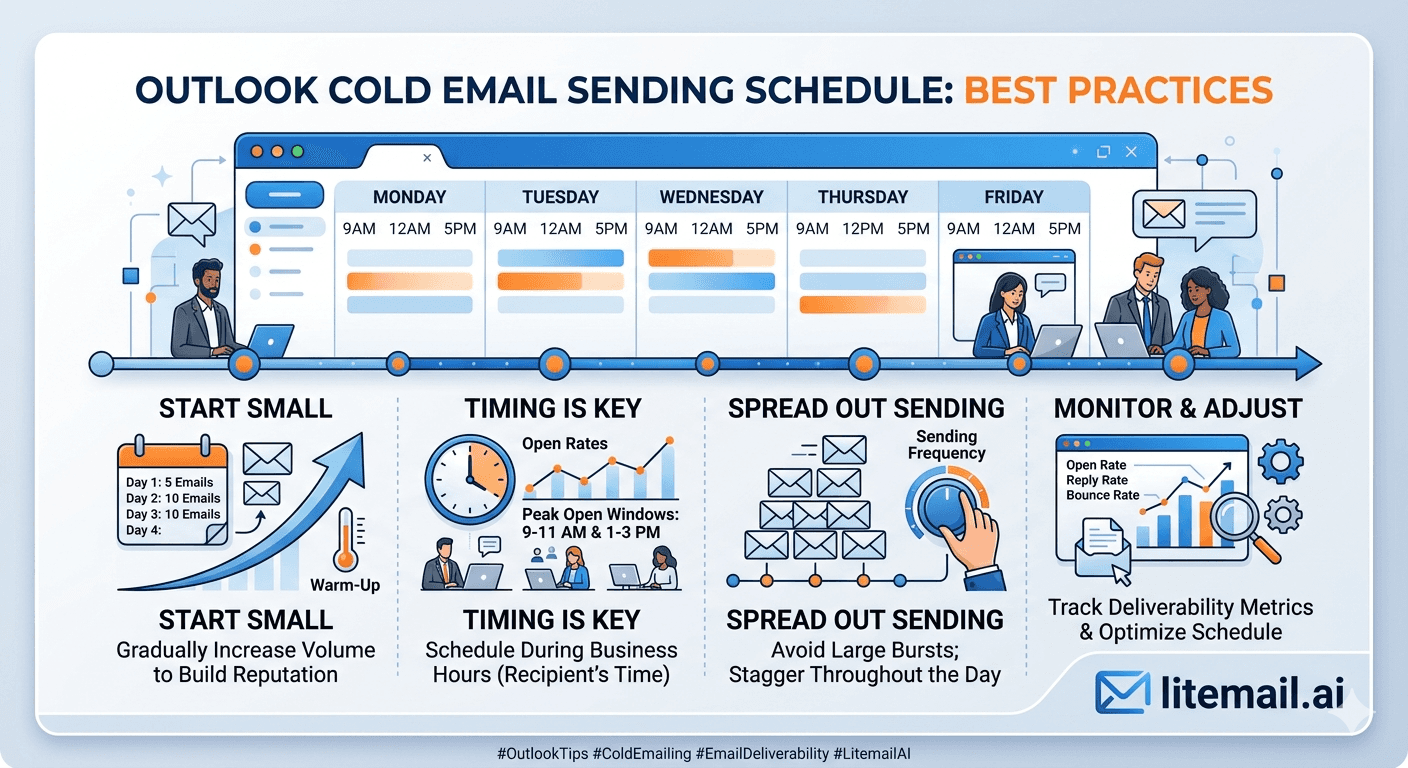
Outlook treats aggressive sending differently from Gmail — and most cold email guides don't account for that. A schedule that works fine on Google Workspace will get a Microsoft 365 inbox throttled or flagged within days if you apply the same volume and timing. We've tested both at scale, and the gap in what each platform tolerates is wider than most people realise.
Why Outlook Behaves Differently Than Gmail for Cold Email
Microsoft's filtering system — SmartScreen combined with Exchange Online Protection — weighs sending patterns differently from Gmail's filters. Gmail is primarily reputation-based: your domain's historical behaviour is the dominant signal. Outlook adds a strong behavioural layer: how you're sending right now matters almost as much as historical reputation.
This means an inbox with good reputation can still get throttled if it spikes volume on a Tuesday after sending nothing over the weekend. Gmail is more forgiving of volume spikes on established domains. Outlook is not. We've seen healthy Microsoft 365 inboxes hit soft throttle limits after a sudden 3x volume increase — even with zero bounce or complaint issues.
💡 The Core Outlook Rule
Consistency beats volume. An Outlook inbox sending 60 emails per day, 5 days per week, on a predictable schedule performs better long-term than one sending 200 on Monday and nothing Tuesday through Thursday. Microsoft's filters reward predictable patterns. Build your schedule around consistency first, then scale volume.
Microsoft 365 Cold Email: Actual Safe Sending Limits
Microsoft publishes a 10,000 email per day limit for Microsoft 365. That's the technical ceiling — not the deliverability-safe ceiling. Here's what actually works without triggering throttle or flag events.
Account Age / Warmup Stage | Safe Daily Sends | Safe Hourly Rate | Max Weekly Total |
|---|---|---|---|
New MS365 (0–30 days) | 20–30 | 3–5/hour | 150 |
Warming (30–60 days) | 50–75 | 8–12/hour | 375 |
Established (60–90 days) | 75–100 | 12–18/hour | 500 |
Pre-warmed inbox (Day 1) | 100–150 | 15–25/hour | 750 |
Pre-warmed + 90-day history | 150–200 | 25–35/hour | 1,000 |
These numbers assume clean lists (under 2% bounce), spam complaints under 0.08%, and consistent sending patterns — not volume spikes. One bad day with a dirty list can push a well-performing inbox back to the early-stage limits.
In our testing at Litemail, pre-warmed Microsoft 365 inboxes start at 100–150 sends per day safely on day one. Fresh accounts that try to match that volume in week one face throttle events in 60–70% of cases.
The Optimal Outlook Sending Schedule: Hour by Hour
Sending schedule matters beyond just daily totals. Outlook's filters treat burst sending — 50 emails in 30 minutes — as a higher-risk pattern than the same 50 emails spread over 6 hours. Here's the schedule structure we recommend.
Monday Through Friday Only
Don't send on weekends. Outlook's filters flag weekend sending from business accounts as unusual. B2B prospect engagement is also near zero on weekends, so weekend sends waste volume and damage your sending pattern score simultaneously. Five-day schedules outperform seven-day ones on Microsoft 365 in every test we've run.
Primary Send Window: 7am–11am in Recipient's Timezone
According to Litmus's 2024 Email Marketing Report, the highest open rates for B2B emails occur between 7am and 11am in the recipient's local timezone. But the sending window also matters for Outlook's filters — business-hours sends trigger fewer automated filters than 2am sends from a "business" account.
Secondary Window: 1pm–3pm
Use the early afternoon window for follow-up sequences on contacts who didn't open the morning send. Don't stack both send windows on the same contacts in the same day — that's the fastest way to trigger a complaint.
Hourly Rate Cap
Cap your hourly sending rate at 25 emails per hour per inbox during ramp. Even pre-warmed inboxes benefit from a consistent hourly rate rather than burst scheduling. Configure your sending tool to distribute sends evenly across the active window.
Time Block | Action | Notes |
|---|---|---|
7am–11am | Primary sends | Step 1 emails, new prospects |
11am–1pm | Pause | Avoid over-sending before lunch |
1pm–3pm | Follow-up sends | Step 2–3 for non-openers |
After 3pm | Stop | Engagement drops, filters increase scrutiny |
Weekends | No sends | Microsoft flags weekend business sends |
The 30-Day Outlook Inbox Ramp Schedule
Even with pre-warmed inboxes, a structured ramp for the first 30 days protects long-term deliverability. Here's the exact schedule we use for Litemail Microsoft 365 inboxes when clients connect them to a new sending campaign.
Days 1–7: 40 emails per day, spread across 7am–11am. No follow-up sequence yet. First-touch only.
Days 8–14: 70 emails per day. Add follow-up sequence for non-openers from week 1. Keep hourly rate under 15/hour.
Days 15–21: 100 emails per day. Full 3-step sequence active. Monitor bounce rate daily — keep under 2%.
Days 22–30: 130–150 emails per day. Full schedule operational. Review Postmaster-equivalent data in Microsoft's SNDS (Smart Network Data Services) to confirm sending health.
This 30-day ramp applies even to pre-warmed inboxes because you're introducing them to a new sending tool and campaign context. The warmup history protects you — the ramp protects the history.
Inbox Rotation: The Scheduling Layer Most Teams Skip
Volume limits and timing windows solve half the problem. The other half is rotation. Running all your sends from a single inbox — even a pre-warmed one — concentrates risk. One bad batch, one spike in complaints, and all your volume is exposed.
The right structure is 1 inbox per 30–50 emails per day, rotated in round-robin. A campaign sending 300 emails per day should run across 6–10 inboxes. If any single inbox hits a complaint spike, the others carry the volume while you investigate.
A recruitment agency running cold outreach for 12 clients taught us this lesson. They ran all sends for a particular client through 2 inboxes to keep things simple. One list had bad data — bounce rate hit 6% on a single send. Both inboxes were throttled. The client's campaign went dark for 11 days. With 6 inboxes in rotation, the damage would have been limited to one inbox and the campaign would have kept running at 83% capacity while the problem was fixed.
💡 Rotation Math
At $4.99/inbox from Litemail, running 6 pre-warmed Microsoft 365 inboxes in rotation costs $29.94/month. The risk reduction compared to concentrating volume in 2 inboxes is worth 10x that cost in downtime prevention alone.
Outlook Cold Email Infrastructure That Doesn't Break
Litemail pre-warmed Microsoft 365 inboxes come ready for the schedules above — established sending history, automated DNS, dedicated IPs, full admin access from $4.99/inbox. No ramp from zero. Start sending within 24 hours of order.
Get Pre-Warmed MS365 Inboxes from $4.99 →
Works with Instantly, Smartlead, Lemlist, Apollo via OAuth · Full Microsoft 365 admin access · No minimum order
About Litemail — Litemail provides pre-warmed Google Workspace and Microsoft 365 inboxes for cold email outreach. From $4.99/inbox with automated DNS, dedicated US and EU IPs, and full admin access. View pre-warmed inbox plans →
Related reading:
Microsoft 365 Cold Email Troubleshooting for B2B Sales · Outlook Cold Email Troubleshooting — 9 Fixes · Pre-Warmed MS365 Inboxes — Warm-Up History Explained · Microsoft 365 Cold Email Reply Rate Data 2026 · Pre-Warmed Inbox Sending Limits 2026 — Safe Daily Volume
Key Takeaways
Outlook's filters are more behavioural than Gmail's — consistent daily sending patterns outperform variable high-volume bursts, even on established inboxes.
The safe daily send limit for new Microsoft 365 accounts is 20–30 emails, not the published 10,000 — that number is the technical ceiling, not the deliverability-safe ceiling.
Pre-warmed Microsoft 365 inboxes start at 100–150 sends per day safely on day one — fresh inboxes face throttle events in 60–70% of cases at that volume.
Send Monday through Friday only. Weekend sends from business accounts trigger Microsoft's filters and generate near-zero engagement from B2B prospects.
The 7am–11am primary window in the recipient's timezone is the highest-performance window for both open rates and filter avoidance.
Run 1 inbox per 30–50 emails per day in rotation. Concentrated volume is a single point of failure — spread it across 6–10 inboxes minimum at meaningful volume.
Frequently Asked Questions
How many cold emails can you send per day from Outlook in 2026?
Microsoft's technical limit is 10,000/day, but the deliverability-safe limit for cold email is far lower. New accounts should stay under 30/day for the first 30 days. Pre-warmed Microsoft 365 inboxes can safely send 100–150/day from day one. Always spread volume across multiple inboxes rather than maxing a single account.
What time of day should I send Outlook cold emails?
7am–11am in the recipient's timezone is the primary window — highest engagement and lowest filter risk for business-hours sends. A secondary window of 1pm–3pm works for follow-up sequences. Avoid sending after 4pm or on weekends from business accounts — both patterns raise Microsoft's anomaly detection.
Why is my Outlook cold email getting throttled?
The most common causes are: volume spikes after a period of low activity, bounce rates above 3% in a single send, spam complaint rates above 0.08%, and sending from accounts with no established history. Throttle events on Microsoft 365 typically resolve within 24–48 hours if you reduce volume and fix the underlying issue.
Should I use Microsoft 365 or Google Workspace for cold email?
Both work. The recommendation at Litemail is a 60/40 split — 60% Google Workspace, 40% Microsoft 365. This split provides recipient-side inbox diversity and reduces risk from either platform changing policies. Some prospects' mail servers also treat one platform more favourably based on their own filtering configurations.
Do pre-warmed Microsoft 365 inboxes follow the same sending limits?
Pre-warmed inboxes have more headroom from day one — 100–150 sends per day versus 20–30 for fresh accounts. But they still benefit from a consistent sending pattern and a 30-day ramp when introduced to a new campaign context. The history protects you; the schedule protects the history.
How many Outlook inboxes do I need for 1,000 cold emails per day?
At 100 sends per inbox per day, you need 10 inboxes. At 150 sends per inbox (pre-warmed), you need 7–8. Always add a 20% buffer — so 10–12 pre-warmed MS365 inboxes for 1,000 emails per day is the practical answer. At $4.99/inbox from Litemail, that's $49.90–$59.88/month in infrastructure cost.
Does inbox rotation improve Outlook cold email deliverability?
Yes, meaningfully. Rotating volume across 6–10 inboxes reduces the impact of any single inbox event — one complaint spike or throttle event affects 10–17% of your volume instead of all of it. It also lets you maintain sending continuity while investigating and fixing any single inbox problem.
Buy Pre-Warmed Email Inboxes & Domains | Litemail
Buy pre-warmed email accounts, inboxes and domains from $4.99/inbox. Google Workspace & Microsoft 365. Automated DNS, US & EU IPs. Setup in 5 minutes.
Related reading:
Microsoft 365 Cold Email Troubleshooting · Pre-Warmed MS365 Inboxes Explained · Pre-Warmed Inbox Sending Limits 2026 · Pre-Warmed Inbox Rotation Strategy · MS365 Cold Email Reply Rate Data 2026
📺 Watch: Outlook Cold Email Sending Schedule 2026 — search YouTube for guides from Alex Berman or Jeremy Choi on Microsoft 365 cold email best practices.






