
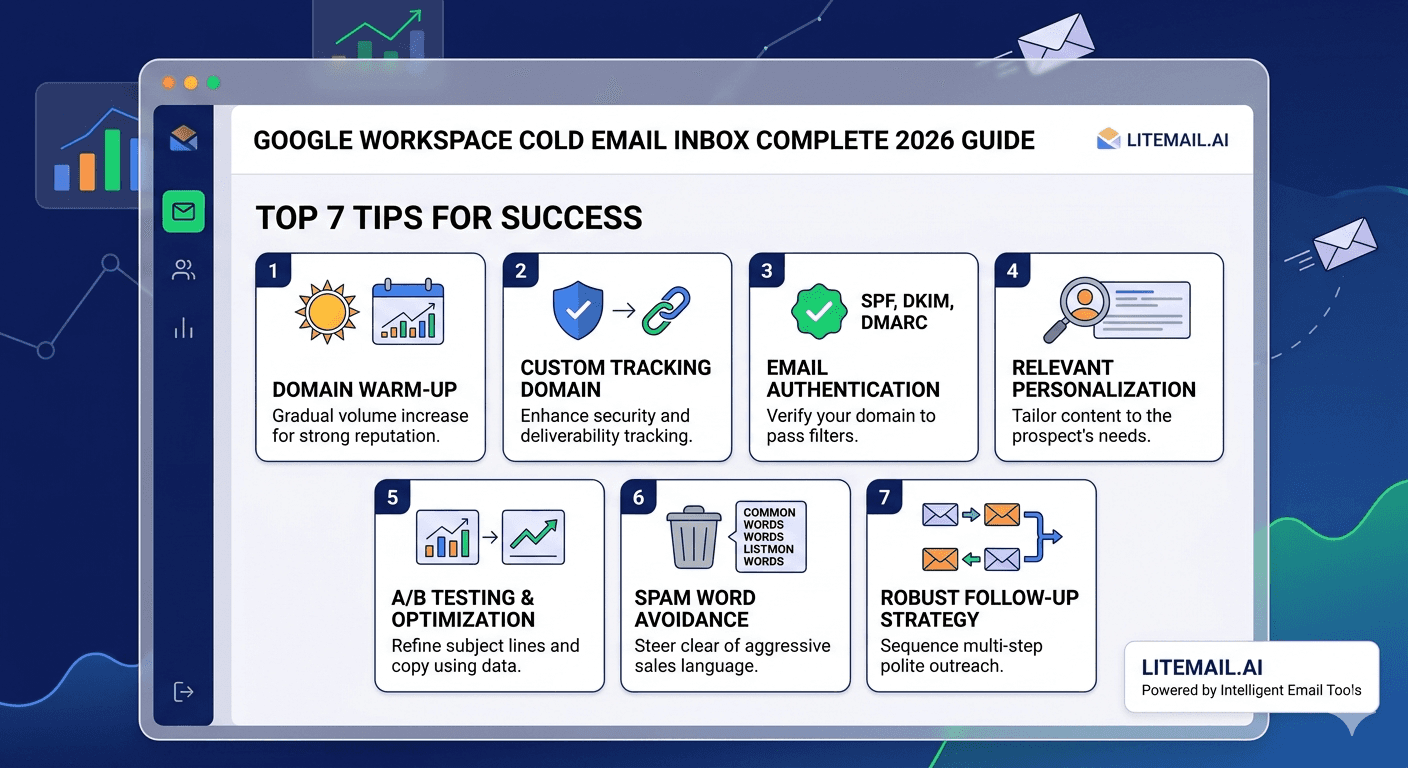
Google Workspace inboxes for cold email are not a simple plug-and-play solution. While Google Workspace provides reliable business email infrastructure, its default settings are designed for normal business communication rather than structured outbound campaigns.
Running successful Google Workspace cold email campaigns requires careful configuration of domains, inbox settings, authentication records, sending practices, and security controls. Factors such as daily sending limits, SPF/DKIM/DMARC setup, inbox reputation, and email warm-up all influence whether your messages consistently reach the inbox.
A properly configured Google Workspace setup helps businesses maintain strong deliverability, protect sender reputation, and scale outreach across multiple sending domains. On the other hand, incorrect configuration choices can gradually reduce performance through lower inbox placement, higher bounce rates, and weaker engagement.
In this guide, we will cover the practical Google Workspace cold email setup strategies for 2026, including inbox configuration, sending limits, domain setup, DNS authentication, rotation methods, warm-up practices, and the key settings that determine whether your Google Workspace inboxes deliver successfully or lose reputation over time.
The GWS Inbox Settings That Matter Most
💡 TL;DR
The Google Workspace settings that most affect cold email performance: DKIM must be configured at 2048-bit (not the 1024-bit legacy default), DMARC must be published at minimum p=none, sending limits should stay at 30–50 emails/inbox/day (not GWS's 2,000/day technical limit), and inboxes should connect to sending platforms via OAuth not SMTP. Pre-warmed GWS inboxes from Litemail ($4.99/inbox) handle all DNS configuration automatically and arrive with Good/High Postmaster reputation — the most impactful single setting for cold email deliverability.
This guide covers the specific GWS configuration tips that practitioners running cold email at scale actually use — not the defaults, not the basics every guide covers, but the specific settings that separate high-performing GWS cold email from mediocre results.
How To Configure Google Workspace Inboxes for Cold Email in 2026
Setting up Google Workspace inboxes for cold email requires more than simply creating a new Gmail account and connecting it to an outreach tool. A reliable setup requires proper domain structure, mailbox configuration, security settings, and sending practices.
The goal is to create inboxes that look and behave like legitimate business communication accounts while maintaining strong sender reputation.
Use Secondary Domains Instead of Your Primary Business Domain
One of the most important configuration decisions is separating your main business domain from your cold email sending domains.
Your primary domain is responsible for:
Customer communication
Team collaboration
Business operations
Brand reputation
Using it for large-scale cold outreach creates unnecessary risks.
Instead, agencies and outbound teams typically use secondary domains dedicated to outreach campaigns.
Example:
Primary domain:
Cold email domains:
This structure helps protect your main domain while allowing you to create independent sending environments.
Create Professional Google Workspace Mailboxes
After setting up secondary domains, create professional inboxes under each domain.
Example:
Avoid using generic or suspicious-looking addresses.
Professional mailbox names usually include:
First name
Last name
Department name (when appropriate)
Examples:
Good:
Avoid:
A natural-looking inbox creates better trust signals with email providers and recipients.
Configure Google Workspace Security Settings
Before launching campaigns, complete basic account security configuration.
Important settings include:
Enable two-factor authentication
Add account recovery information
Verify domain ownership
Maintain secure login practices
Avoid frequent account changes
Stable account behavior helps maintain consistent mailbox reputation.
Connect Outreach Platforms Properly
When connecting Google Workspace inboxes with cold email platforms, use secure authentication methods whenever possible.
Modern outreach platforms commonly support OAuth connections, which provide:
Secure authorization
Better account protection
Easier management
Reduced authentication problems
Before launching campaigns, test inbox connections and confirm that sending and receiving work correctly.
Plan Inbox Distribution for Scaling
Do not depend on a single Google Workspace inbox for all outreach activity.
A scalable setup distributes sending across multiple inboxes.
Example:
Instead of:
Use:
This approach makes campaign management easier and provides better control as outreach volume increases.
Google Workspace Cold Email Deliverability Settings That Matter
Google Workspace cold email deliverability depends on multiple technical and operational factors. Creating inboxes is only the first step — proper authentication, reputation management, and sending practices determine whether emails consistently reach recipients.
A strong deliverability setup focuses on:
Domain authentication
Inbox reputation
Sending behavior
List quality
Monitoring
Configure SPF Authentication
SPF (Sender Policy Framework) allows email providers to verify which servers are authorized to send emails from your domain.
A properly configured SPF record helps:
Authenticate outgoing emails
Reduce spoofing risks
Improve domain trust
For Google Workspace users, SPF configuration is usually added as a DNS TXT record through your domain provider.
Enable DKIM Authentication
DKIM (DomainKeys Identified Mail) adds a digital signature to outgoing emails.
This allows receiving servers to confirm:
The email was sent from an authorized domain
The message was not modified during delivery
Google Workspace administrators can generate DKIM keys from the Admin Console and publish them through DNS settings.
Set Up DMARC Protection
DMARC combines SPF and DKIM authentication to provide additional domain protection.
A DMARC policy helps organizations:
Monitor authentication results
Prevent unauthorized email usage
Improve domain security
Many businesses start with a monitoring policy before moving toward stricter enforcement.
Monitor Inbox Reputation
Deliverability is not only about technical setup.
Mailbox reputation is influenced by:
Bounce rates
Spam complaints
Engagement levels
Sending patterns
Email quality
Regular monitoring helps identify issues before they affect campaign performance.
Use Google Postmaster Tools
Google Postmaster Tools provides insights into domain reputation and email performance.
It can help monitor:
Spam rates
Domain reputation
Authentication status
Delivery performance
For businesses using Google Workspace for cold email, monitoring reputation data is an important part of maintaining healthy sending infrastructure.
Maintain Healthy Sending Practices
Even correctly configured inboxes can experience deliverability problems if sending behavior is poor.
Best practices include:
Start with lower sending volumes
Increase gradually
Keep bounce rates low
Verify email lists
Avoid sending irrelevant messages
Monitor campaign performance
A successful Google Workspace cold email strategy focuses on long-term inbox health rather than maximum daily volume.
DNS Configuration Tips Most Guides Underspecify
SPF, DKIM, and DMARC are covered in every cold email guide. The specific implementation details that actually matter are usually glossed over.
DKIM — Always Configure at 2048-Bit
Google Workspace's default DKIM key length is 1024 bits for older accounts. The current standard — and Google's own recommendation — is 2048-bit. 2048-bit DKIM provides stronger authentication that's more resistant to spoofing, which receiving servers increasingly use as a positive trust signal. In Google Admin Console: Apps → Google Workspace → Gmail → Authenticate Email. Generate a new key and select 2048-bit length. Litemail configures 2048-bit DKIM automatically on every inbox delivery.
DMARC Policy Progression
Most teams publish DMARC at p=none and leave it there. The correct progression: p=none for the first 30 days (monitoring only), p=quarantine after 30 days of clean sending, p=reject after 60 days of clean sending history. p=reject tells receiving servers to discard (not spam-folder) emails that fail authentication — the strongest possible sender identity signal. Most cold email guides never mention this progression.
SPF Flat vs Include — Keep It Clean
SPF records have a 10-lookup limit. Every "include:" statement uses one lookup. Common mistake: adding multiple services to the same SPF record (Google, Mailchimp, Salesforce, etc.) on the same sending domain used for cold email. Keep cold email sending domains separate from domains that host multiple service SPF records — a clean SPF record with only Google's include improves authentication reliability.
GWS Sending Settings for Cold Email
Google Workspace's technical sending limit is 2,000 emails/day per account. The cold email safe limit is 30–50 emails/day per inbox. These numbers seem wildly different — and they are. The 2,000/day limit is a technical ceiling Google imposes to prevent abuse of individual accounts. The 30–50/day limit is the practical ceiling determined by deliverability, not Google's rules.
Why does this matter? Because teams often read about the 2,000/day limit and assume they can send up to that volume. They can't — not without reputation damage. Google's spam filters detect bulk-sending patterns well below the stated technical limit. Sending 200+ emails/day from a single GWS inbox triggers algorithmic scrutiny that begins degrading reputation within 2–3 weeks, regardless of how legitimate the content is.
The Per-Inbox Volume Cap — Enforce It in Your Platform
Set daily volume caps in your sending platform (Instantly, Smartlead) at the inbox level — not just at the campaign level. 40 emails/inbox/day is a safe starting point for pre-warmed inboxes. 30 emails/inbox/day for the first two weeks on any new sending domain, even with pre-warmed inboxes.
OAuth vs SMTP — Always Choose OAuth for Cold Email
Most sending platforms give you a choice: connect via OAuth (sign in with Google) or SMTP (username/password with app password). OAuth is always the better choice for cold email GWS inboxes — and Google is progressively restricting SMTP access for Workspace accounts.
OAuth advantages for cold email specifically:
Google's security systems treat OAuth-connected sessions differently from SMTP — OAuth appears as a legitimate application access pattern, SMTP can trigger additional account monitoring
OAuth connections are more stable — they don't break when Google prompts for security verification on the account
OAuth enables proper List-Unsubscribe header injection by your sending platform — required for Google's 2026 bulk sender guidelines (5,000+ emails/day to Gmail)
OAuth allows your sending platform to correctly handle bounce notifications and reply detection
If you have GWS inboxes currently connected via SMTP to a sending platform, switch them to OAuth. The connection process takes 3–5 minutes per inbox and immediately improves connection stability.
Google Postmaster Tools — The One Setting Most Teams Skip
Google Postmaster Tools is free, takes 10 minutes to set up, and is the most direct view into how Gmail treats emails from your sending domains. Most cold email teams either don't set it up at all, or set it up and never check it.
Add every sending domain to Postmaster Tools by verifying domain ownership via a DNS TXT record. Once verified, Postmaster shows domain reputation (High, Good, Medium, Low, Unknown), spam rate, delivery errors, and authentication rates. Check weekly — more frequently (every 2–3 days) once volume crosses 500 emails/day.
One setting most teams miss: in Postmaster Tools, you can configure email alerts for reputation changes. Set this up — it means you get notified when domain reputation drops from Good to Medium rather than discovering it three weeks later when reply rates have collapsed. Litemail pre-warmed GWS inboxes show Good or High within 48 hours of delivery, so you're not starting from Unknown on day one.
Pre-Warmed GWS Inboxes With Every Setting Optimised Out of the Box
Litemail pre-warmed GWS inboxes — $4.99/inbox, automated 2048-bit DKIM, SPF, DMARC, Good/High Postmaster within 48 hours, OAuth-compatible with all major platforms. Delivered in 24 hours.
Get Pre-Warmed GWS Inboxes from $4.99 →
Automated DNS · Good/High Postmaster within 48hrs · OAuth-compatible · No minimum order
About Litemail — Litemail provides pre-warmed Google Workspace and Microsoft 365 inboxes for cold email outreach. From $4.99/inbox with automated DNS, dedicated US and EU IPs, and full admin access. View pre-warmed inbox plans →
Related reading:
Google Workspace Cold Email Domain Setup · SPF/DKIM/DMARC Auto-Setup 2026 · Google Postmaster Tools Setup for Cold Email · Pre-Warmed GWS Inboxes — Cold Email Open Rates · Best Pre-Warmed Inbox Providers 2026 (Ranked)
Key Takeaways
Configure DKIM at 2048-bit — not the 1024-bit legacy default. In Google Admin Console: Apps → Gmail → Authenticate Email → generate new 2048-bit key. Litemail sets this automatically on every inbox delivery.
Progress DMARC policy over time: p=none for first 30 days, p=quarantine at 30 days, p=reject at 60 days. p=reject is the strongest sender authentication signal — most guides never mention this progression.
Stay at 30–50 emails/inbox/day despite GWS's 2,000/day technical limit. Spam filter algorithms detect bulk-sending patterns well below the technical ceiling — reputation degradation begins at sustained volumes above 50–70 emails/day.
Always connect GWS inboxes to sending platforms via OAuth — not SMTP. OAuth is more stable, supports List-Unsubscribe headers, and Google is progressively restricting SMTP access for Workspace accounts.
Set up Google Postmaster Tools alerts for reputation changes — don't just check weekly, get notified when a domain drops from Good to Medium before reply rates collapse.
Pre-warmed GWS inboxes from Litemail handle DKIM, SPF, DMARC, and Postmaster reputation automatically. The first check on any fresh inbox setup is whether all three DNS records pass on MXToolbox.
Frequently Asked Questions
How many cold emails can I send per day from a Google Workspace inbox?
Safe limit: 30–50 emails/day. Technical limit: 2,000/day. These are very different numbers. Google's spam filter algorithms detect bulk-sending patterns well below the stated technical limit — sustained sending above 50–70 emails/day from a single inbox triggers reputation degradation within 2–3 weeks regardless of content quality. Stay at 40 emails/inbox/day as a standard setting, with the option to ramp to 50 after confirming Good Postmaster reputation for 30+ days.
Should I connect Google Workspace to Instantly via OAuth or SMTP?
OAuth — always. OAuth is more stable, enables proper List-Unsubscribe header injection (required for Google's 2026 bulk sender guidelines), and is treated differently by Google's security systems than SMTP. Google is also progressively restricting app-password SMTP access for Workspace accounts. If you currently use SMTP, switch to OAuth — the connection process takes 3–5 minutes per inbox and immediately improves stability.
What DKIM key length should I use for Google Workspace cold email?
2048-bit. GWS defaults to 1024-bit for older accounts — check your existing configuration in Google Admin Console under Apps → Gmail → Authenticate Email. Generate a new 2048-bit key and publish it. The stronger key length is increasingly used as a positive authentication signal by receiving servers. Litemail configures 2048-bit DKIM automatically on every inbox delivery.
How do I check if my Google Workspace cold email is landing in spam?
Three checks: Google Postmaster Tools (domain reputation and spam rate — add your sending domain and check after 48 hours of sending), Mail-Tester.com (send a test email and get a 1–10 score — aim for 9/10+), and seed email accounts in Gmail and Outlook (send test emails to addresses you control and check folder placement). Pre-warmed Litemail inboxes show Good or High Postmaster reputation within 48 hours of delivery — if your inbox shows Unknown or Low after sending, DNS configuration or sending history is the issue.
Why is my Google Workspace inbox going to spam after weeks of good performance?
Common causes: a list segment with high bounce rate pushed domain reputation from Good to Medium (check Postmaster Tools), sending volume spiked beyond per-inbox safe limits, DNS records changed (DKIM key rotation sometimes breaks configuration), or a blacklist hit on your sending IP or domain (check MXToolbox). The decline usually shows in Postmaster Tools 2–3 days before reply rates visibly drop — which is why weekly Postmaster monitoring catches this before it becomes expensive.
GWS Inboxes With Every Setting Already Optimised
Litemail pre-warmed GWS inboxes — $4.99/inbox, 2048-bit DKIM, SPF, DMARC all configured automatically, Good/High Postmaster reputation within 48 hours, dedicated US and EU IPs, OAuth-compatible. No minimum order. Delivered in 24 hours. Skip the configuration and start sending.
Get Pre-Warmed GWS Inboxes from $4.99 →
No minimum order · Automated DNS · Good/High Postmaster within 48hrs · Works with Instantly, Smartlead, Lemlist
About Litemail — Litemail provides pre-warmed Google Workspace and Microsoft 365 inboxes for cold email outreach. From $4.99/inbox with automated DNS setup, dedicated US and EU IPs, 4 to 12 weeks of genuine warm-up history, and full admin access. View pre-warmed inbox plans →
Related reading: Google Workspace Cold Email Domain Setup · SPF/DKIM/DMARC Auto-Setup 2026 · Google Postmaster Tools Setup · Best Pre-Warmed Inbox Providers 2026 (Ranked)






