
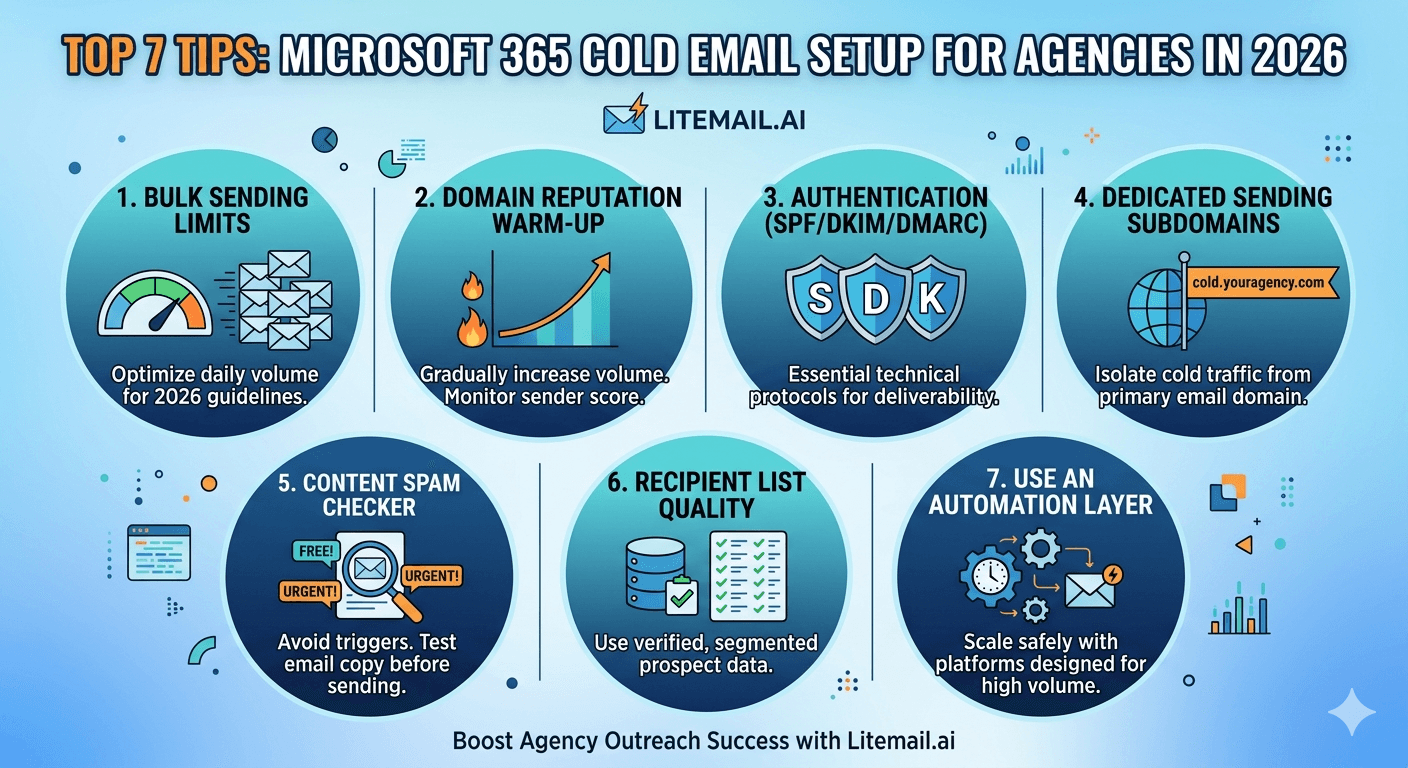
Microsoft 365 cold email setup for agencies has a handful of decisions that most setup guides skip — and those skipped decisions are almost always the source of the deliverability problems that show up 6 weeks into client campaigns. These seven tips cover the configuration choices that separate agencies with stable MS365 infrastructure from agencies spending half their time troubleshooting placement drops they can't diagnose.
Tip 1: Start With Pre-Warmed MS365 Inboxes — Not Fresh
The most impactful setup decision comes before any configuration: whether to use pre-warmed or fresh MS365 inboxes for client campaigns.
Fresh MS365 inboxes require 6–8 weeks of warmup before campaign launches. During warmup, primary inbox placement is 40–60% — meaning client campaigns launched too early produce poor results that agencies spend time explaining. Litemail pre-warmed MS365 inboxes arrive with 4–12 weeks of genuine warmup history, verified Good/High Postmaster reputation, automated DNS, and full admin access.
For agencies: the 6–8 week client onboarding delay is eliminated. A new client's campaigns can launch 24–48 hours after infrastructure is ordered. At $4.99/inbox with no minimum order, 6 inboxes for a new client cost $29.94/month.
Tip 2: Never Use the Client's Primary Domain for Cold Email
This is the setup mistake that causes the most irreversible damage. Cold email campaigns on the client's primary business domain put their entire brand email reputation at risk — invoices, proposals, support communications, all of it.
Every client needs dedicated secondary sending domains: clientbrand-outreach.com, getyourclient.com, or a descriptive variant. Two to three domains per client creates rotation flexibility. Each domain hosts 2–3 MS365 inboxes. The primary domain is never touched for cold email infrastructure.
Tip 3: Enable DKIM on Both Selectors for MS365
Microsoft 365 DKIM uses two selectors — selector1 and selector2 — as part of their rotation architecture. Both need to be configured and enabled for reliable DKIM signing.
The process: Microsoft 365 Defender → Policies → Email Authentication Settings → DKIM → select your domain → Create DKIM keys → adds both selector1 and selector2 CNAME records to publish in DNS → after DNS propagation (15–60 minutes) → return to Defender and enable DKIM signing.
Common agency mistake: publishing only selector1 or not enabling DKIM signing after publishing the CNAME records. Check: MXToolbox DKIM lookup for both selector1.[yourdomain.com] and selector2.[yourdomain.com] should both return valid records. Gmail header check should show dkim=pass on test sends.
Tip 4: OAuth Over SMTP — Every Time
MS365 inboxes can connect to campaign platforms via SMTP or Microsoft OAuth. OAuth is the correct choice for every agency client setup.
OAuth advantages over SMTP for agency MS365 cold email:
Stability: OAuth tokens are more stable than SMTP password credentials. SMTP connections break when passwords change or accounts get flagged for suspicious activity. OAuth tokens persist through routine credential management.
Platform features: Most platforms (Instantly, Smartlead) unlock full inbox health monitoring, send analytics, and health score features exclusively for OAuth connections — SMTP connections miss these monitoring features.
Security: OAuth doesn't expose plaintext passwords to the sending platform — only scoped access tokens that can be revoked without changing the account password.
Tip 5: Check Microsoft SNDS Monthly for All Client Sending IPs
Google Postmaster Tools gets all the attention in cold email deliverability monitoring — but for agencies whose clients have MS365-heavy prospect lists, Microsoft SNDS (Smart Network Data Services) is equally important.
SNDS tracks IP reputation with Microsoft's mail infrastructure — the network that processes email for corporate Outlook recipients. A Red SNDS status means emails from that IP are being filtered or blocked by Microsoft silently — no bounce notification, no obvious signal in campaign data. The first indicator is often a drop in open rates from @corporate-company.com addresses that open-rate tracking can isolate.
Monthly SNDS check: sendersupport.olc.protection.outlook.com → enter sending IPs → confirm Green status. Register in Microsoft JMRP for Outlook complaint notifications. Both free. Both essential for MS365 agency cold email.
Tip 6: Set Round-Robin in Platform Settings After Every New Sub-Account
Platform sub-accounts for agency clients don't always default to round-robin rotation — and priority-order rotation silently concentrates volume on the first inboxes in a client's pool, pushing them past safe daily limits while underutilising the rest.
After every new client sub-account setup in Instantly, Smartlead, or any other platform: verify rotation mode is set to round-robin. Verify per-inbox daily limit is set to 35–40/inbox (not platform default). Verify minimum send gap is configured at 90–120 seconds. These three settings are the most commonly incorrect after a new sub-account creation — and the most impactful on sustained deliverability.
Tip 7: Maintain an MS365 Standby Pool Separate From GWS Standby
Most agencies maintain a single standby inbox pool for incident replacement. The more resilient model maintains separate GWS and MS365 standby pools — because replacing a failed MS365 inbox with a GWS inbox changes the platform match for recipient environments where MS365 was achieving better placement.
For agency clients with MS365-heavy prospect lists (corporate Outlook recipients), replacing a failed MS365 inbox with a GWS standby temporarily drops placement with those recipients from 91–94% to 81–86%. Not catastrophic — but avoidable by maintaining separate standby pools.
Practical standby model: 1 GWS standby per 5 active GWS inboxes. 1 MS365 standby per 5 active MS365 inboxes. With Litemail's no-minimum-order and 24-hour delivery, restocking standbys is same-day after use.
Pre-Warmed MS365 Inboxes for Agency Cold Email — Litemail
All seven tips start with the right infrastructure. Litemail pre-warmed MS365 inboxes — automated DNS, full admin access, dedicated IPs, Good/High Postmaster on every delivery, no minimum order. $4.99/inbox.
Get Pre-Warmed MS365 Inboxes from $4.99 →
Automated DNS · Full admin access · Dedicated IPs · Good/High Postmaster · No minimum order
About Litemail — Litemail provides pre-warmed Google Workspace and Microsoft 365 inboxes for cold email outreach. From $4.99/inbox with automated DNS, dedicated US and EU IPs, and full admin access. View pre-warmed inbox plans →
Related reading:
Pre-Warmed MS365 for Lead Gen Agencies · MS365 Cold Email Complete Setup · Cold Email Microsoft Compliance · Agency Inbox Rotation · Troubleshooting MS365 Cold Email
Key Takeaways
Start with pre-warmed MS365 inboxes — Litemail at $4.99/inbox — to eliminate the 6–8 week warmup delay and launch client campaigns within 24–48 hours of infrastructure ordering.
Never use the client's primary domain for cold email. Register 2–3 dedicated secondary domain variants per client and keep the primary domain completely separate from outreach infrastructure.
Enable DKIM on both MS365 selectors (selector1 and selector2) and confirm both are active before running any campaigns. Check with MXToolbox DKIM lookup on both selectors after setup.
Use OAuth — not SMTP — for all MS365 platform connections. OAuth is more stable, more secure, and unlocks full inbox health monitoring features in Instantly, Smartlead, and other platforms.
Check Microsoft SNDS monthly for all client sending IPs. Register in Microsoft JMRP for Outlook complaint notifications. Both are free and both are essential for agencies with MS365-heavy client prospect lists.
Verify round-robin rotation mode and per-inbox daily limits (35–40) after every new platform sub-account creation. Maintain separate GWS and MS365 standby pools for platform-matched incident replacement.
Frequently Asked Questions
What are the most important MS365 cold email setup tips for agencies?
Seven: (1) Use pre-warmed MS365 inboxes — not fresh — to launch campaigns in 24–48 hours. (2) Use dedicated secondary domains, never client primary domains. (3) Enable DKIM on both selector1 and selector2 in MS365 Defender. (4) Connect via Microsoft OAuth, not SMTP. (5) Check SNDS monthly for all sending IPs. (6) Set round-robin and 35–40/inbox/day after every new platform sub-account. (7) Maintain separate MS365 and GWS standby pools. Each tip addresses a specific common failure mode at agency scale.
Why should agencies use OAuth instead of SMTP for MS365 cold email?
OAuth is more stable (tokens don't break on password changes), more secure (no plaintext password exposure to the platform), and unlocks full inbox health monitoring features in sending platforms. SMTP connections break when passwords change or accounts are flagged — causing silent campaign pauses that agencies often don't notice until open rates are already down. OAuth connections are resilient to routine credential management and provide better platform integration across all major cold email tools.
How do agencies configure DKIM for Microsoft 365 cold email?
In Microsoft 365 Defender: Policies → Email Authentication Settings → DKIM → select domain → Create DKIM keys → add the provided selector1 and selector2 CNAME records to DNS → wait for propagation (15–60 minutes) → return to Defender and enable DKIM signing. Verify with MXToolbox DKIM lookup on both selectors and Gmail header check (dkim=pass required). Litemail pre-warmed MS365 inboxes arrive with DKIM already configured and enabled — the verification confirms what's already working.
What is Microsoft SNDS and why do agencies need to check it?
Microsoft SNDS (Smart Network Data Services) tracks sending IP reputation with Microsoft's email infrastructure — the network that processes email for corporate Outlook recipients. A Red SNDS status means Microsoft is filtering or blocking mail from that IP silently — no bounce notification appears in campaign data. For agencies with clients targeting enterprise companies (manufacturing, financial services, legal) where corporate Outlook is dominant, SNDS is as important as Google Postmaster Tools. Check monthly at sendersupport.olc.protection.outlook.com.
Should agencies keep separate MS365 and GWS standby inbox pools?
Yes — for clients with platform-differentiated prospect lists. Replacing a failed MS365 inbox with a GWS standby drops primary inbox placement with corporate Outlook recipients from 91–94% to 81–86%. For client campaigns heavy in MS365-hosted corporate contacts, platform-matched replacement matters. The practical model: 1 MS365 standby per 5 active MS365 inboxes, 1 GWS standby per 5 active GWS inboxes. With Litemail's 24-hour delivery and no minimum order, restocking after incident use is same-day.
What daily send limit should agencies set for MS365 inboxes?
35–40 emails per inbox per day for sales cold email outreach. 25–30 per day for link building outreach (higher complaint rate environment). MS365's technical limit is 10,000/day — far above the practical safe ceiling for cold email reputation health. Configure this limit in the campaign platform settings for every client sub-account after creation, and verify after any platform updates that may reset settings to defaults.
MS365 Setup for Agencies | Litemail Pre-Warmed Inboxes
Pre-warmed MS365 at $4.99/inbox. Automated DNS, full admin access, dedicated IPs. New client campaigns in 24–48 hours.
View Plans & Pricing →
Related reading:
MS365 for Lead Gen Agencies · MS365 Complete Setup · Microsoft Compliance · Agency Inbox Rotation · Troubleshooting MS365