
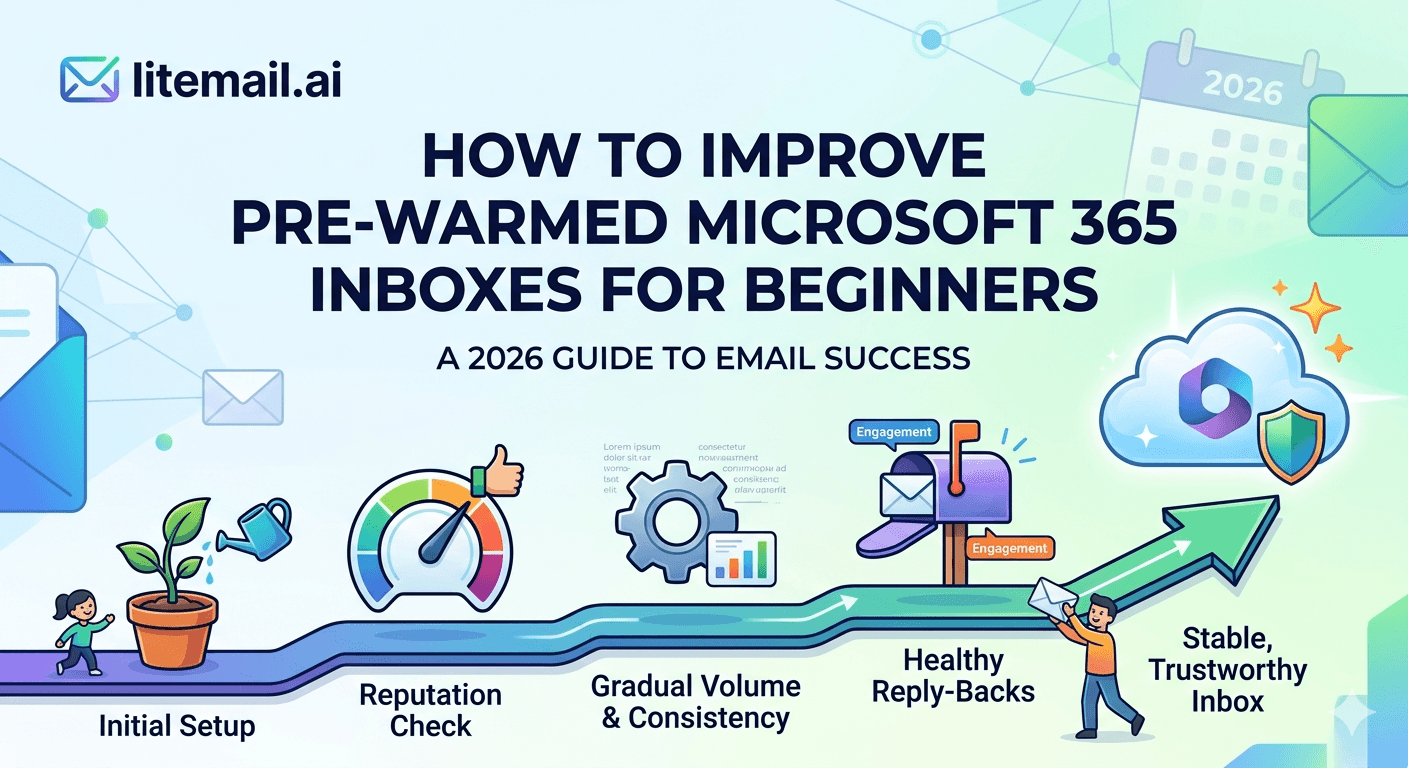
You've heard that pre-warmed inboxes improve cold email deliverability. You've bought a pre-warmed Microsoft 365 inbox. Now what? Most beginner guides skip the part between "buy pre-warmed inbox" and "get replies" — which is where most first-timers lose their campaigns. This guide fills that gap.
What a Pre-Warmed MS365 Inbox Actually Is (And Isn't)
A pre-warmed Microsoft 365 inbox is a genuine Microsoft 365 account — the same product you'd buy directly from Microsoft — that has been used for real email activity for 4–12 weeks before you receive it. That activity builds a sending history and domain reputation that new accounts take weeks to develop on their own.
What it is: a Microsoft 365 account with warm-up history, clean DNS authentication records, and a domain reputation that mail servers read as legitimate. What it isn't: a magic deliverability fix that works regardless of what you send or who you send it to. The inbox provides the infrastructure advantage. Your list quality, copy relevance, and sending behaviour determine the results.
What Pre-Warming Does | What It Doesn't Do |
|---|---|
Establishes sending history so mail servers trust the domain | Fix bad list hygiene — dirty lists still bounce |
Builds domain reputation in Microsoft and Google filtering systems | Override poor email copy that triggers spam filters |
Allows you to send campaigns from day one without a warmup period | Guarantee replies — that depends on targeting and copy |
Provides the deliverability foundation for consistent inbox placement | Protect against sending to spam trap-heavy lists |
Your First 30 Minutes After Receiving the Inbox
This checklist covers every verification step a beginner needs to run before sending the first campaign email. Don't skip any of them — each catches a different type of setup failure.
1️⃣Log Into Microsoft 365 Admin Center
Go to admin.microsoft.com and log in with the admin credentials your provider sent. You should see the Microsoft 365 admin dashboard. If you only received an email address and password without admin access, contact your provider — SMTP-only delivery means you don't have full control of your inbox.
2️⃣Verify DNS on MXToolbox
Go to mxtoolbox.com. Enter your sending domain and run the Email Health check. All five items — MX, SPF, DKIM, DMARC, and blacklist — should show green. Any red item needs to be fixed before you send. If you bought from Litemail, all five should be pre-configured and green from delivery.
3️⃣Send a Test to Mail-Tester.com
Go to mail-tester.com. Copy the test email address it shows. Send a plain-text email from your new inbox to that address. Check your score. 9/10 or 10/10 means the inbox is correctly configured and campaign-ready. Below 9/10, look at which check failed and fix it before sending campaigns.
4️⃣Check Microsoft SNDS
Go to sendersupport.olc.protection.outlook.com and look up your sending IP. Green means your IP has clean status with Microsoft's servers. This check is especially important for cold email campaigns targeting other Microsoft 365 tenants and Outlook.com users.
5️⃣Connect to Your Cold Email Platform via OAuth
In your sending platform (Instantly, Smartlead, Reply.io, or similar), go to account settings and add a new email account. Choose Microsoft 365 OAuth — not SMTP. Log in with your admin credentials. The OAuth connection is more stable than SMTP and doesn't require generating app passwords.
5 Beginner Mistakes That Kill MS365 Cold Email Results
These aren't hypothetical. These are the mistakes we see from first-time buyers in the first week after receiving their inbox.
Mistake 1: Sending 100 Emails on Day One
Even a pre-warmed inbox benefits from a gradual first week. Start at 20–25 emails per day for the first three days. Move to 30–35 from day four. Full volume (40–50/day) from week two. This isn't because the inbox isn't ready — it's because receiving mail servers need to observe your specific sending pattern before scoring it accurately. A sudden jump to full volume looks like a spike even on warm infrastructure.
Mistake 2: Skipping List Verification
A clean inbox cannot save a dirty list. If your prospect list has a bounce rate above 5%, your pre-warmed inbox will have its domain reputation degraded within days. Run every new list through NeverBounce or ZeroBounce before the first campaign send. Target under 2% hard bounce rate.
Mistake 3: Using SMTP Instead of OAuth
SMTP connections disconnect more frequently, require app passwords, and don't support all platform features. Use OAuth for MS365 inbox connections to your campaign platform. It's faster to set up and more reliable for long-running campaigns.
Mistake 4: Ignoring Unsubscribe Requests
Every opt-out request must be processed before the next send to that address. Most platforms handle this automatically — verify that your platform's opt-out detection is active. Sending to someone who replied STOP is one of the fastest ways to generate spam complaints that damage your inbox reputation.
Mistake 5: Not Checking Postmaster After the First Week
Google Postmaster Tools shows domain reputation for sends to Gmail addresses. Check it after your first week of sending — even from a pre-warmed MS365 inbox, the first week's sending behaviour contributes to or detracts from reputation signals. Catching a problem at week 1 is a 20-minute fix. Catching it at week 4 is a 60-day recovery project.
Daily Sending Limits: The Numbers Beginners Need
Here's the complete volume guide for beginners. These numbers apply to Litemail pre-warmed MS365 inboxes with 4–12 weeks of warmup history.
Week | Daily Send Limit Per Inbox | Recommended Check |
|---|---|---|
Week 1, Days 1–3 | 20–25 emails/day | Verify bounce rate and complaint rate daily |
Week 1, Days 4–7 | 30–35 emails/day | Check Postmaster Tools end of week |
Week 2+ | 35–50 emails/day | Weekly Postmaster check |
Keep spam complaint rate under 0.08%. Keep hard bounce rate under 2%. If either goes above these thresholds in the first week, pause and fix the list before continuing — not after another 500 sends.
What Results to Expect as a Beginner
Setting the right expectations matters. Pre-warmed inboxes improve deliverability — the rate at which your emails reach the primary inbox. They don't improve reply rate on their own. Reply rate depends on your targeting, your copy, and the relevance of your offer.
Realistic first-month benchmarks for a beginner using a Litemail pre-warmed MS365 inbox, sending to a verified B2B list with a clear ICP:
Primary inbox placement rate: 88–94% (vs 40–60% on a fresh unwarmed inbox)
Open rate: 35–50% (heavily influenced by subject line and sender name)
Reply rate: 2–5% (depends on copy and list quality — not inbox infrastructure)
Hard bounce rate: Under 2% (if list was verified before sending)
If your open rate is below 20% with a pre-warmed inbox on a verified list, the problem is your subject line or sender name — not the inbox. If reply rate is below 1%, the problem is targeting or copy. The inbox did its job. Fix the next variable in the chain.
Get Started Right — Pre-Warmed MS365 Inboxes from Litemail
Everything in this guide works out of the box with Litemail pre-warmed MS365 inboxes. DNS pre-configured. Full admin access. Verified Good reputation. $4.99/inbox. Delivered in 24 hours.
Get Pre-Warmed MS365 Inboxes from $4.99 →
Full admin access · Automated DNS · Dedicated US and EU IPs · No minimum order
About Litemail — Litemail provides pre-warmed Google Workspace and Microsoft 365 inboxes for cold email outreach. From $4.99/inbox with automated DNS, dedicated US and EU IPs, and full admin access. View pre-warmed inbox plans →
Related reading:
Pre-Warmed MS365 Inboxes: Warm-Up History Explained · Troubleshooting MS365 Cold Email 2026 · Cold Email Inbox Warm-Up Mistakes · Cold Email Deliverability Guide 2026 · Pre-Warmed Inbox Buying Mistakes 2026
Key Takeaways
A pre-warmed MS365 inbox provides the deliverability foundation — sending history and domain reputation. List quality and copy quality determine reply rates on top of that foundation.
Run 5 verification checks within 30 minutes of receiving any pre-warmed inbox: admin login, mxtoolbox DNS check, mail-tester.com score, Microsoft SNDS check, and OAuth connection to your sending platform.
Start at 20–25 emails per day for the first 3 days even on a pre-warmed inbox. Full volume (35–50/day) from week two. Volume spikes on day one look like anomalies even on warm infrastructure.
Run your prospect list through an email verification tool before the first campaign send. A clean pre-warmed inbox cannot protect against a dirty list — high bounce rates degrade domain reputation regardless of warmup history.
Use OAuth to connect MS365 inboxes to your campaign platform — not SMTP. OAuth is more stable and supports more platform features.
Check Google Postmaster Tools after the first week of sending. A problem caught at day 7 is a 20-minute fix. Caught at day 30, it's a 60-day recovery project.
Frequently Asked Questions
What is a pre-warmed Microsoft 365 inbox for cold email?
A pre-warmed Microsoft 365 inbox is a genuine MS365 account that has been used for real email activity for 4–12 weeks before you receive it, building a sending history and domain reputation. This means it can send cold email campaigns from day one without the 6–8 week warmup period required for fresh accounts. Litemail pre-warmed MS365 inboxes include automated DNS setup, full admin access, and dedicated US and EU IP addresses at $4.99/inbox.
How many cold emails can I send per day from a pre-warmed MS365 inbox?
Start at 20–25 emails per day for the first 3 days, move to 30–35 from day 4, and operate at 35–50 per day from week 2 onward. Keep spam complaint rates under 0.08% and hard bounce rates under 2%. These thresholds apply regardless of inbox warmup history — sending behaviour determines whether the reputation stays clean after delivery.
Do I need to do anything to a pre-warmed inbox before sending?
Yes — run 5 verification checks: confirm admin access at admin.microsoft.com, check DNS on mxtoolbox.com (SPF, DKIM, DMARC, MX, blacklist), send a test to mail-tester.com and confirm 9/10 or 10/10, check your sending IP on Microsoft SNDS, and connect to your campaign platform via OAuth. These 5 checks take 30 minutes and catch the setup failures that kill campaigns before they start.
Why is my open rate low even with a pre-warmed MS365 inbox?
If your open rate is below 20% on a pre-warmed inbox with a verified list, the issue is your subject line or sender name — not the inbox infrastructure. Pre-warmed inboxes improve inbox placement (getting the email into the primary folder), but open rate depends on whether the recipient decides to open it. Test subject line variations. Ensure your sender name is a real person's name, not a company name. These two variables account for most open rate variance.
Can I use a pre-warmed MS365 inbox with Instantly, Smartlead, and Reply.io?
Yes. Litemail pre-warmed MS365 inboxes connect via full Microsoft OAuth to Instantly, Smartlead, Reply.io, Lemlist, Saleshandy, and all major cold email platforms. The OAuth connection takes under 2 minutes per inbox. Full admin access means you can connect to multiple platforms — though most teams use one platform per inbox to keep sending volume clean.
What should I do if my mail-tester.com score is below 9/10?
Check which specific item failed in the mail-tester report — it identifies exactly which DNS record or configuration is causing the score reduction. Most below-9 scores come from DKIM issues (not activated in Microsoft 365 Defender), missing or misconfigured DMARC records, or SPF alignment problems. Fix the flagged item, wait 30–60 minutes for DNS propagation, and re-test before sending any campaign emails.
Pre-Warmed MS365 Inboxes for Beginners | Litemail
Everything configured before delivery. Full admin access. $4.99/inbox. Campaign-ready in 24 hours — no setup complexity.
View Plans & Pricing →
Related reading:
MS365 Warm-Up History Explained · Troubleshooting MS365 Cold Email · Cold Email Deliverability Guide 2026 · Pre-Warmed Inbox Buying Mistakes · Best Pre-Warmed Inbox Providers 2026






