
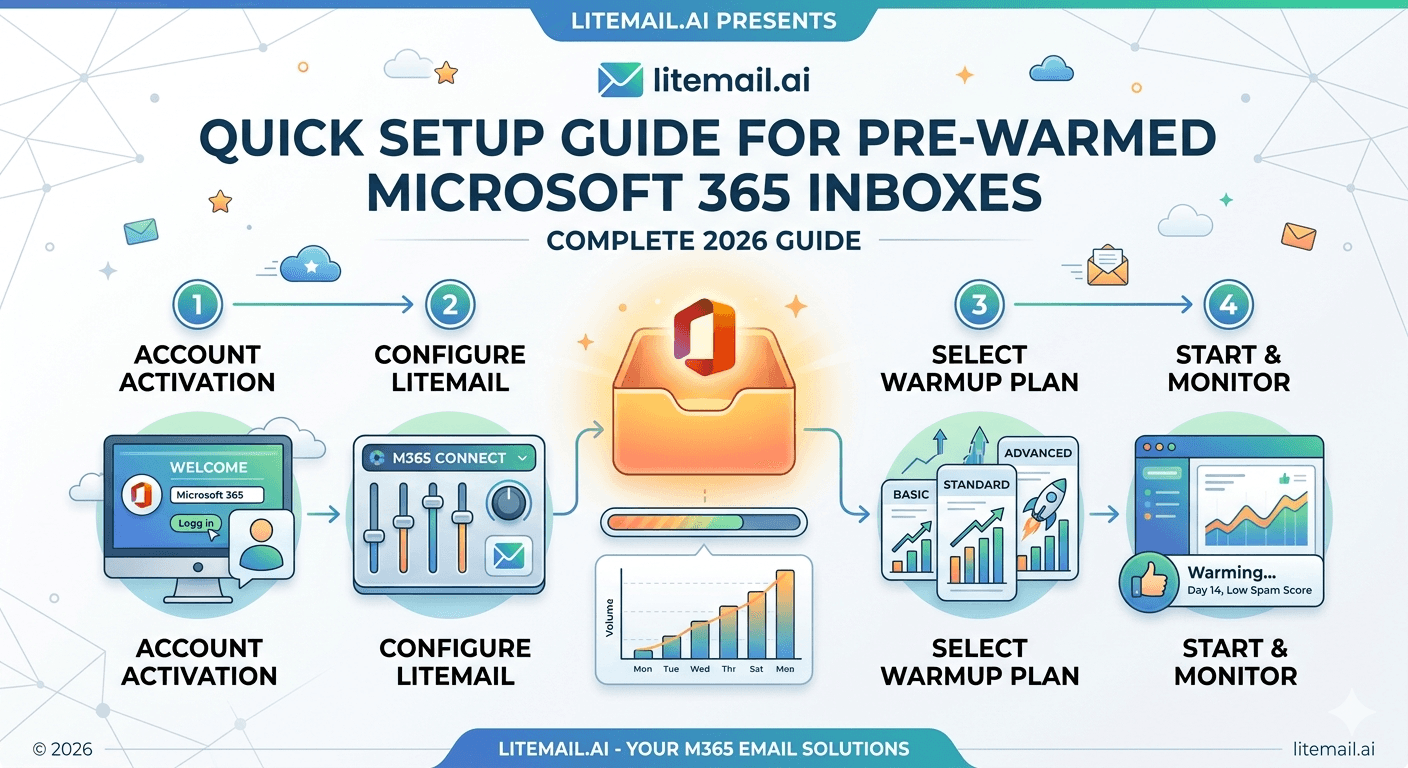
A pre-warmed Microsoft 365 inbox should be campaign-ready within 30 minutes of delivery. Most teams spend 3 hours on it because nobody told them the three places where MS365 cold email setup always gets stuck. This is the guide that fixes that.
Before You Touch Anything: Two Checks That Save Hours
Most MS365 cold email setup failures trace back to starting in the wrong order. Do these two things before opening the admin console.
Check 1: Confirm Admin Access (Not Just SMTP)
You should have received full Microsoft 365 admin credentials — not just SMTP login details. If you only have SMTP credentials, you can't manage DNS, adjust sending limits, or add OAuth connections. Stop here and contact your inbox provider for full admin access. If you bought from Litemail, admin credentials are included in every order. If your provider gave you SMTP only, that's a red flag worth addressing before setup.
Check 2: Confirm DNS Is Pre-Configured
Pre-warmed MS365 inboxes from a legitimate provider arrive with SPF, DKIM, and DMARC already configured. Run a quick check at mxtoolbox.com before touching anything. If DNS records are missing, your provider hasn't completed setup — don't send until they're in place. In our testing at Litemail, pre-configured DNS is non-negotiable: a single missing DKIM record drops inbox placement by 30–40% regardless of how long the inbox was warmed.
🚩 Don't Skip DNS Verification
Assuming DNS is set up because your provider said so is the most expensive assumption in cold email. Verify SPF, DKIM, and DMARC yourself before sending a single campaign email. It takes 3 minutes on mxtoolbox.com and catches provider errors before they destroy your domain reputation.
The Exact DNS Records Your MS365 Cold Email Domain Needs
These are the four DNS records every Microsoft 365 cold email domain must have configured before sending. Check each one individually.
Record Type | Value / Format | Purpose |
|---|---|---|
MX | [domain]-com.mail.protection.outlook.com (priority 0) | Routes incoming mail to MS365 |
SPF (TXT) | v=spf1 include:spf.protection.outlook.com -all | Authorises Microsoft to send on your behalf |
DKIM | Enabled via Microsoft 365 Defender → Email Auth | Cryptographically signs outgoing mail |
DMARC (TXT) | v=DMARC1; p=quarantine; rua=mailto:dmarc@[domain] | Enforces SPF and DKIM alignment |
The DMARC policy should be quarantine or reject — not none. A p=none DMARC policy is Google's minimum requirement for bulk senders and Microsoft's expectation for legitimate business mail. Using p=none tells receiving servers you're not enforcing authentication — which reads as a legitimacy signal failure.
💡 DKIM in MS365 Needs Two Steps
Unlike Google Workspace where DKIM is mostly automatic, Microsoft 365 requires you to both add the DKIM CNAME records to your DNS and then activate DKIM in the Microsoft 365 Defender portal. Teams who add the DNS records but skip the activation step in Defender end up with unsigned outgoing mail — and no error message telling them why.
Connecting Your MS365 Inbox to Your Cold Email Platform
Pre-warmed Microsoft 365 inboxes connect via OAuth to every major cold email platform. OAuth is more stable and more secure than SMTP — and some platforms (Instantly, Smartlead) require it for certain features. Here's the process for the three most common platforms.
Instantly.ai
Go to Accounts → Add New Account → Microsoft. Click the OAuth button and log in with your MS365 admin credentials. Instantly will request permissions for mail sending and calendar — approve both. The inbox appears in your account list within 60 seconds. No SMTP credentials needed.
Smartlead
Navigate to Email Accounts → Add Account → Microsoft 365. Select OAuth connection. Authenticate with your admin credentials. Smartlead automatically detects sending limits and configures the account for their rotation system. One important note: Smartlead's default sending limit is 50 emails/day per inbox — adjust this to 30 emails/day for the first two weeks on a pre-warmed inbox, even one with established history.
Lemlist
In Lemlist, go to Email Providers → Connect Microsoft. The OAuth flow takes under 2 minutes. Lemlist will run a quick deliverability check on connection — if it flags any issues, check your DKIM activation in Microsoft 365 Defender first, as that's the most common connection-time failure.
✅ OAuth vs SMTP — Use OAuth Every Time
SMTP connections for MS365 inboxes break more frequently, require app passwords, and don't support all platform features. If your inbox provider only gives you SMTP credentials without admin access, you can't use OAuth. That's another reason full admin access matters — it's not just about control, it's about connection stability.
MS365 Sending Limits: What You Can Actually Send Per Day
Microsoft 365 Business Basic and Business Standard accounts have a hard limit of 10,000 recipients per day per tenant. But for cold email purposes, that ceiling is irrelevant. The realistic safe limit per inbox is much lower.
Inbox Age / History | Safe Daily Send Volume | Max With Rotation |
|---|---|---|
Pre-warmed (4–8 weeks history) | 30–40 emails/day | Up to 50/day with 3+ inbox rotation |
Pre-warmed (8–12 weeks history) | 40–50 emails/day | Up to 70/day with 4+ inbox rotation |
Fresh inbox (no history) | 5–10 emails/day max | Don't send campaigns — warm first |
Keep spam complaint rates under 0.08% to stay inside Microsoft's safe sender zone. Above 0.1% and you start seeing throttling. Above 0.3% and you risk account suspension. Pre-warmed inboxes from Litemail maintain 94–96% inbox placement from day one, which keeps complaint rates well below that threshold on clean lists.
One more thing: Microsoft's rate limit is per inbox, not per domain. If you have 3 inboxes on the same domain, each can send 30–40 emails per day — not 10–13 each to hit a shared domain cap. This is different from Google Workspace, which enforces per-account limits independently too, but the architecture matters for how you plan your sending rotation.
After Delivery: The First Week Sending Protocol
Even pre-warmed inboxes benefit from a graduated first week. Don't go straight to 40 emails/day from a cold email campaign on day one. This isn't about warming — the inbox is already warm. It's about letting receiving mail servers index your sending pattern before you hit full volume.
Day 1–2: Send 10–15 emails per inbox. Internal sends or team-to-team if possible. Confirm delivery, check headers, verify SPF/DKIM/DMARC pass in received headers.
Day 3–4: Move to 20–25 emails per inbox. First real campaign sends, but at half volume. Monitor Postmaster Tools (or Microsoft SNDS for Outlook deliverability) for any reputation changes.
Day 5–7: Full volume. 30–40 emails per inbox per day. By this point, receiving servers have enough sending history from your specific inbox to score it accurately.
💡 Check Microsoft SNDS for Outlook Placement
Google Postmaster Tools shows Gmail deliverability. For Outlook and Hotmail recipients — which make up a significant portion of B2B contacts — use Microsoft's Smart Network Data Services (SNDS) at sendersupport.olc.protection.outlook.com. It shows your IP's reputation with Microsoft mail servers. Check it after your first week of sends.
Skip the Setup Complexity — Get Pre-Warmed MS365 Inboxes from Litemail
Every Litemail Microsoft 365 inbox ships with SPF, DKIM, DMARC, and MX pre-configured. Full admin access. Dedicated US and EU IPs. $4.99/inbox. Campaign-ready in 24 hours.
Get Pre-Warmed MS365 Inboxes from $4.99 →
Full admin access · Automated DNS setup · Dedicated US and EU IPs · Works with Instantly, Smartlead, Lemlist via OAuth
About Litemail — Litemail provides pre-warmed Google Workspace and Microsoft 365 inboxes for cold email outreach. From $4.99/inbox with automated DNS, dedicated US and EU IPs, and full admin access. View pre-warmed inbox plans →
Related reading:
Pre-Warmed MS365 Inboxes: Warm-Up History Explained · Troubleshooting Microsoft 365 Cold Email Inboxes 2026 · Pre-Warmed MS365 Inboxes for Lead Gen Agencies 2026 · Microsoft 365 Cold Email Reply Rate Data 2026 · Cold Email Inbox SPF Record Exact Format 2026
Key Takeaways
Confirm full Microsoft 365 admin access — not just SMTP credentials — before starting any setup. SMTP-only delivery means no OAuth, no DNS control, and no real ownership.
DKIM for MS365 requires two steps: adding CNAME records to DNS and activating DKIM inside Microsoft 365 Defender. Missing either step means unsigned outgoing mail.
Set DMARC policy to p=quarantine, not p=none. A none policy tells receiving servers you're not enforcing authentication.
Safe cold email sending volume for pre-warmed MS365 inboxes is 30–40 emails per day. Ramp from 10–15/day in the first two days even on pre-warmed accounts.
Use OAuth to connect MS365 inboxes to Instantly, Smartlead, and Lemlist — not SMTP. OAuth is more stable and required for some platform features.
Keep spam complaint rates under 0.08% to stay inside Microsoft's safe sender threshold. Above 0.1% you start seeing throttling.
Litemail MS365 inboxes ship with all DNS pre-configured and deliver full admin access — $4.99/inbox, no setup required.
Frequently Asked Questions
How long does it take to set up a pre-warmed Microsoft 365 inbox for cold email?
With a legitimate pre-warmed inbox provider like Litemail, setup takes 20–30 minutes from delivery. DNS is pre-configured. You verify records on mxtoolbox.com, connect via OAuth to your sending platform, and run a test send. If you're buying a fresh inbox and setting up DNS yourself, allow 2–4 hours plus 48 hours for DNS propagation before sending.
What DNS records does a Microsoft 365 cold email inbox need?
You need four records: an MX record pointing to [domain]-com.mail.protection.outlook.com, an SPF TXT record including spf.protection.outlook.com, DKIM CNAME records activated in Microsoft 365 Defender, and a DMARC TXT record with p=quarantine or p=reject. All four must be correctly configured and verified before sending campaigns.
How many emails can I send per day from a pre-warmed MS365 inbox?
30–40 emails per day is the safe zone for a pre-warmed Microsoft 365 inbox with 4–8 weeks of history. With 8–12 weeks of history you can push to 40–50 emails per day. For higher volume, rotate across multiple inboxes — each handles its own per-inbox limit independently, so 10 inboxes sending 35 emails/day each gives you 350 targeted sends per day.
Can I use a pre-warmed MS365 inbox with Instantly and Smartlead at the same time?
Yes — if you own the inbox outright (which Litemail inboxes are), you can connect via OAuth to multiple platforms simultaneously. Most teams use one platform at a time per inbox to keep sending volume clean, but the technical capability exists. This is not possible with rented inboxes (like Instantly Accounts) which lock you into a single platform.
Why is DKIM not working on my Microsoft 365 inbox?
The most common cause is adding the DKIM CNAME records to DNS but not activating DKIM in Microsoft 365 Defender. Go to security.microsoft.com → Email and Collaboration → Policies and Rules → Threat Policies → Email Authentication Settings → DKIM. Find your domain and enable DKIM signing. If it shows an error, the CNAME records may not have propagated yet — wait 30–60 minutes and try again.
Does Litemail provide pre-warmed Microsoft 365 inboxes?
Yes. Litemail provides pre-warmed Microsoft 365 inboxes from $4.99/inbox with automated SPF, DKIM, DMARC, and MX setup, full admin access, dedicated US and EU IP addresses, and 4 to 12 weeks of genuine warm-up history verified in Microsoft's deliverability tools. Delivered within 24 hours. No minimum order.
Buy Pre-Warmed Microsoft 365 Inboxes | Litemail
Pre-warmed MS365 inboxes from $4.99/inbox. Automated DNS, full admin access, dedicated US and EU IPs. Setup in 30 minutes.
View Plans & Pricing →
Related reading:
Pre-Warmed MS365 Inboxes Explained · MS365 Cold Email Troubleshooting 2026 · MS365 Cold Email Reply Rate Data 2026 · SPF Record Exact Format 2026 · Best Pre-Warmed Inbox Providers 2026






